How to Turn a Word Outline into a Professional PPT with Zendeck
Let's be honest: you've probably spent an entire afternoon copying bullet points from a Word document into PowerPoint, resizing text boxes, and praying the alignment holds. If that sounds familiar, this guide is for you. I'm going to walk through how Zendeck turns a Word outline into a professional PPT — and why the document-to-deck workflow is the fastest way to skip manual slide design without losing your content structure.
I. The outline-to-deck bottleneck
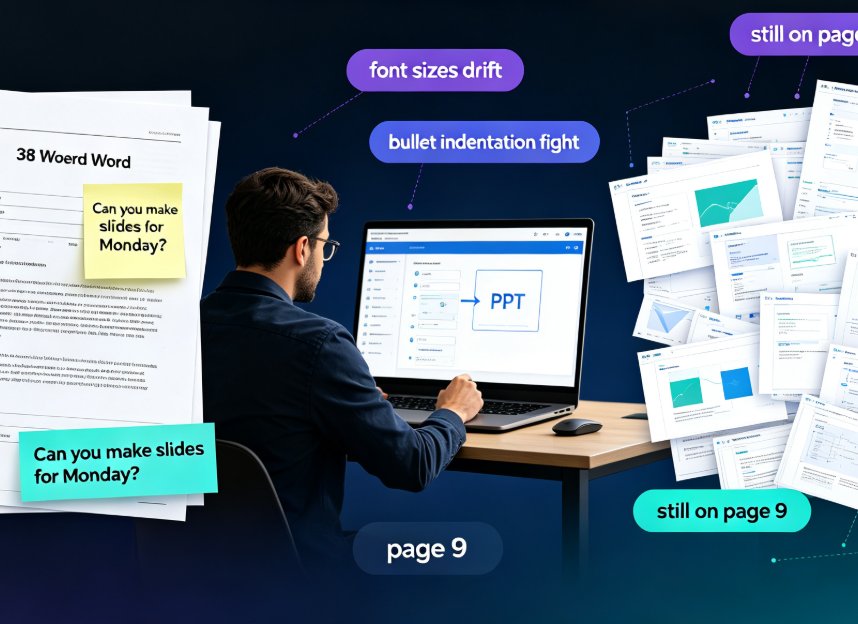
Every week, educators, trainers, and consultants face the same ritual. You write a thorough outline in Word — maybe it's a course syllabus, a training manual, or a client proposal — and then you have to turn it into slides. The manual path looks like this: copy text, paste it into a slide, resize the text box, pick a layout, repeat forty times. It's tedious, error-prone, and it eats hours you could spend on the actual content.
The real problem isn't the content. It's the translation layer. Word is built for linear reading; slides are built for visual scanning. Bridging that gap by hand is where most of the time goes. And if you're working with a 30-page document, the copy-paste grind becomes genuinely soul-crushing by slide twenty.
The average professional spends 2-3 hours reformatting a 30-page Word outline into slides — time that adds zero value to the content itself.
That's the pain point. Now the solution.
II. What Zendeck actually does with your Word file
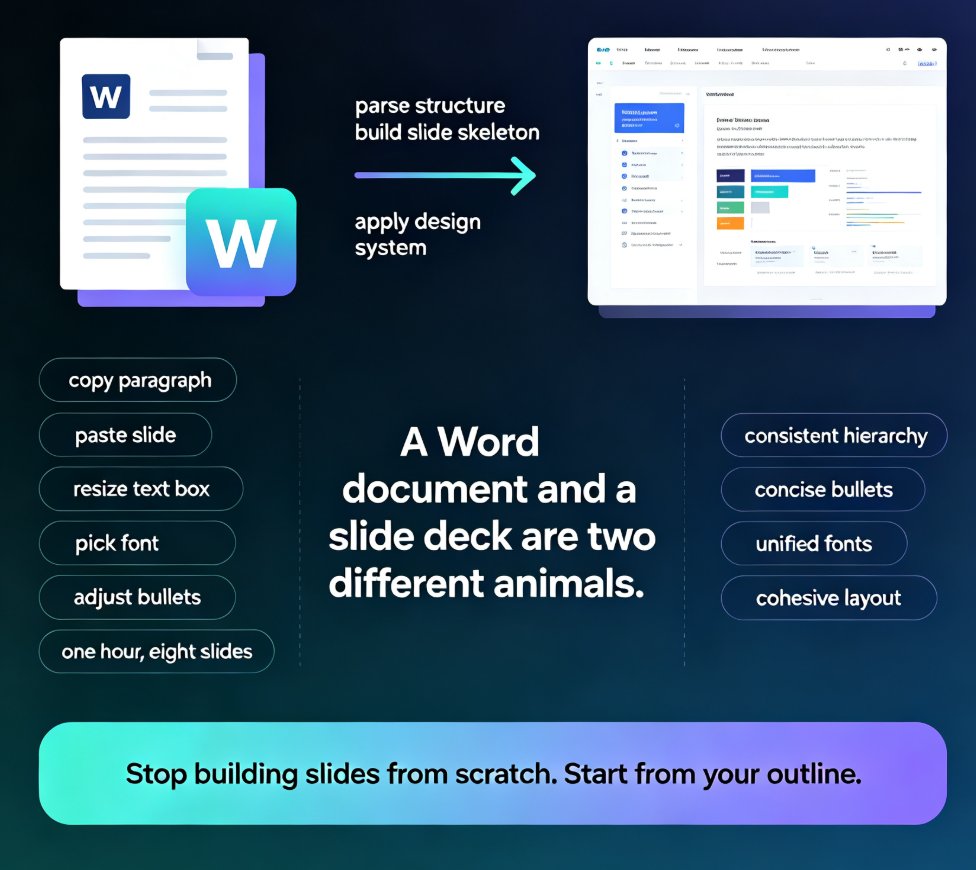
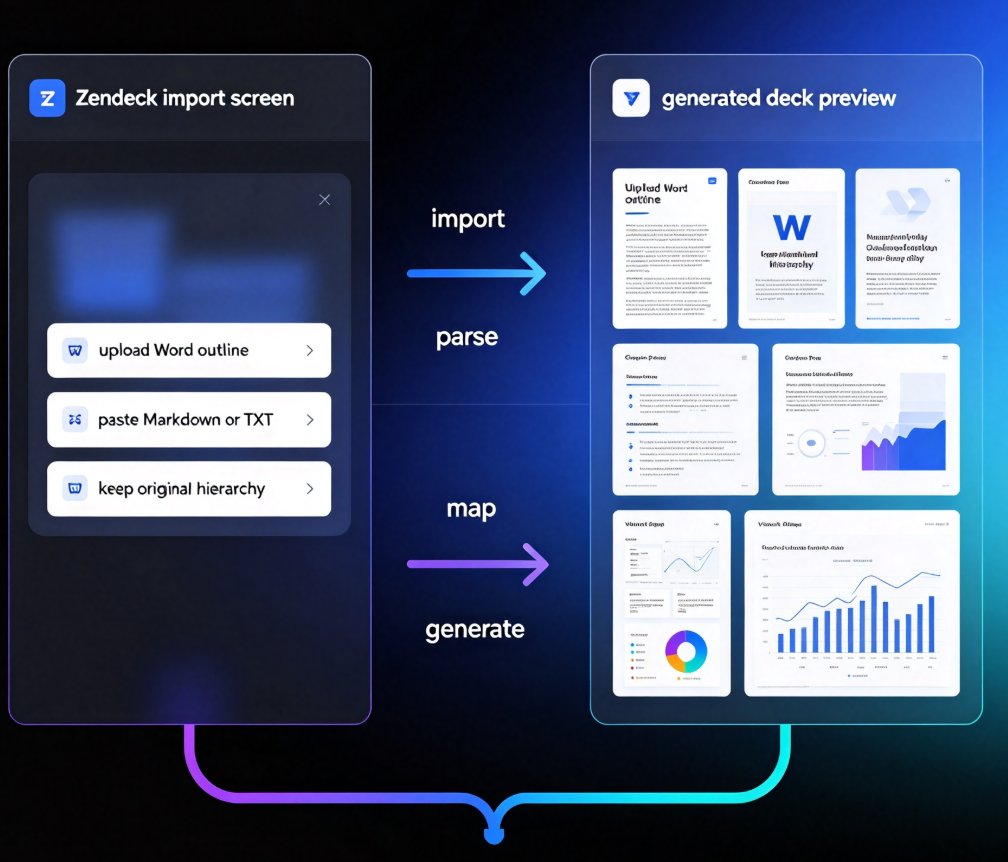
Zendeck treats your Word outline as the source of truth, not as raw material to be manually reshaped. You upload the document — or paste Markdown or TXT — and the platform parses the structure: headings become slide titles, subheadings become section breaks, and body text becomes bullet points or supporting content.
The key difference from a simple "import" is that Zendeck doesn't just dump text onto slides. It applies smart layouts, chooses a visual hierarchy, and keeps the deck visually consistent from the first slide to the last. You get structure preservation without the design work.
If you're already using Zendeck's AI presentation tools, you know the platform is built around this idea: content first, design second. The Word-to-deck pipeline is the most direct expression of that philosophy. And because Zendeck integrates with Word and Google Docs workflows, you can move between your writing tool and your presentation tool without friction.
III. Step-by-step: from Word outline to finished deck
Let's walk through the actual workflow, because the details matter.
Step 1: Prepare your outline. Zendeck works best when your Word document uses proper heading styles — Heading 1 for slide titles, Heading 2 for sub-points. If your document is plain text, don't worry; Zendeck can still parse it, but the cleaner the structure, the better the output. Think of it this way: the heading hierarchy in Word is the skeleton of your future deck.
Step 2: Upload or paste. You can drag a .docx file into Zendeck, or paste Markdown/TXT directly. The platform reads the hierarchy and maps it to slide structure automatically. No manual mapping, no "which slide does this belong to" guesswork.
Step 3: Choose a template. Zendeck's template library offers options tuned for education, corporate training, and business decks. The template you pick sets the color palette, fonts, and overall feel. If you're unsure which one fits, Zendeck's AI can suggest a template based on your content type — a feature that's covered in more depth in our guide to AI deck template selection.
Step 4: Generate. One click, and Zendeck produces a full deck. Each section of your outline becomes a slide or a group of slides, with the content laid out in a way that's readable at a glance. This is where the smart layout engine does its work — aligning elements, balancing whitespace, and applying consistent typography.
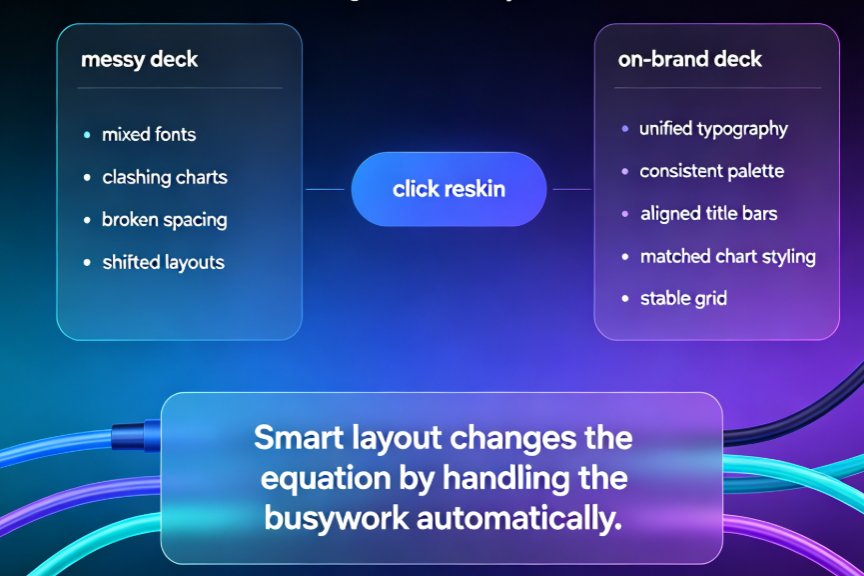
Step 5: Review and refine. No AI gets it perfect on the first pass. You'll want to check the flow, adjust a few slides, and maybe swap a template if the vibe is off. Zendeck's one-click reskin makes that painless — change the template and the whole deck updates. If you run into messy layouts, our guide on fixing AI-generated slides covers the common issues and their solutions.
The entire pipeline — from Word file to a structured, visually consistent deck — takes under ten minutes, including review time.
IV. Markdown and TXT: the same pipeline, fewer clicks
If you're a Markdown user — and a lot of technical trainers are — you can skip Word entirely. Write your outline in Markdown, paste it into Zendeck, and the same parsing logic kicks in. Headings become slides, lists become bullets, and code blocks or quotes get styled appropriately.
This is especially useful for teams that keep their course content in version-controlled repositories or documentation systems. You write once, generate a deck on demand, and never worry about formatting drift. The same applies to plain TXT files, which Zendeck handles with the same structure-detection logic.
V. After generation: smart layouts, reskin, and brand consistency
Here's where Zendeck goes beyond a simple converter. Once your deck exists, you can:
- Apply a one-click reskin to unify fonts, colors, and layout across all slides
- Use the asset library to drop in icons, charts, and illustrations
- Create a custom brand kit so every deck matches your organization's identity
For teams that produce decks regularly, this consistency layer is the real time-saver. You're not just converting a document; you're maintaining a visual standard without hiring a designer. This is also where Zendeck's approach to AI-generated asset libraries pays off — the icons and charts you add are designed to match the deck's visual language automatically.
| Task | Manual PowerPoint | Zendeck Word-to-Deck |
|---|---|---|
| Copy content into slides | 40+ copy-paste actions | Automatic parsing |
| Structure mapping | Manual heading review | Auto from heading styles |
| Visual consistency | Manual font/color fixes | Smart layouts + reskin |
| Template switching | Rebuild or manual restyle | One-click reskin |
| Time for 30-page outline | 2-3 hours | Under 10 minutes |
| Video output | Separate recording tools | Built-in PPT-to-video |
VI. Going further: turn the deck into a narrated video
Here's a bonus that surprises most people. Once your deck is polished, Zendeck can convert it into a narrated micro-course. Add voiceover, subtitles, and export it as a video. That means your Word outline doesn't just become a PPT — it can become a full training video without you recording a single slide manually.
For educators building online courses, this collapses what used to be a multi-day production into an afternoon. The narration feature is covered in detail in our guide to adding narration to slides, and if you're building training content, the PPT-to-video workflow is worth exploring.
A single Word outline can become a polished deck, a branded training asset, and a narrated video — all from the same source document.
FAQ
Q: What file formats can Zendeck import for deck generation? A: Zendeck accepts Word (.docx) files, Markdown, and plain TXT. For best results, use proper heading styles in Word or structured Markdown headings so the platform can map your outline hierarchy to slide structure accurately.
Q: Do I need to use heading styles in Word for Zendeck to work? A: No, but it helps. Zendeck can parse plain text and infer structure, but documents with proper Heading 1 and Heading 2 styles produce cleaner, more accurate slide mapping. If your document is unstructured, expect to do a bit more manual adjustment after generation.
Q: Can I change the template after Zendeck generates the deck? A: Yes. Zendeck's one-click reskin lets you switch templates at any point, and the entire deck updates to match the new template's colors, fonts, and layout. This is the fastest way to test different visual directions without rebuilding slides.
Q: Does Zendeck preserve my outline structure exactly? A: Zendeck preserves the logical hierarchy of your outline — headings become slide titles, subheadings become sections, and body text becomes content blocks. Minor adjustments may be needed for very long or complex outlines, but the core structure is maintained.
Q: Can I turn the generated deck into a video? A: Yes. Zendeck's PPT-to-video feature converts your finished deck into a narrated micro-course. You can add voiceover and subtitles, then export the result as a video — ideal for training content and online courseware.