How Does Zendeck Turn Word Outlines into Presentations in Minutes?
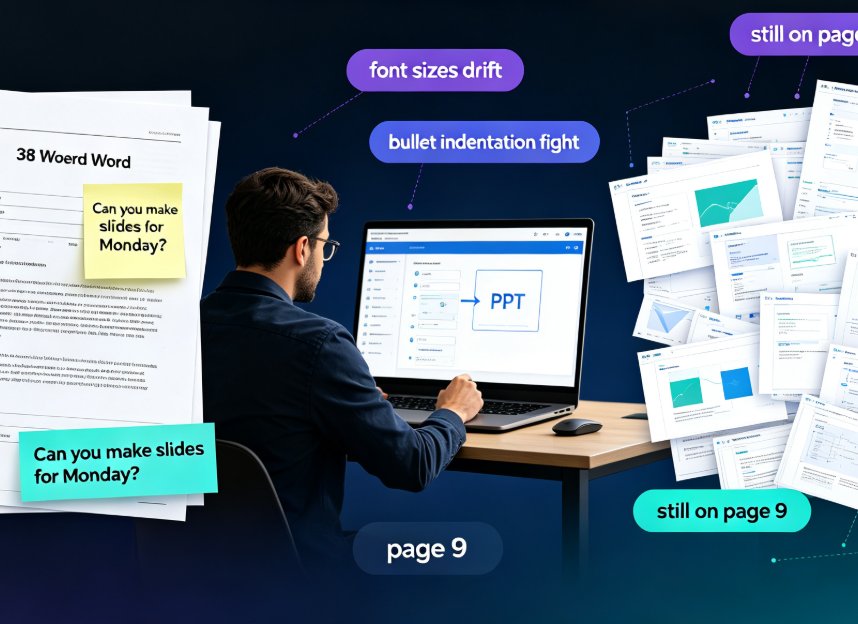
You've got a 40-page Word document sitting on your desktop. It's full of good ideas, solid research, and a clear structure. But now someone needs a presentation from it — and you're staring at a blank slide, wondering where to even start.
If that sounds familiar, you're not alone. Every week, trainers, consultants, and HR teams face the same awkward ritual: copy a paragraph from Word, paste it into PowerPoint, resize the text box, pick a font, adjust the bullet points, repeat. An hour later, you've got eight slides and a headache.
The good news: you don't need to build slides from scratch anymore. Zendeck reads your Word outline and turns it into a professionally designed presentation in minutes — not hours.
Here's how it works, what actually happens under the hood, and the outline habits that get you the best results.
I. The Real Problem: Word Documents Don't Become Slides by Themselves
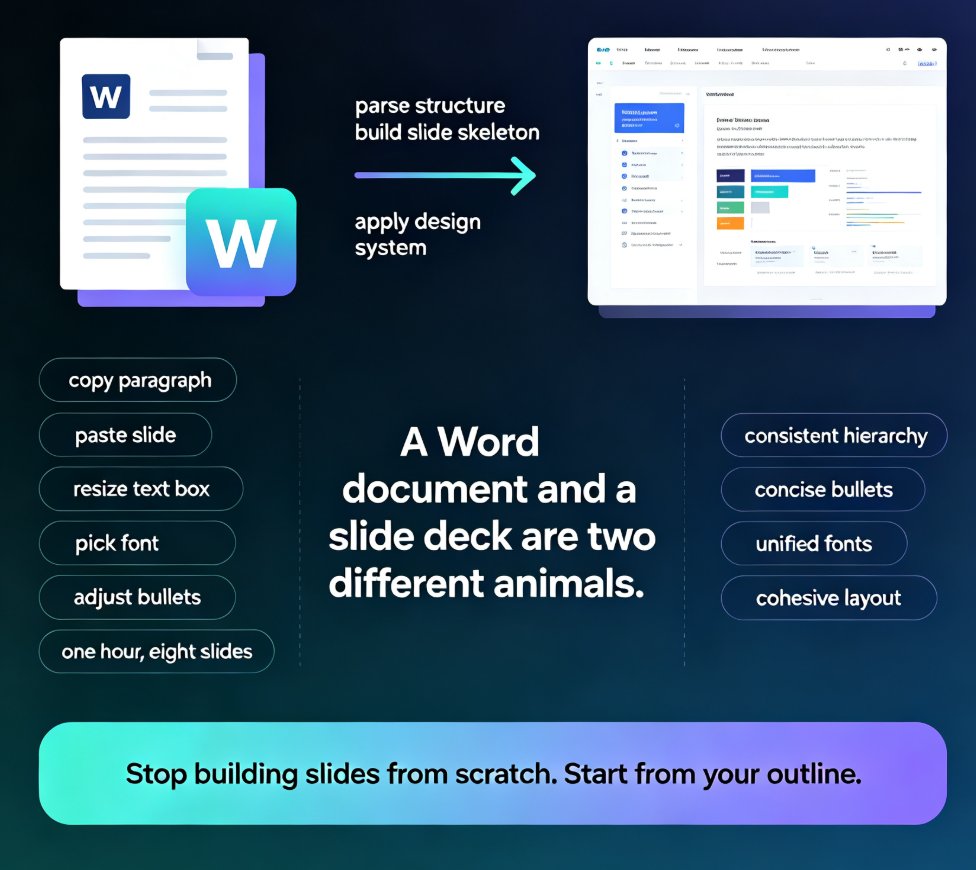
Let's be honest about why this is painful. A Word document and a slide deck are two different animals. Word is built for linear reading — dense paragraphs, long sentences, numbered sections. A presentation is built for scanning — short phrases, visual hierarchy, one idea per slide.
When you try to convert one into the other manually, you hit the same three walls every time:
Wall 1: Structure mapping. Your Word doc has Heading 1, Heading 2, Heading 3. Which level becomes a slide title? Which becomes a bullet? Which becomes a section divider? You end up making these calls slide by slide, and they're rarely consistent.
Wall 2: Design debt. Even if you get the content onto slides, it looks like a Word document wearing a PowerPoint costume. Default templates, mismatched fonts, text boxes that don't align. You spend more time fixing the look than the content.
Wall 3: Time. A 20-slide deck from a Word outline takes most people two to three hours of copy-paste, reformatting, and fiddling. And that's if nothing goes wrong.
The solution isn't a faster copy-paste. It's removing the manual step entirely — which is exactly what Zendeck's Word-to-PPT pipeline does.
II. What Zendeck Actually Does with Your Word Outline
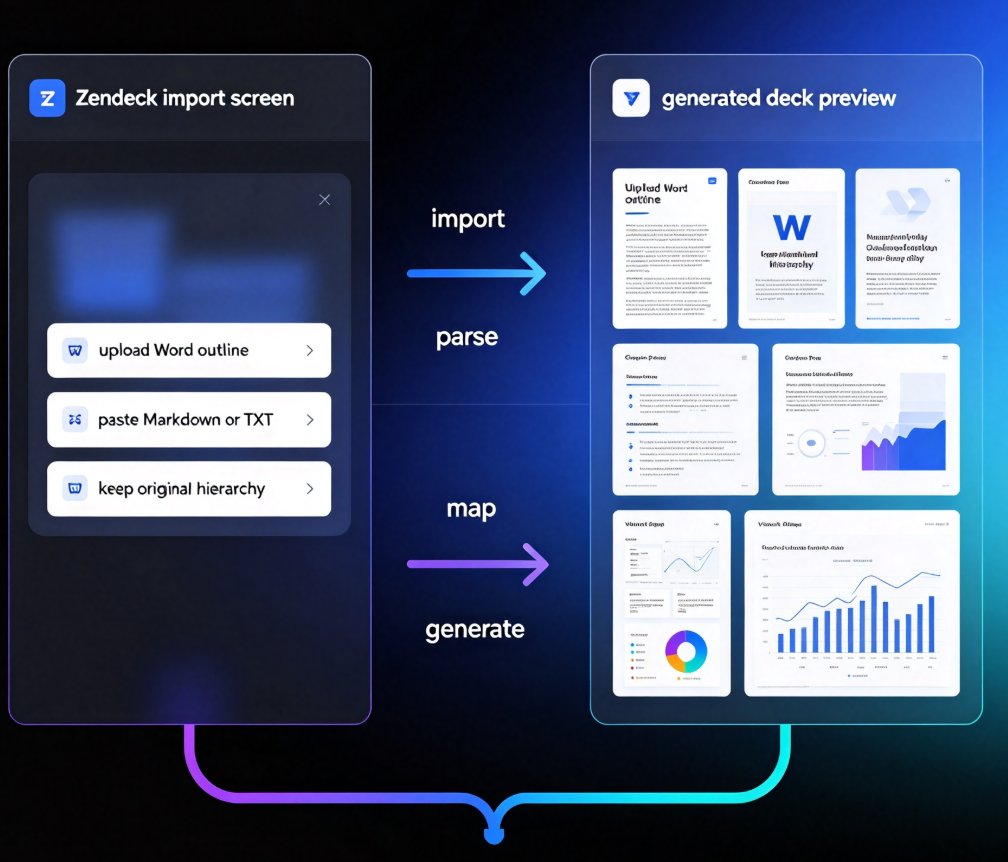
Zendeck treats your Word document as a source of truth, not raw material. When you upload a .docx file (or paste Markdown or plain text), the AI doesn't just dump your text onto slides. It does three things in sequence:
1. Parses the structure. Zendeck reads your heading hierarchy — Heading 1 becomes a section, Heading 2 becomes a slide title, body text and bullet lists become slide content. It understands the outline logic of your document.
2. Generates a slide skeleton. Each logical unit becomes a slide with a clear title, concise bullets, and a natural flow. The AI decides what belongs on one slide and what needs to be split across two.
3. Applies a design system. Instead of default formatting, Zendeck applies a coherent visual style — consistent fonts, colors, spacing, and layout rules across every slide. The result looks designed, not assembled.
The key difference: Zendeck doesn't reformat your document — it reinterprets it for a new medium. That's the difference between a tool that saves you typing and a tool that saves you thinking.
III. The Import Workflow: From .docx to Deck in Four Moves
Here's the actual workflow, step by step. If you've used Zendeck before, this will feel familiar; if you haven't, this is what "minutes" really looks like.
Step 1: Prepare your outline (2 minutes). Open your Word document and make sure your headings are styled as Heading 1, Heading 2, etc. You don't need to remove the body text — Zendeck will figure out what's a slide title and what's supporting content.
Step 2: Upload to Zendeck (30 seconds). Drag your .docx file into Zendeck, or paste your outline as Markdown or plain text. The platform accepts all three.
Step 3: Let the AI generate (1-3 minutes). Zendeck parses your structure, builds the slide skeleton, and applies a design template. You'll see a preview of the deck appear.
Step 4: Review and refine (5-10 minutes). This is where you add your judgment. Swap a template if the vibe is off, tweak a headline, move a bullet. Zendeck's smart layout tools let you reskin the whole deck with one click if you want a different look.
Total time: under 15 minutes for a 20-slide deck. Compare that to the two-plus hours of manual work.
IV. What "Professionally Designed" Actually Means
When Zendeck says it generates "professionally designed" slides, what does that mean in practice? Three things:
Visual consistency. Every slide uses the same font pairing, color palette, and spacing rules. No more slide 4 looking like it belongs to a different deck than slide 5.
Content hierarchy. The AI respects the relationship between titles, subtitles, and body text. A slide title is visually dominant; supporting points are clearly subordinate. Your audience can scan the deck in seconds.
Template intelligence. Zendeck's template library isn't a pile of generic layouts. The AI picks a template that matches your content type — a training deck gets a different treatment than a client pitch. If you want more control, you can set up a custom brand kit so every generated deck follows your organization's visual guidelines. (We've written a full guide on that here: 5 Ways to Create a Custom Brand Kit in Zendeck.)
The result: a deck that looks like a designer spent time on it — because the design system did.
V. How Much Time Does It Actually Save?
Let's put some numbers on this. Based on the typical workflow of a trainer or consultant building a 20-slide deck from an existing Word document:
| Task | Manual (minutes) | Zendeck (minutes) |
|---|---|---|
| Structuring content into slides | 60 | 5 |
| Designing layouts and visuals | 90 | 10 |
| Formatting and aligning | 45 | 5 |
| Reviewing and refining | 30 | 15 |
| Total | 225 | 35 |
That's roughly a 6x reduction in time — and the deck you get at the end is more consistent than anything most people produce by hand.
The biggest win is in design and structuring — the two tasks that require the most judgment and the most manual effort. Zendeck doesn't just speed those up; it removes them from your to-do list entirely.
VI. Getting the Best Results: Outline Hygiene Tips
Zendeck is smart, but it works best when your source document is well-structured. Here are the habits that separate a great AI-generated deck from a mediocre one:
Use real heading styles. Don't just bold your headings — apply Heading 1, Heading 2, and Heading 3 styles in Word. Zendeck reads the style hierarchy, not the visual formatting. If your document uses manual bold text instead of heading styles, the AI has to guess the structure.
Keep body text lean. A slide works best with short phrases, not full paragraphs. If your Word document has dense paragraphs under each heading, Zendeck will condense them — but it's easier for the AI (and better for your audience) if you trim the fat before uploading.
One idea per heading. If a Heading 2 section covers three different topics, Zendeck will either cram them onto one slide or split them awkwardly. Structure your outline the way you'd structure a deck: one main idea per section.
Add speaker notes if you have them. Zendeck can carry over notes from your Word document into the speaker notes field of each slide — a huge time-saver if you're repurposing training material.
A quick word on templates: don't overthink the template choice at the import stage. Zendeck picks a sensible default based on your content. You can reskin the entire deck with one click afterward, so the initial template is a starting point, not a commitment. If you want to understand how that selection works, we've covered it in detail in AI Deck Template Selection: How Zendeck Picks the Right Look for You.
VII. When Should You Still Do It Manually?
Let's be real: Zendeck isn't the answer for every single slide project. There are a few cases where manual work still makes sense:
Highly custom visual storytelling. If your deck is built around a specific visual metaphor, custom illustrations, or a carefully art-directed narrative, an AI-generated starting point might not save you much time.
Legally or compliance-heavy documents. If every word on every slide needs to be reviewed and approved, the bottleneck is the review process, not the slide generation.
One-off, three-slide updates. If you just need to tweak an existing deck, editing in place is faster than regenerating.
But for the common case — turning an existing Word document into a clean, professional deck — Zendeck is the faster path. And if you're regularly repurposing course material or training content, the time savings compound. (If you want to see how this fits into the broader shift away from traditional PPT workflows, check out Why AI Deck Generation Is Replacing Traditional PPT in 2026.)
FAQ
Q: What file formats can I import into Zendeck? A: Zendeck accepts Word (.docx) files, Markdown, and plain text outlines. You can upload a file directly or paste your outline as text. The AI parses the heading structure from any of these formats.
Q: How does Zendeck decide the slide structure from my Word document? A: Zendeck reads your heading hierarchy — Heading 1 sections become major sections, Heading 2 headings become slide titles, and body text and bullet lists become slide content. Using proper heading styles in Word helps the AI map your outline to slides more accurately.
Q: Can I edit the slides after Zendeck generates them? A: Yes. Zendeck generates a fully editable deck. You can change text, swap templates, adjust layouts, and apply a custom brand kit. The AI does the heavy lifting, but you keep full control over the final result.
Q: Does Zendeck preserve my brand colors and fonts? A: If you've set up a custom brand kit in Zendeck, the AI will apply your brand colors, fonts, and logo placement to every generated slide. Without a brand kit, Zendeck uses its template library defaults.
Q: How long does it take to convert a Word outline into a presentation? A: For a typical 20-slide deck, Zendeck generates the initial version in 1-3 minutes. With review and refinement, most people finish the whole process in under 15 minutes.