No Design Skills? Zendeck's Smart Layout Makes Anyone a PPT Pro
Let's be honest: most of us were never trained to design slides. We were trained to write content, analyze data, teach students, or run meetings. Yet somehow, every week, we're expected to open PowerPoint and produce something that doesn't make our boss wince.
If that sounds familiar, you're not alone. The gap between "I know what I want to say" and "I can make it look professional" is one of the most common frustrations in modern workplaces. And it's exactly the problem Zendeck's smart layout engine was built to solve.
01 Why Templates Alone Won't Save You
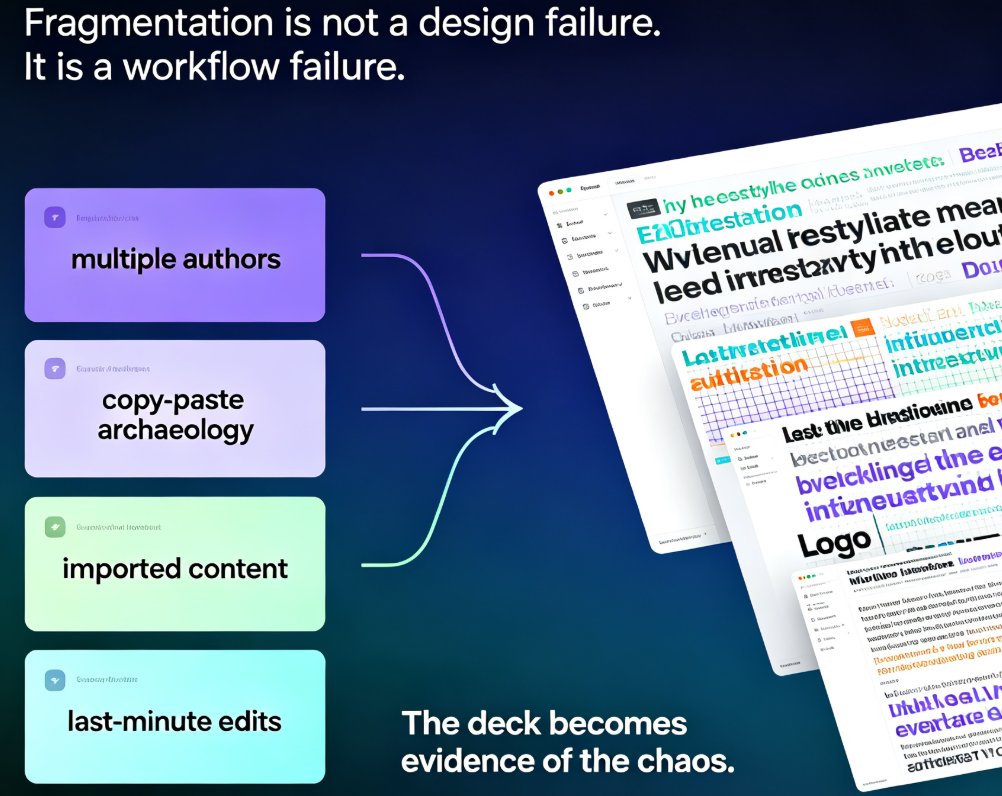
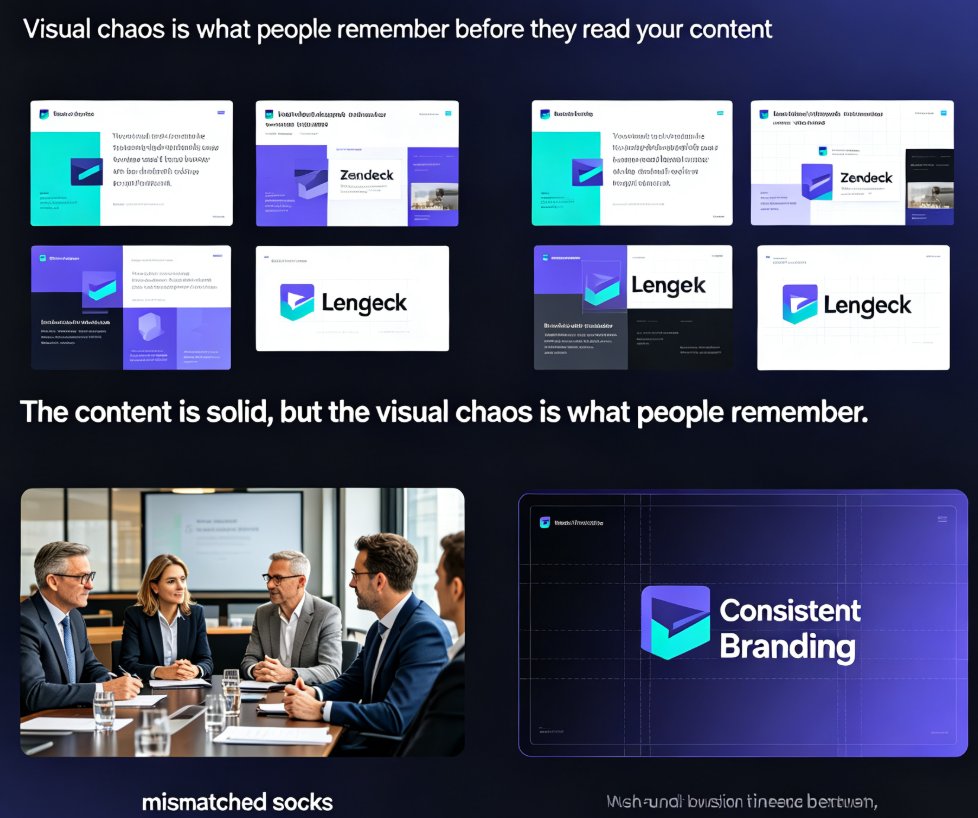
Here's the thing about traditional templates: they give you a frame, but they don't think. You drop in your content, and suddenly the text overflows, the images don't align, and the colors clash with your company's brand. You end up spending more time fighting the template than building the deck.
The real problem isn't that you lack design taste — it's that you lack the time and tools to apply it consistently.
Templates assume your content fits their predefined shapes. Real content never does. That's why so many decks end up looking "template-y" — or worse, broken. You've seen it a hundred times: a slide with three bullet points crammed into a box designed for two, an image stretched to fill awkward white space, a title that wraps onto three lines.
Every one of those issues is a design decision you're forced to make without any design training. And every one of them eats into the time you should be spending on the actual message.
02 What Smart Layout Actually Does
Zendeck's smart layout engine takes a completely different approach. Instead of forcing your content into fixed frames, it reads your content first — headings, bullet points, paragraphs, data — and then arranges it into a clean, balanced slide layout automatically.
Think of it as a design assistant that handles the grunt work: spacing, alignment, hierarchy, visual rhythm. You focus on the message; it handles the polish. The result is a deck that looks intentional, even if you've never opened a design tool in your life.
◉ How does the smart layout decide where everything goes?
The engine evaluates each content block's role — is it a title, a key point, a supporting detail, a statistic? — and assigns visual weight accordingly. Headlines get prominence, supporting points get structure, and data gets breathing room. The result is a slide that reads the way you'd naturally present it, with a clear visual hierarchy that guides your audience's attention.
◉ What happens when I add more content than fits?
This is where smart layout really shines. Rather than letting text spill off the slide or shrink to unreadable sizes, the engine rebalances the layout — adjusting font sizes, spacing, and element positions to keep everything readable and aligned. You don't need to manually resize anything. It's the difference between a tool that fights your content and one that adapts to it.
03 Real Scenarios: Who Benefits Most
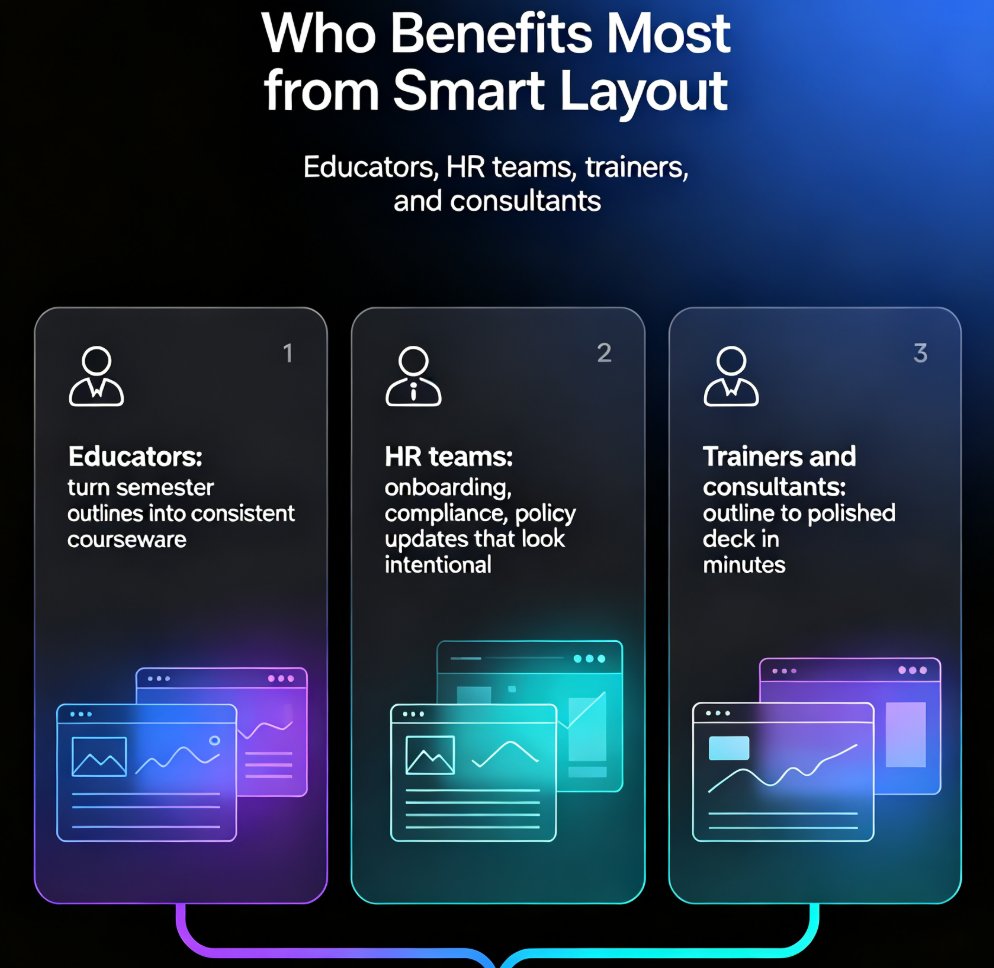
Educators building courseware
You've got a semester's worth of material and a deadline that's not moving. Smart layout turns your outline into structured, visually consistent slides that students can actually follow. No design degree required. And when you need to update a lesson, you just change the content — the layout reflows itself.
HR teams creating training decks
Onboarding, compliance, policy updates — these decks need to be clear, professional, and on-brand. Smart layout ensures every slide follows the same visual logic, so your training materials look intentional rather than assembled. That consistency builds trust with employees who are already drowning in information.
Trainers and consultants
When you're preparing client workshops or pitch materials, the last thing you want is to fiddle with alignment at 11 p.m. Smart layout gets you from outline to polished deck in minutes, so you can spend your energy on the actual content — the part your clients actually pay for.
If you're building training materials specifically, you might also want to check out AI presentation templates for trainers to see how the template library pairs with smart layout.
04 Smart Layout vs. Traditional Templates: A Quick Comparison
| Dimension | Traditional Templates | Zendeck Smart Layout |
|---|---|---|
| Content fit | You adjust content to fit the frame | Layout adapts to your content |
| Design consistency | Varies slide to slide | Unified automatically |
| Time to polish | High — manual tweaking required | Low — most alignment handled for you |
| Brand alignment | Manual setup, easy to break | Enforced through brand kit settings |
| Learning curve | Steep for non-designers | Minimal — content-first workflow |
| Scalability | Each deck starts from scratch | Reusable, consistent process |
The difference isn't subtle. With smart layout, the design work happens behind the scenes, so your only job is to make the content great. That's the whole value proposition — and it's why the tool works for people who'd never call themselves designers.
05 Getting the Best Results: What I've Learned
After watching dozens of people — myself included — use smart layout tools, a few patterns consistently produce better decks. These aren't official rules; they're just things I've noticed work.
Start with a clear outline. The engine works best when your content has structure. Headings, sub-points, and logical flow make the layout decisions obvious. If you dump in a wall of text, you'll get a wall of text — just better arranged. Take five minutes to sketch your structure first, and the output improves dramatically.
Let the layout do its thing before you judge it. Give the engine a first pass, then review. You'll often find the automatic arrangement is better than what you'd have built by hand. Resist the urge to start tweaking immediately; see what the engine produces first.
Use a brand kit. If your organization has brand colors and fonts, set them once. Smart layout will apply them consistently across every slide, which is a huge win for team decks. For a deeper look, here's how to create a custom brand kit in Zendeck for consistent decks.
Don't overstuff slides. Even the best layout engine can't save a slide with twelve bullet points. Smart layout will keep it readable, but your audience will still struggle. If a slide feels crowded, split it into two — the engine will handle both effortlessly.
If your slides still feel off even after using AI tools, you might find why your AI-generated slides look messy and how Zendeck fixes it helpful.
06 Beyond Layout: The Rest of the Workflow
Smart layout is the foundation, but it's not the whole story. Once your slides are arranged, Zendeck's ecosystem handles the rest:
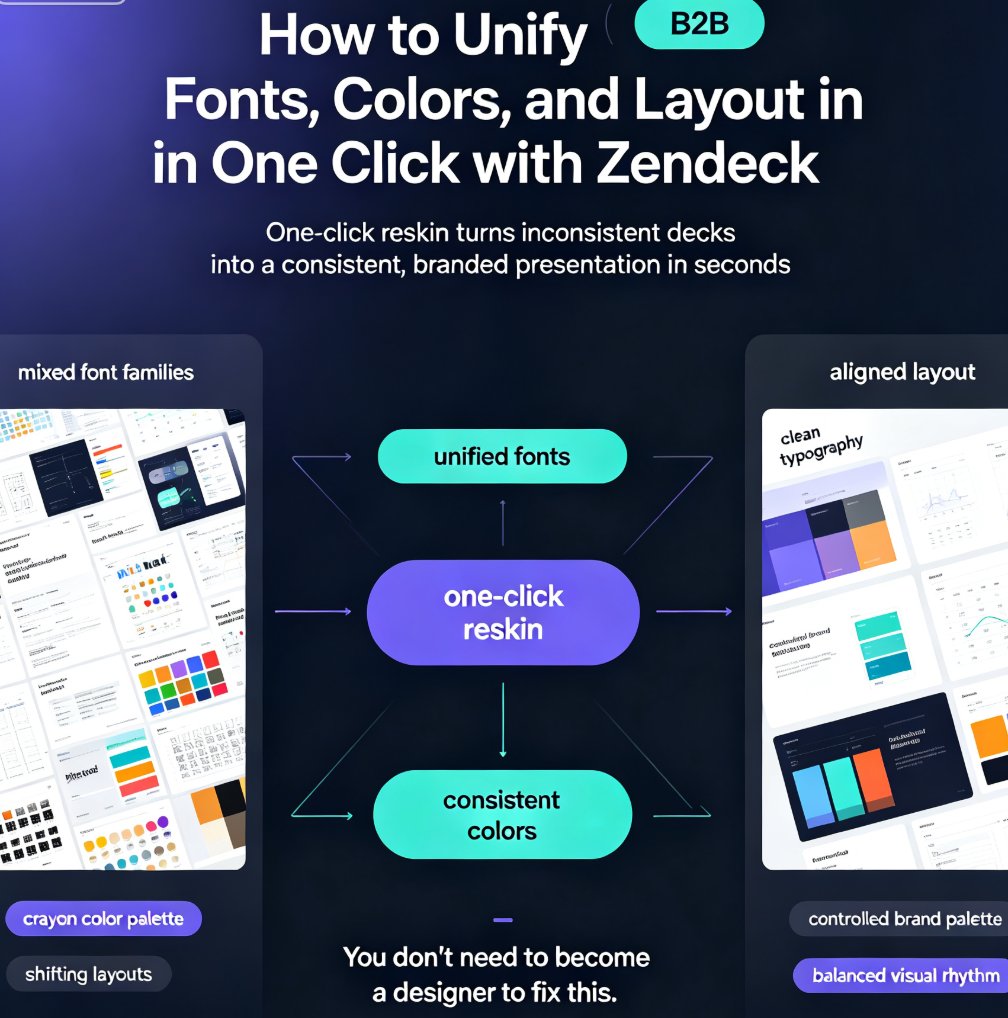
- One-click reskin to switch the entire deck's visual theme without touching content
- Asset library with icons, charts, and illustrations that match your layout
- PPT-to-video to turn finished slides into narrated micro-courses
- Collaboration tools for real-time editing and sharing with your team
This is where the tool moves beyond simple automation into something that actually changes how you work. You're not just making slides; you're building a repeatable process that produces consistent, professional output every time.
If you're curious about how AI is reshaping slide design more broadly, this piece on AI-driven design automation and the shift to smart layouts is worth a read. And for a deeper dive into why tools are moving beyond static templates, check out why AI deck tools are moving beyond templates.
07 The Bottom Line
You don't need to become a designer to create professional presentations. You need a tool that handles the design thinking for you.
Zendeck's smart layout turns "I have no design skills" from a limitation into a non-issue. You bring the ideas; it brings the polish. That's the whole pitch, and it holds up in practice — whether you're a teacher building courseware, an HR manager creating training decks, or a consultant preparing client materials.
The next time you're staring at a blank slide, remember: the design work doesn't have to be yours. Paste your outline, let the engine arrange it, and spend your energy where it matters — on the message.
FAQ
Do I need any design experience to use Zendeck's smart layout?
No. The entire point of smart layout is to remove design decisions from your workflow. You provide the content — an outline, markdown, or a Word document — and the engine handles arrangement, spacing, alignment, and visual hierarchy automatically. You never need to touch a design tool.
Can smart layout handle dense content like long bullet lists?
Yes. The engine rebalances layouts to keep dense content readable. Instead of letting text overflow or shrink to illegibility, it adjusts spacing, type scale, and element positions so every point stays clear and well-organized on the slide.
Will my slides look the same as everyone else's?
No. Because the layout adapts to your specific content and your brand kit, each deck reflects your material and identity. You won't get the generic 'template look' that comes from forcing content into fixed frames.
How is smart layout different from just picking a template?
Templates force your content into predefined shapes, which is why text overflows and alignment breaks. Smart layout reads your content first, then builds the arrangement around it. That produces cleaner, more consistent results with far less manual adjustment.
Does smart layout work with imported Word or Markdown outlines?
Yes. You can paste a Word outline or Markdown content directly into Zendeck, and the smart layout engine will structure it into professional slides automatically. This makes it easy to repurpose existing documents into polished decks.