Word to Slides: AI Outline Import Streamlines Deck Creation
Word to Slides: AI Outline Import Streamlines Deck Creation
It's Friday, 4:47 PM. You've got a 40-page Word document — the final strategy draft, the training manual, the quarterly report — and a Monday meeting where you need to present it. Your options: spend the weekend copy-pasting bullet points into PowerPoint, or find a smarter way.
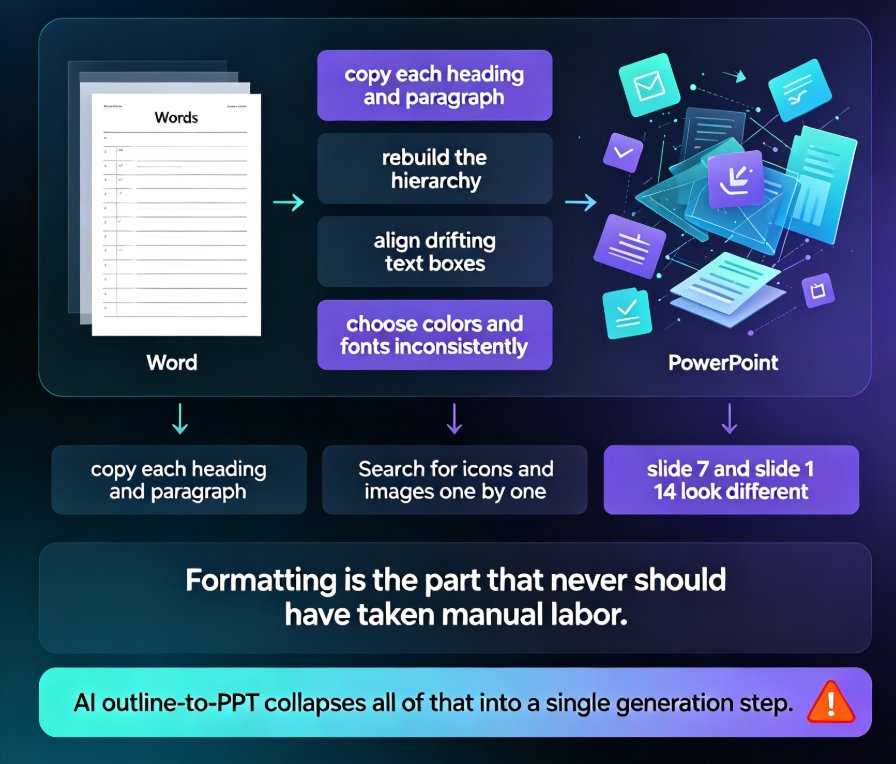
Let's be real: manually converting a Word document into slides is one of the most soul-draining tasks in knowledge work. It's not hard, it's just tedious. And it eats hours you don't have.
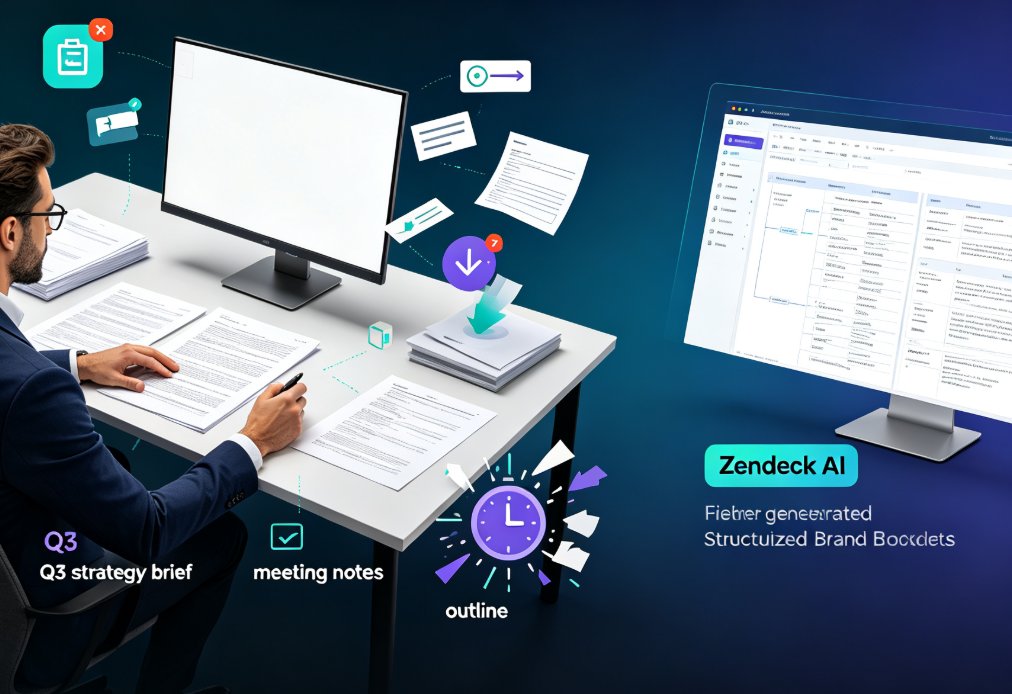
The good news? AI outline import has changed the game. Tools like Zendeck now read your Word document, identify the key points, and generate a structured, designed deck in minutes. Here's how it works, why it matters, and how to get the most out of it.
01. The Real Cost of Manual Word-to-Slide Conversion
Let's talk numbers. A typical 30-slide deck built from an existing Word document involves reading and re-reading the document to find key points, copy-pasting text into slide placeholders, manually restructuring content into logical slide breaks, formatting and aligning, and fixing overflow text.
Most people spend 4 to 6 hours on this. And here's the kicker: most of that time isn't spent on thinking — it's spent on mechanical copy-paste and formatting.
The outcome of manual work is also inconsistent. Some slides are overcrowded, others are thin. The design is whatever the default template gives you. And if the document updates? You start over.
The pain is real, but the fix is simpler than most people realize.
02. What AI Outline Import Actually Does
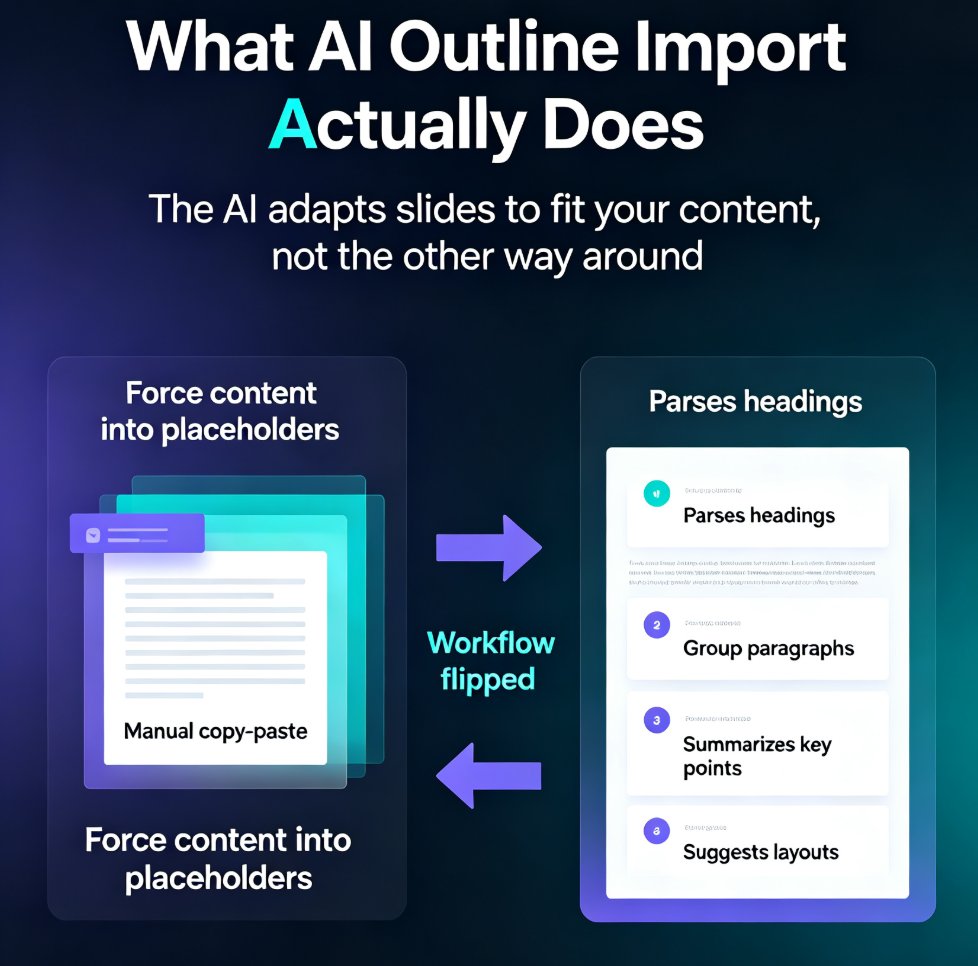
AI outline import flips the workflow. Instead of you adapting content to fit slides, the AI reads your document and adapts slides to fit your content.
Here's the technical reality: modern AI presentation tools parse the structure of your Word document — headings, paragraphs, lists, tables — and identify what belongs on each slide. They don't just dump text; they summarize, prioritize, and structure. As one tool describes it, the AI "identifies key points, summaries, and data to structure into individual slides with appropriate text, bullet points and visuals."
The core promise: you keep the thinking, the AI does the mechanical work.
When you upload a Word outline to Zendeck, the AI: - Detects heading levels and converts them into slide titles - Groups related paragraphs into single slides - Turns bullet lists into clean slide content - Suggests layouts and visuals based on content type
The result is a deck that's structured the way you'd structure it yourself — just in a fraction of the time. If you've ever turned a brain dump into a structured presentation, you know how valuable this is.
03. How to Convert a Word Document into Slides with Zendeck
Here's the step-by-step, no fluff.
Step 1: Prepare your document (optional but helpful) You don't need perfect formatting. But using Word's built-in heading styles (Heading 1, Heading 2) makes the AI's job much easier. Headings become slide titles; body text becomes slide content.
Step 2: Upload or paste your content In Zendeck, you can upload a Word file or paste Markdown/TXT directly. The AI handles messy formatting, nested bullets, even stream-of-consciousness notes.
Step 3: Let the AI structure your deck The AI analyzes your document and generates a slide-by-slide structure. You'll see slide titles, content blocks, and suggested layouts.
Step 4: Review and refine Here's where you add value. Adjust slide order, trim content, add your voice. Zendeck lets you manually edit any AI-generated slide — nothing is locked.
Step 5: Apply your brand and export One-click reskin to match your brand kit, then export or share.
04. Manual vs. AI: The Real Comparison
Let's put the numbers side by side.
| Task | Manual (PowerPoint) | AI Outline Import (Zendeck) |
|---|---|---|
| Reading and extracting key points | 1-2 hours | Automatic |
| Copy-pasting content into slides | 1-2 hours | Automatic |
| Structuring content into slides | 1 hour | Automatic |
| Design and layout | 1-2 hours | Automatic (template-based) |
| Review and refinement | 30 min | 30 min |
| Total time (30-slide deck) | 4-6 hours | 1-1.5 hours |
The chart below shows the same story visually.
That's roughly a 75% reduction in time — and the quality is often better, because the AI doesn't get tired or sloppy.
05. Who Benefits Most from AI Outline Import
Honestly, almost anyone who builds decks from existing documents. But three groups feel it most.
Trainers and educators. You already have course materials, manuals, and handouts in Word. AI outline import turns them into courseware slides — and with Zendeck's PPT-to-video, you can even narrate them into micro-courses.
Consultants and analysts. You live in Word reports and Excel data. Converting a findings document into a client-ready deck used to take an evening. Now it takes a coffee break. The same logic applies to turning a blog post into a slide deck for your audience.
HR and operations teams. Policy documents, onboarding manuals, compliance training — all of it starts as Word. AI outline import turns dense policy text into digestible training slides.
The common thread: these people aren't designers, and they shouldn't have to be. AI outline import is the bridge between "I wrote this document" and "I need to present this."
06. Best Practices for Preparing Your Word Document
Even though AI handles messy input, a little preparation goes a long way. Here are five habits that make the conversion even smoother:
- Use heading styles. Heading 1 for sections, Heading 2 for sub-sections. The AI maps these directly to slide titles.
- Keep paragraphs focused. One idea per paragraph. The AI groups content into slides based on topic.
- Let lists be lists. If you have a list, use actual bullet points. The AI preserves them as slide content.
- Cut redundant content. The AI summarizes, but garbage in, garbage out. A tighter document makes a tighter deck.
- Add speaker notes if you have them. Zendeck can auto-generate speaker notes from your content, but your own notes add context.
One more thing: don't over-prepare. If your document is a mess, that's fine — the AI handles it. Preparation is a nice-to-have, not a requirement.
07. What About Messy Documents?
Let's be honest — most real documents are messy. Meeting notes, brain dumps, email threads, half-finished outlines. The good news: modern AI tools are built for this. Zendeck's AI handles nested bullets, incomplete sentences, and stream-of-consciousness writing.
The key insight: you don't need a clean document to get a clean deck. The AI does the cleanup for you.
This matters more than you might think. In a recent workflow, I watched a colleague convert a 25-page meeting transcript into a 12-slide executive summary in about 10 minutes. The transcript had typos, tangents, and half-finished thoughts. The deck came out clean, structured, and presentation-ready.
That's the real value of AI outline import: it removes the barrier between your existing content and a professional presentation.
FAQ
Q: What file formats can I import into Zendeck? A: You can upload Word (.docx) files or paste Markdown and plain text (TXT) directly. The AI handles all of them.
Q: Will the AI preserve my document's structure? A: Yes. Headings become slide titles, paragraphs become content blocks, and lists become slide content. You can adjust anything afterward.
Q: Can I edit the AI-generated slides? A: Absolutely. Zendeck allows full manual editing of any slide — nothing is locked or final until you say so.
Q: How long does it take to convert a 30-page document? A: The AI generation itself takes under two minutes. Your review time depends on how much you want to refine.
Q: Does it work with messy notes and brain dumps? A: Yes. The AI is designed to handle unstructured content, nested bullets, and incomplete sentences.