From Word Outline to Polished PPT: Zendeck AI Workflow Guide
Let's be real: the worst part of any presentation isn't the presenting. It's the hours you spend turning a 40-page strategy report into 15 slides — copy-pasting bullet points, wrestling with text boxes, and praying the formatting doesn't break. If that sounds familiar, you're not alone. Most business professionals burn 2-3 hours per deck on mechanical work that adds zero value to the actual message.
The fix isn't to copy-paste faster. It's to stop copy-pasting altogether.
Zendeck's AI Word-to-PPT import turns your existing outlines, reports, and meeting notes into structured, on-brand slide decks in minutes — no redesign, no formatting fights, no starting from a blank template.
This guide walks through the exact workflow, the time math behind it, and the mistakes to avoid so you can ship presentation-ready decks before your next stand-up.
01 | Why Copy-Paste Is Killing Your Presentation Workflow
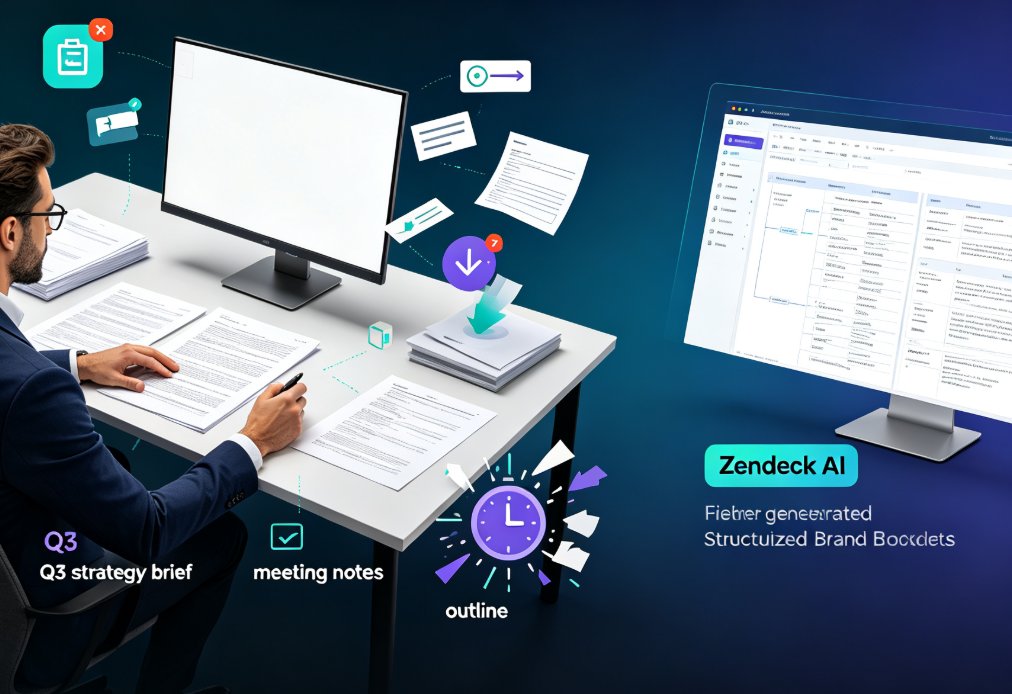
Here's the scenario we've all lived: your manager emails a 30-page Q3 strategy brief with a note that says, "Can you make a deck for Thursday?" You open PowerPoint, and the clock starts ticking.
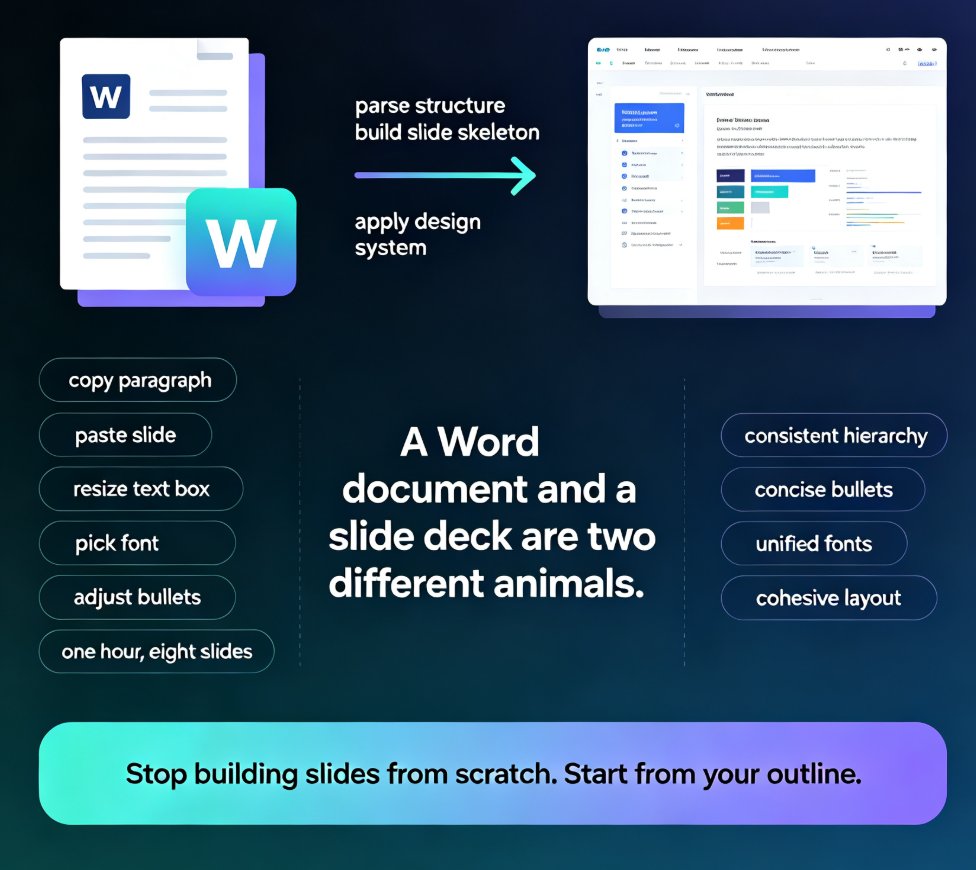
The manual workflow looks like this: - Read the document and identify the key points - Copy each section onto a slide - Reformat text so it fits - Hunt for icons, charts, and images - Adjust fonts and colors to match brand guidelines - Repeat for every single slide
The average knowledge worker spends 2-3 hours building a 15-slide deck from an existing document — and most of that time goes to formatting, not thinking. That's the real cost: not just your hours, but the creative energy you drain on mechanical tasks before you even reach the part that matters.
The pain point is structural. Documents are written in paragraphs; slides are built on hierarchies. When you copy-paste, you're manually translating one format into another — and the translation is where everything slows down.
The solution is to let the translation happen automatically. That's exactly what Zendeck's AI import pipeline is built for.
02 | What Zendeck's Word-to-PPT Import Actually Does
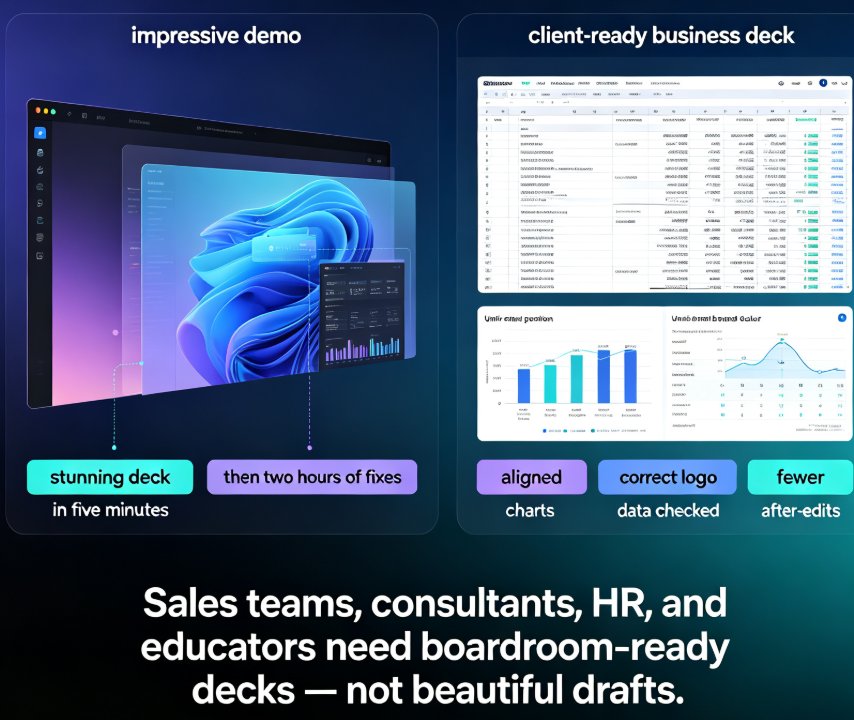
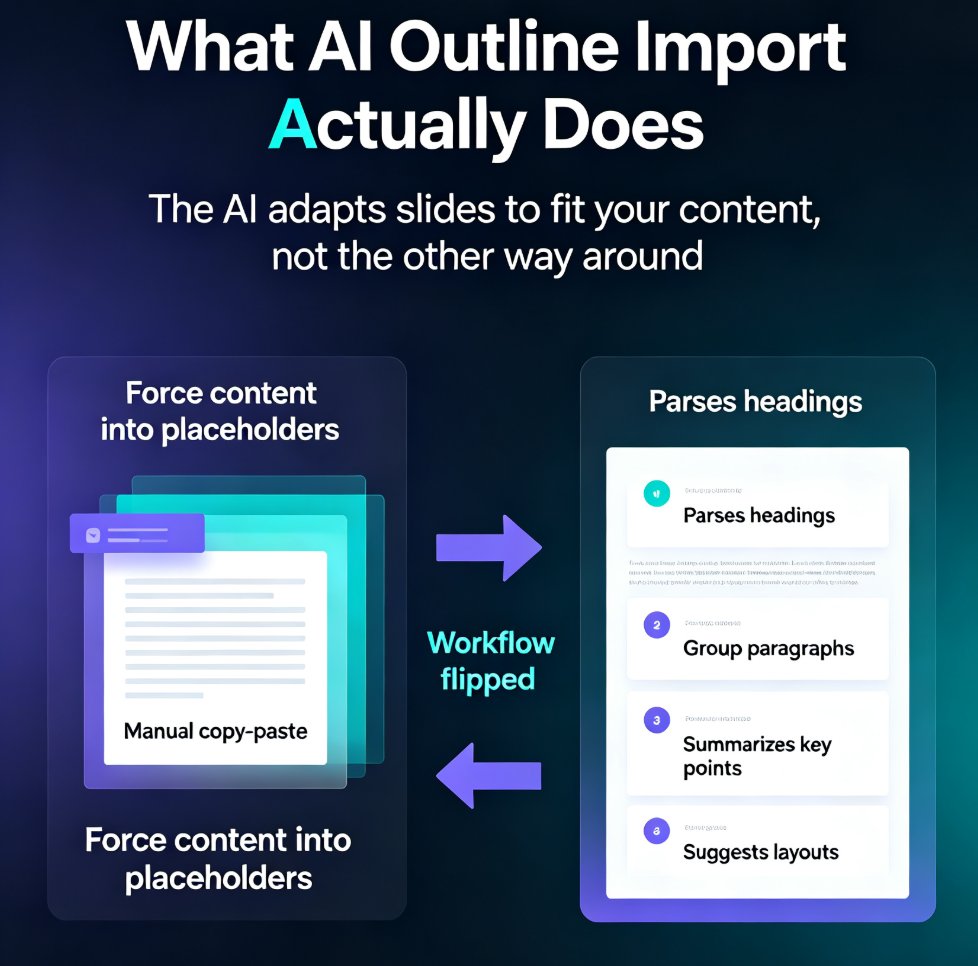
Most people assume "Word to PPT" means the tool grabs your text and dumps it onto slides. That's not what Zendeck does — and it's the difference between a deck that looks like a document and one that reads like a presentation.
The AI doesn't just reformat your text — it restructures it into a narrative arc designed for slides, not documents. It reads the hierarchy of your outline, identifies the core message of each section, and maps supporting points into a logical flow.
Here's what happens under the hood:
- Structure detection: The AI parses your document's headings, subheadings, and bullet levels to understand how ideas relate to each other.
- Message extraction: It pulls out the key takeaway from each section — not every sentence, just the ones that matter.
- Slide mapping: It decides how many slides you need, what goes on each one, and how the narrative flows from opening to close.
- Design application: It applies layout, typography, and imagery automatically, consistent with your chosen template or brand kit.
The result is a deck that's structured for presentation, not publication. Your audience sees a clear story, not a wall of text.
If you're coming from a prompt-based workflow, think of it this way: instead of describing what you want slide by slide, you hand the platform your source material and let it do the structuring. For a deeper look at the prompt-to-deck path, check out how Zendeck generates professional slides from prompts.
03 | Step-by-Step: From Word Outline to Branded Deck in Minutes
Let's walk through the actual workflow. Whether you're converting a strategy brief, a research report, or meeting notes, the process is the same.
Step 1: Prepare your source document
You don't need to clean up your document before importing. The platform handles messy formatting, nested bullets, and even stream-of-consciousness notes. That said, the better your document's heading structure, the better the AI can map your content to slides. If you have time, a quick pass to make sure your main sections use Heading 1 and sub-points use Heading 2 will improve the output noticeably.
Step 2: Import your content
Paste your outline directly into Zendeck or upload your Word document. The AI reads the structure instantly — no need to reformat, renumber, or strip out formatting.
Step 3: Set your parameters
This is where you take control. Set your target slide count (5 to 50+), choose your tone — technical, casual, boardroom-ready — and specify your audience. If you have a custom brand kit, the platform applies your colors, fonts, and logo automatically.
Step 4: Generate your deck
One click. The AI builds the full deck — slide structure, layouts, imagery, and consistent typography — in under a minute. This isn't a template with placeholder text; it's your actual content, professionally designed.
Step 5: Review and refine
Preview your deck in slideshow mode. Every slide is fully editable — swap text, change images, adjust layouts, or add slides directly in the built-in editor. You can also use natural language prompts to expand, simplify, or rephrase any slide without manual redesign.
Step 6: Export or share
Download as PowerPoint, share via link, or collaborate with your team in real time. The deck is presentation-ready from the moment it's generated.
04 | The Time Math: What You Actually Save
Let's put real numbers on this. Based on typical workflows, here's what a 15-slide deck costs you in manual mode versus Zendeck's AI import:
| Task | Manual Copy-Paste | Zendeck AI Import |
|---|---|---|
| Reformatting text for slides | 30-45 min | Auto |
| Building slide structure | 20-30 min | Auto |
| Applying brand styling | 15-25 min | Auto |
| Sourcing visuals and icons | 20-40 min | Auto |
| Review and polish | 15-30 min | 10-20 min |
| Total | 90-180 min | 10-20 min |
That's a 9x reduction in production time — from roughly three hours to under twenty minutes. And the time you save isn't just time; it's the difference between delivering a deck on Thursday and delivering one that's actually good.
The gap gets even wider when you factor in revision cycles. A manual deck that needs three rounds of feedback costs you 4-6 hours total. With Zendeck, each revision is a quick edit, not a reformatting session.
05 | Five Mistakes That Sabotage Word-to-PPT Conversions
Even with AI doing the heavy lifting, a few habits can undermine your results. Here's what to watch for.
Mistake 1: Dumping entire paragraphs onto slides
The AI will extract key points, but if your source document is a wall of text, the output can still feel dense. The best decks follow the 6x6 rule: no more than six bullets per slide, six words per bullet. If your source is heavy, let the simplify feature tighten it before you present.
Mistake 2: Ignoring brand consistency
A deck that looks like it was designed by three different people undermines your credibility. Set up a custom brand kit once, and every deck you generate — from Word import or otherwise — stays on-brand automatically.
Mistake 3: Skipping the review pass
AI gets you 90% of the way there. The last 10% — checking that the narrative flows, that the right points are emphasized, that the tone matches your audience — is still on you. Budget 10 minutes for review, not zero.
Mistake 4: Using the wrong template for the context
A boardroom deck and a training session need different visual languages. The platform's template selection considers your content and audience, but you should still confirm the choice fits the occasion.
Mistake 5: Treating Word-to-PPT as a one-size-fits-all tool
Word import is ideal for structured documents — reports, briefs, outlines. For brainstorming or early-stage ideas, a prompt-to-deck workflow might serve you better. Match the tool to the task.
06 | When Word-to-PPT Beats Starting from Scratch
Not every deck should come from a Word document. Here's a quick decision framework:
Use Word-to-PPT import when: - You have an existing report, brief, or outline that needs to become a deck - The content is already structured and approved - You need to maintain fidelity to source material - You're on a tight deadline and can't afford to rethink structure
Start from scratch (or use prompts) when: - You're brainstorming and the content doesn't exist yet - The deck needs a completely new narrative, not a translation - You're building a pitch from scattered ideas
The sweet spot for Word-to-PPT is the "translation" scenario: content exists, structure is solid, and the only question is how to make it presentable. That's where the platform shines — and where the time savings compound across your whole team.
For teams that regularly convert documents to decks, the workflow becomes a habit: draft in Word, import to Zendeck, refine, present. It's the same content, but it stops being a formatting chore and starts being a presentation.
FAQ
Can Zendeck import a Word document directly, or do I need to paste text?
Both. You can upload a Word document directly or paste your outline as plain text, Markdown, or TXT. Zendeck handles messy formatting and nested bullets, so you don't need to clean up your source before importing.
Does Zendeck preserve my brand colors and fonts when converting Word to PPT?
Yes. If you've set up a custom brand kit in Zendeck, your colors, fonts, and logo are applied automatically to every generated deck. You can also choose from Zendeck's template library and let the AI pick the best fit for your content and audience.
How long does it take to convert a Word outline to a full deck?
Under a minute for generation. The full workflow — import, generate, review, and refine — typically takes 10-20 minutes for a 15-slide deck, compared to 90-180 minutes with manual copy-paste.
Can I edit the AI-generated slides after conversion?
Absolutely. Every slide is fully editable in Zendeck's built-in editor. You can swap text, change images, adjust layouts, add or remove slides, and use natural language prompts to expand or simplify content without manual redesign.
What types of Word documents work best with Zendeck's import?
Structured documents with clear headings and hierarchy — strategy reports, research summaries, meeting notes, training outlines, and briefs — produce the best results. The AI reads your document's structure to map content into a logical slide flow.
That's the workflow. Next time someone sends you a 30-page report and asks for a deck, you know exactly what to do: import it into Zendeck, let the AI do the structuring, and spend your energy on the part that actually matters — the presentation itself.