How to Turn Meeting Notes into an Action-Plan Deck with Zendeck
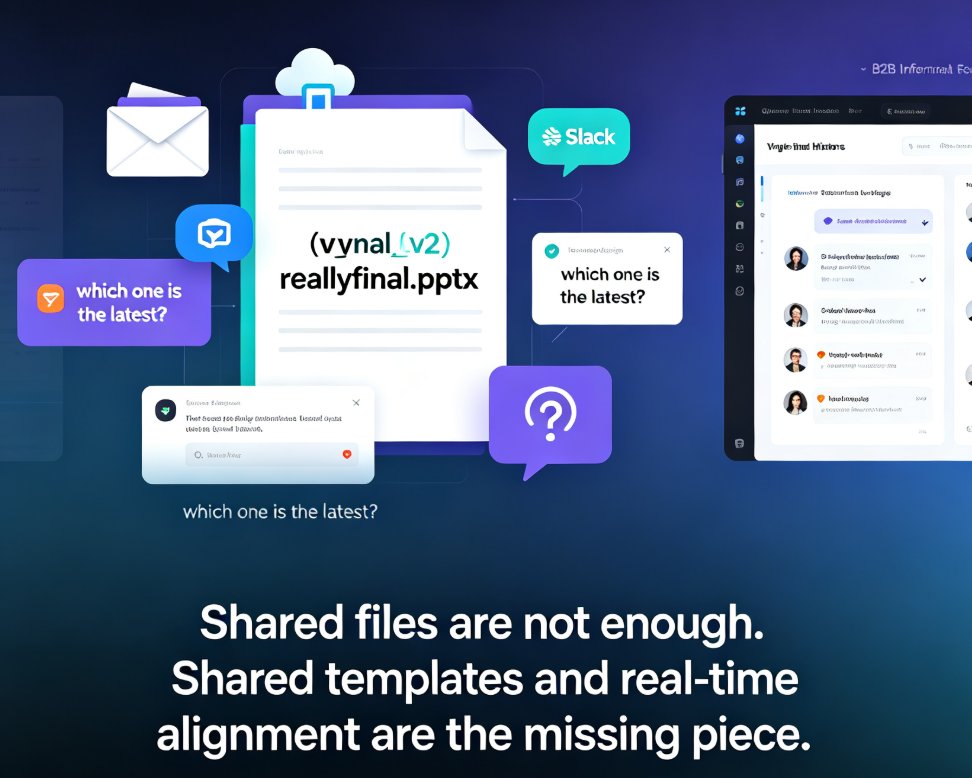
Let's be honest: the meeting ended three hours ago, and the notes are still a wall of text. Someone said 'we should follow up on the Q3 forecast.' Someone else mentioned 'the vendor contract is stuck in legal.' And now you're supposed to turn all of it into an action-plan deck before the afternoon stand-up. You open PowerPoint, and the cursor just blinks at you.
Most AI presentation guides talk about pitch decks or training modules. But the weekly pain point for most teams is simpler: messy meeting notes need to become a clear action plan. That's a different problem. It's not about storytelling; it's about extraction, structure, and ownership.
I've been on both sides of this. I've spent an hour rebuilding a status deck from a messy Google Doc, and I've also watched a team go from raw notes to a shared action plan in under 20 minutes. The difference wasn't talent. It was workflow.
The good news? You don't need to spend an hour rebuilding slides by hand. With Zendeck, you can turn raw meeting minutes into a clean, action-oriented deck in minutes — using the same Word or Markdown outline you probably already have.
A meeting without a clear action plan is just an expensive conversation.
In this guide, I'll walk you through the exact workflow I use with teams: how to prep your notes, import them, let the AI generate the structure, and then add the owners, deadlines, and next steps that make the deck actually useful.
01 Why meeting notes fail as action plans
Here's the thing: meeting notes are chronological. Action plans are logical.
When you jot down notes during a discussion, you capture things in the order they happened. Someone raises a concern about the budget, then you talk about the marketing campaign, then someone circles back to the budget. The raw notes reflect that chaos. But when you present the outcome to stakeholders, they don't want to relive the conversation. They want to see: what did we decide, who's doing what, and when will it be done.
The problem gets worse when notes live in a shared doc with no structure. You end up with:
- Decisions buried inside paragraphs.
- Action items scattered across different sections.
- No clear owner for follow-ups.
- Deadlines that were mentioned but never written down.
The result is the same every week: someone has to manually dig through the notes, extract the decisions, and rebuild the deck from scratch. That's not just tedious — it's a waste of the one resource your team can't get back.
The solution isn't more meeting software. It's a faster way to turn what was already said into what happens next.
02 The workflow: from raw notes to action-plan deck
Let me show you the exact workflow I use. It works whether your notes are in a Word doc, a Markdown file, or even a rough outline you typed while the meeting was still running.
Step 1: Clean your notes into a simple outline
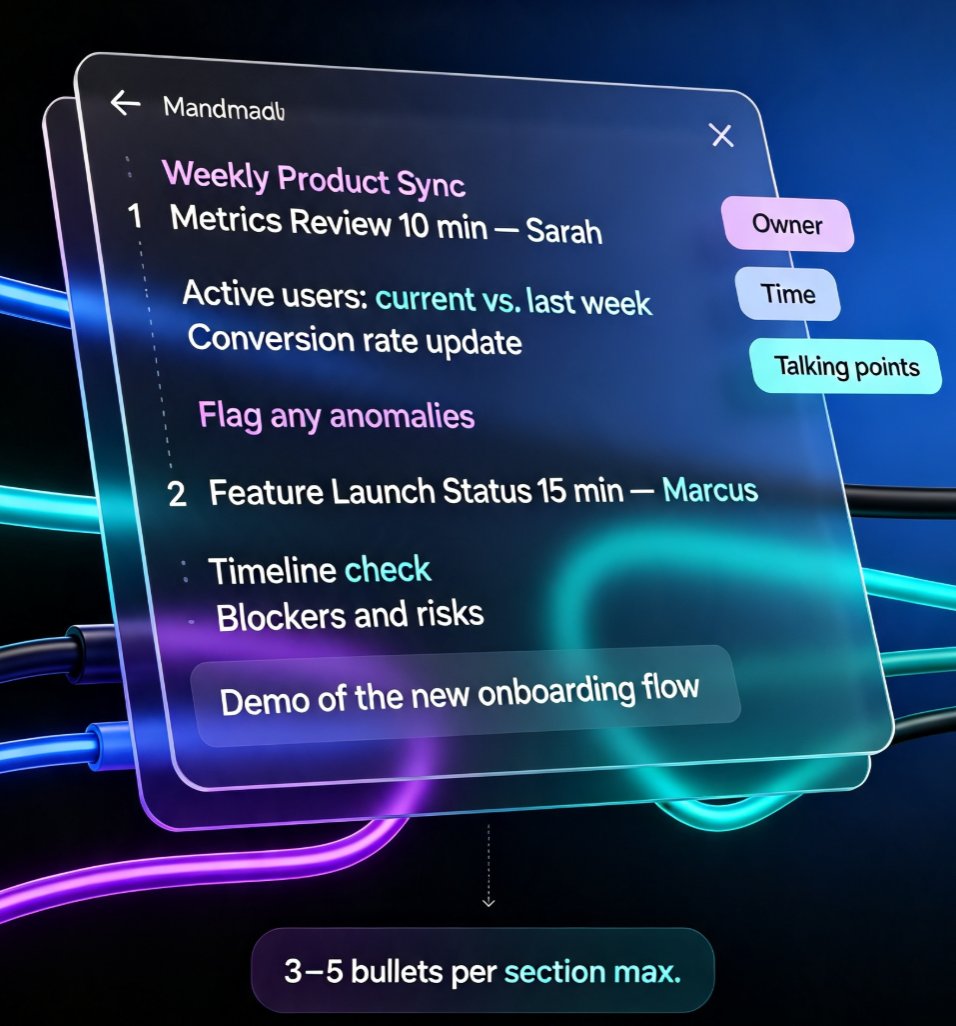
You don't need perfect formatting. You just need a clear hierarchy. In your document, use headings for the main topics and bullet points for the details. For example:
# Q3 Forecast Review

## Decision: Push launch to October
- Budget approved for extended testing
- Marketing will adjust the campaign timeline

## Action: Update forecast model
- Owner: Sarah
- Due: Friday
- Blocked by: finance data from Q2

## Risk: Vendor contract still in legal
- Owner: James
- Due: Next Tuesday
- Status: Waiting on legal review
That's it. The AI doesn't need polished prose. It needs structure.
Step 2: Import the outline
In Zendeck, you can upload a Word document or paste Markdown directly. The platform reads the outline and generates a structured slide deck based on your content. No blank slide, no manual layout, no fighting with text boxes.
Step 3: Let the AI generate the slide structure
This is where the magic happens. Zendeck's AI turns your headings into slide titles, your bullet points into concise slide content, and your action items into a clean table. It's not just copying text onto slides — it synthesizes the notes into a presentation that makes sense to someone who wasn't in the meeting.
If you've ever imported a rough document and gotten a messy result, this guide on why AI-generated slides still look messy and how Zendeck fixes it explains what's happening under the hood.
Step 4: Apply your brand kit
Nothing kills a deck faster than inconsistent fonts and colors. If your team has a brand kit set up, the AI applies it automatically. That means your action-plan deck looks like it came from your company, not from a random template.
Need help setting that up? Check out how to set up and use brand kits for consistent presentations.
Step 5: Add owners, deadlines, and status
The AI gives you the skeleton. You add the accountability. You can edit the generated slides directly — update the action table, add owner names, set due dates, and mark status. This is the step that turns a summary into an action plan.
Step 6: Export and share
Once the deck is ready, export it as a PDF or share the link with your team. If you want to keep everyone aligned, you can also generate speaker notes automatically. Here's how to auto-generate speaker notes for AI decks.
The whole workflow takes about 10 minutes — and most of that time is spent thinking about owners and deadlines, not formatting.
03 What an action-plan deck actually needs
Before you start, it helps to know what you're aiming for. A good action-plan deck is not a transcript. It's a decision document. Here's the structure I recommend:
| Slide | Purpose | Key content |
|---|---|---|
| Title slide | Context | Meeting name, date, owner |
| Decisions | What changed | 3-5 decisions with one-line rationale |
| Action items | Who does what | Table with owner, due date, status |
| Risks & blockers | What's in the way | Open issues, owner, next step |
| Next steps | What happens now | Follow-up meeting, review date |
The action items table is the heart of the deck. If you only take one thing from the meeting, it should be this table.
◉ What if my notes don't have clear action items?
That's common. When a meeting is more exploratory, the notes are full of ideas and open questions. In that case, don't force an action table. Instead, structure the deck around themes and open questions, and add a 'decide by' date for each one. The goal is to make the next conversation more productive, not to invent fake owners.
The goal isn't a beautiful deck. The goal is a deck that makes the next decision obvious.
04 Manual rebuild vs. the AI workflow
Let's compare the old way with the workflow above. These are typical times I've seen from teams, not a formal benchmark, but they match what most people report:
| Task | Manual rebuild | AI workflow |
|---|---|---|
| Structuring notes | 20-30 min | 2-3 min |
| Building slide layouts | 30-45 min | 1-2 min |
| Applying brand styles | 15-20 min | Automatic |
| Creating action table | 10-15 min | 3-5 min |
| Updating after feedback | 20-30 min | 5-10 min |
| Total | 1.5 - 2.5 hours | 10 - 20 minutes |
The difference isn't just speed. It's the quality of the output. When you're not spending an hour moving text boxes, you have time to actually think about whether the action items are realistic, whether the owners are right, and whether the deadlines make sense.
That's the real win. You don't need more meeting software. You need a faster way to turn what was already said into what happens next.
05 Formatting tips that make the AI work better
The quality of your output depends a lot on the quality of your input. Here are a few habits that make a big difference:
- Use heading levels consistently.
#for the main topic,##for decisions and actions. The AI uses this hierarchy to decide what becomes a section and what becomes a bullet. - Start action items with a verb. 'Update forecast model' is better than 'Forecast model needs updating.' It's clearer for the AI and for the humans reading the deck.
- Put the owner and due date on the same line. This makes it easy for the AI to extract them into a table.
- Keep bullets short. One idea per bullet. If a bullet has more than 15 words, split it.
◉ What if my notes are in a shared doc with comments?
Copy the relevant content into a clean outline first. Comments, suggestions, and inline reactions confuse the AI and make the generated slides feel cluttered. A clean outline takes five minutes and dramatically improves the output.
If you want to go deeper on turning rough material into a structured presentation, this guide on how to turn a brain dump into a structured presentation with AI covers the same principle in more detail.
06 Making follow-up part of the routine
Here's the pattern I've seen work in real teams: the meeting ends, someone spends 10 minutes cleaning the notes into an outline, imports it, and shares the action-plan deck before people have left the room. The deck becomes the single source of truth for what happens next.
That only works if the deck is easy to update. With an AI presentation platform, you can edit the slides online, and the team can collaborate in real time. If you're working with external stakeholders, you can also control permissions. For more on that, see how to real-time collaborate with external clients on presentations.
And if you want to turn the action plan into a short video recap for people who missed the meeting, the PPT-to-video feature can add narration to the slides. That's a nice way to keep remote teams aligned without another meeting.
If you're looking for more ways to speed up your workflow, browse the office efficiency guides for related tips.
FAQ
How do I turn meeting notes into a presentation with Zendeck?
Clean your notes into a simple outline with headings and bullet points, then upload the Word document or paste Markdown into Zendeck. The AI generates a structured slide deck, and you can edit the slides to add owners, deadlines, and status before sharing.
What's the best format for meeting notes before importing?
Use a clear hierarchy: main topics as headings, details as bullets, and action items as short verb-first lines with the owner and due date. The more structured the outline, the better the AI can turn it into an action-plan deck.
Can I edit the slides after Zendeck generates them?
Yes. Zendeck lets you manually edit any AI-generated slide, so you can adjust the action table, change layouts, and apply your brand kit after generation.
How long does it take to create an action-plan deck from meeting notes?
Most teams can go from raw notes to a shared action-plan deck in 10 to 20 minutes, depending on how clean the outline is. The manual version usually takes one to two hours.
Does Zendeck support Word and Markdown import?
Yes. You can upload a Word outline or paste Markdown/TXT directly into Zendeck, and the AI will generate slides from that content.