5 Ways Teams Collaborate on AI Decks with Zendeck Shared Projects
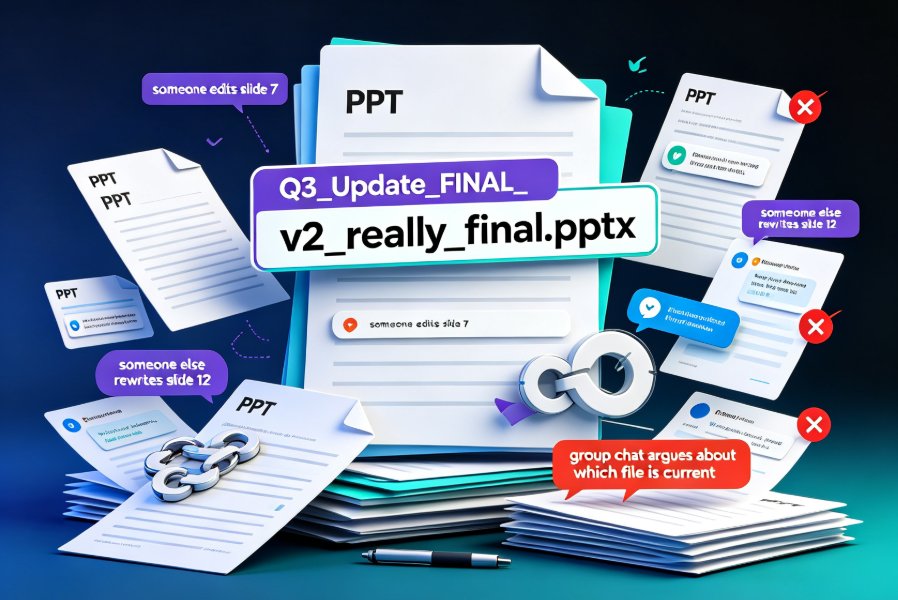
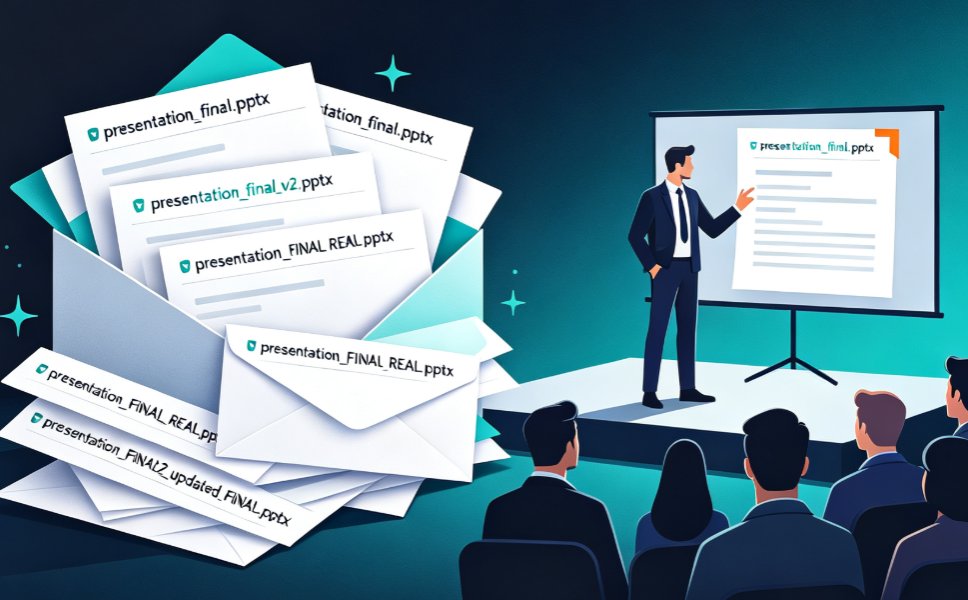
You know the drill. The deck is due Friday. The subject-matter expert sends "a few small edits" in a Word doc. The reviewer replies with comments that contradict slide 12. Someone saves "final_v3_REAL_final.pptx" and presents the wrong version anyway. This is deck-by-committee, and it's broken.
Here's the uncomfortable truth: most AI presentation tools are single-player. One person types a prompt, gets a deck, and then the real work — the reviews, the edits, the approvals — happens in a messy loop of emails and file versions. But the moment a deck touches a real team, collaboration is the whole game.
That's where Zendeck shared projects change the workflow. Instead of building a deck alone and then throwing it over the wall, your subject-matter experts, reviewers, and presenters work inside one shared workspace. The version you present is the version everyone approved. Let's walk through five ways teams actually use this.
01 — One Shared Workspace Replaces Email Ping-Pong
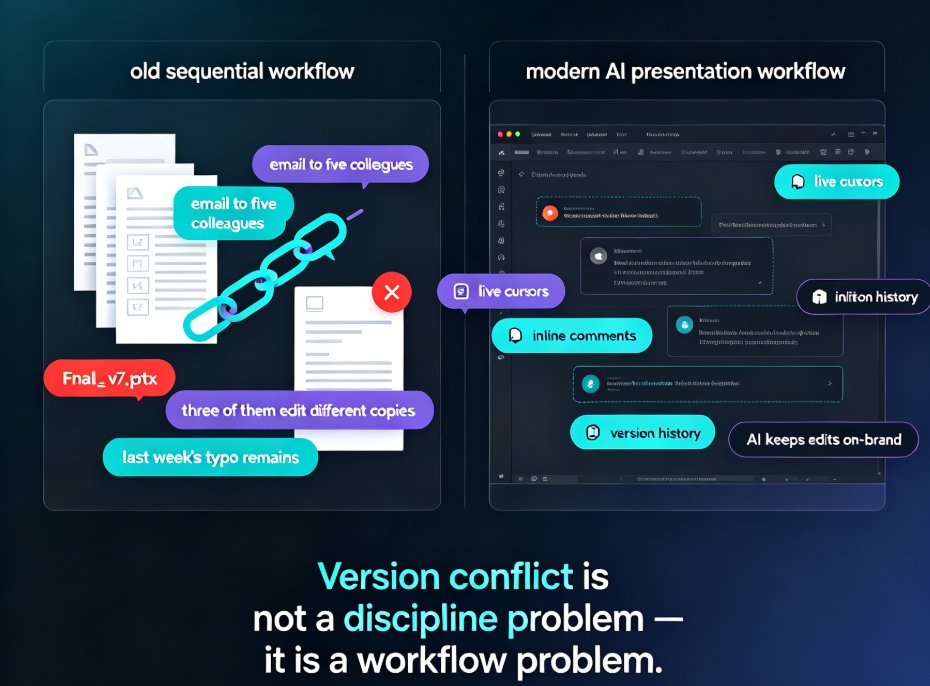
The pain: Every deck project starts with a shared goal and ends with a shared mess. The SME emails their input. The designer exports a draft. The reviewer replies with track changes. Somewhere in between, three different versions of slide 9 exist, and nobody knows which one is current.
The solution: A shared project gives your team a single source of truth. Everyone opens the same deck, sees the same live state, and works from the same version. When the SME updates a data point, the designer sees it instantly — no "did you get my email?" follow-ups.
The outcome: You stop managing files and start managing content. Teams that move from email-based review to a shared workspace typically cut the back-and-forth cycle from days to hours, because nobody is waiting on an attachment to be forwarded.
Quick tip from someone who learned the hard way: name your shared project by the deliverable, not the date. "Q3 Board Deck" beats "final_v3_REAL" every time. Future you will be grateful.
02 — Inline Comments Keep Context on the Slide
The pain: Feedback that lives outside the deck is feedback that gets lost. A reviewer writes "this stat feels off" in an email, but by the time the designer reads it, they've forgotten which stat, which slide, and which version.
The solution: Zendeck's inline comments attach directly to the slide or element in question. The reviewer flags the exact chart on slide 4, the designer replies in place, and the thread stays attached to that slide until it's resolved. Context doesn't travel through chat logs — it lives where the work happens.
The outcome: Review cycles get shorter because questions get answered faster. Instead of "can you clarify what you meant?" emails, you get threaded, on-slide conversations that read like a focused working session rather than a game of telephone.
03 — Real-Time Co-Editing Lets SMEs and Designers Work in Parallel
The pain: The classic serial handoff. The SME writes content, hands it to the designer, who builds slides, then hands it back for review. Every handoff adds a day. Every round-trip adds risk.
The solution: With real-time co-editing, the SME can refine the narrative on slide 6 while the designer adjusts the layout on slide 12 — at the same time. Zendeck keeps everyone in sync, so parallel work doesn't mean conflicting edits. This is the same shift that made collaborative documents a baseline for teams, and it's now the baseline for AI decks too.
The outcome: Projects that used to take a week of sequential handoffs can compress into two focused working sessions. The people who know the content and the people who shape the design stop waiting on each other and start building together.
04 — Version Approval: The Version You Present Is the Version Everyone Approved
The pain: The worst meeting feeling is realizing you're showing the outdated chart. Someone approved a change, but the presenter grabbed the old file. It's not a design problem — it's a version-control problem.
The solution: Zendeck tracks version history and approval status inside the shared project. When a reviewer approves a version, that approval is recorded and visible. The presenter can check the status before the meeting and know, with confidence, that they're opening the latest approved deck.
The outcome: Accountability replaces guesswork. If someone asks "did the finance team sign off on these numbers?" you don't dig through emails — you point to the approval record in the project. That single change eliminates a surprising amount of pre-meeting anxiety.
05 — Role-Based Permissions for External Reviewers and Clients
The pain: Sharing a deck with a client or an external reviewer usually means sending a file and hoping they don't edit the wrong thing. Or worse, they get edit access and "helpfully" change your formatting.
The solution: Zendeck lets you set role-based permissions. Give external clients view-only access for sign-off, while your internal team keeps full editing rights. Reviewers can comment without breaking the design; approvers can sign off without touching the content.
The outcome: You get the benefits of collaboration without the risk of someone accidentally (or intentionally) messing up the final deck. External stakeholders feel involved, and your team keeps control. This is especially valuable when you're working with clients across different companies or time zones.
The Workflow Comparison: Old Way vs. Zendeck Shared Projects
| Step | Traditional Email Workflow | Zendeck Shared Project |
|---|---|---|
| Content input | SME emails a Word doc | SME edits directly in the shared deck |
| Design handoff | Serial: designer waits for content | Parallel: designer and SME work simultaneously |
| Review feedback | Comments scattered across emails | Inline comments attached to slides |
| Version control | "final_v3_REAL_final.pptx" chaos | Live version history with approval status |
| Client sign-off | File sent, edits risked | View-only permissions for external reviewers |
| Presenter confidence | Hope and prayer | Verified latest approved version |
Why This Matters More Than the AI Generation Itself
Let's be honest: generating a deck with AI is the easy part now. The real bottleneck in modern presentation work is the review and approval loop, not the initial draft. Any tool can turn an outline into slides. The tools that win are the ones that help a team turn those slides into a decision.
That's why shared projects matter. They don't just make the AI part faster — they make the human part faster. And since the human part is where most projects stall, that's where the real time savings live.
If you're still running decks through email, it's worth looking at how a shared workspace changes the rhythm of your team's work. For a deeper look at why real-time co-editing is becoming a baseline expectation, check out our breakdown of collaborative AI decks and why real-time co-editing is now a baseline. And if you regularly work with outside stakeholders, our guide to real-time collaboration with external clients on Zendeck covers the permission setup in more detail.
A Practical Starting Point for Your Team
If you want to try this without overhauling your whole workflow, start small. Pick one recurring deck — a weekly status update, a monthly review, a quarterly business review — and move it into a shared project. Set up the roles, invite the two or three people who always have feedback, and run one cycle.
You'll notice the difference within a single review round. Fewer emails, fewer "which version is this?" questions, and a presenter who actually knows the deck is current. Once you feel that, you won't want to go back.
For teams that also need to keep decks on-brand while collaborating, our guide on maintaining brand consistency across hundreds of slides with AI brand kits pairs well with shared projects. And if you're wondering whether you can still manually tweak slides after the AI generates them, the answer is yes — here's how manual editing works in Zendeck.
FAQ
What is a shared project in Zendeck? A shared project is a single online workspace where everyone on your team — subject-matter experts, reviewers, designers, and presenters — can access the same AI-generated deck at the same time. Instead of emailing files back and forth, you work on one version that updates live for everyone, with comments, edit history, and approval status all stored in one place.
Can multiple people edit the same AI deck at the same time in Zendeck? Yes. Zendeck supports real-time co-editing, so an SME can refine the data on slide 6 while a designer adjusts the layout on slide 12 simultaneously. Everyone sees the changes as they happen, which eliminates the serial handoff bottleneck that slows down most deck projects.
How do inline comments work for deck reviews? Inline comments attach directly to a specific slide or element, so feedback stays in context. A reviewer can flag a stat on slide 4 without writing a separate email that gets lost. You can reply, resolve, and track the thread until the slide is approved — no more hunting through chat logs for context.
Can I control who sees or edits a shared deck? Yes. Zendeck lets you set role-based permissions, so you can give external clients view-only access while your internal team keeps editing rights. This is especially useful when you need client sign-off without risking accidental changes to the final version.
How does version approval prevent presenting the wrong deck? Zendeck tracks version history and approval status within the shared project. When a reviewer approves a version, that approval is recorded. The presenter can confirm they're opening the latest approved version before the meeting, so the deck you present is the deck everyone signed off on.
If your team is still stuck in the email-and-attachment era, the fix isn't a better template — it's a better workflow. Zendeck shared projects turn deck building from a solo sprint into a team sport, and the version you present is the version everyone approved. That's a change you'll feel in every meeting from here on out.