Real-Time Team Co-Editing: Build Training Decks with Your Team
You know the moment. You're on the Friday call before a training rollout, the instructional designer shares their screen, and somebody asks the question that kills every meeting: "Wait — which deck are we looking at?"
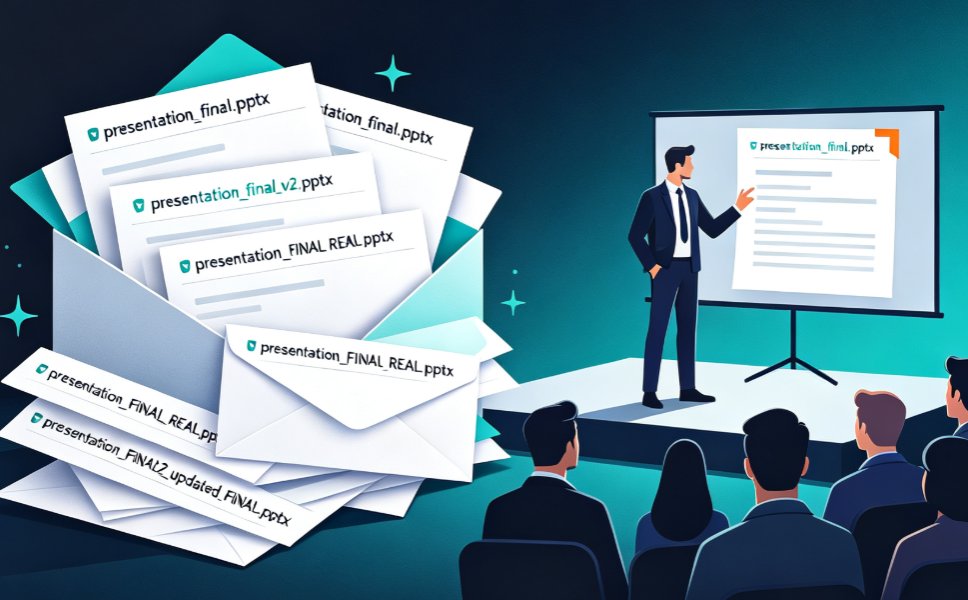
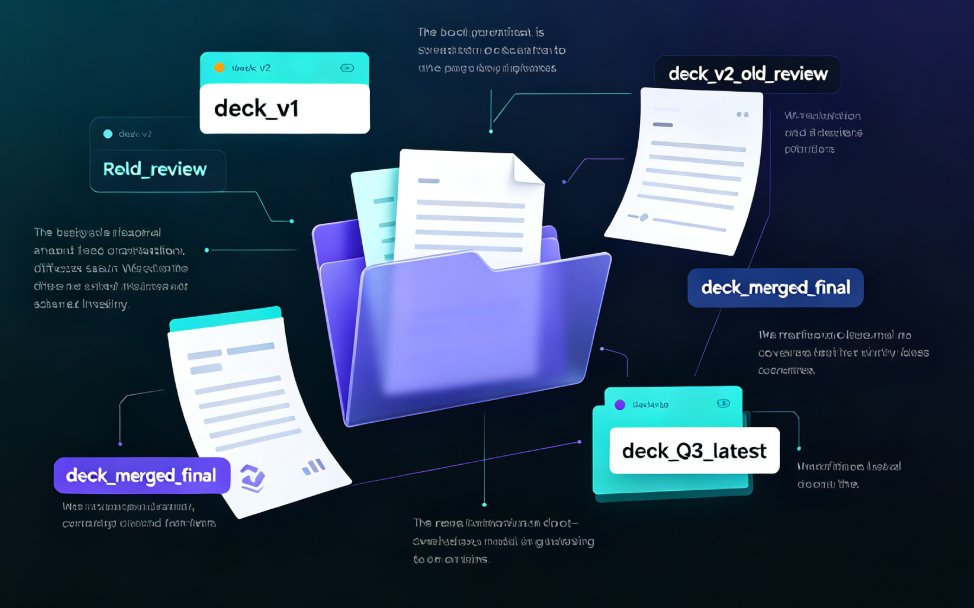
Silence. Then the scroll. Then the email chain with 14 attachments labeled v4_FINAL, v5_FINAL2, and v6_REALLY_FINAL.
Let's be real: building a training deck with more than one stakeholder has always been a slog of version hell, overwritten slides, and feedback that arrives three days after you've moved on. But it doesn't have to be. Real-time team co-editing means every person works on the same live file — so no one ever touches a stale copy again.
In this guide, I'll walk through how HR, L&D, and training teams can run a live co-editing workflow for a shared training deck: the roles, the session, the habits. And I'll show where Zendeck's shared links and collaborative editing fit into that flow.
01 | Why Collaboration Feels Broken — And What the Data Says
This isn't a niche problem. According to an IDC survey cited on the Box blog, 38% of employees report challenges when collaborating with internal colleagues. That's not a few messy email threads — that's nearly four in ten workers wrestling with the same document.
The symptoms are painfully familiar:
- Duplicated effort when two people "fix" the same slide
- Errors and oversights when reviews aren't truly collaborative
- Low-quality content when feedback scatters across disjointed channels
When your tools are scattered — one doc in Drive, an attachment in Slack, comments in three places — the deck becomes a patchwork of good intentions. A centralized, cloud-based workspace isn't a nice-to-have; it's the difference between a deck and a disaster.
And the cost isn't just frustration. Every re-send, every "can you check the latest," every overwritten slide is a small tax on your team's focus. Multiply that across a 40-slide deck and four reviewers, and you've burned a full workday on logistics alone. Co-editing doesn't remove review — it removes the logistics around review.
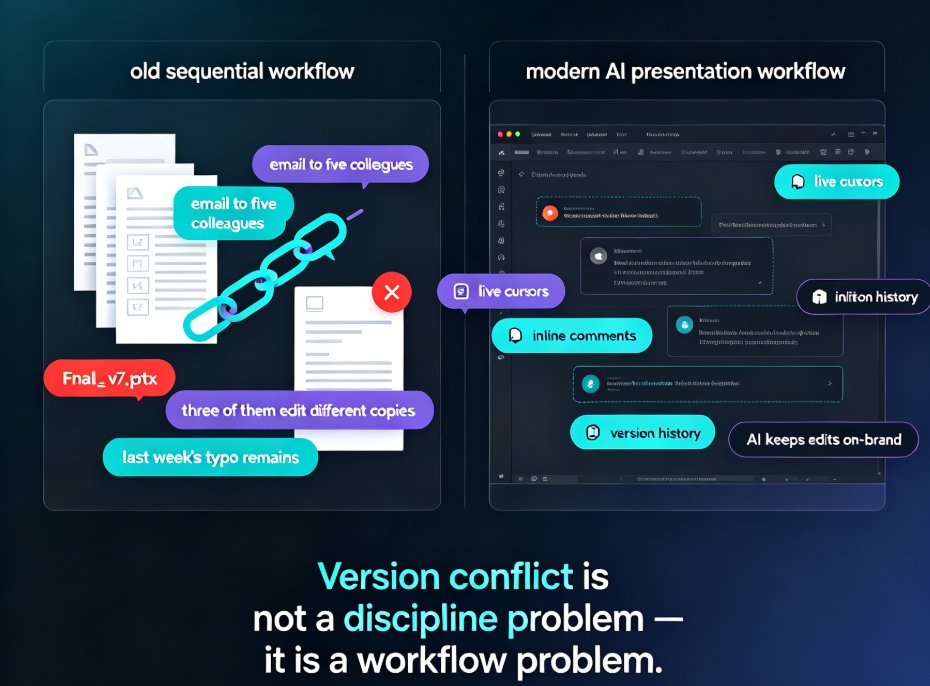
The fix isn't better discipline. It's a better workflow — where editing, feedback, and approval happen inside one live file.
02 | The Three Roles Every Co-Editing Session Needs
Before you open a shared deck, settle who's actually in it. A healthy co-editing session has (at least) three roles:
The Author — the L&D or instructional designer. They own the narrative. They build the outline, draft the slides, and hold the story together. They're the one who knows whether slide 12's learning objective actually maps to the assessment.
The Reviewer — the subject-matter expert. The SME checks accuracy: compliance points, technical details, the "actually, it's pronounced X" fixes. Their job is to correct, not to rewrite.
The Stakeholder — the business owner or approver. They care about scope, timing, and whether the deck matches the business goal. They should be seen, not buried in edits.
Roles matter because they map to permissions. In tools with role-based access — viewer, editor, admin — giving each person a defined access level prevents the two problems that kill most collaboration: people editing things they shouldn't, and people unable to edit things they should.
In Zendeck, this maps cleanly: the author builds the deck, then shares a live link with the right access level — editors can mark up slides while stakeholders can review without risking the layout. (Curious about the productivity side of this? Our guide to hidden AI presentation features digs into the setup deeper.)
03 | What a Live Co-Editing Session Actually Looks Like
Let's run a concrete scenario. Your L&D team is building a 40-slide onboarding deck for the sales team.
Step 1: The author builds from an outline. Instead of a blank deck, the author drops in a Word outline or structured text. This is where tools that generate a first draft from an outline save real hours — see how the AI prompt-to-deck flow handles that initial pass.
Step 2: Share a single live link. One URL, not a file. Not "the latest version." Everyone opens the same live deck from a centralized workspace.
Step 3: Co-edit in real time. The SME drops corrections on slide 18 while the author restructures slide 5. You see each other's cursors and edits live. No "which version" questions.
Step 4: Comment, don't fork. Feedback lives in threaded comments on the slide itself — not in a Slack thread nobody can find later. Centralized comments cut miscommunication and make reviews genuinely collaborative.
Step 5: Lock, approve, freeze. Once the deck is approved, lock it. File-locking stops anyone from saving over finished work.
The outcome: you go from "final_final_FINAL" to one live deck, reviewed in hours instead of weeks.
04 | What Actually Changes When You Stop Emailing the Deck
| Workflow step | Traditional (email + attachments) | Real-time co-editing (single live file) |
|---|---|---|
| Sharing the deck | Attach, send, wait, re-send | One shared link for everyone |
| Seeing who's editing what | Invisible, guess and hope | Live cursors and visible edits |
| Feedback loop | Scattered across email and Slack | Threaded comments on the slide |
| Version control | "v14_final_FINAL2.pptx" | One file, no versions |
| Who changed what | Digging through "track changes" | Live tracked edits and history |
| Overwriting work by accident | Constant risk | File locking prevents it |
| Time to approval | Days to weeks | Hours |
Reading that table, the argument almost makes itself. The deck isn't a document you ship; it's a workspace you work inside. The moment you treat it that way, the whole cycle compresses — review time, rework, and the quiet dread of the next "which version" question.
05 | The Habits That Keep a Co-Edited Deck Honest
Live co-editing removes the infrastructure problem, not the human one. A few habits keep the deck coherent:
Habit 1: Centralize everything in one platform. Mixing Google Docs, Slack, and email is how collaboration dies. One workspace, one source of truth.
Habit 2: Tie feedback to the slide, not the person. "Fix slide 12's data" beats "Sarah's comment" because it connects the note to its purpose.
Habit 3: Use tracked edits. You need to see who changed what, and when — otherwise accountability evaporates.
Habit 4: Hold a live read-through before you freeze. Walk the whole deck together in real time. It's faster than any email round-trip because everyone sees the same state.
And if your team starts from Word or Google Docs, make sure the import path preserves your edits — the worst outcome is co-editing in Word, then losing the markup when it lands in the deck.
06 | When Not to Co-Edit
Let's be honest about the edge cases. Real-time editing isn't always the answer:
- External freelancers on their own deadline — give them a slice, then review.
- Final sign-off — freeze the deck and switch to read-only. Approval shouldn't happen with live cursors.
- Very early, messy brainstorming — sometimes one person and a blank page beats twenty cursors.
For everything in between — the actual building and refining — co-editing is the fastest path. The real discipline is knowing when you're in "co-edit" mode versus "freeze and approve." Teams that name that shift out loud save themselves from the worst collaboration failures.
07 | Why This Matters for 2026
Real-time collaboration is becoming table stakes. Adobe is shipping live co-editing into Photoshop; cloud platforms have made multi-user editing the default expectation. If your training decks still travel by email attachment, you're not just slow — you're behind the workflow your stakeholders now expect.
The decks people remember aren't the prettiest. They're the ones that got built quickly, survived review with integrity, and shipped on time. Live co-editing gets you there — one deck, one link, one version, for everyone on the team.
For more on where this is heading, our office efficiency coverage tracks the tools and workflows shaping how teams build presentations in 2026.
FAQ
What is real-time team co-editing? Real-time team co-editing is a collaborative workflow where multiple people work on a single document or deck simultaneously. Instead of emailing versions back and forth, everyone opens one live file from a centralized workspace, sees each other's edits and cursors, and leaves feedback in threaded comments right on the slide.
How does co-editing stop version chaos? Because there's only one live file and one shared link, there's nothing to version. File-locking prevents overwrites, tracked edits show who changed what and when, and threaded comments keep all feedback in one place. You never have to ask "which deck are we on?" again.
Can I control who edits what in a Zendeck training deck? Yes. Zendeck's shared links let you assign role-based access levels — viewers, editors, admins — so authors can build, reviewers can comment, and stakeholders can review without the risk of breaking the finished layout.
What should I do before freezing a co-edited training deck? Hold a live read-through with the whole team, resolve the last comments, then lock the deck and switch it to read-only. Approval and final sign-off should always happen on a frozen version, not a live one.