PPT Export Formats Compared: PDF, PPTX, Video and More with Zendeck
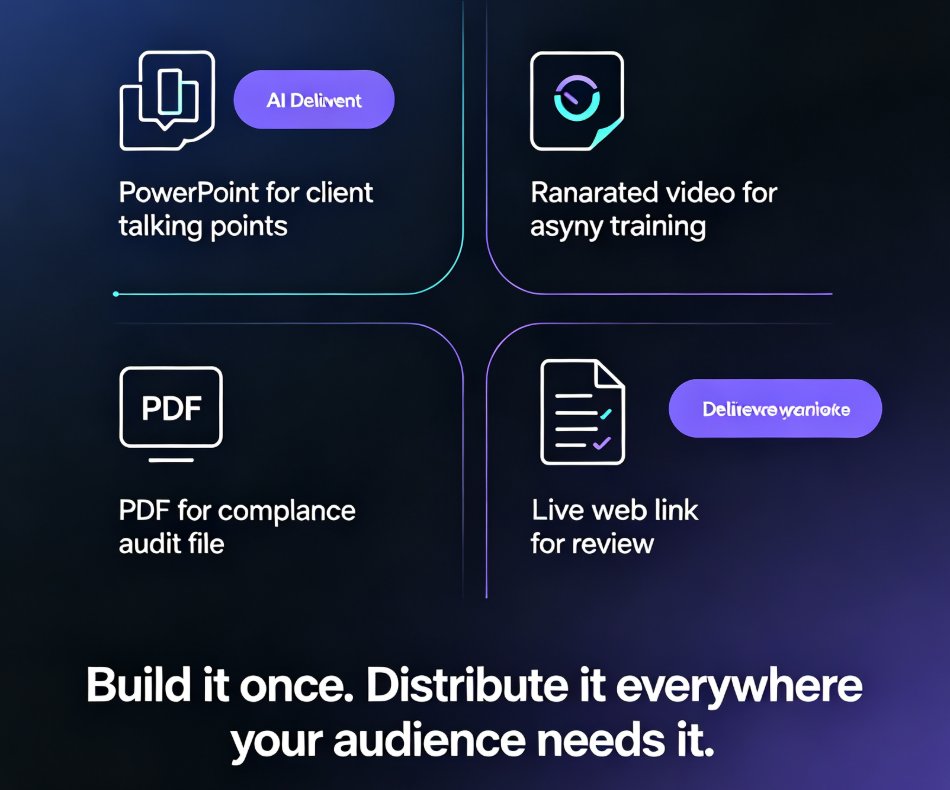
You just finished a deck in your AI presentation tool — clean layouts, on-brand colors, charts that actually make sense. Then the requests start rolling in. The client asks, "Can you send that as a PowerPoint? I want to add my own talking points." The training lead wants a video for next week's asynchronous course. Compliance needs a PDF for the audit file. Suddenly one deck has to become three or four deliverables.
And the old way of handling that? Rebuilding everything by hand. Let's be real — that's a waste of a perfectly good afternoon.
01 Why Export Format Choice Is the Silent Productivity Killer
The problem isn't that people can't export files. It's that export options are usually an afterthought — a buried "Save As" menu with zero guidance on what each format actually preserves. So teams default to whatever their tool suggests, then patch the gaps manually. That's how a single deck ends up being recreated three separate times.
We hear this constantly in training and consulting teams. A polished deck gets built in one platform, then someone pastes slides into PowerPoint to "make it editable." Another person screenshots slides into a PDF that looks like it went through a shredder. Someone else re-records audio in a video editor. All of that is duplicated effort.
Industry estimates from presentation tools like SlideVids put manual recreation of a 20-slide deck at one to three hours of work per project. A team that exports five presentations a month ends up burning 5 to 15 hours on duplicated effort — rebuilding slides from memory and screenshots, re-adding speaker notes, re-pasting charts that have moved.
Choose the right export format once, and you stop rebuilding the same deck in three different tools.
When export is a first-class feature — not an afterthought — the same deck becomes a PDF handout, an editable PPTX, a narrated video, or a live web link, with layout, colors, fonts, and notes preserved across every destination. You build it once, then distribute it everywhere your audience needs it.
02 PDF Export: The Print-Ready Workhorse
PDF remains the default for anything that needs to look exactly the same on every screen, in every email, and on paper. No fonts missing, no layouts shifting, no "why does this slide look broken on my laptop" emails.
Reach for PDF when:
- You're distributing printed handouts for a workshop, classroom, or board meeting.
- You need compliance documentation — audit files, training records, sign-off materials.
- You want a read-only snapshot that nobody can accidentally edit.
The catch with most PDF exports is fidelity. If the tool only screenshots slides, you get blurry text and distorted charts. A proper PDF export preserves vector text, colors, images, and slide geometry so the handout looks as sharp as the on-screen deck. And if your deck carries speaker notes, a good PDF can include them as an appendix or a separate notes view for the presenter.
One thing I'll tell every team, because nobody warns you: always open the exported PDF once before sending it. A two-second visual check saves you the embarrassment of a handout with a missing chart or a widow line. With Zendeck, the fidelity is consistent — but the check costs you nothing.
03 PPTX Export: The Editable Deck for Collaboration
Here's the scenario that convinced me PPTX export isn't optional: an executive needs to present your deck tomorrow, and they're going to add their own talking points, reorder three sections, and drop in last-minute numbers. They are not going to present from a video tool, and they're not going to redesign anything. They need the native PowerPoint file, period.
A full-fidelity PPTX export preserves slide layouts, colors, fonts, and images, so the file opens in Microsoft PowerPoint, Google Slides, or Keynote without collapsing into a formatting mess. Even better, your speaker notes carry over as presenter notes — which means the narrative you crafted survives the transfer instead of being lost in the conversion.
The pain point this solves: most people, when handed a "read-only" deck, will rebuild the whole thing just to make it editable. That's the 1-3 hours we talked about earlier. With an editable export, the executive opens the file, makes their tweaks, and presents — no design skills required, no starting from scratch.
This is also where export and import start to matter together. If your team frequently moves between Word outlines, Google Docs, and PowerPoint, having a unified pipeline — outline in, deck out, editable file back — keeps the whole workflow circular instead of dead-ending at the final export. Zendeck's integration approach with Word and Google Docs makes that handoff genuinely seamless.
04 Video Export: PPT to Video for Micro-Courses
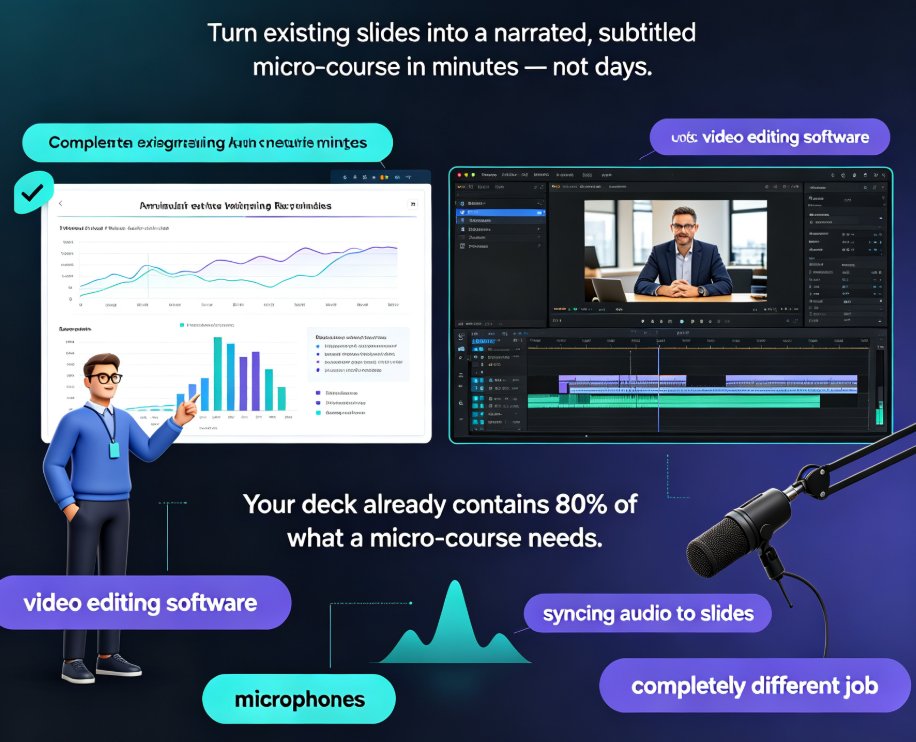
The format that most traditional tools still do badly is video. Yet it's the one your audience increasingly expects — especially in training. When people can't attend a live session, a narrated video deck delivers the same content on their schedule: on a commute, at a desk, or through an LMS.
When your audience can't be in the room, a narrated video deck delivers the training without a live session.
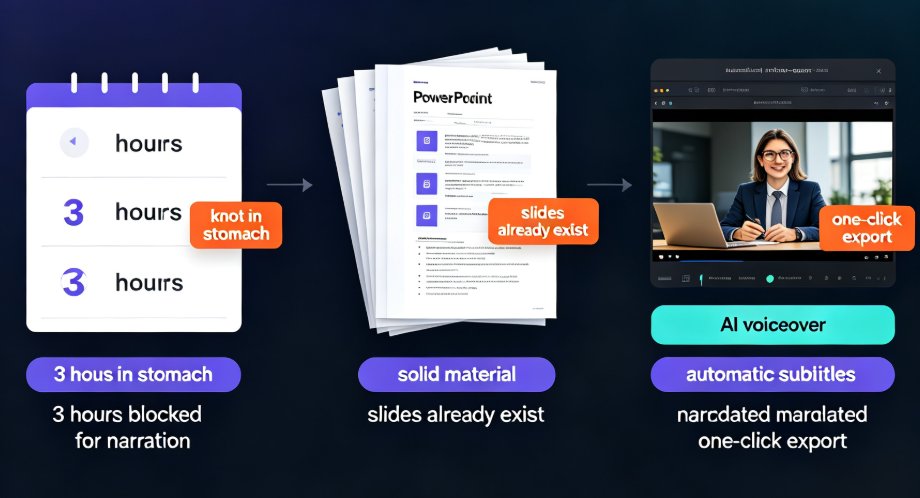
This is where Zendeck's PPT-to-video workflow earns its keep. Your slides become a sequenced video with narration, and you have the option to add voiceover and subtitles — which matters more than people think. Subtitles aren't just an accessibility nicety; they dramatically boost completion rates in asynchronous learning because viewers can watch with sound off.
When video export shines:
- Micro-courses for onboarding, product training, or compliance refreshers.
- Client enablement — a short walkthrough they can watch instead of reading a spec.
- Reaching mobile learners who will never sit at a desk with a PDF.
The measure of a good video export isn't just that it renders. It's that the timing, transitions, and narration stay in sync, and that the file compresses to something you can actually upload to an LMS or share over email. Nobody wants a 2GB training video that takes an hour to upload.
05 Shareable Links: Real-Time Collaboration Without File Attachments
Then there's the format that isn't a file at all: the shareable web link. For review cycles, this is often the fastest way to work — no attachments, no "final_v3_FINAL_2.pptx" version hell, no waiting for someone to download and re-upload.
Use a link when:
- You need fast feedback from stakeholders who just want to comment, not edit.
- You're presenting live from a browser and don't want to risk local software failures.
- You want everyone to always see the latest version — update the deck, and the same link is automatically current.
A link is also the safest way to share a deck early in the process, before it's shaped enough for a formal export. Once the design is locked, that's when you push out the PDF, PPTX, or video version for distribution.
06 Export Formats Compared at a Glance
Here's the quick reference I wish every team printed and taped to a monitor:
| Export Format | Best For | Editable by Recipient | Fidelity Preserved | Sharing Model |
|---|---|---|---|---|
| Handouts, compliance, board packets | No | High — vector text, colors, layout | Read-only, print-ready | |
| PPTX | Client edits, cross-platform work | Yes | High — layouts, fonts, speaker notes | Edit in PowerPoint, Google Slides, Keynote |
| Video | Micro-courses, asynchronous training | No | High — narration, subtitles, transitions | LMS, streaming, mobile playback |
| Web link | Reviews, live presenting | Limited (comments) | High — always the latest version | Real-time, no file transfer |
The pattern to notice: none of these formats requires a separate build. The same Zendeck deck is the single source of truth, and each export is a different lens on that one source — not a re-creation.
07 How to Pick: A 30-Second Decision Guide
When you're about to export, ask one question: what does the audience need to do with this?
- They need to edit it → Export PPTX. They'll add talking points, reorder, and present from their own machine.
- They need to read or print it → Export PDF. Handouts, audits, and board packets are read-only by definition.
- They need to learn on their own time → Export video. Asynchronous training lives and dies on narrated micro-courses.
- They need to react fast → Send a link. Comments keep the loop tight without version control drama.
Worth a side note: you'll often use more than one format for the same project. A course becomes a PDF for the trainer's manual, a PPTX for the L&D team to update, and a video for the learners. That's normal — and it's exactly why the export step should take minutes, not hours.
Mastering export formats is the difference between a deck that lives in one place and a deck that travels everywhere your audience is.
If you're new to this workflow, start by exporting one of your existing decks in all four formats. You'll see immediately where your current tool wastes time — and where a build-once approach saves it.
FAQ
Can I export only selected slides as PDF or PPTX instead of the whole deck?
Yes. In Zendeck's export panel you can choose a slide range or pick individual slides, so a 40-slide course can become a focused 10-slide handout in seconds — no separate editing pass required.
Does the PPTX export preserve speaker notes, fonts, and branding?
Yes. Zendeck's PPTX export carries over slide layouts, colors, fonts, images, and speaker notes, so anyone can open the file in PowerPoint, Google Slides, or Keynote and keep editing without redoing the design.
Can I turn my Zendeck deck into a narrated video?
Yes. The PPT-to-video feature converts your slides into a narrated micro-course, with options to add voiceover and subtitles — ideal for asynchronous training, LMS uploads, and reaching learners who can't attend live sessions.
What's the difference between sending a shareable link and exporting a PDF?
A shareable link always reflects the latest version and supports inline comments, while a PDF is a frozen, print-ready snapshot. Use links for review cycles and collaboration; use PDF for read-only distribution, audits, and handouts.