PPT-to-Video Without Losing Design? Zendeck Keeps Visuals & Narration
Here's the honest version of every PPT-to-video horror story: you spend hours crafting a deck with sharp charts, brand colors, and a story arc that lands. Then you need a video version for people who'd rather watch than read. You hit "convert," and suddenly your beautiful slides look like a copied-and-pasted mess. Fonts drift. Charts flatten. Captions float nowhere. And to fix it, you're now recording your own voiceover, editing out the breath sounds, and syncing slides to audio by hand.
If that resonates, you already know the real issue: most converters treat your design as something to survive, not something to preserve. But a good PPT-to-video tool keeps your visuals exactly where you placed them — and adds narration on top, without you touching a microphone. That's the entire point of this guide.
01. Why "Good Enough" Conversion Fails Your Deck
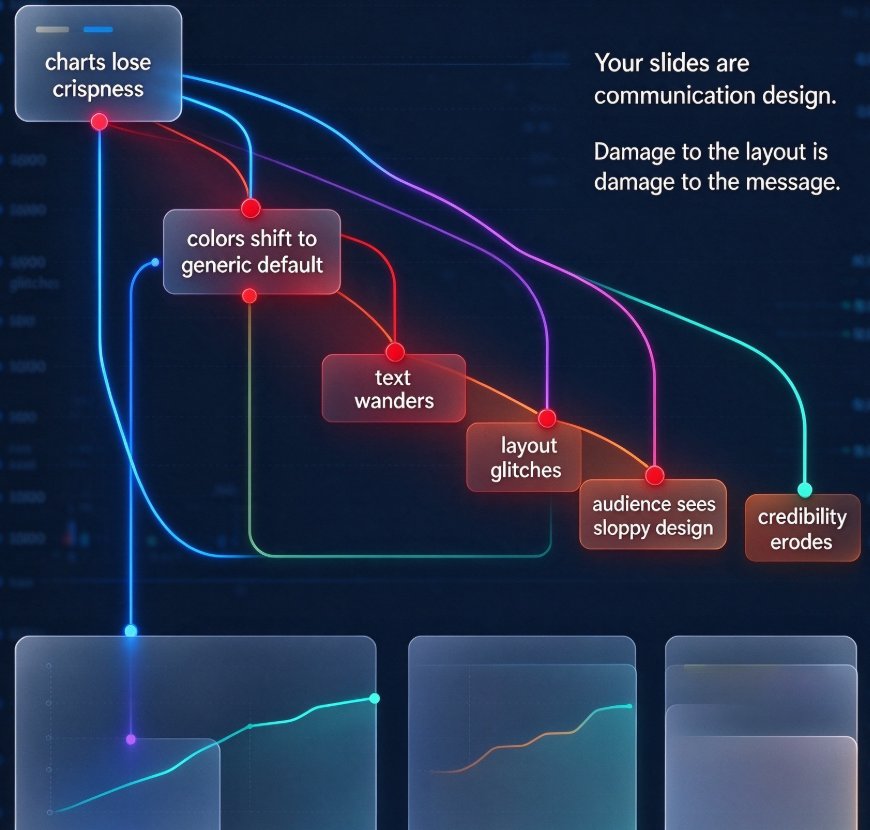
Let's be real: when most people convert a PowerPoint to a video, they accept a quality drop. Maybe the charts lose their crispness. Maybe the template's colors shift toward a generic default. Maybe text that used to sit under an image wanders to the middle of the frame. Each of those small losses adds up — and an audience watches a video the way they watch a film. Any visual glitch reads as sloppy, and sloppy design quietly erodes your credibility, even when the content is excellent.
Your slides are communication design, and a video conversion that damages them damages your message. That's why the first thing to check in any converter is what happens to your layout, order, and on-screen text.
The most common failures when you convert PPT to video:
- Charts and graphs lose their labels or get flattened into low-res images
- Slide layouts shift, so text and images overlap
- Your brand colors are replaced with generic defaults
- Captions and labels disappear or end up in the wrong position
- The slide order changes, breaking your narrative arc
02. What Design Preservation Actually Means (and What Breaks Without It)
◉ What exactly should survive a PPT-to-video conversion?
When you turn a deck into a video, three things matter most:
- Slide order — your storyline must stay intact, scene by scene.
- Visuals — charts, photos, icons, and illustrations need to land exactly where you placed them.
- On-screen text — captions, labels, and titles should carry over as clean on-screen text.
That's the minimum for a conversion that doesn't embarrass you. Here's how different approaches handle it:
| What your slide has | Typical generic converter | Zendeck's PPT-to-video |
|---|---|---|
| Chart with data labels | Labels flatten into low-res pixels | Chart and labels stay clean inside the scene |
| Brand-colored background | Gets replaced with default white | Your brand palette carries through |
| Caption under an image | Caption drops out or floats off | Becomes on-screen text in the right scene |
| Strict slide order | May reorder or drop slides | Each slide becomes its own scene, in order |
| Icons and illustrations | Crop or stretch to odd shapes | Land in the spot you designed for them |
The table says it plainly: a quality conversion is not a free-form "make it a video" button. It's a scene-by-scene translation of what you already built.
03. How Zendeck's PPT-to-Video Workflow Runs
The workflow is short enough that you can finish while your coffee is still hot.
- Import your content — upload a Word outline, paste Markdown or TXT, or bring in an existing deck.
- Let the AI read your structure — Zendeck builds scene-based video scenes from your slides, preserving the slide order and layout.
- Get auto narration — a natural AI voice reads the content, paced to each slide.
- Fine-tune anything — swap the voice, adjust the aspect ratio, change colors, add subtitles.
- Export or share — publish as MP4 or share via link.
Each slide becomes its own scene, so your pacing and storyline stay exactly where you put them. This is the difference between a video that feels like a film and one that feels like a slideshow on fast-forward.
If you want the full walkthrough of adding narration to individual slides, read How to Add Narration to Your Slides with Zendeck's PPT-to-Video.
04. Narration Without the Noise: Auto Voiceover Done Right
Here's the step most people dread in PPT-to-video projects: recording the voiceover. You sit down with a microphone, read a script, stumble over a sentence, retake it, listen back, edit out the pauses, then re-sync everything to the slides. A five-minute script can eat 45 minutes of your day. And when you're producing a five-part course, that time multiplies fast.
Zendeck's approach is different. The PPT-to-video feature can generate the narration for you — the AI reads your slide content and produces a voiceover that matches the pacing of your scenes. No microphone. No audio editing. No "um" cut-outs.
Auto-generated narration turns a weekend of recording into a 10-minute export. For more on pairing voiceover with subtitles — useful for learners who watch with sound off — see How to Add Voiceover and Subtitles to Your Slides with Zendeck's AI. And if you need captions for accessibility, Zendeck can auto-generate subtitles from your PPT content.
05. Who Actually Needs PPT-to-Video (and Why They Need It Soon)
This isn't just a tool for people who "like videos." The pressure to convert decks into video is real, and it's coming from several directions at once:
- Educators turning lecture decks into micro-courses that students can rewatch before exams
- Corporate trainers converting onboarding and compliance decks into self-paced video modules
- HR teams producing explainer videos from policy slides without hiring a video crew
- Content operators repurposing webinars and reports into short video snippets for social channels
A static deck has a ceiling. A narrated video gets watched, shared, and remembered. If your company is moving away from slide-based training entirely, AI-generated video decks are already replacing traditional corporate training. And when you're building full courses, AI agents can take an outline all the way to a published micro-course — with no design skill required.
06. How Much Time Does PPT-to-Video Actually Save?
Let's put some numbers on the table. The three typical workflows for a 10-slide deck, using rough but realistic estimates:
That gap — 120 minutes down to 10 — is the difference between a once-a-quarter video habit and a weekly one. Once the conversion and narration are automated, the bottleneck is no longer production time. It's deciding what to say.
07. You Still Control the Edit: Fine-Tuning After Conversion
The fear people voice most: "If the AI does everything, do I lose control?" No. After conversion, you can edit scenes, swap the voice, change the aspect ratio, adjust colors, and re-export. Think of the AI as a production assistant, not the boss.
That's the practical advantage of keeping your design intact as scenes: every element is still yours to adjust. Nothing is baked into a single, fixed video file. And because the underlying content is preserved, you can also regenerate variants — different voices, lengths, or aspect ratios — for multi-language or multi-channel distribution, without rebuilding the deck from scratch.
For more on how this fits into a larger workflow, browse the rest of the PPT-to-Video library.
FAQ
Q: Will Zendeck's PPT-to-video preserve my original slide design? A: Yes. Zendeck keeps slide order, layout, charts, images, and captions intact, turning each slide into its own video scene so nothing gets lost or distorted.
Q: Do I need to record my own voiceover? A: No. Zendeck can auto-generate natural AI narration that matches your slide pacing. You can also upload your own audio or use AI avatars if you prefer a human presenter.
Q: Can I edit the video after conversion? A: Absolutely. After conversion, you can fine-tune scenes, swap the voice, change the aspect ratio, adjust colors, and re-export without starting over.
Q: What file formats can I import? A: You can upload a Word outline, paste Markdown or TXT, or bring in an existing deck. Zendeck then converts that content into a structured, scene-based video.
Q: Can I create multiple versions of the same video? A: Yes. Because the original slide content is preserved as scenes, you can regenerate with a different voice, length, or aspect ratio for multi-language or multi-channel versions.