Turn Training Decks into Narrated Videos: The 2026 Guide
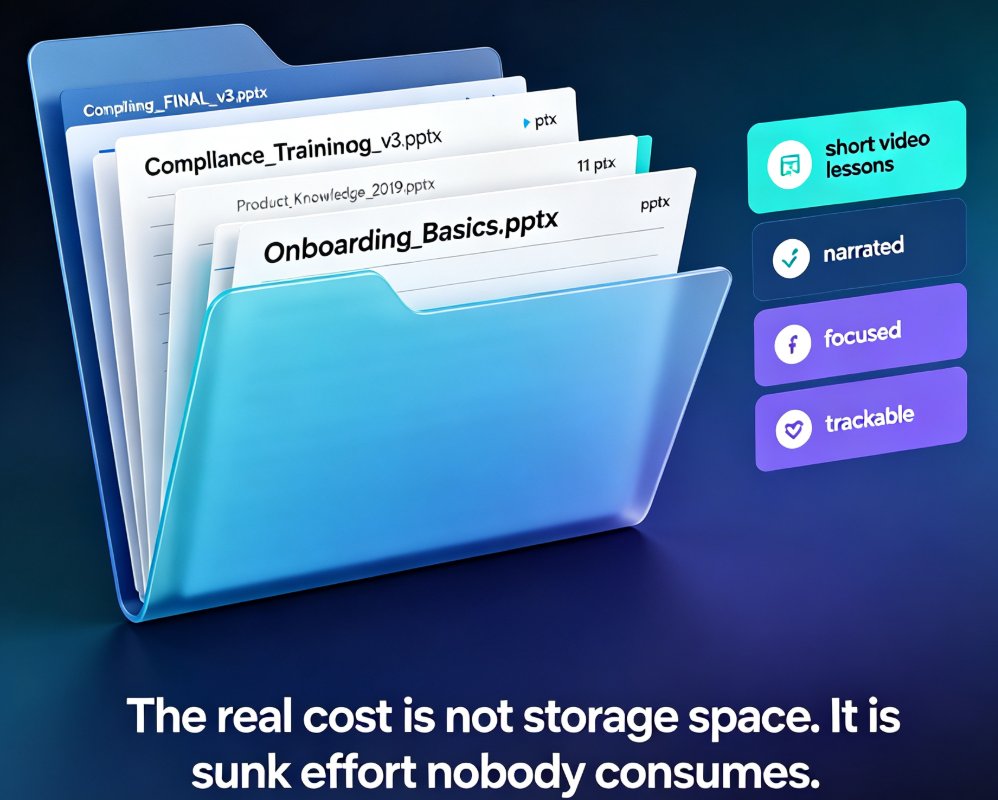
Every L&D team knows this scene: you spent a week polishing a 60-slide training deck, the kickoff call wrapped, and three months later nobody has opened the file again. The content was right. The container was wrong.
Turn those same slides into a narrated video and the dynamic flips. Employees watch on their own schedule, replay the parts they missed, and actually finish the thing. That shift — from sit through a deck to watch a short video — is the quiet reason PPT-to-video has become the 2026 corporate training standard. This guide covers the workflow, the trade-offs, and the exact steps to convert your training decks into narrated videos without hiring a video editor.
I. Why Training Decks Die After the Kickoff (and What Narrated Video Changes)
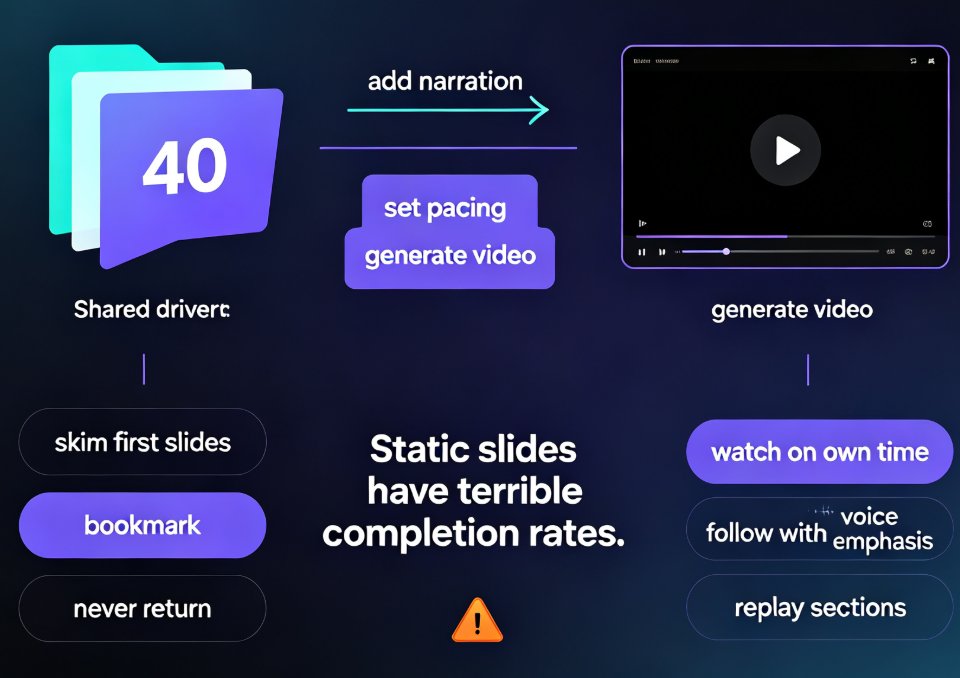
A training deck has one fundamental problem: it asks for undivided attention in a world that does not grant any. Live sessions compete with Slack, email, and the constant pull of other work. And a static file sent afterwards has zero pacing — no one tells the viewer where to look, what matters, or how long any given slide deserves.
A narrated video isn't a fancier version of your deck — it's a different container for the same content, built for watching instead of reading.
When AI converts your slides into video, three things happen that a deck cannot do:
- Pacing. Each slide becomes a scene with a defined duration, so content moves at a watchable rhythm instead of a flat scroll.
- Guidance. Narration tells the viewer what to focus on, replacing the presenter who would have spoken at the kickoff.
- Replay. Video is built for rewinding. Trainees can re-watch the exact 40-second segment where you explained the compliance rule — precisely the behavior training content needs.
The outcome: training that employees actually finish. That is the core argument, and the reason the industry conversation has steadily moved toward AI-generated video decks replacing traditional corporate training.
II. What PPT-to-Video Actually Does to Your Slides
Let's bust the biggest misconception first. Converting a deck to video is not 'slides on autoplay with a robot voice.' That is the cheap version, and it produces content nobody watches.
Done well, the tool reads your deck, breaks the content into scenes, writes voiceover-ready narration, and rebuilds bullet lists and tables as motion graphics. The bullet points become animated build-ups. The big table becomes a visual sequence. The dense slide becomes three short scenes instead of one overwhelming wall of text.
The fastest way to a narrated training video is not to edit one. It's to let the AI rebuild the deck as scenes, write the narration, and animate the visuals for you.
Tools in this space share a common flow: bring in your deck, let the AI plan a scene-by-scene video, then refine by describing changes in natural language. You do not rebuild the deck by hand in an editor — you describe the change and regenerate that scene. Teams that treat PPT-to-video as a restructuring engine rather than a layout tool come out ahead. The magic is in the transformation, not the file format.
III. Which Training Decks Earn Their Video Conversion
Not every deck deserves a video version. Some are reference documents — leave those alone. But for content meant to be watched, absorbed, and replayed, video almost always wins. If you work in L&D or training, the scenarios below should look familiar; they are exactly what is driving the 2026 shift to AI PPT-to-video in corporate training.
| Deck type | Best for | Watchability | Replay value | Convert? |
|---|---|---|---|---|
| Onboarding & compliance | Employees at their own pace | High | High (re-audits) | Yes |
| Sales enablement | Sending instead of a live pitch | Medium | High | Yes |
| Courseware & lectures | Students reviewing before exams | High | Very high | Yes |
| All-hands recaps | Anyone who missed the live call | High | Medium | Yes |
| Investor / pitch decks | Asynchronous review | Medium | Medium | Maybe |
If the deck answers a question people will ask again next month, it is a candidate. If it is a one-time procedural reference, keep it as a document — nobody wants to scrub a video to find one number.
IV. The Zendeck Workflow: From Outline to Narrated Video in Minutes
Here is where practical honesty kicks in: you could hand your deck to a video agency and get a gorgeous result in two weeks. But for internal training, speed beats polish almost every time. An agency deliverable that arrives after the training window has closed is worth nothing.
With Zendeck's PPT-to-Video, the flow collapses to four steps:
- Start from your deck. Upload a Word outline or paste Markdown — Zendeck reads the structure, plans scenes, and builds the slides for you.
- Let the AI rebuild the content. Bullet lists become motion graphics, tables become animated sequences, and the deck gets a consistent template that matches your brand.
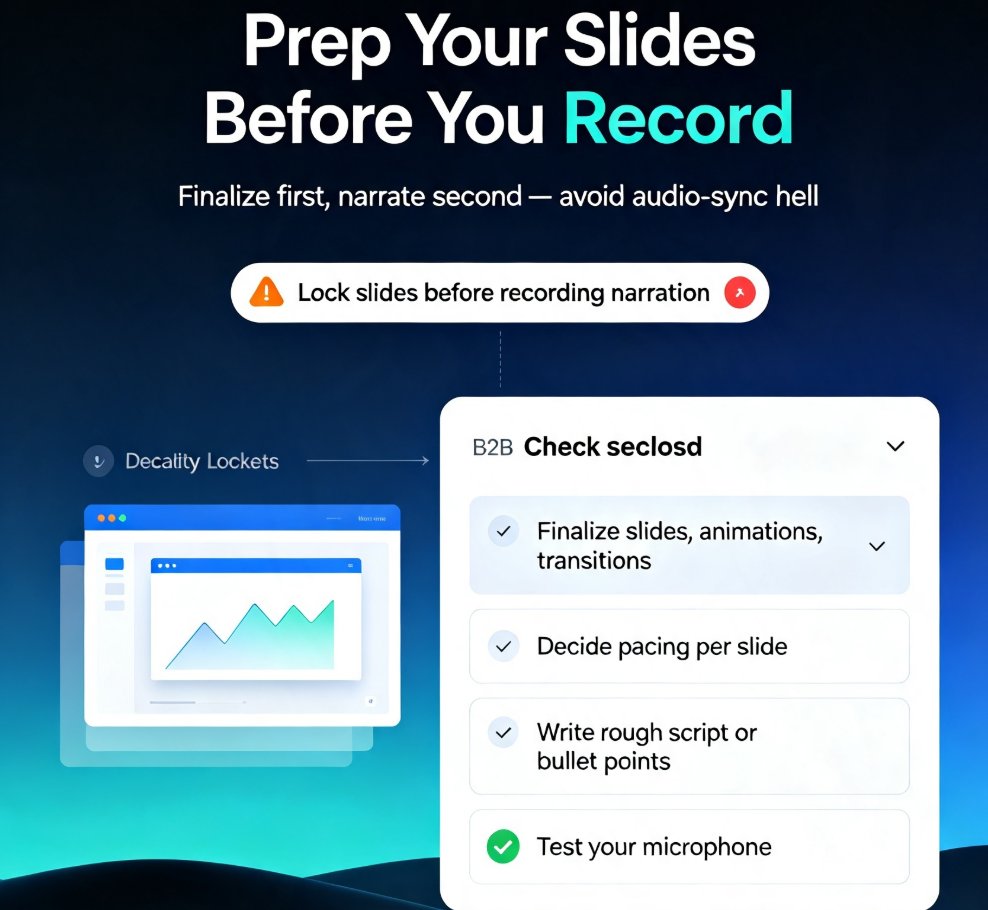
- Add narration. Zendeck writes voiceover-ready narration and can generate the voice track and subtitles, or you can record your own. For a deeper look, see the guide on adding narration to your slides.
- Export and share. Push an MP4 or share a link that works on any device — no viewer app required.
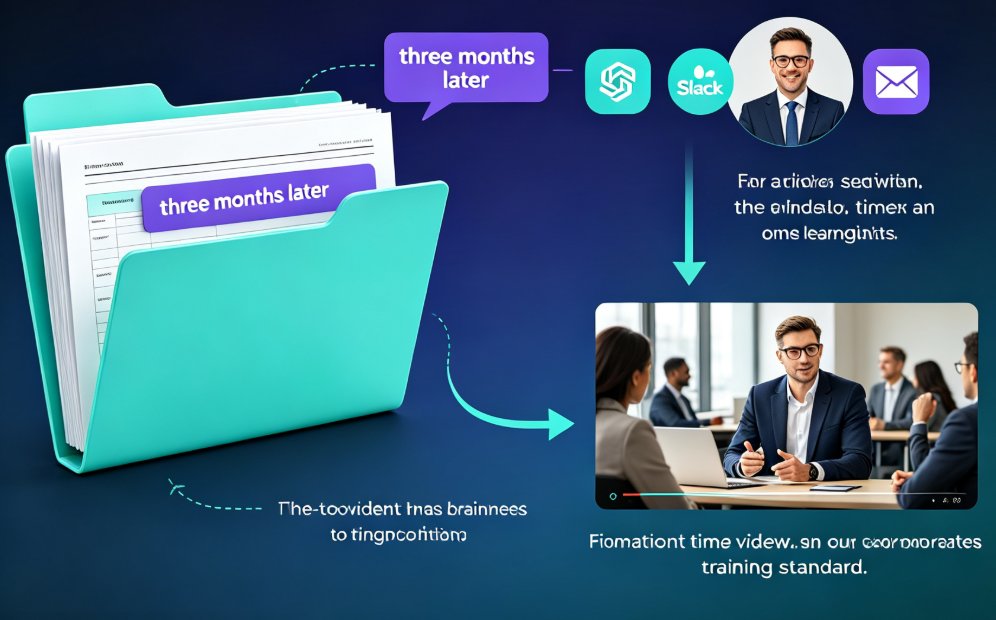
The whole loop — upload, generate, narrate, export — runs in minutes, not days. And since the video is generated from your deck, your content and message survive while the form improves.
V. The Time Math: Deck vs. Video Production
Let's put some numbers on the table. Producing a 10-minute narrated training video the traditional way — writing narration, recording voiceover, animating scenes, adding captions — typically eats a full work week. Deck-to-video tools cut that to a couple of hours at most.
The chart below illustrates the typical hours invested per task. Your actual times will vary with deck complexity, but the pattern holds across teams.
The same deck that took your team a week to convert by hand now converts in roughly two hours — a 7x time saving that makes narrated training video realistic for teams without a video department.
Read that twice: 15 hours versus 2 hours for a typical 10-minute training video. When conversion is that cheap, the 'we don't have time for video' excuse disappears.
VI. Captions, Subtitles, and Accessibility: The Wrap-Around Win
One of the least-hyped benefits of PPT-to-video is accessibility. Auto-generated narration often comes with auto-generated subtitles, which matters more than most teams realize. Captioned video works in sound-off environments like open-plan offices and quiet commutes, covers viewers with hearing impairments, and boosts retention for everyone.
This pairs with the broader trend toward accessible courseware. The same tool that converts your deck can auto-generate subtitles from your slides, closing a real accessibility gap in training content. If WCAG compliance is on your radar, that is a meaningful checkbox — and you get it almost free as a side effect of converting your deck.
VII. Mistakes Teams Make When Converting Decks to Video
After watching dozens of teams run this workflow, the same mistakes show up repeatedly. Avoid them and your first conversion will be your best one.
- Converting a reference document instead of a narrative. If the deck does not have a storyline, video will not invent one. Convert decks that teach, not decks that catalog.
- Skipping the narration pass. Auto-narration is a starting point, not the finish line. Read it, tighten it, cut the flat energy — your learners will notice the difference.
- Ignoring scene structure. The best conversions break dense slides into multiple short scenes. If your output still looks like a slideshow on autoplay, regenerate scenes until the pacing feels intentional.
- Forgetting captions in export. Subtitles should not be an afterthought; they are the difference between content watched at a desk and content skipped entirely.
One more honest tip: do not obsess over the perfect scene on the first pass. Generate, export, watch once, and refine the one or two weak moments. Perfectionism is the enemy of shipping training content on time.
VIII. FAQ
Q: How long does it take to turn a training deck into a narrated video with Zendeck?
A: Most 30–60 slide decks convert within minutes — Zendeck reads the structure, rebuilds it as scenes, writes narration, and animates the content. After generation, light prompt edits and an export add just a few more minutes.
Q: Will the video keep the content from my original slides?
A: Yes. The video is generated from your deck, so the message survives while the form improves. Bullet lists become motion graphics and dense slides get split into shorter, watchable scenes — but the substance stays yours.
Q: Do I need design or video-editing skills?
A: No. Zendeck handles layout, narration, and animation automatically. You refine any scene by describing the change in plain language, without touching a timeline or a design tool.
Q: Can I edit the narration or regenerate individual scenes?
A: Yes. You describe the change — make this scene shorter, reword the intro — and Zendeck regenerates that scene to match. You stay in control without editing frame by frame.
Q: What formats can I export for distribution?
A: You can export an MP4 for your LMS, share a link leaners open on any device, or push the video into your courseware flow. Subtitles can be included automatically.