From Word to Wow: One-Click Document Conversion into Presentations
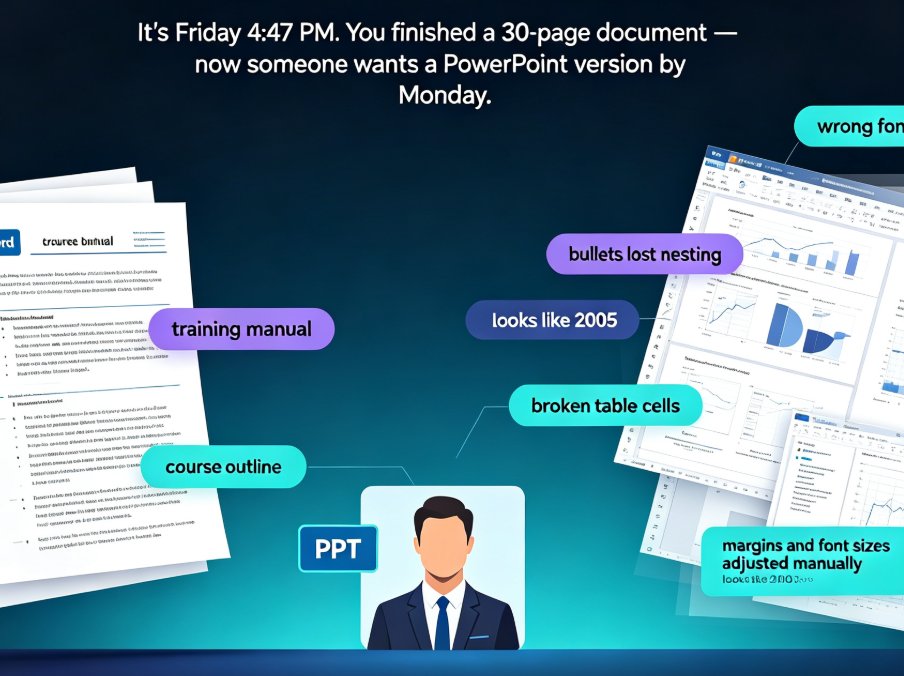
You've got a polished Word document, and a deck that needs to exist. Maybe it's 30 pages of course material due for a training session. Maybe it's a strategy brief that the executive team wants as a 12-slide story by tomorrow morning.
Let's be real: nobody wants to rebuild that content slide by slide. Yet most of us still do it. The copy-paste dance, the font fights, the alignment spinners that spin your patience away. It is, by far, the most avoidable waste of a working week.
This article is about killing that workflow for good.
01. Why the Manual Word-to-PPT Workflow Is Quietly Burning Your Hours
Walk through a typical manual conversion and the problem appears immediately:
- Open your Word document. Select a paragraph. Copy.
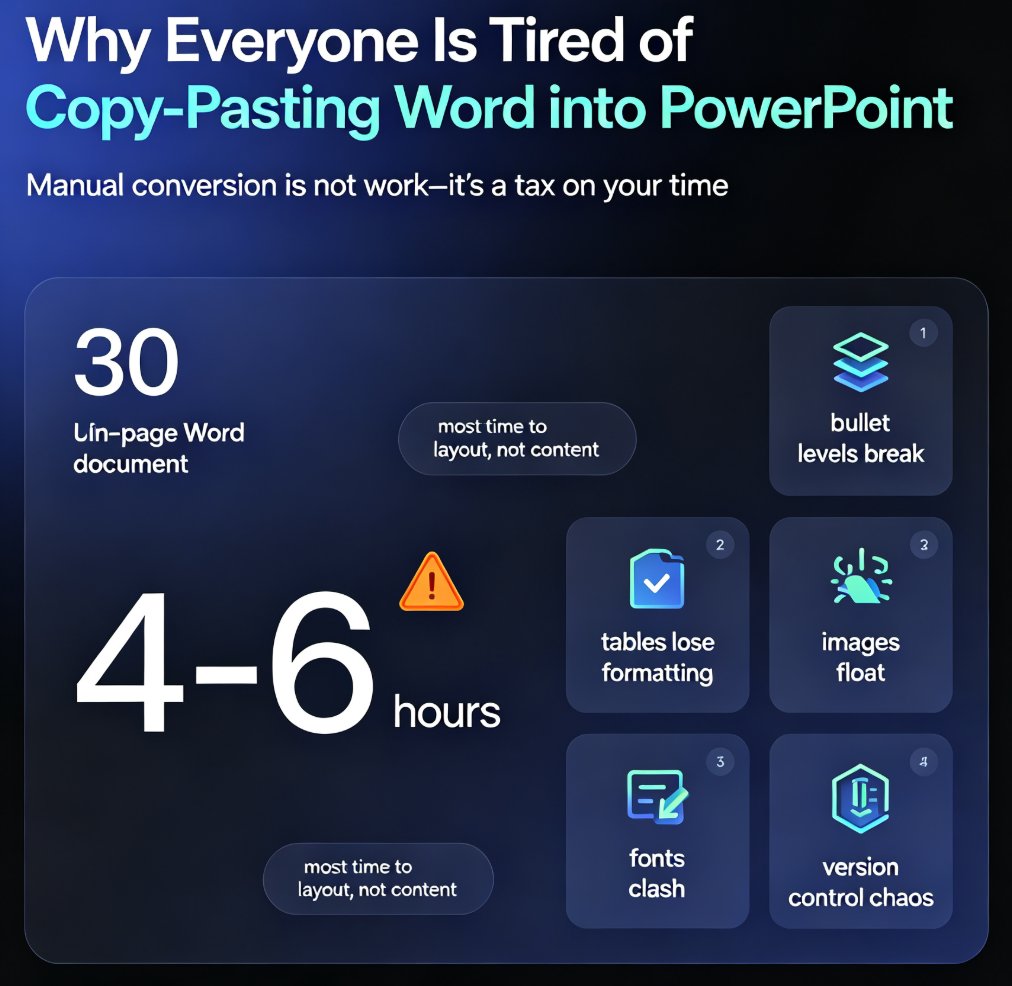
- Jump to PowerPoint. Paste. Watch the formatting explode — bullets inherit the wrong font, images land in the wrong corners, tables refuse to behave.
- Repeat for twenty slides.
- Then spend another hour on alignment, and one more chasing consistent fonts across the deck.
None of those steps is hard on its own. Which is exactly why they multiply.
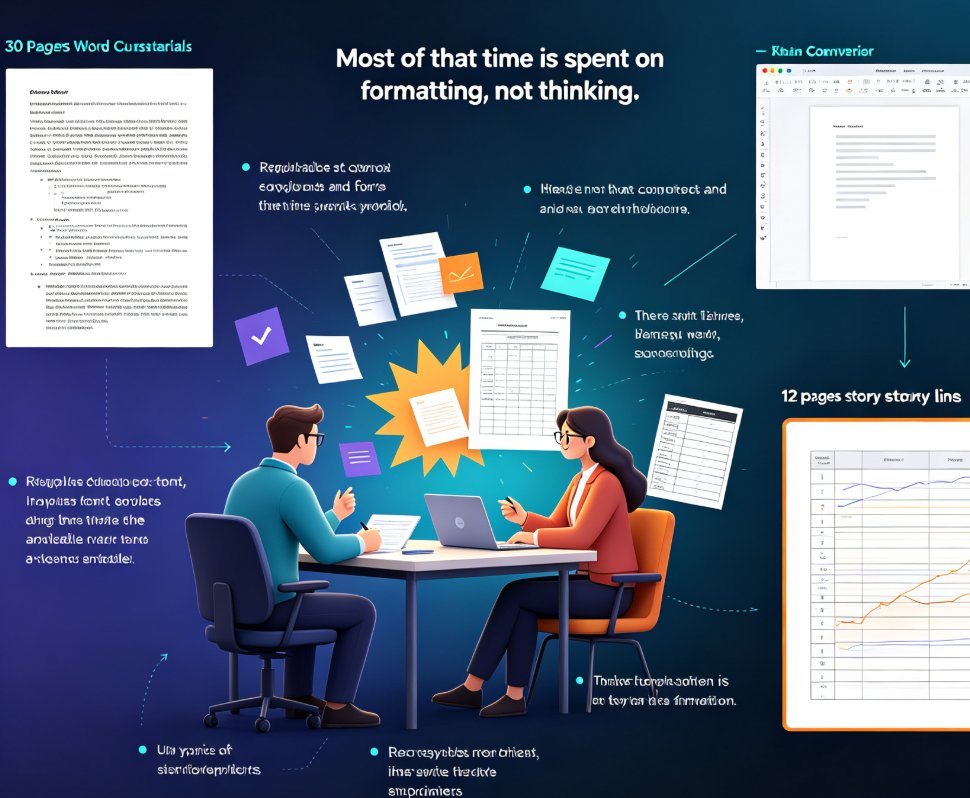
For a 20-slide deck built from a dense Word document, manual conversion routinely eats four to seven hours — and most of that time is spent on formatting, not thinking.
And the output is rarely great. When you're busy fighting margins and font sizes, you're not thinking about whether slide 7 actually supports the argument slide 8 is making. The deck gets built; the logic gets lost.
That's the pain one-click document conversion exists to remove.
02. One-Click Document Conversion: What It Actually Does
One-click document conversion is exactly what it sounds like: you hand the tool an existing document — a Word outline, a Markdown file, or even a raw dump of meeting notes — and the AI builds a designed, structured deck from it. No manual slide-by-slide assembly. No formatting cleanup.
Behind the scenes, three things happen at once:
1. Parsing your structure. The AI reads your headings, bullets, and paragraphs, and figures out the narrative flow. Which ideas deserve their own slide, which belong grouped, which can stay as a supporting note. This isn't copy-pasting — it's restructuring. A draft becomes a storyboard.
2. Applying smart layouts. Every slide is composed with a layout that fits its content — title slide, agenda, comparison, data callout. Typography, spacing, and image placement are handled in the same pass.
3. Enforcing visual consistency. The same fonts, colors, and template styles apply across every slide, which is what makes a deck feel "designed" rather than "assembled."
For a 20-slide deck, the entire generation step runs in about a minute.
03. Markdown, Word, Brain-Dump — Input Doesn't Matter Anymore
Here's the part that surprises most people: the input format barely matters.
- Word document — paste the text or drop the file. The AI handles messy formatting, nested bullets, all of it.
- Markdown — paste it in from any plain-text editor or notes app.
- Raw notes or "brain dumps" — doesn't need structure. The AI will find it.
The old workflow forced you to think in two tracks: first write the document, then rebuild it as slides. With an AI prompt-to-deck workflow, you write once, and the presentation becomes a byproduct of work you've already done.
And the output isn't a draft full of placeholders. It's a complete, editable deck you can preview as a slideshow right away.
04. "One Click" Doesn't Mean "Generic": Brand Consistency Holds
The most common objection I hear is: "If the AI does everything, won't it look like every other AI deck out there?"
Fair question. The answer depends on what you set before generation.
The smart approach is to fix the visual parameters up front — brand colors, fonts, logo placement — and let the AI fill in the content around them. When you select a template that matches your brand kit before you generate, every slide comes out on-brand by construction, not by after-the-fact editing.
That's the opposite of the manual workflow, where brand consistency is an ongoing battle. You'd finish the content, then walk the deck one more time fixing fonts and colors by hand. With a one-click import, consistency is applied as a pre-generation setting, not a post-generation chore.
I wrote a deeper breakdown of how template selection affects output quality if you want the full picture. The short version: the template is the guardrail. Good guardrails keep the deck on-brand while leaving plenty of room for your content to breathe.
05. The Second Half of the Workflow: From Deck to Video
Here's what nobody says when they tell you to "convert Word to PowerPoint": the deck is rarely the final deliverable anymore.
Think about how content actually gets consumed now. A training team builds a deck for a live session, then realizes the same content also has to serve the colleague who missed the meeting. A marketing team prepares a pitch deck, then realizes investors want to watch it on their own time.
If your tool stops at "clean, well-designed slides," you're still living with a partial solution. The same content should be able to keep moving down the pipeline — into a narrated micro-course, for instance, where slides are synced with voiceover and subtitles.
Once a deck exists as properly structured slides, adding narration is a natural next step, and teams that go this route end up replacing conventional screen-sharing sessions with self-running videos. The deck isn't the end of the line; it's the middle of a content pipeline that starts at plain text and ends at on-demand video.
06. Quick Benchmark: Manual vs. One-Click AI
Let's put some numbers on this. The estimates below assume a representative 20-slide deck built from a 12-15 page Word document with moderate to heavy formatting needs:
| Task | Manual (PowerPoint) | One-Click AI (Zendeck) | Time Saved |
|---|---|---|---|
| Copy-paste content into slides | 20-40 min | ~2 min | 90%+ |
| Organizing content into slide structure | 2-3 hours | ~5 min | 95%+ |
| Formatting fonts, alignment, layout | 1-2 hours | ~2 min | 95%+ |
| Brand consistency check and fixes | 30-60 min | ~1 min | 95%+ |
| Total (typical) | 4-7 hours | 10-15 minutes | ~95% |
And the chart version, in case your brain works better visually:
The manual estimates line up with what's been reported across the industry for years: three to five hours for a properly formatted deck built from a source document. The one-click workflow doesn't just shave the formatting time — it eliminates the structural work too, because the AI handles both in a single pass.
A 20-slide deck that used to cost you a half-day now costs ten minutes — and the result is arguably better structured, because the AI parses the document's logic instead of you eyeballing it slide by slide.
That's the whole pitch behind what Zendeck does with its Word and Markdown import. If your team routinely turns documents into decks, browse the PPT tutorial hub for more of these workflows — because honestly, the days of hand-building every slide from pasted text are over.
FAQ
Q1: What input formats does one-click document conversion accept? You can paste plain text, a Word document outline, Markdown, or even rough meeting notes and "brain dump" text. The AI parses whatever structure exists and turns it into slide logic, so you don't need to pre-format your content.
Q2: How long does it take to turn a Word document into a presentation? For a typical 20-slide deck, the AI generates the structured, designed slides in roughly a minute after you paste or upload your content. Budget a few extra minutes to review and make small edits, but block out an hour instead of an afternoon.
Q3: Will the generated deck match my brand colors and fonts? Yes, if you select a template that matches your brand kit before generating. The template acts as a visual guardrail — fonts, colors, and layout stay consistent across every slide automatically.
Q4: Can I edit slides after the AI generates the deck? Absolutely. The output is a fully editable deck, not a locked image. You can swap text, change layouts, adjust imagery, and make any tweaks before exporting or sharing.
Q5: Can I turn the converted deck into a video? Yes. Several tools, including Zendeck, let you push the finished slides into a PPT-to-video workflow and add narration and subtitles, turning the same Word document into a self-running micro-course.