How to Collaborate on a Presentation in Real-Time with Zendeck's Sharing and Version Control
01. The Collaboration Nightmare We All Know
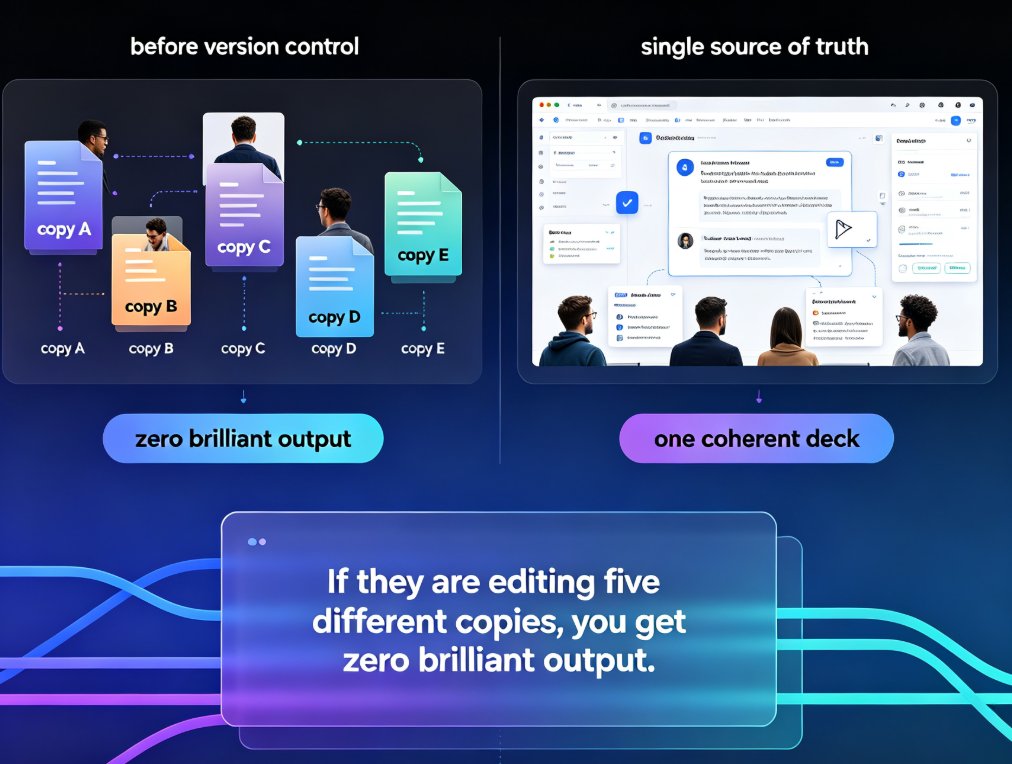
Let’s be real. You’ve been there: the group presentation where everyone sends “their version” via email, and you end up with files named Final_v3_actual_final_REALLYFINAL.pptx. Someone edits slide 5 while you’re editing slide 6, and suddenly two versions exist. Then you spend an hour merging changes by hand. It’s a productivity killer, and it’s completely avoidable.
This pain point is especially acute for educators, trainers, and marketing teams who need to iterate on decks quickly. You need a tool that lets everyone work on the same canvas at the same time, without playing detective with version history.
02. Why Real-Time Collaboration Matters
Real-time collaboration isn’t just a nice-to-have — it’s a must for modern teams. When you co-edit a presentation in real time:
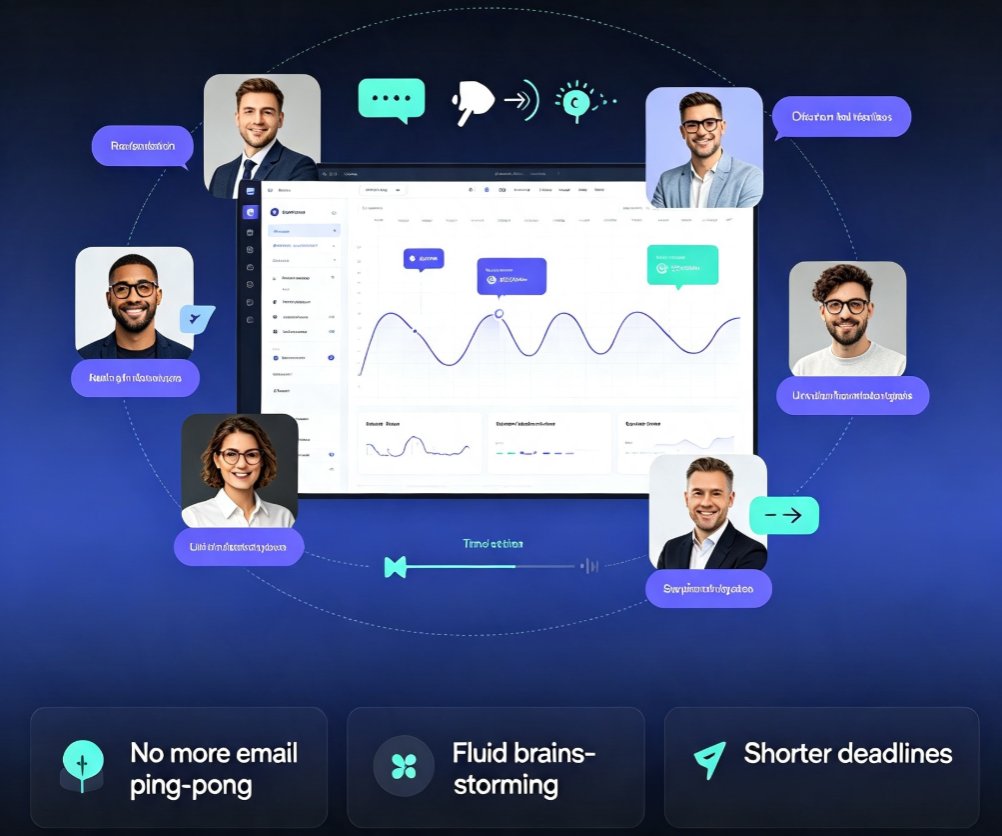
- No more email ping-pong. Everyone sees the latest changes instantly.
- Brainstorming becomes fluid. You can add content, reorder slides, and tweak design while your teammate adds data on another slide.
- Deadlines shrink. Simultaneous editing cuts the review cycle in half.
◉ The outcome: A single source of truth. No confusion, no version conflicts, and a presentation that’s ready faster.
But here’s the catch: most traditional tools (yes, even PowerPoint’s co-authoring) require you to save to the cloud, set up sharing permissions, and deal with occasional sync lag. AI-powered tools like Zendeck take this further by combining real-time editing with intelligent design assistance.
03. How Zendeck Makes Real-Time Co-Editing Effortless
Zendeck was built for teams that need speed and clarity. Here’s a step-by-step walkthrough of how to collaborate on a presentation using Zendeck’s sharing and version control features.
Step 1: Create or Open a Presentation
Start with a blank deck or choose from Zendeck’s 500+ template library. You can also import a Word outline or PDF — Zendeck will convert it into slides instantly. Learn more about importing outlines.
Step 2: Invite Your Team
Click the Share button in the top right corner. You’ll get a link that you can set to:
- View only — for stakeholders or clients who just need to see the final version.
- Comment — for reviewers who can leave feedback without editing the slides.
- Edit — for teammates who need to co-author the deck.
Copy the link and send it via Slack, email, or any messaging app. No account required for viewers — they can open the link in a browser and see the live presentation.
Step 3: Co-Edit in Real Time
Once your team opens the link, everyone can edit simultaneously. You’ll see live cursors with collaborator names, so you know who’s working on which slide. Changes appear instantly — no manual refresh needed.
◉ Pro tip: Use the comment feature to leave notes on specific elements. For example, “Jane, can you update the revenue chart on slide 12?” Comments stay attached to the slide, so nothing gets lost.
Step 4: Review Changes and Manage Versions
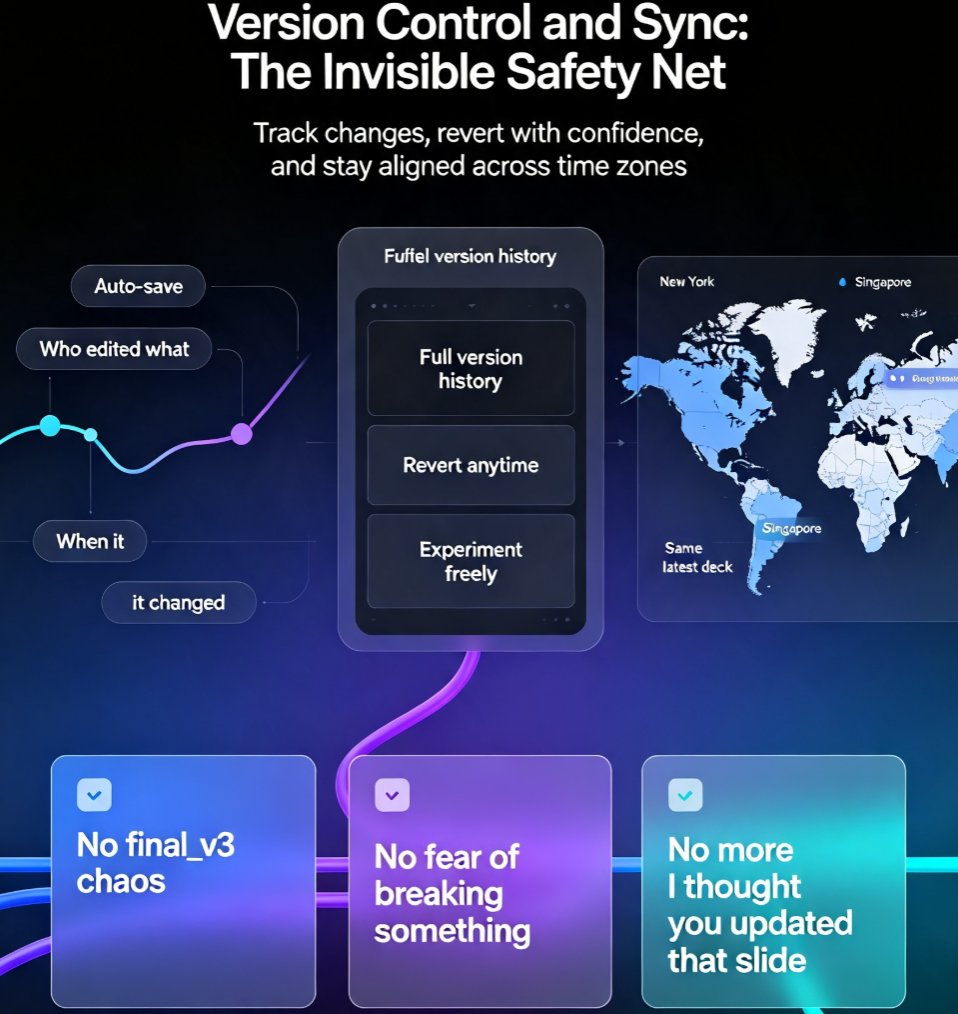
Zendeck automatically saves every change to the cloud. To access the version history, click File > Version history. You’ll see a timeline of all edits, with the ability to:
- Restore any previous version.
- Name versions (e.g., “Draft for client review”).
- Compare two versions side by side.
This is a lifesaver when someone accidentally deletes a slide or you want to revert to an earlier concept. No more panic.
04. Version Control: Never Lose a Good Idea
Version control is often overlooked in casual collaboration, but it’s the backbone of reliable teamwork. Zendeck’s version history is automatic, granular, and easy to navigate.
Why it matters:
- Accidental overwrites? Roll back with one click.
- Multiple iterations? Keep every draft without cluttering your drive.
- Audit trail? See who made what change and when — perfect for compliance or internal reviews.
◉ The outcome: Full confidence to experiment. You can try bold ideas because you know you can always return to a safe version.
05. A Comparison: Zendeck vs. Google Slides vs. PowerPoint
To help you decide, here’s a quick comparison of collaboration features across the three tools:
| Feature | Zendeck | Google Slides | PowerPoint (Office 365) |
|---|---|---|---|
| Real-time co-editing | ✅ Yes, with live cursors | ✅ Yes | ✅ Yes (cloud version) |
| Version history | ✅ Automatic, with naming and restore | ✅ Automatic | ✅ Limited (manual save) |
| AI-powered design | ✅ Built-in (smart layouts, reskin) | ❌ No | ❌ No (basic suggestions) |
| Import from Word/PDF | ✅ Yes | ❌ Limited (only text) | ✅ Yes (but no AI cleanup) |
| Export formats | PPTX, PDF, Google Slides, video | PPTX, PDF, etc. | PPTX, PDF, etc. |
| Link sharing with permissions | ✅ View, Comment, Edit | ✅ Similar | ✅ Limited |
| Commenting on specific elements | ✅ Yes | ✅ Yes | ✅ Yes |
| Offline editing | ❌ Requires cloud | ✅ Yes (with sync) | ✅ Yes (desktop app) |
The verdict: If you need AI-enhanced design alongside real-time collaboration, Zendeck is the clear winner. For pure offline editing, a desktop app might be better, but for team efficiency, cloud-based tools rule.
06. Tips for Smooth Team Collaboration
Even with the best tool, good habits make the difference. Here are a few that work for us:
- Assign slide owners. Before starting, agree who handles which section. This reduces overlap.
- Use comments liberally. Don’t edit someone else’s slide without asking — use a comment to suggest changes.
- Version naming. When you finish a major milestone, name the version (e.g., “Draft 1.0 – Marketing Review”). This makes rollback easier.
- Communicate in real time. Keep a chat channel open while collaborating. It’s faster than waiting for comments.
- Leverage AI. Zendeck’s AI-powered design suggestions can automatically unify fonts and colors across slides, saving you from manual formatting.
◉ The outcome: A smooth, efficient workflow where your team’s energy goes into content, not logistics.
07. Why Zendeck Is the Smart Choice for Your Team
You don’t have to choose between collaboration and design quality. Zendeck gives you both. Real-time co-editing, version control, and AI-powered design — all in one platform.
If you’re tired of juggling multiple tools and file versions, give Zendeck a try. It’s built for the way teams actually work: fast, flexible, and always on the latest version.
Ready to collaborate smarter? Explore Zendeck’s real-time collaboration features.
FAQ
Q: Can I see who is editing which slide in real-time? A: Yes, Zendeck shows live cursors with collaborator names, so you know exactly who is working on which slide. This avoids conflicts and duplicate work.
Q: How does Zendeck handle version history? A: Zendeck automatically saves every change to the cloud and maintains a full version history. You can review, restore, or compare any previous version with a single click.
Q: Can I control who can view or edit my presentation? A: Absolutely. When you share a link, you can set permissions to 'View only', 'Comment', or 'Edit'. You can also revoke access at any time.
Q: Does Zendeck work offline for collaboration? A: Zendeck is cloud-based, so real-time collaboration requires an internet connection. However, you can export presentations to PPTX or PDF for offline review.
Q: Can I integrate Zendeck with other tools like Slack or Teams? A: Zendeck supports link sharing and embedding, but direct integrations are not yet available. You can copy the share link into any chat tool.