Collaborate with External Clients on Zendeck: A Step-by-Step Sharing Guide
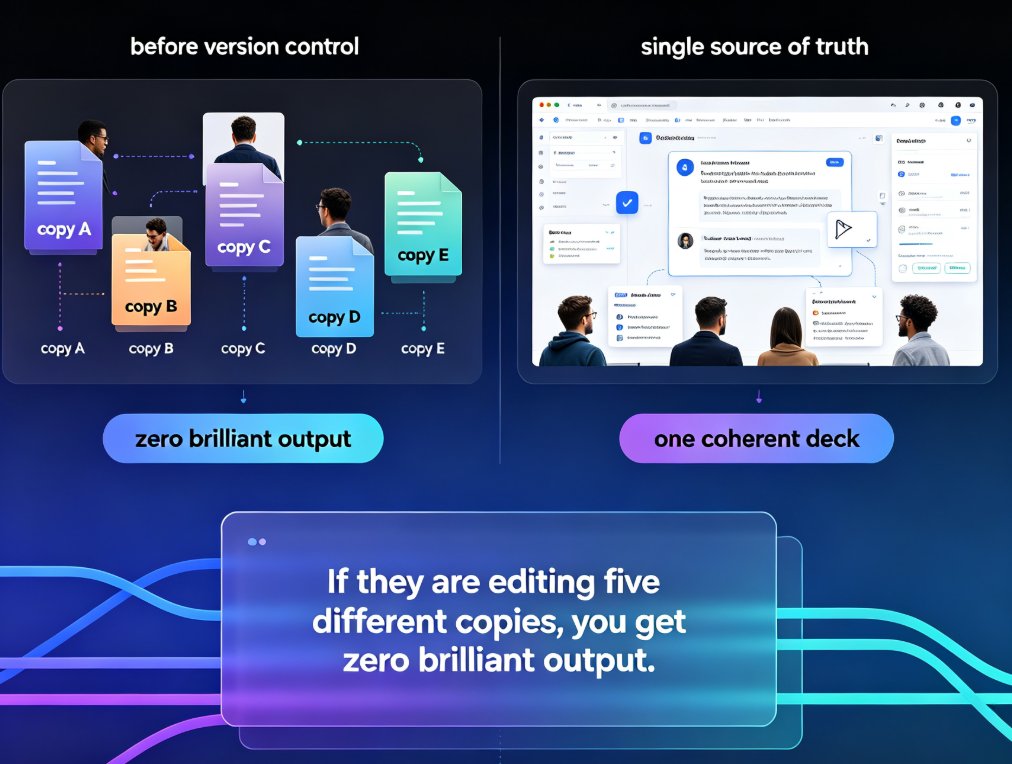
Let's be honest: collaborating with external clients on a presentation used to be a special kind of chaos. You email a .pptx, they email back edits, someone else saves a copy as "Final_v3_REAL" and then you spend an hour merging conflicting changes. Sound familiar? If you've ever felt that knot in your stomach when a client says "just tweak the colors," you know exactly what I'm talking about.
The good news? It doesn't have to be that way. With Zendeck, you can share your deck with external stakeholders in seconds, control exactly what they can do, and keep every version clean and traceable — all while your brand standards stay locked in. This guide walks you through the whole process, step by step, so you can stop babysitting files and start building better presentations together.
01 Why External Collaboration Is Different
Collaborating with your own team is one thing. You trust them, you share the same tools, and you probably have a shared drive. But external clients, partners, or investors bring a whole new set of challenges:
- Version chaos — Everyone ends up with different copies, and merging becomes a nightmare.
- Scattered feedback — Comments live in emails, Slack messages, and sticky notes.
- Brand dilution — Clients may "helpfully" change fonts or colors, wrecking your carefully crafted visual identity.
- Access control — You don't want every contractor to have full editing rights forever.
The solution is a platform that gives you granular control over sharing, editing, and versioning — without forcing clients to learn a new tool. That's exactly what Zendeck delivers.
With Zendeck, you generate a shareable link, set the permission level, and send it off. Clients can open it in their browser, leave comments, or even edit — depending on what you allow. And because everything lives in the cloud, there's only ever one source of truth. No more "which version is this?"
02 Setting Up Your Share Link with the Right Permissions
The first step is knowing what you want your client to do. Are they just reviewing? Do they need to add feedback? Or are you co-creating a deck together? Zendeck lets you tailor the experience with three permission levels:
| Permission Level | What Clients Can Do | Best For |
|---|---|---|
| View | See the deck, present it, but not edit or comment | Final approval, board reviews, read-only distribution |
| Comment | View + add comments and tag teammates | Feedback rounds, design reviews, stakeholder input |
| Edit | Full editing access (slides, text, images) | Co-creation, workshops, joint pitch development |
The key is to match the permission to the stage of your workflow. For example, during the initial draft, you might give a client Edit access so they can contribute directly. But once you're in final review, switch to Comment or View to avoid accidental changes.
Here's how to set it up in Zendeck:
- Open your presentation and click the Share button in the top-right corner.
- Choose the permission level (View, Comment, or Edit) from the dropdown.
- Optionally, set an expiry date or password for extra security.
- Copy the link and send it via email, Slack, or your favorite channel.
That's it. The client clicks the link and they're in — no account creation needed for view-only access. For editing, they'll need a free Zendeck account, but that's a one-time 30-second signup.
Pro tip (from someone who's been burned): Always set an expiry date for external links. It's a small step that prevents old links from floating around your client's inbox forever.
03 Version Control That Actually Works
Remember the "final_v2_approved" problem? With Zendeck, that's ancient history. Every change made by anyone — including external clients — is automatically saved as a new version. You can access the full version history at any time, compare two versions side by side, and restore a previous one with a single click.
Here's why this matters in real life:
- No more overwrites — If a client accidentally deletes a slide, you can bring it back instantly.
- Audit trail — See exactly who changed what and when, which is invaluable for accountability.
- Safe experimentation — Let clients play with ideas in an Edit session, knowing you can revert if needed.
Version control isn't a nice-to-have; it's the backbone of stress-free collaboration. When you know you can always roll back, you're more willing to let clients experiment — and that's where the best ideas often come from.
In Zendeck, the version history is just a click away. Open the "Version History" panel, and you'll see a timeline of every edit. Click any version to preview it, or hit "Restore" to make it the current one. It's that simple.
04 Comment Threads and Feedback Loops
Feedback is the heart of client collaboration, but it's also where things get messy. Emails with "see slide 12" get lost. Comments in the meeting notes never make it to the deck. Zendeck solves this by keeping all discussions right inside the presentation.
Here's how it works:
- Tag specific slides — Click the comment icon on any slide, and a thread opens.
- Mention people — Use @mentions to notify your team or the client directly.
- Resolve threads — Once a point is addressed, mark it resolved. The thread stays as a record but no longer clutters your view.
The result is a single, searchable feedback loop that everyone can follow. No more digging through inboxes to find that one crucial comment from the VP of Marketing.
For example, imagine your client's CEO wants a different chart on slide 7. They leave a comment, tag you, and you get a notification. You update the chart, reply in the thread, and mark it resolved. The whole conversation is documented, and everyone's on the same page — literally.
05 Keeping Your Brand Standards Intact
One of the biggest fears when giving clients edit access is that they'll mess up your carefully designed brand. Fonts get changed, colors go wild, and suddenly your deck looks like a ransom note. Zendeck's brand kits solve this elegantly.
When you enable a brand kit, Zendeck automatically constrains any edits — including those made by external collaborators — to your approved fonts, colors, and layout templates. So even if a client tries to change a headline to Comic Sans, Zendeck will snap it back to your brand font. It's like having a design guardian angel.
This means you can safely give Edit access without worrying about brand dilution. The deck stays on-brand, no matter who touches it.
If you haven't set up your brand kit yet, check out our guide on creating a custom brand kit in Zendeck — it takes about five minutes and saves you hours of cleanup later.
06 Real-World Scenario: A 48-Hour Pitch Deck with a Distributed Team
Let's make this concrete. A few months ago, a startup we work with needed to deliver a pitch deck to an investor in 48 hours. The team was spread across three time zones, and the investor wanted to add their own notes and tweak a few slides.
Here's what they did:
- Shared the deck with Edit access — The investor could directly modify slides, add data, and leave comments.
- Used comment threads — Every piece of feedback was tagged to a specific slide, so nothing got lost.
- Leveraged version control — When the investor accidentally deleted a key chart, the team restored it in seconds.
- Relied on the brand kit — Even with the investor's edits, the deck stayed perfectly on-brand.
The result? The deck was delivered on time, the investor felt genuinely involved, and the startup closed the round. No email chains, no version conflicts, no stress.
This isn't a fairy tale — it's what Zendeck enables every day. If you want to see the full breakdown, read our case study on how a distributed team delivered a pitch deck in 48 hours.
07 Why Real-Time Co-Editing Is Now a Baseline
If you're still emailing PowerPoint files back and forth, you're not just inefficient — you're missing out on a fundamental shift in how teams work. Real-time co-editing isn't a luxury anymore; it's the baseline expectation for any modern collaboration tool.
Here's a quick comparison of how different approaches stack up:
| Feature | Email + PPT | Google Slides | Zendeck |
|---|---|---|---|
| Real-time co-editing | ❌ | ✅ | ✅ |
| Granular permissions | ❌ | ⚠️ | ✅ |
| Version history | ❌ | ✅ | ✅ |
| Brand enforcement | ❌ | ❌ | ✅ |
| External client access | ⚠️ (attachments) | ✅ | ✅ |
| Comment threads | ❌ | ✅ | ✅ |
Zendeck goes beyond basic co-editing by adding brand governance and granular control — the two things that matter most when working with external stakeholders.
If you want to dive deeper into why real-time co-editing is non-negotiable, check out our article on collaborative AI decks and real-time co-editing.
08 Putting It All Together: Your Collaboration Workflow
Let's wrap up with a simple workflow you can adopt starting today:
- Create your deck in Zendeck (or import from Word/PPT).
- Set up your brand kit to lock in fonts, colors, and layouts.
- Share with clients using the right permission level for each stage.
- Collect feedback via comment threads, and resolve them as you go.
- Monitor versions — restore anything that goes wrong.
- Export or present directly from Zendeck, or turn it into a video for asynchronous review.
That's it. No more email ping-pong, no more version confusion, no more brand nightmares.
The bottom line: external collaboration doesn't have to be painful. With Zendeck, you get the control of a traditional tool with the flexibility of a modern cloud platform. Your clients will thank you, your team will thank you, and your sanity will definitely thank you.
FAQ
How do I share a Zendeck presentation with an external client?
In Zendeck, open your deck, click the Share button, and generate a link. You can set permissions to View, Comment, or Edit, and optionally add a password or expiry date. Clients can open the link in their browser without needing a Zendeck account for view-only access.
Can I control whether clients can edit or only view?
Yes. Zendeck lets you assign granular permissions per link. Use View for final review, Comment for feedback, and Edit for co-creation. You can also revoke access anytime, so you always stay in control of who can change what.
How does version control work in Zendeck?
Zendeck automatically saves every change as a new version. You can view the version history, compare any two versions side by side, and restore a previous one with a single click. This eliminates the nightmare of 'final_v2_approved' files.
Can I comment and discuss with clients inside the deck?
Absolutely. Zendeck's comment threads let you tag specific slides, mention team members or clients, and resolve discussions once addressed. All feedback stays in one place, so nothing gets lost in email chains.
What happens if a client makes changes I don't like?
No problem. Since Zendeck tracks every version, you can revert to any earlier state instantly. Plus, if you have a brand kit enabled, client edits are automatically constrained to your approved fonts, colors, and layouts, so the deck stays on-brand even when they tinker.
Ready to stop fighting with files and start collaborating? Give Zendeck a try — your next client review will feel like a breeze.