What File Types Can I Import into Zendeck? Word, PDF, Markdown
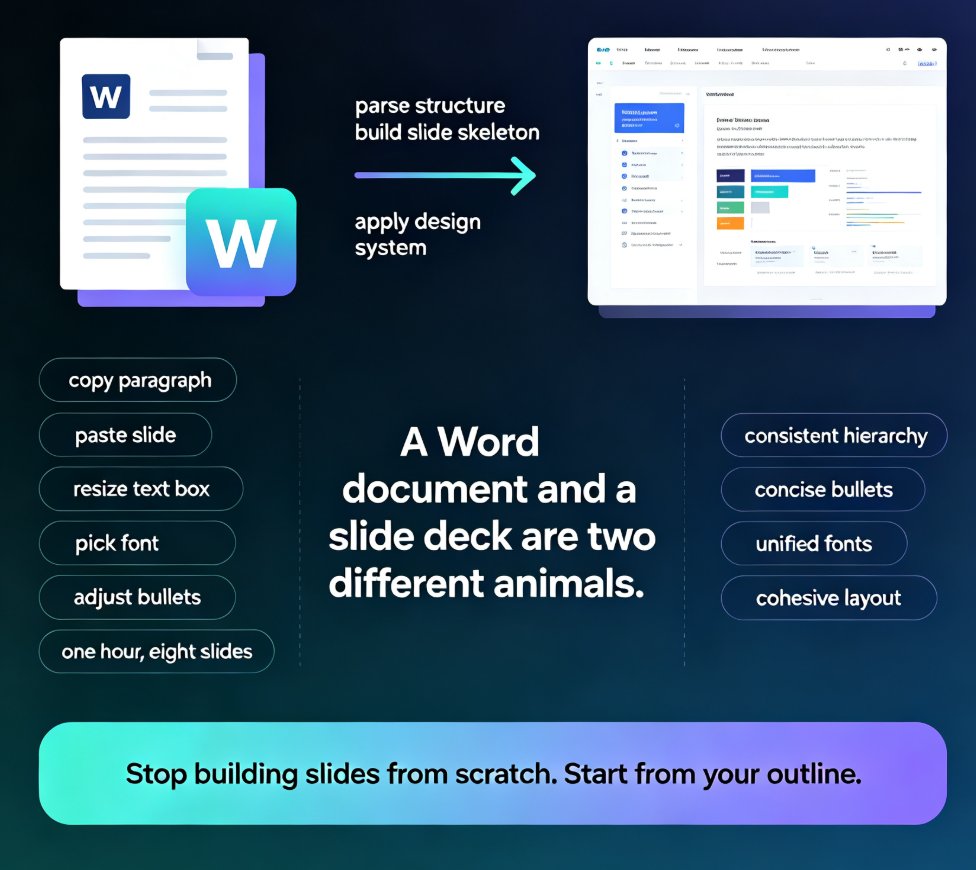
Let's be honest: the worst part of building a presentation was never the design. It's the copy-paste. You've got a 40-page Word document, a dense PDF, or a half-finished Markdown file, and you need slides — today. The good news? You don't have to rebuild anything from scratch.
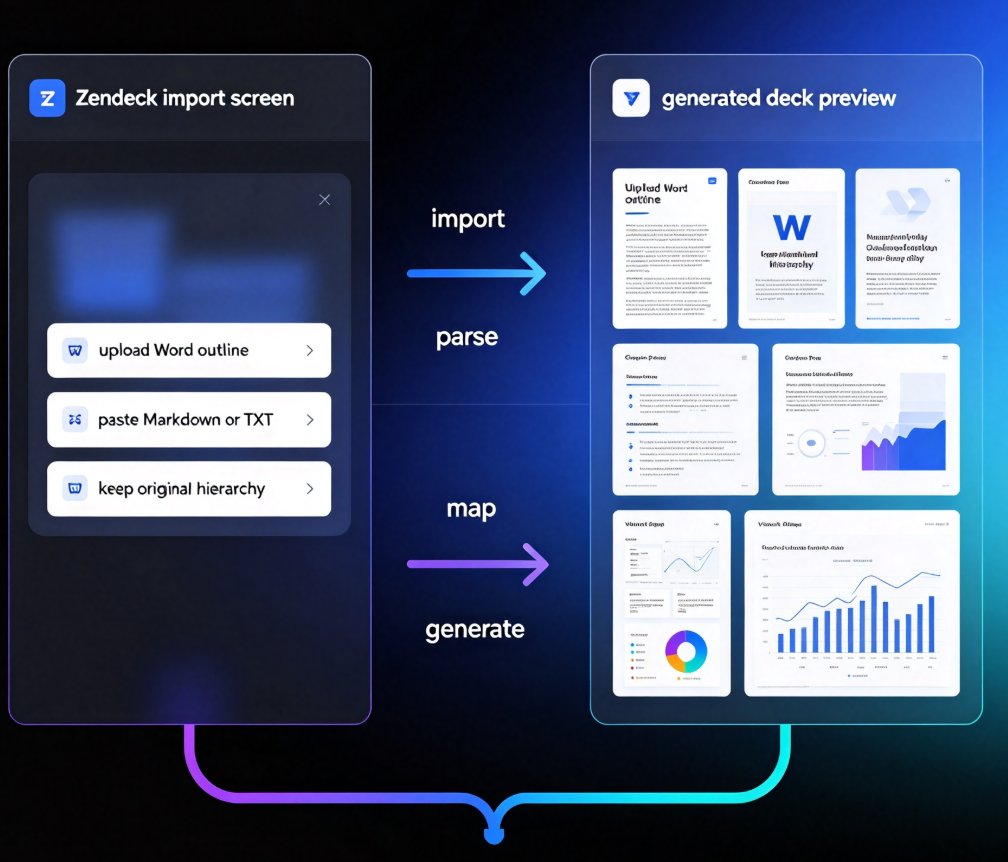
Zendeck accepts Word outlines, Markdown, PDFs, and plain text, so almost any document you already have can become a structured slide deck in minutes. No manual retyping, no fighting with formatting, no 2 a.m. slide-by-slide reconstruction.
This guide walks through every import path Zendeck supports, what each format is best for, and how to prep your files so the AI actually understands your structure. By the end, you'll never look at a Word doc the same way again.
01 | The Complete List of Import Formats
Before we get into the how, here's the what. Zendeck's import pipeline is built around the formats knowledge workers actually use every day. Here's the full picture:
| Format | Extension | Best for | How Zendeck handles it |
|---|---|---|---|
| Word outline | .docx | Reports, proposals, training docs | Maps headings to slide titles, body text to bullet points |
| Markdown | .md, .markdown | Tech docs, blog posts, READMEs | Uses # / ## / ### as slide hierarchy, code blocks stay intact |
| Finalized documents, whitepapers | Extracts text structure and converts to slide outlines | ||
| Plain text | .txt | Quick notes, brain dumps | Treats blank lines and simple markers as section breaks |
The key insight: you don't need a "presentation file" to make a presentation. Any document with clear structure — headings, sections, logical breaks — can be turned into slides. This is the same philosophy behind the broader shift away from manual copy-paste that we've covered in our piece on document-to-deck AI import.
02 | Word Outlines: The Most Common Path
If you work in a corporate environment, your content probably lives in Word. That's exactly why Word outlines are the most-used import path in Zendeck.
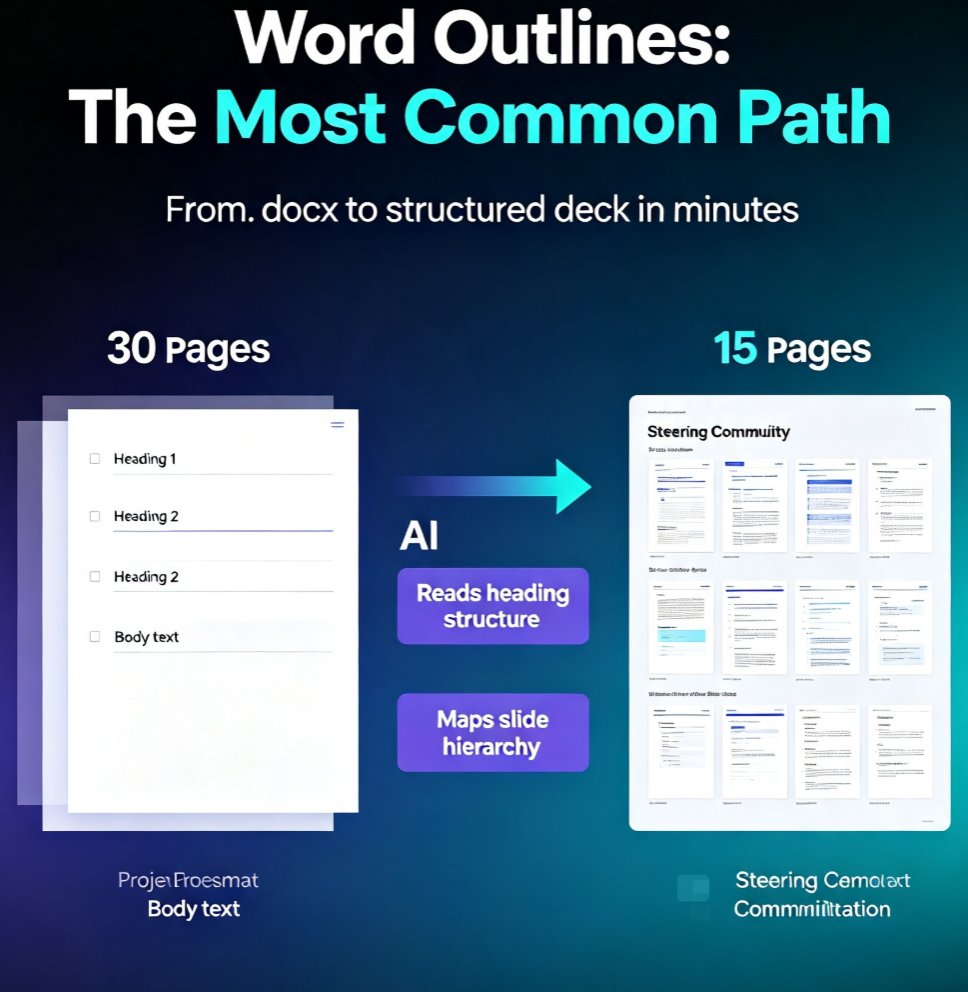
The pain: You've written a 30-page project proposal. Your manager wants a 15-slide deck for the steering committee. Copy-pasting each section into a slide template takes hours — and the formatting always breaks somewhere around page 12.
The fix: In Zendeck, you upload the .docx file directly. The AI reads your heading structure (Heading 1, Heading 2, etc.) and maps it to a slide hierarchy. Heading 1 becomes a section divider, Heading 2 becomes a slide title, and the body text under each heading becomes bullet points. The result is a deck that follows the logic of your original document instead of a random collection of slides.
The outcome: A structured deck in minutes, not hours — and because the content stays intact, you don't lose the nuance that got buried in the original document. This works especially well for quarterly business reviews, project updates, and training materials.
Quick tip: if your Word doc doesn't use proper heading styles (just bold text that looks like headings), the AI will still do a decent job — but using real Heading 1/2/3 styles makes the import dramatically cleaner. Worth 60 seconds of cleanup before you upload.
03 | Markdown: The Writer's Shortcut
If you're a developer, a technical writer, or anyone who's been living in a text editor, Markdown is your best friend. And it's one of the smoothest import paths Zendeck offers.
The pain: You've got a great blog post or technical doc in Markdown. You want to turn it into a talk or a training deck, but you dread rebuilding the structure in PowerPoint — retyping every heading, every bullet, every code block.
The fix: Upload the .md file. Zendeck reads the Markdown hierarchy — # for slide titles, ## for subtitles, ### for supporting points — and generates slides that match your document's logic. Code blocks, lists, and emphasis all carry over cleanly, so technical content doesn't get mangled in translation.
The outcome: Your existing content becomes a deck without any reformatting. This is especially powerful for turning blog posts into webinar decks or conference talks — a workflow we've explored in detail in our guide on turning a blog post into a slide deck.
04 | PDFs: When the Source Is Already Final
PDFs are the trickiest import format — but also the most common for finalized documents. Whitepapers, compliance manuals, and client deliverables all tend to live as PDFs, and nobody wants to retype them.
The pain: You need to present a 50-page compliance manual to a training group. Recreating it as slides means retyping or screenshotting every page, then manually rebuilding the structure.
The fix: Zendeck's PDF import extracts the text structure and converts it into a slide outline. The AI identifies section breaks and key points, then rebuilds them as slides with a consistent layout.
The outcome: A training deck that mirrors the source document's logic — without the manual labor. If you're dealing with compliance or training content specifically, our guide on creating a compliance training deck walks through the full workflow from import to finished courseware.
Watch-out: PDFs with complex layouts — multi-column text, heavy tables, or scanned images — can lose some structure during extraction. If your PDF is mostly text with clear headings, you'll get great results. If it's a heavily designed brochure, you might be better off starting from the source file.
05 | Plain Text: The Quick and Dirty Route
Sometimes you don't have a polished document. You have a brain dump — a messy notes file, a rough outline, a transcript of a meeting. That's where plain text import shines.
The pain: You've got a jumble of ideas in a .txt file and no idea how to structure them into a presentation. The thought of organizing it manually is exhausting.
The fix: Upload the .txt file. Zendeck treats blank lines and simple markers as section breaks, then uses AI to organize the content into a logical slide flow. It's not perfect for every file, but for rough notes it's surprisingly effective.
The outcome: A messy brain dump becomes a structured deck. This is the fastest way to go from scattered notes to a presentable outline — and it pairs well with our approach to turning a brain dump into a structured presentation.
06 | How to Prep Your File for a Clean Import
Here's the thing nobody tells you: the quality of your import depends 80% on the source file and 20% on the tool. A few minutes of prep makes the difference between a clean deck and a messy one.
Use real heading styles. In Word, that means Heading 1/2/3, not bold text. In Markdown, that means #/##/###, not underlined text. The AI relies on these markers to understand your document's hierarchy.
Keep sections logical. Each major section should have a clear title and supporting points. If your document is one giant wall of text, the AI has to guess where slides should break — and it'll guess wrong sometimes. Break it into sections before uploading.
Strip out the noise. Page numbers, headers, footers, and decorative text confuse the extraction. Clean them out before uploading, and you'll get a much cleaner slide structure.
Match your content to a template. After import, Zendeck's template library lets you apply a consistent visual style in one click — so you don't have to worry about design while you're prepping content. If you want your deck to stay on-brand, our guide on setting up brand kits shows how to lock in your colors and fonts so every imported deck matches your identity.
07 | What Happens After You Import
Importing is just the first step. Once your content is in Zendeck, the real magic starts:
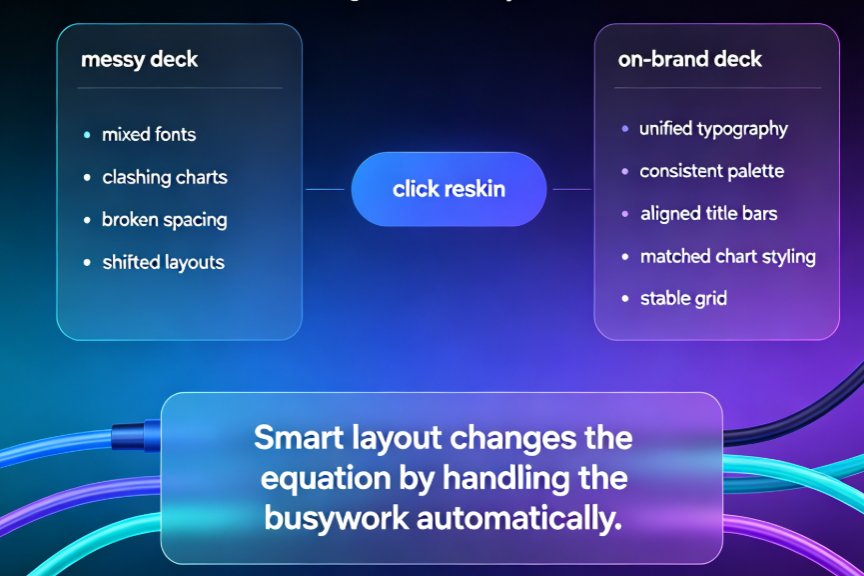
- Smart layout: Zendeck automatically applies consistent fonts, colors, and spacing — so your deck doesn't look like a ransom note.
- One-click reskin: Don't like the look? Swap the entire visual theme in one click without touching the content.
- PPT-to-video: Turn your finished deck into a narrated micro-course with the PPT-to-video feature.
- Collaboration: Share the deck with your team, edit in real time, and export when you're ready.
The bottom line: the fastest way to make a presentation is to stop starting from a blank slide and start from the content you already have. Whether it's a Word outline, a Markdown file, a PDF, or a messy text file, Zendeck turns it into a structured, on-brand deck in minutes. And if your imported deck still looks a little rough around the edges, our guide on fixing messy AI-generated slides covers the cleanup tricks that make all the difference.
FAQ
Q: Can I import a .pptx file into Zendeck?
A: Yes — Zendeck supports importing existing PowerPoint files, and you can also export your finished decks back to .pptx format for sharing or further editing. The import pipeline reads the slide structure and lets you reskin it with Zendeck's templates and brand kits.
Q: What's the best format for a clean import?
A: Markdown and Word outlines with proper heading styles give the cleanest results, because they carry explicit structure that the AI can map directly to slides. PDFs work well for finalized documents, while plain text is best for rough notes and brain dumps.
Q: Will my formatting (colors, fonts, images) carry over?
A: Content structure carries over, but visual formatting doesn't need to — Zendeck applies its own consistent design automatically. You can then reskin the deck in one click or apply a brand kit to match your organization's colors and fonts.
Q: How long does an import take?
A: Most imports generate a structured deck in under a minute, depending on file size and complexity. A standard 20-page Word outline typically converts almost instantly, while large PDFs with dense layouts may take a bit longer.
Q: Can I edit the deck after importing?
A: Absolutely. Import is just the starting point — you can edit slides, add assets from the library, change layouts, add narration, and collaborate with your team in real time before exporting.
That's the full picture. Next time someone asks "what files can I import into Zendeck?", you've got the answer — and the workflow to back it up. Stop copy-pasting, start importing, and let the AI do the heavy lifting.