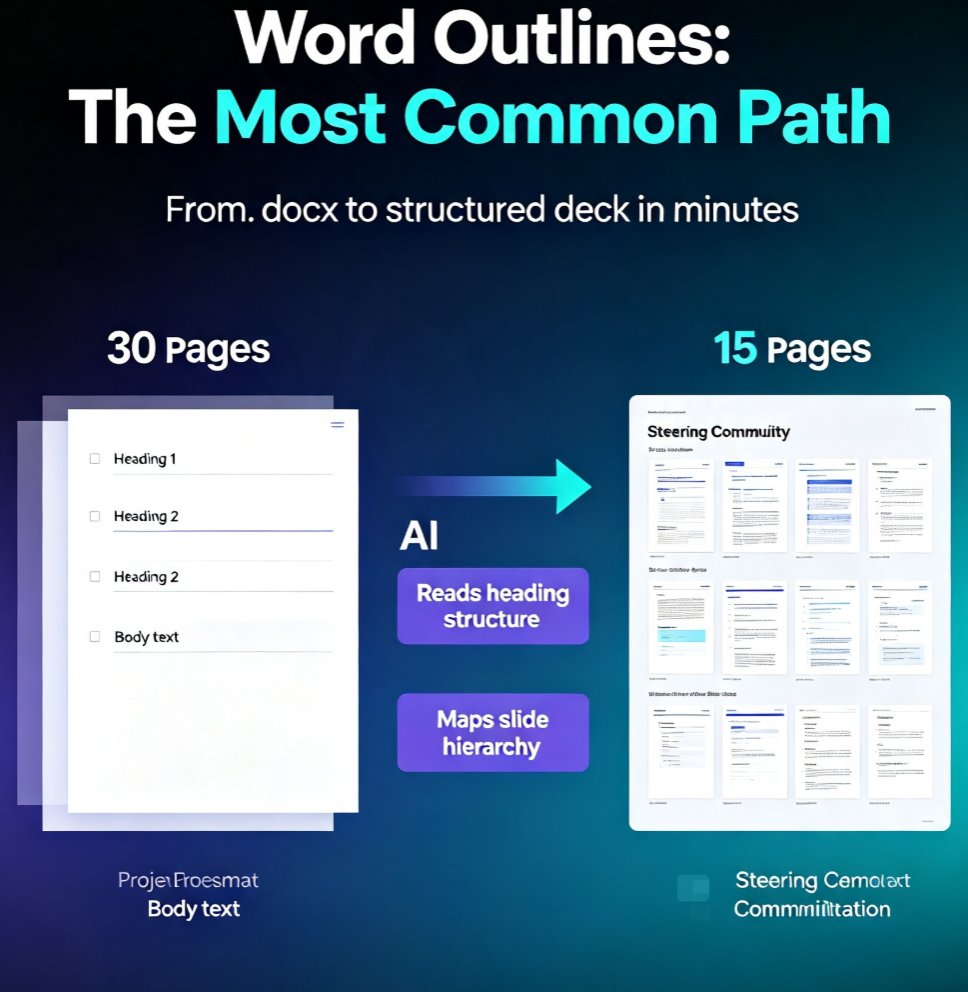
From Word Outline to Polished Slides: Zendeck AI Does It in Minutes
You've got a Word document with all your notes, an outline of a 40-slide lecture, and the clock is ticking. The last thing you want is to spend your afternoon dragging text boxes and realigning bullet points. Manually turning an outline into a deck costs you 3–4 hours of formatting, re-alignment, and design fixes. That's according to presentations.ai, which found that manual conversion is one of the biggest time sinks in slide creation. The real killer? The narrative often gets lost in the shuffle — slides become fragments instead of a cohesive story.
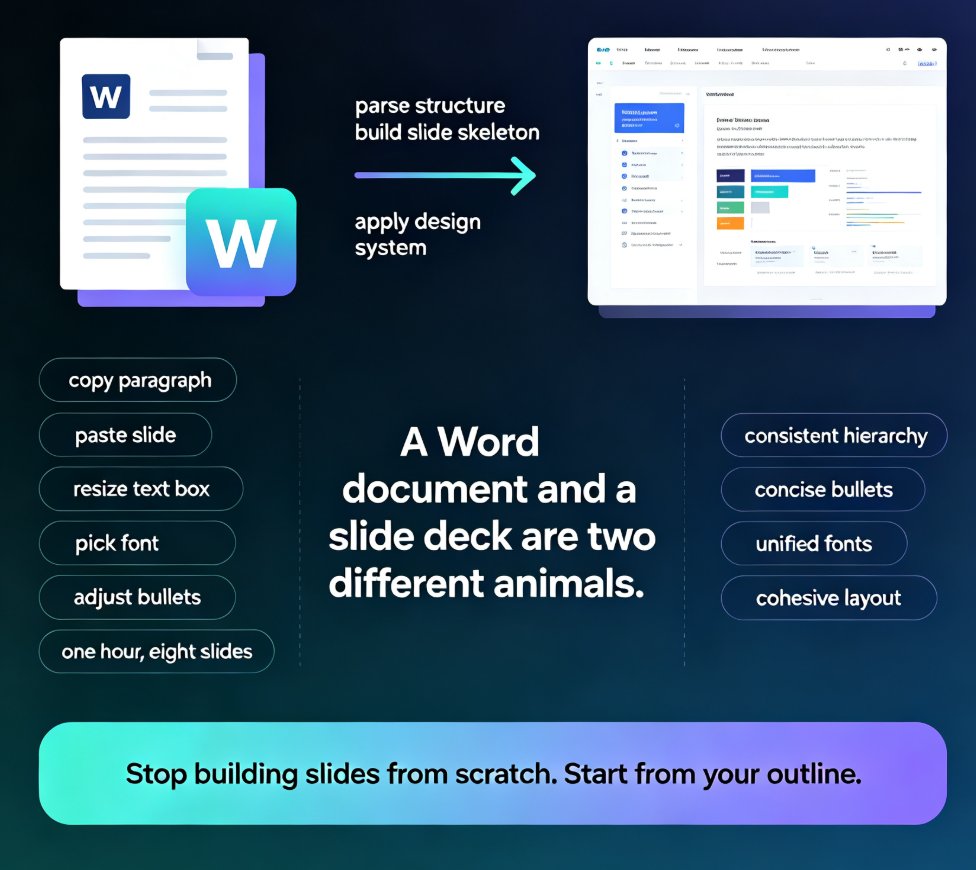
The solution isn't to abandon your outline — it's to let an AI presentation tool do the mechanical work. Zendeck reads your Word document, understands the hierarchy of your ideas, and turns them into a structured, consistently designed deck in minutes. You keep the authorship; you skip the formatting. Zendeck turns your Word outline into a polished, structured presentation in minutes, no design skills required.
I. Why Your Word Outline Is the Best Starting Point
Think about what you already have: a clear structure, key points, evidence, maybe even data tables. Your outline is the blueprint. The problem? Translating that into slides manually is where the productivity dies. You open PowerPoint, paste text, then spend an hour aligning shapes and agonizing over font consistency. The flow you carefully built in Word evaporates as you scatter content across slides.
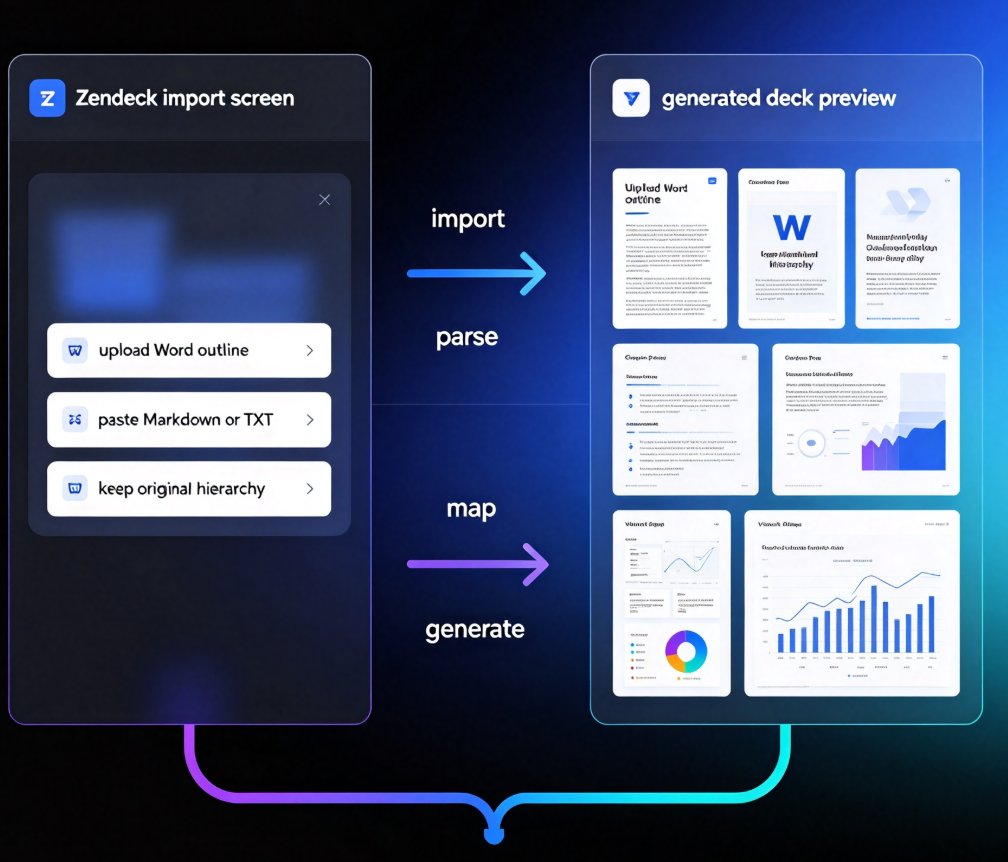
That's the pain point we keep hearing from educators and trainers: the outline is ready, but the deck isn't. They end up with either a text-dump slide or a mismatched design that looks amateurish. The outcome they want is a clean, professional deck that respects the original narrative and doesn't require a design degree to produce. With Zendeck, the import step bridges that gap. You upload your Word file, and the AI extracts the hierarchy of headings, subheadings, and bullet points to build a logical slide flow. It's like having a design assistant who also reads your mind.
II. The Workflow: From Upload to Polished Deck in Minutes
The process is surprisingly simple. Here's exactly what happens when you upload your Word outline into Zendeck:
- Upload your file. Zendeck accepts .docx, .doc, and other common formats. Just drag and drop your file into the workspace.
- AI generates a structured outline. Based on your document, Zendeck automatically builds a slide-by-slide breakdown. You'll see section titles and bullet points appear in logical order. This is the outline stage — not the final design yet.
- Refine the outline. You can edit section titles, reorder points, remove redundancy, or switch to a mind-map view if you prefer a more visual way to organize content. This is your last chance to shape the narrative before design kicks in.
- Pick a template. Zendeck's smart engine selects the most fitting layout from its template library, or you can choose your own. For educators and trainers, there are dedicated templates that support learning objectives and assessment points.
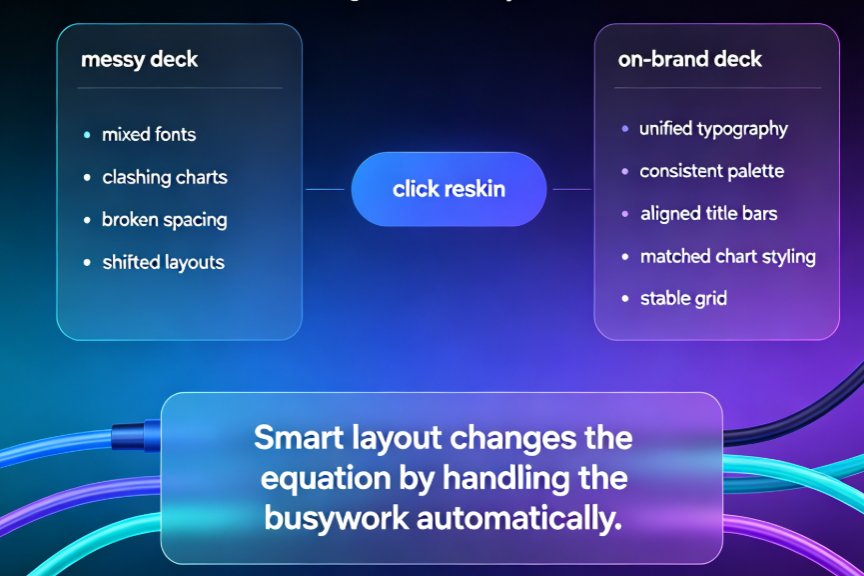
- Generate and fine-tune. Hit the button, and Zendeck produces a full deck with consistent fonts, colors, and layout. From here, you can edit text, swap assets, or use the one-click reskin to change the entire look.
That's it. What used to take an afternoon now takes about five minutes. If you want to go deeper into the integration, check out how Zendeck connects with Word and Google Docs to make document-to-deck even smoother.
During the outline generation phase, you can also adjust advanced settings like image source and model selection, so the visuals match your content's tone. The mind-map view I mentioned isn't just a gimmick — it's genuinely useful for spotting missing sections or redundant points before the design work starts.
III. What Zendeck Does That You Don't Have To
The magic isn't just speed — it's consistency. When you create a deck manually, tiny design decisions (font size, spacing, alignment) eat up your mental energy. Zendeck automates all of that with what we call context-aware design. Instead of throwing every slide into a generic template, Zendeck analyzes your content: whether you're introducing a concept, comparing data, or summarizing a lesson, it picks the optimal layout for that slide. That's a big leap from the fixed templates of the past — learn more about context-aware design trends if you're curious.
Beyond layouts, Zendeck's asset library gives you instant access to icons, charts, and illustrations that match your content — no more hunting for the perfect diagram elsewhere. When you import a Word doc loaded with statistics, Zendeck can suggest a bar chart or a pie chart that fits the data block. And because the asset library is integrated, you don't need to jump between tools.
Branding is another area where Zendeck shines. If you've ever pulled an all-nighter trying to match a client's color palette, you'll appreciate the custom brand kit feature. You set the fonts, colors, logo, and even the default imagery style once, and every deck you generate follows those rules. Here's how to create a custom brand kit in five steps. For organizations that enforce strict brand guidelines, this is a game-changer.
For educators, this means you can focus on the pedagogy, not the pixel-pushing. I've seen trainers convert a 40-page Word handbook into a 25-slide course deck without losing a single key point. The AI preserves the hierarchy of your headings and subheadings, so nothing gets lost in translation.
IV. How Much Time You Actually Save: The Numbers
Let's be real about the math. If manual conversion takes 3–4 hours, and Zendeck takes under 10 minutes, the difference is staggering. Here's a visual breakdown:
But the time savings go beyond the initial generation. Because Zendeck's layouts are consistent from the start, you avoid the endless rework cycle that comes with manually shuffling slides. It's not just 3 hours saved — it's an entire evening of frustration reclaimed.
| Task | Manual Process | Zendeck |
|---|---|---|
| Initial outline to deck | 2–3 hours | 5–10 minutes |
| Formatting and alignment | 1–2 hours | Automated |
| Template and design adjustments | 30–60 minutes | 1–2 minutes |
| Final polish and review | 30 minutes | 10 minutes |
| Total | 4–6 hours | 15–20 minutes |
If you generate course materials on a weekly basis, that's potentially a full working day saved every month. For trainers who deliver multiple sessions, it adds up fast. And the quality? It's not a trade-off. Because Zendeck applies professional design principles automatically, your decks often look better than the ones you'd manually assemble after a long day.
V. Common Outline-to-Slide Pitfalls (and How Zendeck Handles Them)
Importing a Word file isn't always smooth sailing. Here are the pitfalls I've seen people hit — and how Zendeck steers around them.
Pitfall #1: Lost formatting. You had a beautiful table and custom styles in Word, but when you paste into PowerPoint, everything falls apart. Zendeck parses your document's structure, not its pixel-level formatting, so your content stays intact even if the table loses its borders. It rebuilds tables and lists cleanly.
Pitfall #2: Overloaded slides. Many people try to cram everything from the Word doc onto one slide. Zendeck applies content-aware chunking — it breaks long sections into multiple slides with appropriate headers. This keeps your deck from becoming a wall of text. That's part of the smart layout design that modern AI tools offer.
Pitfall #3: Inconsistent branding. It's easy to let colors drift slide-to-slide when you're in a hurry. Zendeck's brand kit ensures every slide uses your approved palette, fonts, and logo placement. This is a lifesaver for organizations that follow zero-design brand governance.
Pitfall #4: No visual hierarchy. Your outline might be 80% text with no imagery. Zendeck automatically suggests relevant icons, charts, and images from its asset library, pulling visuals in where they add comprehension. If you prefer to keep it minimal, you can always override.
One more tip from my experience: don't overstuff your original Word file with inline styles and weird characters. Zendeck does a great job with clean, structured documents. Use Heading 1, Heading 2, and bullet lists consistently to get the best results. It's a small habit that pays off in cleaner slide generation.
VI. From Deck to Micro-Course: The Next Step
Once your slide deck is polished, the natural next step is sharing it — but not just as a static file. Many educators and trainers now convert their decks into narrated micro-courses, and Zendeck makes that transition seamless. With its PPT-to-video feature, you can add narration, subtitles, and even interactive quizzes directly from the slide deck. That means your Word outline doesn't just become a presentation; it becomes a full learning experience.
For example, you can record narration slide-by-slide, then auto-generate subtitles — here's how Zendeck auto-adds subtitles for accessibility. Or you can embed polls and quizzes to keep learners engaged. Boost engagement with interactive elements to turn passive viewers into active participants.
The workflow we outlined earlier — Word to deck to video — is increasingly the standard for corporate training and higher ed. It's faster than recording a lecture in a studio and far more flexible. The tools have caught up with the demand.
FAQ
Q: Can Zendeck handle complex Word documents with tables, images, and footnotes? A: Yes. Zendeck parses the document's structure, including headings, lists, and tables. Images and footnotes are preserved where possible, and you can adjust them after generation. The AI focuses on content hierarchy rather than pixel-level formatting, so nothing gets lost in the conversion.
Q: Do I need to manually adjust the outline before Zendeck generates slides? A: No, but you can. Zendeck auto-generates an outline from your Word file. You have the option to review and edit section titles, reorder points, or delete irrelevant content before the design process. This gives you control without micromanaging.
Q: How long does the whole process take from upload to final deck? A: Typically 5–10 minutes for a standard 20–30 slide deck, depending on the complexity and your editing speed. If you use a direct prompt instead of a Word file, it can be even faster.
Q: Can I use Zendeck for corporate training materials? A: Absolutely. Zendeck supports branding and customization, making it ideal for corporate trainers. You can apply your company's brand kit, add your logo, and use templates designed for learning outcomes. Many L&D teams rely on Zendeck for weekly course updates.
Q: What if I want to convert my deck into a video later? A: Zendeck's PPT-to-video feature lets you add narration, subtitles, and interactivity directly from your generated slides. You can produce a micro-course in minutes, turning your Word outline into a full multimedia learning asset.
And that's the short version. If you're tired of spending hours formatting instead of teaching, give Zendeck a try. Upload a Word outline once, and see how fast your next presentation comes together.