Boost Engagement: Add Polls and Quizzes to Slides with Zendeck AI
Boost Engagement: Add Polls and Quizzes to Slides with Zendeck AI
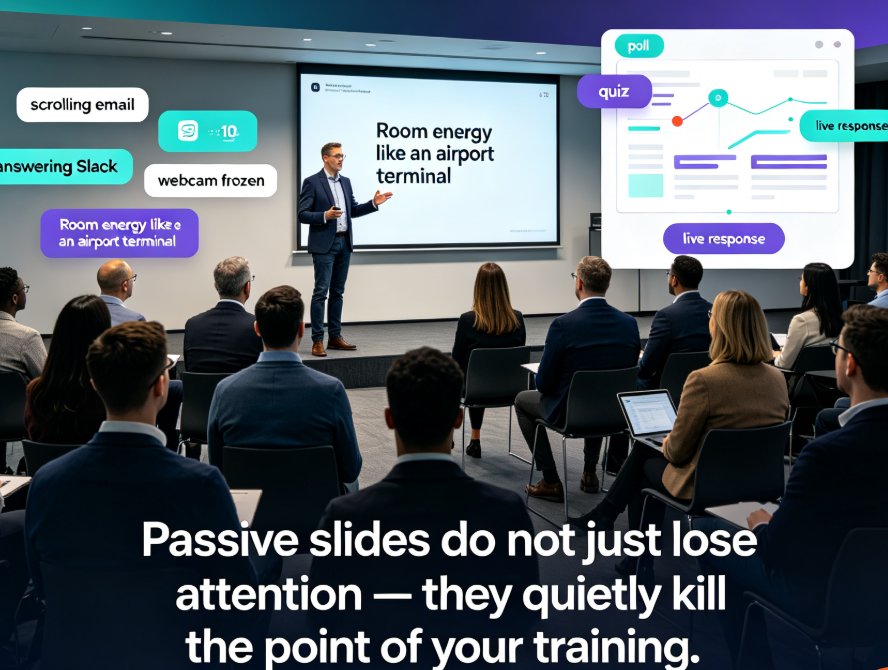
Picture this: you're ten slides into a forty-minute training deck. Half the room is scrolling through a work email they'll re-read twice before lunch. Two people are answering Slack messages. One learner's webcam has frozen — or maybe they just walked off. You're delivering solid content, but the room has the energy of an airport terminal.
We've all lived this. Passive slides don't just lose attention — they quietly kill the point of your training. And here's the fix nobody talks about: stop treating your deck like a document, and start treating it like a two-way conversation.
This article walks you through adding polls and quizzes directly inside your slides using Zendeck, so you can keep both remote and in-person learners locked in — without juggling a single third-party tab.
01 — Why Static Slides Are the Weakest Link in Your Micro-Course
Here's what nobody tells you about creating training content: your information density is rarely the problem. The format is.
When a learner's only instruction is "look at the slide and absorb," their brain takes the path of least resistance — which usually leads to another browser tab. Cognitive research has long shown that passive content delivery produces some of the lowest retention rates in education. The commonly cited learning retention figures used throughout L&D practice put passive lecture retention at around 5 percent after roughly a week, while active methods like discussion and hands-on practice push retention into the 50-90 percent range.
Interactivity isn't a nice-to-have anymore. It's the difference between training people watch and training people remember.
The math is uncomfortable, but it's also liberating. If lecture-style slides are the problem, the fix is structural, not motivational. You don't need a more charismatic delivery. You need to change the slide itself — from a broadcast medium into a conversation.
02 — The Old Way: Duct-Taping Third-Party Polling Tools onto Your Deck
Let's be honest about the current state of most training workflows. If you've been adding polls to PowerPoint, you've probably assembled a small Frankenstein system: Slido for live polls, a Google Form for quizzes, Kahoot for warm-ups — and an export workflow that doesn't talk to anything else.
It works, technically. But it comes with a tax:
- Every tool switch breaks momentum. You leave the deck, open a new tab, start a session, share a link, monitor another screen for results — meanwhile, the room's attention wanders elsewhere.
- Results live outside your deck. After the session, you're stitching together engagement data from three different platforms.
- Brand consistency takes a hit. Third-party widgets color your training deck with their interface, not yours.
Every time you leave your deck to \"check the poll,\" you've lost the room. And that single failure — the tool-switching tax — is why so many instructors give up on interactivity after one awkward attempt.
That's exactly the gap Zendeck's built-in interactive tools close. Instead of bouncing between platforms, you insert a poll or quiz right on the slide, share one link, and watch results come back in the same editor. The interaction inherits your slide theme, your brand colors, and your layout. It's the difference between bolting a passenger seat onto a bike and buying a car.
| What You Need | Third-Party Tool Route | Zendeck Built-In Route |
|---|---|---|
| Live poll in a session | Open Slido, create a session, share a link, monitor results in a separate tab | Insert the poll directly on the slide; share one link; results appear in the same editor |
| End-of-course quiz | Build in Google Forms, embed, track separately | Add a quiz block, set correct answers, auto-graded |
| Brand consistency | Widgets clash with your visual identity | Interactions inherit your template, colors, and fonts automatically |
| Self-paced micro-course with checkpoints | Record video separately, manually edit quiz timings | Quiz checkpoints carry through the PPT-to-video flow |
| Reporting | Maintain your own analytics spreadsheet | Poll and quiz data stay in your Zendeck workspace |
When you stop fighting tool friction, you'll actually use interactive elements — and that's when engagement numbers start moving. If you're designing a full micro-course around quizzes, there's a dedicated guide on adding interactive quizzes to micro-courses worth reading.
03 — How to Add Polls and Quizzes with Zendeck (No Third-Party Tab Required)
Adding an interaction in Zendeck takes about as long as it takes to remember where you saved the Slido link. Here's the full flow.
Step 1: Build your deck the way you normally would
Drop your content into Zendeck — from an uploaded Word outline, a Markdown file, or straight into the deck editor. Get your structure right first; interactivity is garnish, not the main course.
Step 2: Open the interaction panel on the slide where you want a checkpoint
In the slide editor, you'll see the option to insert interactive elements — polls, quizzes, and choice questions. A good rule of thumb: place your first poll after the third or fourth content slide, before attention typically starts to curve downward.
Step 3: Choose poll or quiz, then shape the options
- Polls: best for collecting opinions, gauging agreement, or kicking off discussion. Set a question, define two to four options, and you're live.
- Quizzes: best for checking understanding. Add a question, mark the correct answer, and opt into instant feedback if you want learners to see explanations the moment they answer.
Step 4: Share the session
In live or hybrid sessions, learners access the poll through a single shareable link — on any device, no app installation required. Responses flow back into the deck in real time, and you can display aggregated results right on screen.
Step 5: Learn from the data
When the session ends, response data stays in your Zendeck workspace. You can spot questions with low accuracy (that's content to revisit), see which polls sparked the liveliest debate, and identify the slides where engagement dropped. Silence in the data is a signal too.
A practical tip from someone who's fumbled this before: keep your first poll simple. Ask something slightly opinionated, like \"How confident are you in your current workflow?\" — opinions make better conversations than factual drills at the top of a session. Save the factual check for a mid-course quiz, where the stakes feel safer.
04 — Keeping Quizzes Alive in Self-Paced Micro-Courses (PPT-to-Video)
Live sessions are only half the story. The other half is the self-paced micro-course — the deck you turn into a video so learners can go through it on their own time. And here's where most training teams hit a wall: interactive elements tend to die the moment you export a video.
Zendeck's workflow doesn't treat \"live deck\" and \"video course\" as separate universes. When you convert a presentation into a narrated micro-course with PPT-to-video, the structure carries over — which means your quiz checkpoints can stay part of the learning flow instead of being cut out during export. If you're building corporate training on this model, it's worth reading up on why AI PPT-to-video is becoming the 2026 training standard — it explains the shift in more detail.
In a self-paced context, interactive elements serve a different purpose than in a live session: they're not momentum-keepers, they're retrieval practice. Every time a learner has to recall an answer before seeing feedback, they strengthen the memory trace. That single habit — making learners retrieve rather than re-read — is one of the most reliable ways to boost retention in micro-learning.
If you want learners to actually retain what they watched, place a quiz checkpoint inside the video — not just at the end.
And don't forget accessibility on the way out. If you're building self-paced courses, make sure your video includes auto-generated subtitles and that quiz content is screen-reader friendly. Zendeck's workflow automates much of that heavy lifting — there's a full walkthrough on accessible micro-courses with auto-subtitles if you want the specifics.
05 — Interactivity Best Practices: What Actually Moves Engagement
After fifteen years of watching training decks — and delivering more than a few of my own — I can tell you the difference between interactivity that works and interactivity that's just decorative. Here are the rules I hand to every new trainer.
Rule 1: One poll, two quizzes. Then stop.
Resist the urge to make every slide a question. Learners fatigue on interactivity just as fast as they fatigue on slide after slide. A focused checkpoint every four to six slides keeps pulses raised without turning your deck into a game show.
Rule 2: Make wrong answers useful.
The way you treat incorrect responses shapes your learning culture. If a wrong answer produces shame — a red X with no explanation — learners disengage fast. Instead, design feedback that says \"not quite, and here's why.\" Zendeck's instant feedback option makes this easy, and it converts errors from failures into practice.
Rule 3: Use poll data to pivot mid-session.
The strongest feature of live polls isn't participation — it's intelligence. If a poll shows that 80 percent of your learners are already confident about a topic you planned to spend twenty minutes on, adjust on the fly. Going with the data turns a generic session into a tailored one, and that's the kind of outcome that gets noticed.
Rule 4: Let interactivity shape the run-of-show.
Don't relegate polls to warm-ups and quizzes to endings. Place a strategic poll after the second major concept to break the deck into digestible chapters. Put a quiz between two complex sections where attention normally dips. Interactivity is the structure, not the decoration.
The teams that do this well tend to get the same outcome: learners show up expecting a presentation and leave feeling they had a conversation. That's the shift.
FAQ
Q: Do I need a separate account or tool to add polls and quizzes in Zendeck?
A: No. Polls and quizzes are built into the Zendeck slide editor, so you can add interactions directly to any deck without an external service. Learners access a live session through a single shareable link — no app installation needed.
Q: Can I use polls and quizzes in self-paced micro-courses, not just live sessions?
A: Yes. Because Zendeck's workflow connects decks with PPT-to-video, you can keep quiz checkpoints as part of a self-paced course flow. The interaction becomes retrieval practice that reinforces learning, rather than just live-show entertainment.
Q: What question types can I create with Zendeck's interactive tools?
A: You can create polls with multiple choice options for collecting opinions or gauging agreement, and quizzes where you define the correct answer — with optional instant feedback that explains why an answer is right or wrong.
Q: Can I export poll and quiz results after a session?
A: Yes. Response data stays in your Zendeck workspace after a session ends, so you can review question accuracy, see which topics learners found hardest, and use that data to refine your training content.
Q: What if a learner answers a quiz question incorrectly?
A: If you enable instant feedback, learners immediately see an explanation rather than just a red mark. This turns wrong answers into learning moments, which is far more effective for retention than silent scoring.