Navigate Zendeck's 500+ Template Library: Find the Perfect Slide Design Fast
01. The Problem: Endless Scrolling Through Generic Templates
You’ve got a presentation due tomorrow. You open Zendeck’s template library, and suddenly you’re staring at a grid of 500+ thumbnails — all beautiful, but all different. Education? Corporate? Minimalist? Techy? Without a plan, you’ll waste 20 minutes clicking through, never quite finding the one that feels right.
Let’s be real: the average user spends 15 minutes browsing templates before settling on one — and that’s after discarding a dozen that don’t match the tone or content. The problem isn’t a lack of choice; it’s the lack of a smart filter system.
But Zendeck’s library isn’t just a random pile of slides. It’s organized by industry, style, mood, and color palette. The trick is knowing how to use those filters to cut your search time from minutes to seconds.
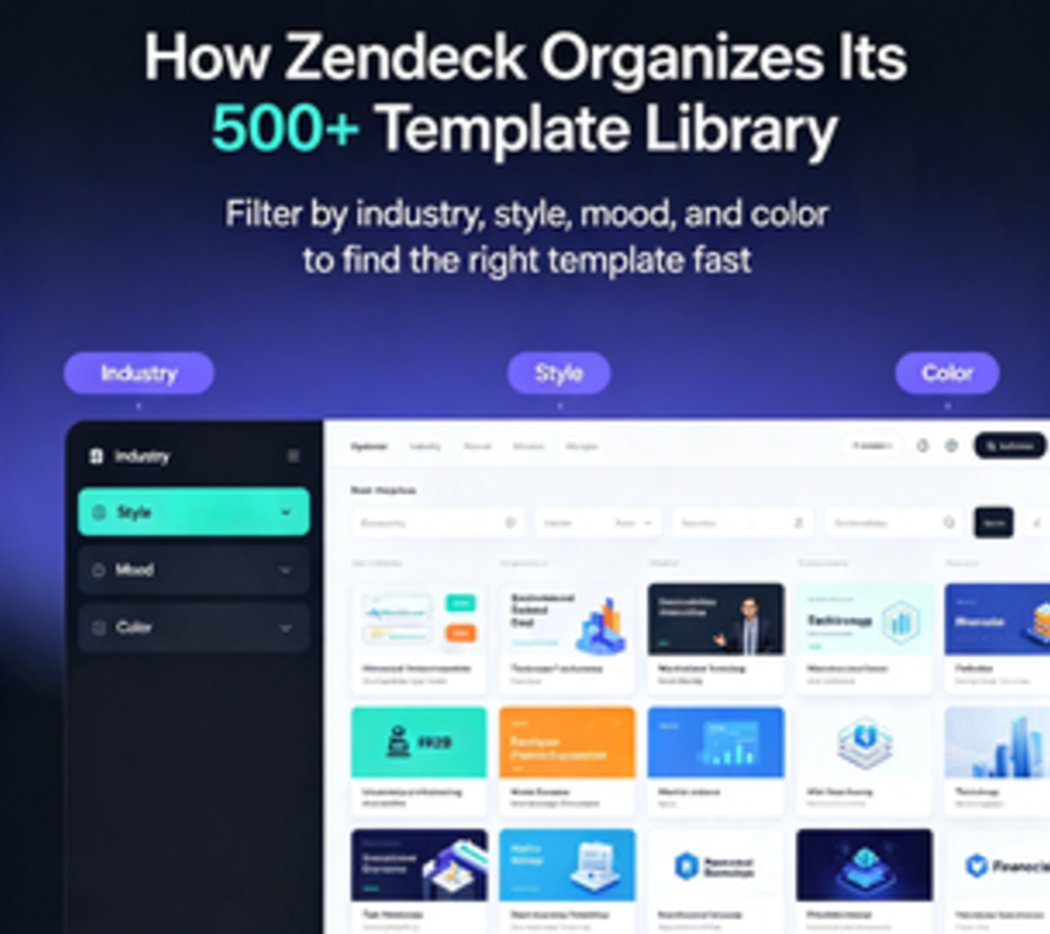
02. How Zendeck Organizes Its 500+ Template Library
Zendeck’s template library is built around three main axes: Industry, Style, and Mood. Each template is tagged with multiple attributes, so you can cross‑filter to narrow down choices fast.
| Filter Category | Sub‑categories | Best For |
|---|---|---|
| Industry | Education, Corporate Training, Healthcare, Marketing, Tech, Finance, Non‑profit | Matching the visual language of your field |
| Style | Modern, Classic, Minimalist, Bold, Playful, Vintage | Setting the visual tone — formal vs. creative |
| Mood | Professional, Friendly, Inspiring, Formal, Energetic, Calm | Aligning with the emotional impact of your message |
| Color | Blues, Reds, Neutrals, Earth Tones, Pastels, High‑Contrast | Quickly matching your brand palette |
Pro tip: Don’t start with a general search. Ask yourself: “Who is my audience? What vibe do I want?” Then pick one filter from each axis. For example, “Education + Modern + Friendly” gives you a tight set of around 20 templates instead of 500.
03. Smart Filtering: By Industry, Style, and Mood
Let’s walk through a real scenario. You’re a corporate trainer preparing a module on conflict resolution for a mid‑sized company. The audience is 30‑40 year‑old managers. You want something professional but not stiff, modern but not flashy, and easy to follow.
Here’s how you’d use Zendeck’s filters:
- Select Industry → Corporate Training (or Business, if Training isn’t listed).
- Select Style → Minimalist (clean lines, lots of white space).
- Select Mood → Professional (neutral colors, structured layouts).
You’re now down to 12 templates. Scroll through thumbnails, click the one that feels right, and preview it. If you see a template you like but the colors don’t match your brand, don’t walk away — Zendeck’s one‑click reskin will fix that in seconds.
04. Quick Preview and One‑Click Reskin
Once you’ve filtered to a manageable set, hover over any thumbnail to see a quick preview of the first few slides. Click “Preview” to see the full deck before committing. This alone saves you from opening a template only to find it’s all image‑heavy with no text space.
But here’s the game‑changer: Even if the template’s original colors don’t match your brand, you can use Zendeck’s one‑click reskin feature. It automatically applies your brand’s fonts, colors, and logo to every slide. The layout stays intact, but the look becomes yours.
Pro tip: When previewing, pay attention to the slide structure — how many text boxes, image placeholders, chart areas. A template with 4 text boxes per slide might be too crowded for a training deck; a template with 2 text boxes and an image spot is more flexible.
05. Pro Tips: Save Your Favorite Templates
You’ll find yourself returning to certain templates again and again — especially for recurring meeting types (monthly reviews, onboarding, quarterly planning). Zendeck lets you bookmark templates with a simple click on the heart icon.
Your saved templates appear in a dedicated “My Templates” section under your account. This is a huge time saver when you’re preparing a series of related presentations. Instead of re‑filtering every time, you just grab your favorites and apply your content.
Pro tip: Create a folder for each project or team. For example, “Q4 Training” or “Client Pitches.” That way, when you’re in a rush, you don’t even have to think — just open the folder and pick the template you already know works.
06. Real‑World Scenario: From Blank Page to Polished Deck in 10 Minutes
Let’s put it all together. Here’s a timeline using Zendeck’s template library:
- 0:00‑0:30 – Open Zendeck, go to Template Library, filter by Industry (Education) + Style (Modern) + Mood (Inspiring).
- 0:30‑1:00 – Browse 18 results, preview 3, pick one.
- 1:00‑1:30 – Use one‑click reskin to apply your brand colors and logo.
- 1:30‑5:00 – Import a Word outline (or paste Markdown) to populate slides. Zendeck auto‑maps headings and bullet points.
- 5:00‑8:00 – Tweak a few images, add a chart from the asset library.
- 8:00‑10:00 – Share the link for real‑time feedback, or export as PPT/PDF.
Total time: 10 minutes. And the result looks like a professional designer spent hours on it. That’s the power of a well‑organized template library combined with smart filtering.
For more on how to make the most of Zendeck’s design capabilities, check out our guide on How to Quickly Create On‑Brand Presentations with Zendeck's Template Library. And if you’re starting from a Word document, see From Word to Slides: Import Outlines into Zendeck for Instant Decks.
07. FAQ
Q: How many templates does Zendeck's library include? A: Zendeck currently offers over 500 professionally designed slide templates, covering industries like education, corporate training, marketing, healthcare, and more.
Q: Can I filter templates by industry in Zendeck? A: Yes. Zendeck's template library allows you to filter by industry (e.g., Education, Business, Healthcare), style (modern, classic, minimalist), and mood (professional, creative, friendly).
Q: What if I can't find a template that matches my brand colors? A: No problem. Once you select a template, use Zendeck's one‑click reskin feature to instantly apply your brand's fonts, colors, and logo. The layout adjusts automatically.
Q: Is there a way to save my favorite templates for later? A: Absolutely. You can bookmark templates within the library. Your saved favorites appear in a dedicated 'My Templates' section for quick access.
Q: Can I import a Word outline into a template I find? A: Yes. After selecting a template, you can paste Markdown or upload a Word document. Zendeck will automatically map your content into the chosen slide structure. For more details, read our Zendeck Word Import guide.
Related content: Courseware Design category – more tips on creating effective training decks.