How to Use Zendeck's Template Library for Professional Presentations
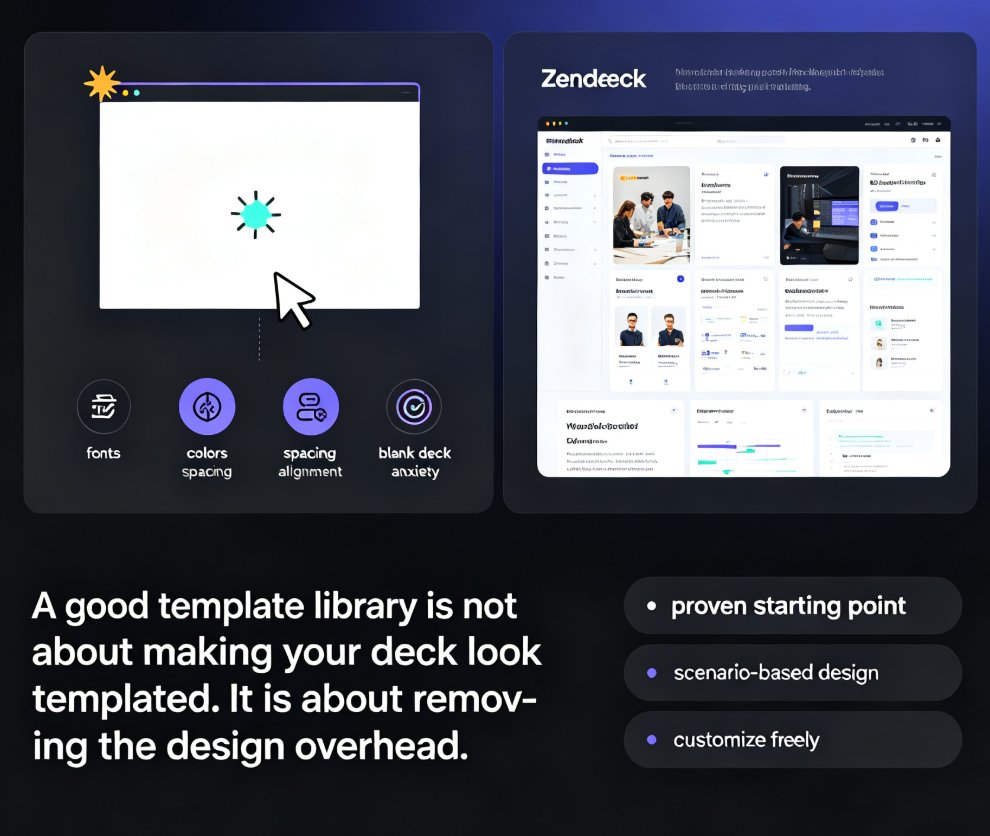
You know that feeling. You open a blank deck, the cursor blinks, and suddenly every slide feels like a tiny design crisis. Fonts, colors, spacing, alignment — it's a lot to juggle when you're supposed to be focused on the content. That's exactly where a solid template library changes the game.
A good template library is not about making your deck look "templated." It's about removing the design overhead so your ideas can actually breathe.
Zendeck's template library is built around this idea. It gives you scenario-based designs that look professionally crafted from the start, and then gets out of your way while you customize. Let's walk through how to use it well.
I. Why a Template Library Beats a Blank Canvas
Let's be real: starting from a blank slide is rarely the best use of your time. You're not a designer — or maybe you are, but you don't have six hours to spend on a 20-slide deck. Either way, the math doesn't work in your favor.
When you start from scratch, you're making dozens of micro-decisions: which font pairs well, what color palette feels credible, how much whitespace is enough. Each decision eats a few minutes, and they add up fast. A template library removes that decision fatigue by giving you a proven starting point.
The average professional spends 4-6 hours building a 20-slide deck from scratch. With a well-chosen template, that drops to under two hours — and the result often looks better.
Here's what a good template actually does for you:
| Starting from Scratch | Using a Template Library | |
|---|---|---|
| Design decisions | Hundreds of micro-choices | Pre-made, tested choices |
| Time to first draft | 2-3 hours | 10-15 minutes |
| Visual consistency | Hard to maintain | Built-in |
| Brand alignment | Manual effort | One-click reskin |
| Final polish | Often rushed | Already structured |
The outcome is simple: you spend your energy on the message, not the mechanics.
II. How to Access and Browse Zendeck's Template Library
Getting into the template library is straightforward. Once you're logged into Zendeck, you'll see the template gallery right on the dashboard — no digging through menus, no hidden folders.
Here's the flow:
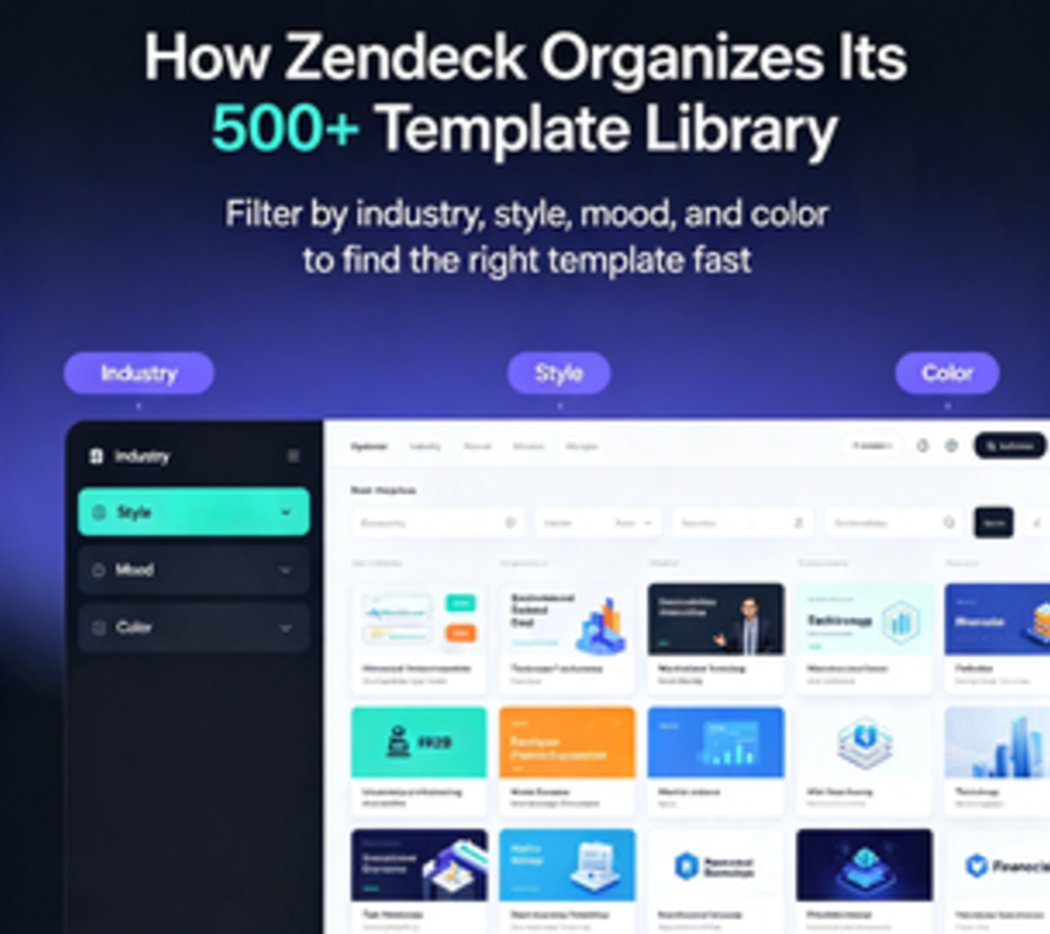
- Open the template gallery from your dashboard. You'll see thumbnails organized by category: business, education, training, marketing, and more.
- Filter by scenario. Zendeck's library is organized around real use cases, not just visual styles. Looking for a sales pitch? A training module? A quarterly review? There's a category for that.
- Preview before you commit. Click any template to see a full preview of how your slides will look. You can flip through the layout before applying it.
- Apply with one click. Once you've found a match, apply it to your deck. Your content stays intact; only the design changes.
The browsing experience matters more than people think. A library that's organized by scenario — rather than just "modern" or "classic" — saves you from endless scrolling. Zendeck's approach here is deliberately practical: you pick the context, and the templates narrow themselves down.
If you want to dig deeper into how Zendeck picks the right look for you, check out how AI deck template selection works.
III. Choosing the Right Template for Your Scenario
Not all templates are created equal, and the right one depends on what you're trying to achieve. Here's a quick framework I use:
For business pitches and proposals: Look for templates with strong contrast, clear hierarchy, and plenty of room for data. You want the numbers to pop, not hide.
For training and courseware: Prioritize readability. Templates with generous whitespace, clear section breaks, and visual anchors (icons, callout boxes) work best for learners.
For internal updates: Keep it simple. A clean, understated template signals that you're respecting your audience's time.
For creative or marketing decks: This is where you can have fun. Bold colors, asymmetrical layouts, and expressive typography are your friends.
The key insight is that scenario-based templates beat generic ones every time. A template designed for a sales deck already has the right structure for a problem-solution narrative. A training template already includes space for learning objectives and key takeaways. You're not just borrowing a look — you're borrowing a structure that works.
This is part of a broader shift in the industry. Context-aware design is moving AI deck tools beyond simple templates, and Zendeck's library reflects that thinking.
IV. Customizing Templates Without Breaking the Design
Here's where most people get nervous: "If I start changing things, won't I mess up the design?"
The short answer is no — if you're using the right tools. Zendeck's smart layout system is designed to absorb your edits without collapsing.
The smart layout system keeps your design intact even when you swap content, add slides, or change the order. You get flexibility without the fear of breaking something.
A few practical tips from experience:
- Swap text first, then visuals. Update your headlines and body copy before touching images or icons. This keeps the design anchored while you work.
- Use the one-click reskin when you need a different look. If a template feels close but not quite right, the reskin feature lets you shift colors and fonts across the whole deck in one move. No manual updating of 40 slides.
- Let the asset library do the heavy lifting. When you need an icon or a chart, pull from Zendeck's asset library instead of hunting for free stock images. The assets are designed to match the templates, so they fit naturally.
If you're working with a team, you'll also want to set up a custom brand kit so every template you use stays on-brand without manual effort.
V. Templates for Courseware and Training Decks
If you're an educator or trainer, the template library is arguably your biggest time-saver. Courseware has its own design needs — learning objectives, activity prompts, key takeaways, assessment slides — and generic presentation templates rarely cover those.
Zendeck's library includes courseware-specific templates that come with these structural elements built in. You're not adding a "learning objective" text box from scratch; it's already there, styled and positioned.
For educators, a courseware-specific template can cut lesson prep time by half, because the pedagogical structure is already baked into the layout.
This pairs well with Zendeck's other courseware features. You can start with a template, add your content, and then turn the whole deck into a narrated micro-course without leaving the platform.
For a deeper look at how trainers can get the most out of the library, this guide to AI presentation templates for trainers is worth a read.
VI. Making Templates Feel Uniquely Yours
The final step is making the template disappear. A great template should feel like a starting point, not a costume. Here's how to make that happen:
- Adjust the color palette to your brand. Even a small shift — swapping the accent color, for example — changes the whole feel.
- Replace generic imagery with your own. Screenshots, team photos, product shots. Real visuals instantly make a deck feel custom.
- Tighten the copy. Templates often include placeholder text that's wordier than you need. Cut it down. Your slides will feel sharper.
- Add your own data visualizations. Use Zendeck's chart tools to build charts that match your template's style, rather than dropping in mismatched images.
The goal is that someone seeing your deck can't tell it started from a template. That's the mark of a good workflow — the template did its job quietly, and your content took center stage.
FAQ
How do I access Zendeck's template library? Log into Zendeck and open the template gallery from your dashboard. You'll find templates organized by scenario and use case, with previews available before you apply anything.
What types of templates are available in Zendeck? The library covers business, education, training, marketing, and more. Templates are organized by scenario — sales pitches, courseware, internal updates, creative decks — so you can find a design that matches your context.
Can I customize a template after applying it? Yes. Zendeck's smart layout system lets you swap text, images, and charts without breaking the design. You can also use the one-click reskin feature to change colors and fonts across the whole deck.
How do templates save time compared to starting from scratch? A well-chosen template removes hundreds of design micro-decisions. Most users can go from blank to a polished first draft in under 30 minutes, compared to several hours when starting from zero.
Can I use templates for courseware and training decks? Absolutely. Zendeck includes courseware-specific templates with built-in structures like learning objectives, activity prompts, and key takeaways, which can cut lesson prep time significantly.