Can Zendeck Unify Fonts, Colors, and Layout Across Slides?
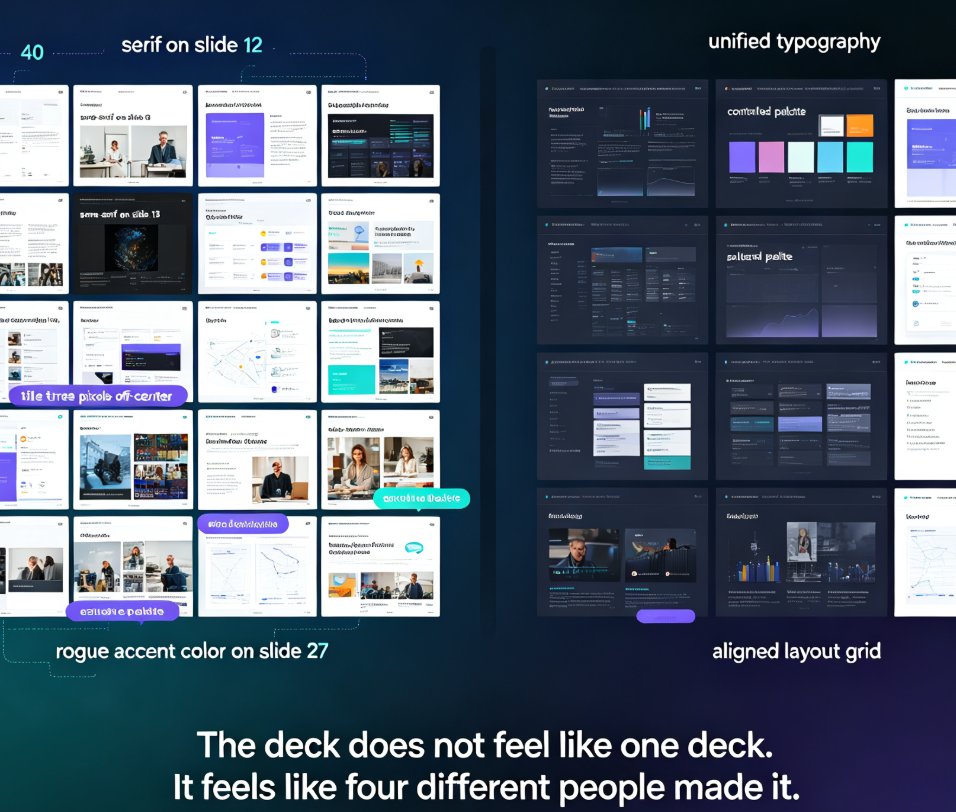
Let me be honest about the moment most decks fall apart. You've built 40 slides, each one looks fine on its own, and then you step back and realize slide 12 is using a serif font while slide 13 switched to sans-serif. Slide 18's title is nudged three pixels off-center. Slide 27 has an accent color that belongs in a completely different palette. The deck is "done," but it doesn't feel like one deck — it feels like four different people made it.
That's the exact problem Zendeck's smart layout was built to solve. And the short answer to the question in the title is: yes, Zendeck can unify fonts, colors, and layout across every slide — automatically, in a single click. No design skills required.
01 What "Unifying" Actually Means
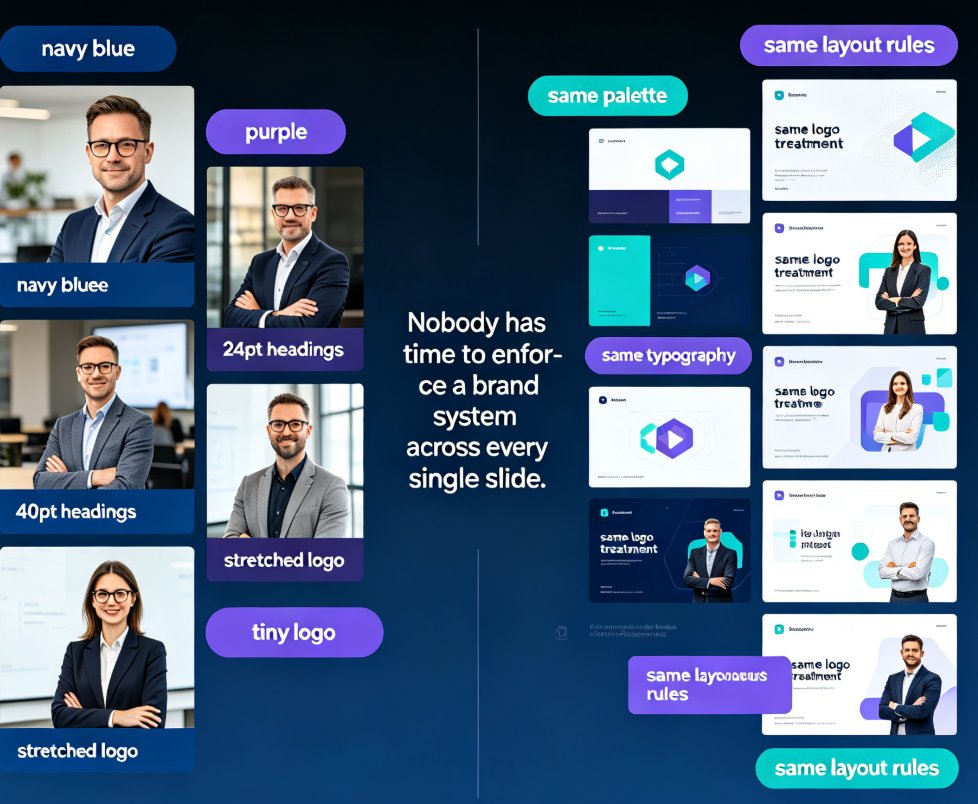
Before we talk about how Zendeck does it, let's be precise about what "unifying" means. It's not vague design talk. Three specific things have to line up across your entire deck:
- Typography — every heading, body line, and caption uses the same font family, size, weight, and line spacing
- Color system — the palette stays consistent, with no rogue accent colors sneaking in
- Layout grid — margins, spacing, and alignment all follow one invisible grid so nothing feels off-center
The pain point is obvious: manually checking 40 slides against these three criteria takes hours of tedious clicking. The solution is automation. The outcome is a deck that looks professionally designed even if you've never opened a design tool in your life.
02 Why Decks Fall Apart in the First Place
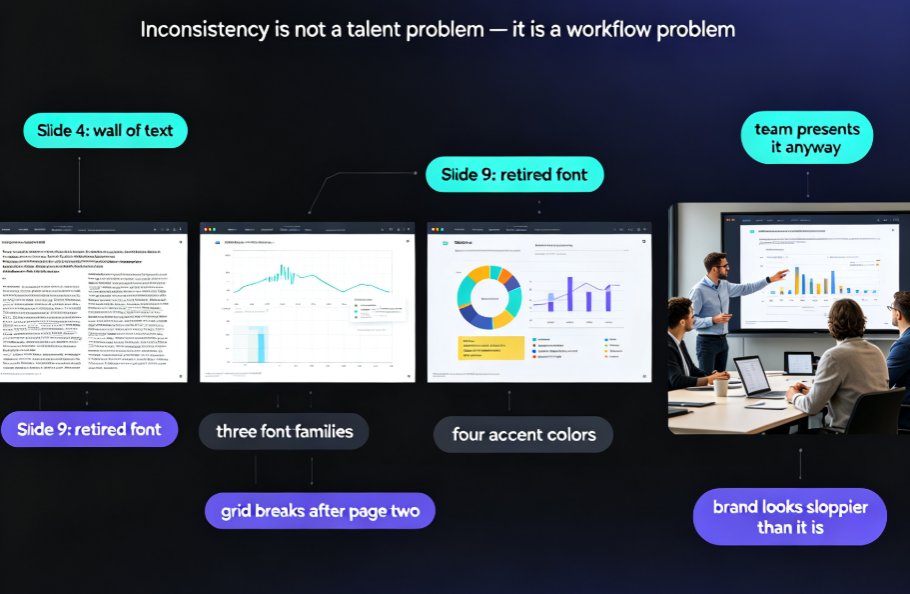
Here's the uncomfortable truth: most inconsistent decks aren't the result of laziness. They're the result of how we build presentations.
We copy slides from old decks. We paste in content from Word documents. We grab a chart from a colleague's file and drop it into ours. Every one of those actions brings in foreign formatting — a different font, a different color, a different spacing scheme. By slide 30, your deck is a Frankenstein of borrowed styles.
The real problem isn't your design ability; it's that you're fighting formatting baggage from a dozen different sources.
This is why "just be more careful" never works as advice. You can't manually scrub every inherited style. What you need is a tool that strips out the baggage and re-applies one consistent design system. That's precisely what Zendeck's smart layout does — and it's part of a broader shift toward AI-governed brand consistency.
03 How Zendeck's Smart Layout Works
Zendeck's approach is different from traditional template systems. A normal template gives you a starting point, but it doesn't fix slides you've already built. Zendeck's smart layout works on your existing deck — or a freshly generated one — and normalizes everything.
Here's what happens under the hood:
- It scans every slide for font families, sizes, colors, and spacing values
- It identifies inconsistencies — slides that deviate from the dominant design system
- It applies a unified style — fonts, colors, and layout snap to one consistent system
- It preserves your content — text, images, and data stay exactly where they are
The key insight: Zendeck changes the design, not your content. Your words, your data, your images — they all stay put. Only the visual styling gets unified.
04 One-Click Reskin: The Differentiator
The feature that makes this genuinely useful for non-designers is the one-click reskin. You don't need to understand design principles, color theory, or typography rules. You pick a direction from the template library, and Zendeck handles the rest.
The workflow is almost embarrassingly simple:
- Open your deck in Zendeck
- Choose a template or style direction from the library
- Click the reskin button
- Watch as every slide snaps to the new unified style
That's it. No per-slide adjustments. No hunting for the one slide that didn't update. The one-click reskin is the difference between "I have a design tool" and "I have a design system."
For teams, this is a game-changer. If you've ever tried to get five people to produce on-brand decks, you know the pain. Everyone has their own interpretation of "our brand." With Zendeck's reskin, you can take any deck — from any team member, in any state of disarray — and bring it back to brand consistency in minutes.
05 What Actually Gets Unified: A Closer Look
Let's get specific about what changes and what doesn't.
| Design Element | What Zendeck Unifies | What Stays Untouched |
|---|---|---|
| Fonts | Family, size, weight, line spacing | Your actual text content |
| Colors | Palette, accent colors, gradients | Your images and photos |
| Layout | Margins, alignment, spacing grid | Your charts and data |
| Slide structure | Title placement, bullet hierarchy | Your slide order |
| Visual style | Shadows, borders, corner radius | Your embedded media |
The rule of thumb: Zendeck touches how things look, never what they say.
That distinction matters. It means you can reskin a deck without worrying about breaking your content. Your carefully worded bullet points stay intact. Your data stays accurate. Only the visual presentation changes.
06 How Much Time Does It Actually Save?
Let's put some numbers on this. A typical 40-slide deck, built by copying from multiple sources, might take a careful person 60 to 90 minutes to manually fix for consistency. That's checking every font, every color, every alignment — and usually missing a few anyway.
With Zendeck's one-click reskin, the same cleanup takes under five minutes. Even accounting for reviewing the result and making small tweaks, you're looking at a fraction of the time.
The time savings compound fast. If your team produces ten decks a month, that's roughly 10 to 15 hours of manual cleanup you can reclaim — every single month.
07 When It Works Best (And When It Doesn't)
Honest take: one-click reskin is powerful, but it's not magic. It works best when:
- You're starting from a messy deck with inconsistent styling
- You need to bring a team's decks back to brand standards
- You're converting a Word outline into a polished courseware deck
- You want a quick style refresh without rebuilding content
It's less useful when you need highly custom, art-directed design — the kind a professional designer produces with bespoke layouts. For that, you'd want to start with a premium template and build from there.
The sweet spot is consistency, not creativity. If your goal is a clean, professional, on-brand deck fast, Zendeck wins. If your goal is a one-of-a-kind visual masterpiece, you'll still want a designer.
08 How to Get Started
Getting unified decks is straightforward:
- Create or import your deck — paste a Word outline or Markdown into Zendeck, or upload an existing deck
- Pick a template — Zendeck's library has options for courseware, business, and training
- Hit reskin — one click applies the unified style
- Review and tweak — make small adjustments if needed
- Export or share — your deck is now consistent, on-brand, and presentation-ready
If you want to lock in your brand permanently, set up a custom brand kit so every future deck starts from your colors and fonts. That way, consistency isn't a cleanup step — it's the default.
And if you're building courseware specifically, you'll find more practical tips in our courseware design guide.
FAQ
Q: Does Zendeck automatically unify fonts across all slides?
Yes. Zendeck's smart layout scans every slide and applies a single font system — family, size, weight, and line spacing — across the entire deck. Your text content stays unchanged; only the typography is normalized.
Q: Can I keep my own brand colors when reskinning?
Absolutely. You can set up a custom brand kit with your colors and fonts, and Zendeck will apply those during the reskin. This is ideal for teams that need every deck to match corporate guidelines.
Q: Does one-click reskin change my content or just the design?
Just the design. Zendeck preserves your text, images, charts, and data. It only unifies visual styling — fonts, colors, spacing, and layout. Your content stays exactly where you put it.
Q: How long does it take to reskin a 40-slide deck?
Under five minutes. The one-click reskin processes the entire deck at once. Compare that to the 60–90 minutes a manual consistency pass typically takes, and you'll see why it's a favorite feature.
Q: Can I override the unified style on specific slides?
Yes. After reskinning, you can still edit individual slides. The unified style is your starting point, not a cage. If one slide needs a special layout, you can adjust it without affecting the rest of the deck.