How to Collaborate on Presentations in Real Time with Zendeck
How to Collaborate on Presentations in Real Time with Zendeck
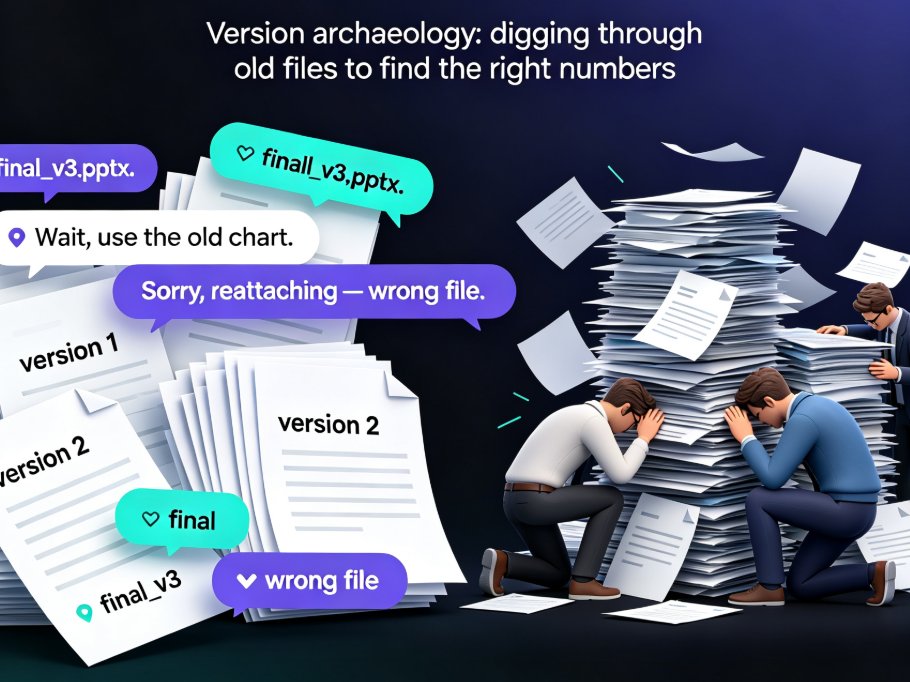
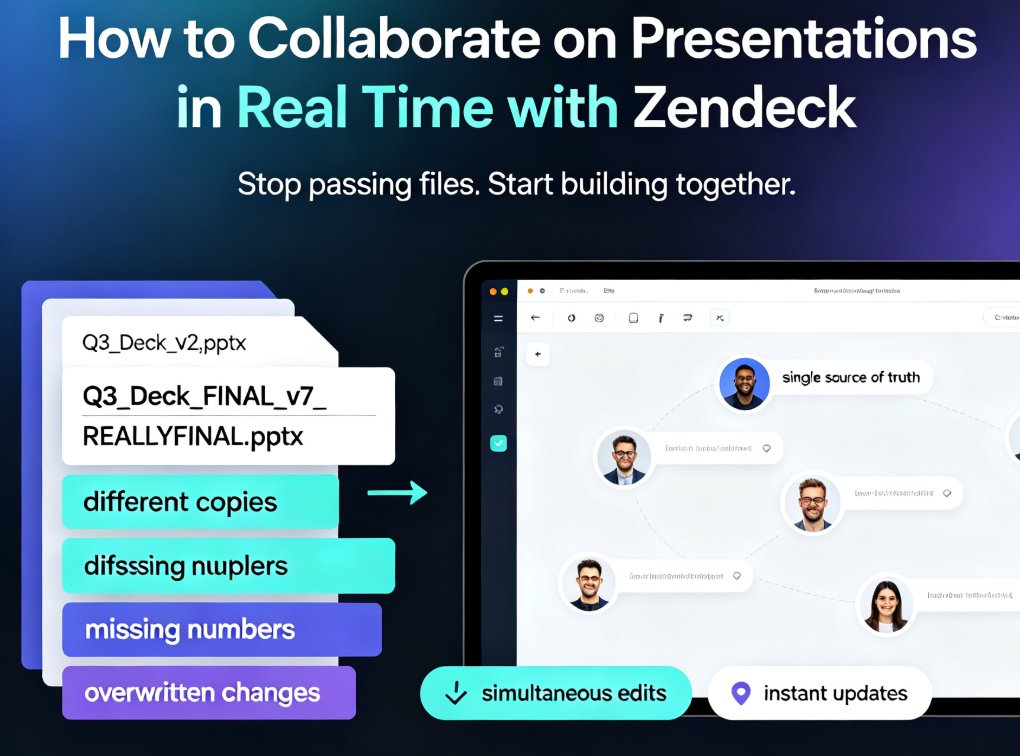
We've all been there. The email chain that starts with Q3_Deck_v2.pptx and ends with Q3_Deck_FINAL_v7_REALLYFINAL.pptx. Someone is updating the revenue chart while someone else rewrites the intro, and the version you present on Monday is missing the numbers you locked in on Friday. Group presentations don't fail because teams lack ideas — they fail because the workflow falls apart.
Version chaos is not a discipline problem — it's a workflow problem. When your team has no single source of truth, even the most careful people will overwrite each other's work.
The fix isn't more meetings or stricter naming conventions. It's a collaboration model built for real-time work. Here's how to set it up in Zendeck — and why it changes the way your team builds decks.
01 — Why group presentations fall apart
Let's be honest about what usually goes wrong. You're not dealing with lazy people; you're dealing with a broken system. The classic failure modes:
- File versioning by hand.
v2,v3,FINAL,FINAL_2— everyone has their own copy, and nobody knows which one is current. - Conflicting edits. Two people change the same slide, and one set of changes silently disappears.
- Feedback scattered everywhere. Comments live in email threads, chat messages, and sticky notes on a monitor. None of it reaches the person who owns the slide.
- No single source of truth. The "master" file lives on someone's laptop, and if they're sick on presentation day, you're stuck.
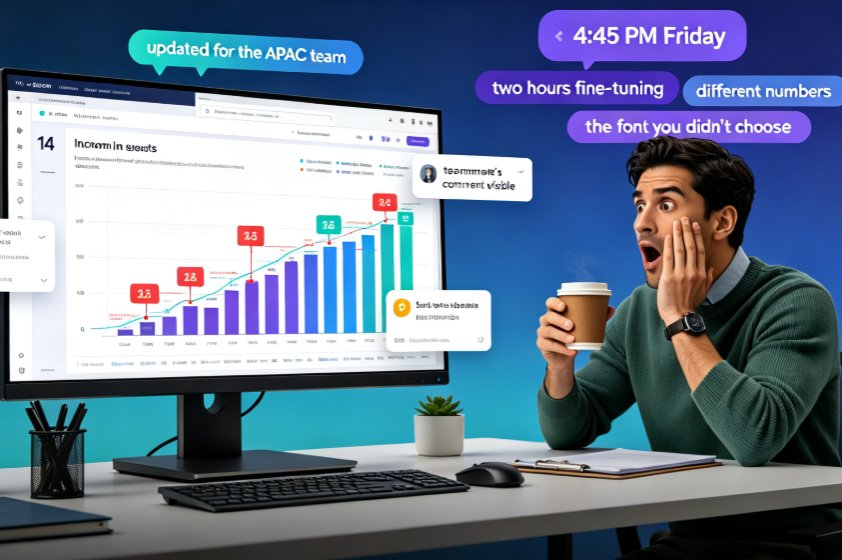
The result is the same every time: a frantic Friday afternoon, a deck that doesn't reflect the team's best work, and a meeting where you apologize for the inconsistencies.
The solution is to stop treating the presentation as a file and start treating it as a shared workspace. That's exactly what Zendeck's collaboration features are built for.
02 — Invite your team and start co-editing in real time
Getting started takes about thirty seconds. Create a deck in Zendeck (or import a Word outline), then hit the share button and invite your teammates.
Here's the step-by-step:
- Open your deck in Zendeck's editor.
- Click the Share button in the top-right corner.
- Choose a permission level for each teammate — view, comment, or edit.
- Copy the link and send it through Slack, Teams, or email.
Once your team is in, the magic happens. Everyone can edit the same deck at the same time. You'll see teammates' cursors moving across slides, and changes appear instantly — no refreshing, no "did you get my update?"
Comments work the same way. Highlight a slide, drop a comment, tag a teammate, and they get notified right where the work happens — no more "check your email" follow-ups. Feedback stays attached to the exact slide it's about, so nothing gets lost in a thread.
This is the moment the workflow shifts. Instead of emailing files back and forth, your team works in one live document. The person who owns the financials updates the chart while the designer tweaks the layout, and the copywriter polishes the headline — all in parallel.
The teams that ship great presentations don't work harder — they work in one shared space. Real-time co-editing, version history, and secure sharing turn a chaotic group project into a single source of truth.
03 — Version history: your safety net for every edit
Real-time editing is powerful, but it raises an obvious question: what happens when someone breaks something?
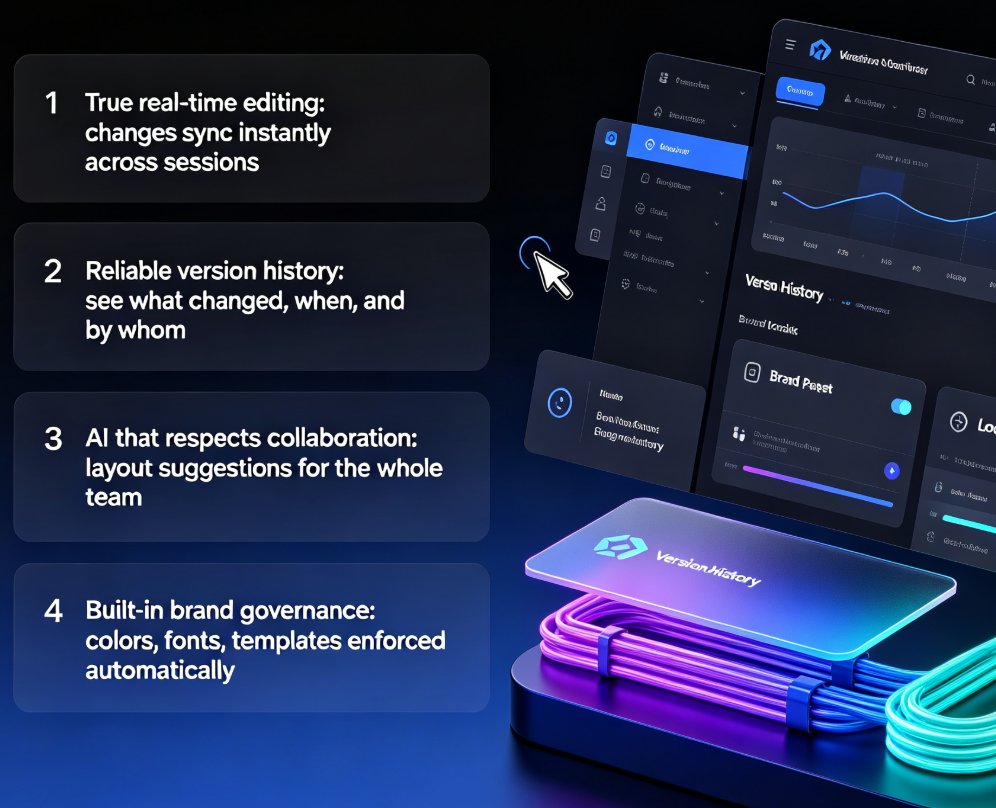
That's where version history comes in. Zendeck automatically saves every change as the team works, so you never lose progress — and you can always go back.
Here's what version control gives you:
- Auto-saved snapshots. Every edit is captured, so nothing is ever permanently lost.
- One-click restore. Made a mess of slide 12? Roll back to the version from an hour ago.
- Full visibility. See who changed what and when, so you can spot the source of a problem instead of guessing.
For teams, this is a game-changer. The fear of "breaking the deck" disappears, which means people actually collaborate instead of tiptoeing around each other. And when a stakeholder asks for "the version from Tuesday," you can pull it up in seconds instead of digging through email.
If you want to dig deeper into how these features fit into a broader team workflow, check out our guide on 5 hidden features of AI presentation tools that boost team productivity.
04 — Secure link sharing: control who sees what
Not everyone needs edit access, and some people shouldn't see the deck at all until it's ready. That's why secure sharing matters.
Zendeck lets you control access at a granular level:
- View-only links for stakeholders and executives who just need to review.
- Comment-only access for feedback without the risk of accidental edits.
- Edit access for the core team building the deck.
- Link expiry so shared links stop working after a set date.
This matters more than you'd think. When a client or executive gets a view-only link, they can't accidentally delete a chart or move a section. And when a link expires, you don't have to chase down "who still has access."
It also separates internal work from external review. Your team can iterate freely in edit mode, then flip the deck to view-only before sending it to a client or leadership. That one habit prevents a whole category of embarrassing moments.
For teams handling sensitive material — investor decks, internal restructuring plans, or unreleased product launches — this level of control is non-negotiable. If data security is a priority for your organization, you'll want to read about private deployment and data security in AI presentation tools.
05 — A team workflow that actually works
Tools only help if you pair them with a process. Here's a collaboration rhythm that works for most teams, whether you're a marketing squad, an L&D group, or a remote product team:
- Assign sections, not slides. Give each person ownership of a chunk of the deck so edits don't collide.
- Use comments for feedback. Keep all feedback inside the deck instead of scattering it across chat threads.
- Review in rounds. Do a content pass first, then a design pass, then a final polish — don't try to do everything at once.
- Check version history before big meetings. A quick look at what changed in the last 24 hours keeps you from being surprised on stage.
- Lock the deck when it's final. Switch everyone to view-only once the deck is approved, so nobody "just tweaks one thing" at 11 PM.
Here's how that compares to the old way of working:
| Aspect | Traditional PPT (email + desktop) | Zendeck collaboration |
|---|---|---|
| File versioning | Manual — v2, v3, FINAL, FINAL_2 | Auto-saved version history |
| Simultaneous editing | Not possible | Real-time co-editing |
| Feedback | Email and chat threads | In-deck comments |
| Access control | Limited to file permissions | Role-based + secure links |
| Single source of truth | No — copies everywhere | Yes — one live deck |
The difference isn't subtle. Teams that switch to this model typically cut their review cycles dramatically, because nobody is waiting for a file to come back in an email. A training team building a quarterly course deck, for example, can have the subject-matter expert review content while the designer handles visuals — at the same time, in the same file.
If you're also thinking about brand consistency across team decks, take a look at how to create a custom brand kit in Zendeck for consistent decks — it pairs perfectly with a shared collaboration workflow.
06 — Make collaboration the default, not the exception
Here's the honest truth: real-time collaboration isn't a feature you turn on once and forget. It's a habit your team builds. The first time someone restores a version instead of panicking, or the first time two people edit the same slide without conflict, the old way starts to feel absurd.
Start small. Pick one deck that's causing pain — the monthly report, the training deck, the pitch — and move it into Zendeck. Invite your team, set permissions, and let the version history do its job. Within a week, the "who has the latest file?" question disappears from your Slack.
And when it does, you'll wonder why you ever did it the hard way.
For more tips on building efficient team workflows, browse our office efficiency guides.
FAQ
Can multiple people edit the same Zendeck deck at the same time? Yes. Zendeck supports real-time co-editing, so multiple teammates can work on the same deck simultaneously. You'll see each other's cursors and changes appear instantly, with no need to refresh or re-upload files.
How does version history work in Zendeck? Zendeck automatically saves a snapshot of every change as your team edits. You can view the full history, see who changed what and when, and restore any previous version with one click — so nothing is ever permanently lost.
How do I control who can view or edit a shared presentation? When you share a deck, you can assign each person a permission level: view-only, comment-only, or edit. You can also set link expiry dates so access automatically ends after a certain time.
Does Zendeck work well for remote and distributed teams? Absolutely. Since everything lives in the cloud, remote teams can co-edit in real time, leave comments, and track version history from anywhere. No more emailing files across time zones.
Can I revert to an earlier version if someone makes a mistake? Yes. Open the version history panel, find the snapshot you want, and restore it. The deck rolls back to that state, and the current version is still saved in history in case you change your mind.