Collaborate on Presentations in Real-Time with Zendeck: A Guide
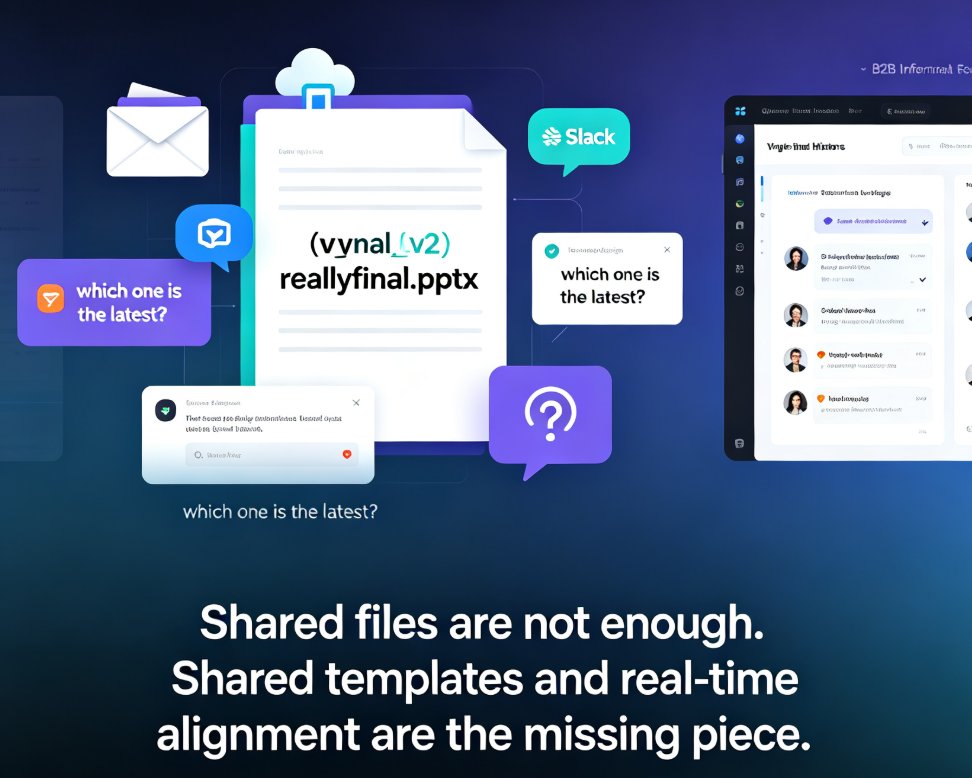
Let's be honest: collaborating on a presentation with a remote team is usually a mess. Someone emails a deck, three people download it, two edit different copies, and by Friday you have 'Q3_Update_FINAL_v4_REVISED.pptx' sitting in four inboxes. Sound familiar?
If you've lived through that version-control nightmare, you already know the real problem isn't the slides — it's the workflow. Distributed teams don't need more tools; they need one place where everyone can work on the same deck at the same time, without stepping on each other. That's exactly what Zendeck's real-time collaboration was built for.
This guide walks you through the whole thing: how to share a deck, set permissions, co-edit live with your team, and use version control so no work ever disappears. By the end, you'll have a repeatable workflow that kills the email ping-pong for good.
01 Why Presentation Collaboration Breaks Down for Remote Teams
Remote work is no longer a fringe arrangement — it's the default for a huge share of the workforce. And while tools like instant messaging and shared calendars solved the day-to-day communication gap, presentations have lagged behind. Why? Because most presentation software was designed for a single person sitting at a single machine.
The typical failure loop looks like this:
- Someone creates a draft and emails it around.
- Each reviewer edits their own local copy.
- Someone has to manually merge everyone's changes.
- A conflicting edit gets silently overwritten.
- The team spends an hour figuring out which version is actually current.
The core problem is that traditional presentation tools treat collaboration as a handoff, not a shared workspace. You're not working together — you're passing a baton and hoping nobody drops it.
This is especially painful for distributed teams spread across time zones. When your teammate in Berlin finishes their edits at 6 PM and your colleague in San Francisco starts at 9 AM, there's no overlap window to reconcile changes in real time. The result is duplicated effort, missed feedback, and a final deck that doesn't reflect everyone's best work.
02 What Real-Time Collaboration Actually Looks Like in Zendeck
Before we get into the how-to, let's set expectations. Real-time collaboration in Zendeck isn't just 'multiple people can open the same file.' It's a genuinely shared editing experience:
- Live co-editing: Multiple teammates work on the same deck simultaneously. You see their changes appear as they make them — no refresh button required.
- Granular permissions: You decide who can view, comment, or edit. External clients can be given limited access without touching your internal workflow.
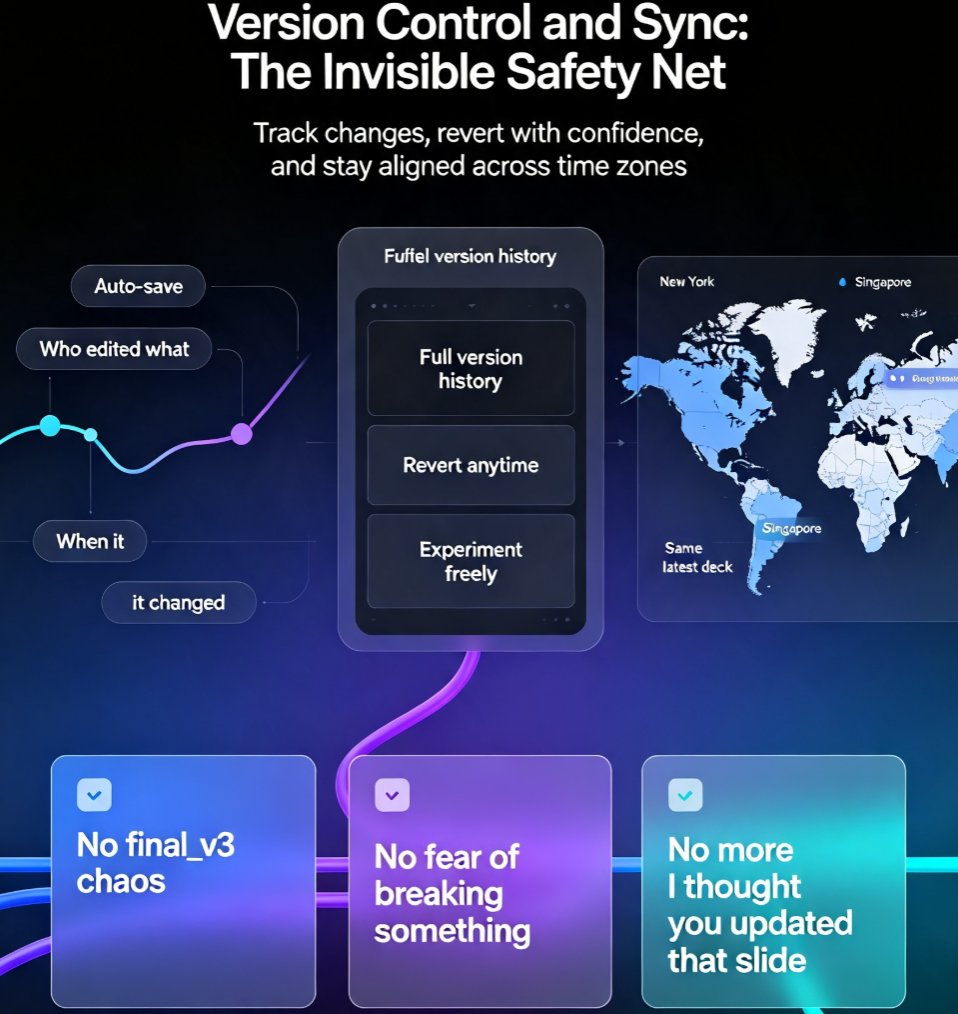
- Built-in version control: Every change is tracked automatically. You can see who edited what, when, and roll back to any earlier state.
- Unified design system: Because Zendeck applies consistent layouts, fonts, and brand colors, you don't have to worry about one teammate's edits clashing with another's formatting.
The result: your team works like a single organism instead of a relay race. One person drafts the narrative, another drops in charts, a third polishes the speaker notes — all at the same time, all in the same file.
If you're collaborating with people outside your organization, Zendeck's permission system makes it safe to bring clients or contractors into the loop. You control exactly what they can touch. For a deeper look at that workflow, check out how to real-time collaborate with external clients on Zendeck presentations.
03 Step-by-Step: Co-Editing a Deck with Your Team
Here's the practical part. Setting up a collaborative session in Zendeck takes about two minutes, and the workflow stays the same whether you're a two-person startup or a marketing team of twenty.
Step 1: Create or import your deck
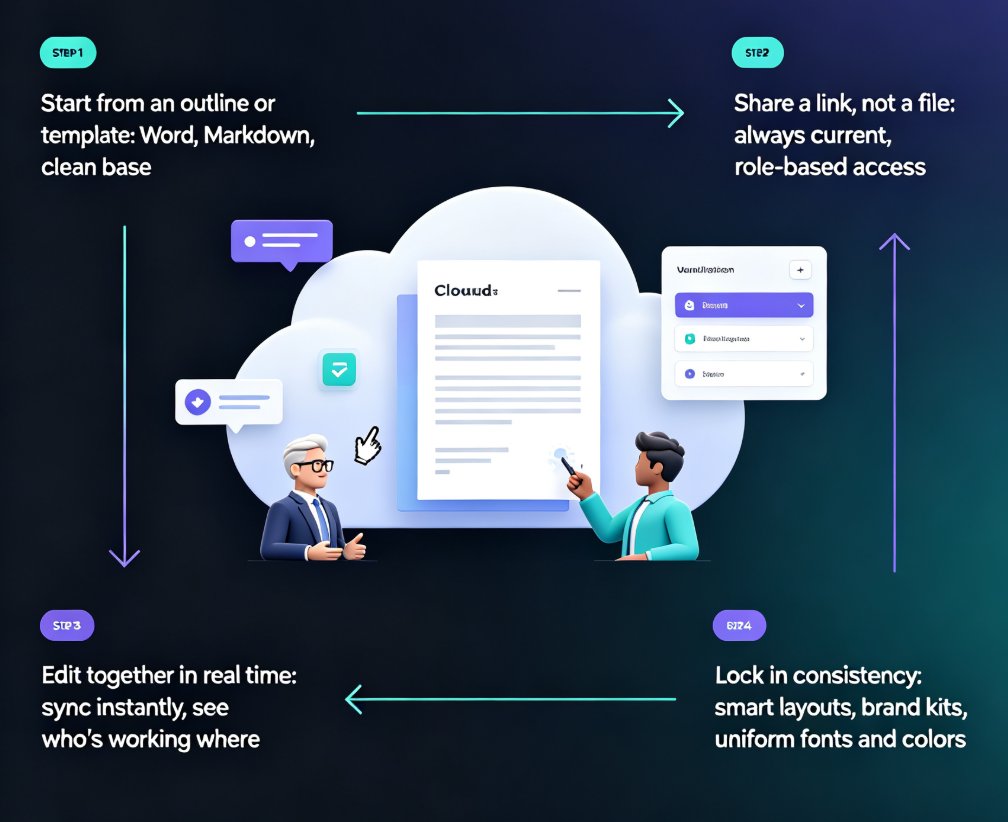
Start with a blank presentation, pick a template from the library, or import an existing Word outline or Markdown file. Zendeck will generate a structured, visually consistent deck you can build on. If you're starting from raw material, the brain-dump-to-structured-presentation workflow is a great shortcut.
Step 2: Share the deck with your team
Click the share button and invite your collaborators by email or via a shareable link. You'll set a permission level for each person:
- View-only — for stakeholders who just need to see the final product.
- Comment-only — for reviewers who should leave feedback but not touch the content.
- Edit — for teammates who are actively building the deck.
Step 3: Assign roles and work in parallel
Here's where the magic happens. Instead of dividing slides by 'whoever gets to them first,' assign clear ownership:
- The narrative lead owns the storyline and headlines.
- The data person drops in charts and figures.
- The design-minded teammate polishes visuals and layout.
Everyone works on the same deck simultaneously. You'll see each other's cursors and edits live, which means no more 'are you done with slide 7 yet?' Slack messages.
Step 4: Review, comment, and refine
Once the draft is up, switch to review mode. Teammates can leave inline comments on specific slides, tag each other, and resolve threads as changes land. This keeps all feedback in one place instead of scattered across email threads and chat messages.
Step 5: Export and deliver
When the deck is final, you can export to PPTX, PDF, or Google Slides in a click. The formatting stays intact, so you don't have to rebuild anything for the client or the conference room. See the full export options for Zendeck presentations if you need specifics.
Quick tip from someone who learned the hard way: don't give everyone edit access by default. Start with edit for the core team and comment-only for reviewers. You can always upgrade permissions later, but it's much harder to undo an accidental overwrite from a well-meaning stakeholder.
04 Version Control: The Safety Net You Didn't Know You Needed
Let's talk about the feature that saves your team's sanity: version control.
In a traditional workflow, 'version control' means naming files 'final_v2' and hoping everyone uses the right one. In Zendeck, it's automatic. Every edit is recorded in the version history, with a timestamp and the name of the person who made it.
This means you can always answer three questions: what changed, who changed it, and when. If a revision goes wrong — say, someone accidentally deletes a key chart — you roll back to the previous version in one click. No digging through backups, no 'does anyone still have the old file?' panic.
Here's a quick comparison of how the two approaches stack up:
| Aspect | Traditional file-based workflow | Zendeck real-time collaboration |
|---|---|---|
| Where edits happen | Multiple local copies | One shared live deck |
| Change tracking | Manual file naming | Automatic version history |
| Conflict handling | Silent overwrites | Live merge + conflict flags |
| Feedback location | Email threads, chat, comments | Inline comments on slides |
| Rollback | Rebuild from backup | One-click revert to any version |
| Design consistency | Depends on each editor | Enforced by smart templates |
| Time to final deck | Days of ping-pong | Hours of parallel work |
Teams that switch to this model consistently report that the biggest win isn't speed — it's trust. When everyone knows their edits are tracked and nothing gets silently lost, people stop hoarding files and start actually collaborating.
For a real-world example of what this looks like under pressure, read how a distributed team delivered a pitch deck in 48 hours using exactly this workflow.
05 Best Practices for Smooth Team Collaboration
Real-time collaboration is powerful, but it works best with a little structure. Here are the habits that keep distributed teams productive without stepping on each other:
Set a single source of truth
Decide early that the Zendeck deck is the only version that matters. No one works on a downloaded copy. If someone needs a static version for reference, they export it — but all edits happen in the shared deck.
Use comments for asynchronous feedback
Not everyone is online at the same time. Instead of waiting for a live meeting, teammates can drop comments on specific slides and tag the owner. The next person picks up the thread when they're online. This is how you keep momentum across time zones.
Keep brand assets centralized
If your team is spread out, brand consistency is the first thing to slip. Zendeck's brand kits and smart templates enforce your fonts, colors, and logo placement automatically, so a teammate in one time zone can't accidentally introduce a rogue font. Learn how to set up brand kits for consistent presentations if you haven't already.
Review in stages, not all at once
Don't wait until the deck is 'done' to get feedback. Share it early, get comments on the outline, then the draft, then the final polish. Small feedback loops beat one giant critique session every time.
Protect the final version
When the deck is approved, lock it down. Switch collaborators to view-only so no one accidentally edits the final version after it's been signed off. You can always unlock it later if changes are needed.
One more thing: if you're working with clients or external partners, set their permissions to comment-only unless they genuinely need to edit. It keeps the deck clean and avoids awkward 'who changed the logo?' conversations. Our guide on collaborating with external clients covers the permission setup in detail.
06 Why Your Team Should Make the Switch Today
Let's recap what real-time collaboration in Zendeck actually buys you:
- No more version chaos. One live deck, automatic history, one-click rollback.
- Faster turnaround. Parallel editing means the deck gets finished in hours, not days.
- Better feedback. Inline comments keep everything contextual and actionable.
- Consistent quality. Smart templates and brand kits keep the design cohesive no matter who's editing.
The teams that win at remote work aren't the ones with the most tools — they're the ones with the fewest points of failure. A single shared workspace with real-time collaboration and version control removes the biggest point of failure in presentation work: the handoff.
If you're still managing presentations through email attachments, you're paying a hidden tax in time, energy, and team morale. The fix is straightforward: put your deck in a shared workspace, set clear permissions, and let your team work together instead of in sequence.
Ready to stop the email ping-pong? Open Zendeck, create a deck, and invite your team. The first collaborative session takes two minutes to set up — and you'll never go back to 'final_v4_REVISED' again.
For more ways to streamline your team's presentation workflow, browse our office efficiency guides or explore AI presentation tools for the full picture.
FAQ
Can multiple people edit the same Zendeck presentation at the same time?
Yes. Zendeck supports true real-time co-editing, so multiple team members can work on the same deck simultaneously. Changes appear live for everyone, and each collaborator's cursor and edits are visible, which removes the need to 'claim' slides or take turns.
What happens if two team members edit the same slide at once?
Zendeck handles concurrent edits gracefully. Instead of overwriting each other, the platform merges changes intelligently and flags any genuine conflicts so you can resolve them in seconds. You never lose a teammate's contribution to a silent save.
Can I control who can view or edit a shared presentation?
Absolutely. When you share a deck, you set granular permissions — view-only, comment-only, or full edit access. You can also restrict sharing to specific people or teams, which is especially useful when external clients or contractors are involved.
Does Zendeck keep a history of changes so I can revert?
Yes. Every edit is tracked in the version history, so you can review what changed, who changed it, and when. If a revision goes sideways, you can roll back to any previous version in one click — no more digging through 'final_v3_REAL' files.
Can external clients collaborate without a Zendeck account?
You can share a presentation with external collaborators using link-based access and permission controls. They can review, comment, or edit within the limits you set, without needing their own Zendeck account. For deeper workflows, see our guide on collaborating with external clients.