How to Turn a Podcast Script into a Slide Deck with AI and Zendeck
You spent hours recording a podcast episode. The audio sits in your feed, maybe gets a few hundred listens, and then it's forgotten. But that conversation contains gold—insights, stories, and advice that could live on as a slide deck, a webinar, or a micro-course. The problem? Manually turning a transcript into a presentation is tedious, and most AI tools just dump text onto slides without any real structure. Let's fix that.
The smartest content operators don't create more—they repurpose better. A single podcast episode can become a slide deck, a knowledge video, and a series of social posts. And with the right workflow, it takes minutes, not days.
In this guide, I'll show you exactly how to turn a podcast script into a slide deck using AI and Zendeck. You'll learn the step-by-step process, see how to preserve speaker quotes and key moments, and discover how to push your deck further into a narrated video. No design skills required.
01 Why Your Podcast Deserves a Second Life as Slides
Let's be real: most podcast episodes get listened to once, then vanish. The average episode might get a few hundred downloads, but the ideas inside could reach thousands more if repackaged for visual platforms. Slides are the universal language of business—they work for LinkedIn, webinars, internal training, and client pitches.
Here's the pain point: you're sitting on a goldmine of content, but you don't have the time to manually extract every insight, quote, and actionable tip into a deck. That's where AI-powered repurposing changes the game.
Instead of starting from a blank canvas, you feed the transcript to a tool that understands conversation structure. It identifies speaker turns, topic transitions, and quotable moments. The outcome? A structured outline that becomes the skeleton of your presentation—ready for you to refine, not rebuild.
The best part: you don't need to be a designer or a video editor to make this work. The AI handles the heavy lifting, and you focus on the message.
02 The Repurposing Workflow: From Audio to Deck in Minutes
Let's walk through the exact workflow I use with Zendeck. It's simpler than you'd think, and it scales across your entire podcast library.
Step 1: Get Your Transcript Ready
First, you need a clean transcript. Most podcast platforms generate one automatically, or you can use a transcription service. The key is to include speaker labels and timestamps if possible—this helps the AI understand who said what.
Pro tip: Don't over-clean the transcript. Keep the natural pauses, filler words, and conversational flow. The AI is smart enough to filter out the noise and keep the substance.
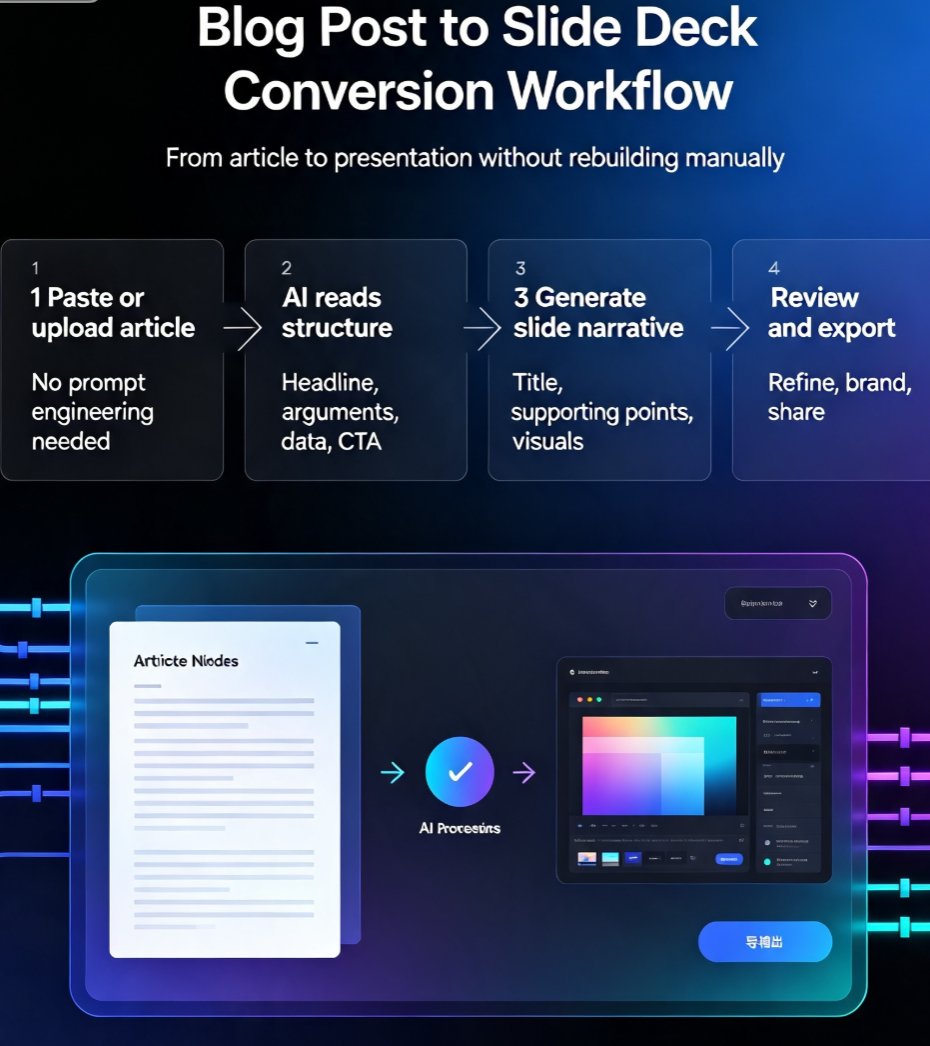
Step 2: Paste or Upload into Zendeck
Zendeck accepts raw text, Word files, or PDFs. Simply paste your transcript or upload the file. The AI immediately scans the content and identifies:
- Speaker roles (host, guest, interviewer)
- Topic transitions and chapter breaks
- Key quotes and memorable lines
- Stories, examples, and actionable advice
This is where Zendeck differs from generic text-to-slide tools. It doesn't just split text into bullet points—it understands the narrative arc of a conversation and builds a logical slide flow.
Step 3: Review and Refine the Outline
Once the AI generates an outline, you'll see a list of potential slides. Each slide corresponds to a section of the conversation. You can reorder, delete, or merge slides. You can also edit the slide titles and add your own notes.
This is your chance to shape the story. For a marketing podcast episode, you might want slides for guest background, campaign lessons, channel advice, standout quotes, and a tactical checklist. The AI suggests these based on the content, but you have final say.
Step 4: Generate and Customize the Deck
After you approve the outline, Zendeck generates the full deck with visuals, icons, and layout. You can then apply your brand kit—fonts, colors, logo—with one click. If you're starting from a template, the AI adapts the design to your content.
The result is a polished, on-brand presentation that looks like a designer spent hours on it. But you spent about five minutes of actual effort.
03 How Zendeck Turns a Transcript into a Polished Deck
Let's dig into the specifics of what Zendeck does under the hood. This isn't just about converting text to slides—it's about preserving the essence of the conversation.
Speaker Attribution and Quote Slides
One of the biggest challenges with podcast-to-deck conversion is keeping quotes attached to the right person. Zendeck recognizes speaker labels and creates dedicated quote slides. For example, if your guest says something memorable, that becomes a standalone slide with their name and photo (if you add one).
This is a game-changer for credibility. When you share a deck on LinkedIn, having a quote attributed to a recognized expert adds instant authority.
Topic Segmentation and Flow
A 45-minute podcast might cover five distinct topics. Zendeck identifies these transitions and creates section dividers or chapter slides. This makes the deck easy to navigate and perfect for turning into a webinar outline.
Visual Consistency Without Design Skills
Zendeck's smart layout automatically applies consistent spacing, alignment, and typography. You don't need to fiddle with text boxes or worry about mismatched fonts. The one-click reskin feature lets you switch between templates or apply your brand kit in seconds.
The outcome: a deck that looks professional, even if you've never opened PowerPoint in your life.
04 Beyond the Deck: Turning Slides into Knowledge Videos
Here's where the repurposing gets really powerful. Once you have a polished deck, you can use Zendeck's PPT-to-video feature to turn it into a narrated micro-course. This is perfect for content operators who want to reach audiences that prefer video over reading.
A single podcast episode can become a slide deck, a knowledge video, and a series of social posts—all from the same source material.
The workflow is simple: export your deck to video, add narration (either your original audio or a voiceover), and Zendeck syncs the slides with the audio. You get a video that feels like a mini-documentary, not a static slideshow.
This is especially valuable for educators and trainers. Instead of recording a separate video for each topic, you can repurpose existing podcast content into structured lessons. Check out our guide on creating micro-courses from scratch to see the full potential.
The Multi-Channel Distribution Playbook
Once you have the deck and video, you can slice them into:
- LinkedIn carousel posts (one slide per key insight)
- YouTube chapters (using the video's section dividers)
- Newsletter content (quote slides as pull quotes)
- Client training materials (with your branding)
This is how you turn a single hour of audio into a week's worth of content.
05 Measuring the Impact: Time Saved and Reach Gained
Let's put some numbers on this. According to Podcastify's workflow, converting a presentation to audio takes about five minutes per deck. The reverse—turning audio into a deck—is even faster with AI. Here's a comparison of manual vs. AI-assisted workflows:
| Task | Manual (hours) | With Zendeck (minutes) |
|---|---|---|
| Transcribe and clean audio | 2–3 | 0 (auto-transcription) |
| Outline and structure slides | 1–2 | 2–3 |
| Design and format deck | 3–4 | 1–2 |
| Apply brand consistency | 1 | 0.5 (one-click reskin) |
| Export and distribute | 0.5 | 0.2 |
| Total | 7.5–10.5 hours | 4–6 minutes |
The time savings are staggering—over 98% faster. That's not just a productivity boost; it's a strategic advantage. You can repurpose your entire podcast back catalog in an afternoon, not a quarter.
Here's a visual breakdown of the time saved:
But the real ROI isn't just time—it's reach. A deck can be viewed on LinkedIn, embedded in blog posts, and shared in newsletters. A video can go on YouTube and your website. You're multiplying the audience for your original content without creating anything new.
06 FAQ
Can Zendeck directly import a podcast transcript?
Yes. Zendeck lets you paste raw transcript text or upload a Word/PDF file. Its AI identifies speaker turns, topic shifts, and key quotes, then structures them into a logical slide flow. You can refine the outline before generating the deck.
How long does it take to convert a podcast script into a presentation?
With Zendeck, the core generation takes under two minutes for a typical 30-minute episode. Including editing and brand reskinning, most users finish a polished deck in 10–15 minutes—versus several hours manually.
What can I do with the slide deck after it's created?
You can export it as PPTX, PDF, or Google Slides, or use Zendeck's PPT-to-video feature to turn it into a narrated micro-course. This lets you repurpose the podcast into a webinar, training module, or social content source.
Does Zendeck preserve speaker quotes and attribution?
Yes. The AI recognizes speaker labels and quote moments, keeping them intact on dedicated quote slides. You can also edit speaker names and adjust attribution manually before finalizing.
Is Zendeck suitable for non-designers?
Absolutely. Zendeck's smart layout and one-click reskin automatically apply consistent fonts, colors, and spacing. You don't need design skills—just paste your script and let the AI handle the visual structure.
Ready to give your podcast a second life? Start with a transcript you already have, paste it into Zendeck, and watch it become a deck in minutes. Then take it one step further and turn that deck into a video. Your content library will thank you.