One-Click Reskin: Rebrand Legacy Decks in Minutes with Zendeck
Let's be real: rebranding a legacy deck is the kind of task that makes you question your career choices. You've got a 60-slide presentation from three years ago, full of outdated colors, mismatched fonts, and a logo that's been retired twice. The client just rebranded, and now every deck needs to match the new identity—by Friday. Sound familiar?
If you've ever spent a weekend manually changing fonts and recoloring shapes in PowerPoint, you know the pain. But here's the good news: you don't have to do it manually anymore. Zendeck's one-click reskin feature turns a multi-hour chore into a five-minute job. Let's break down how it works, why it's a game-changer, and how you can use it to reclaim your time.
I. Why Rebranding Legacy Decks Is a Nightmare
Think about the last time you had to update a deck to match a new brand. You opened the file, saw the old color palette, and felt a sinking feeling. Then came the tedious steps:
- Changing every font style and size
- Replacing the logo on each slide
- Adjusting colors for text, backgrounds, and shapes
- Fixing misaligned elements after edits
- Ensuring consistent spacing across all slides
It's not just time-consuming—it's error-prone. You miss a slide, or the color hex code is slightly off, and suddenly your deck looks like a patchwork quilt. Manual rebranding is the #1 productivity killer for marketing teams, agencies, and anyone who presents regularly.
And let's not forget the bigger picture: brand consistency. A study by Lucidpress found that consistent branding can increase revenue by up to 23%. But when you're rushing to meet a deadline, consistency often falls by the wayside. That's where AI-powered reskinning comes in.
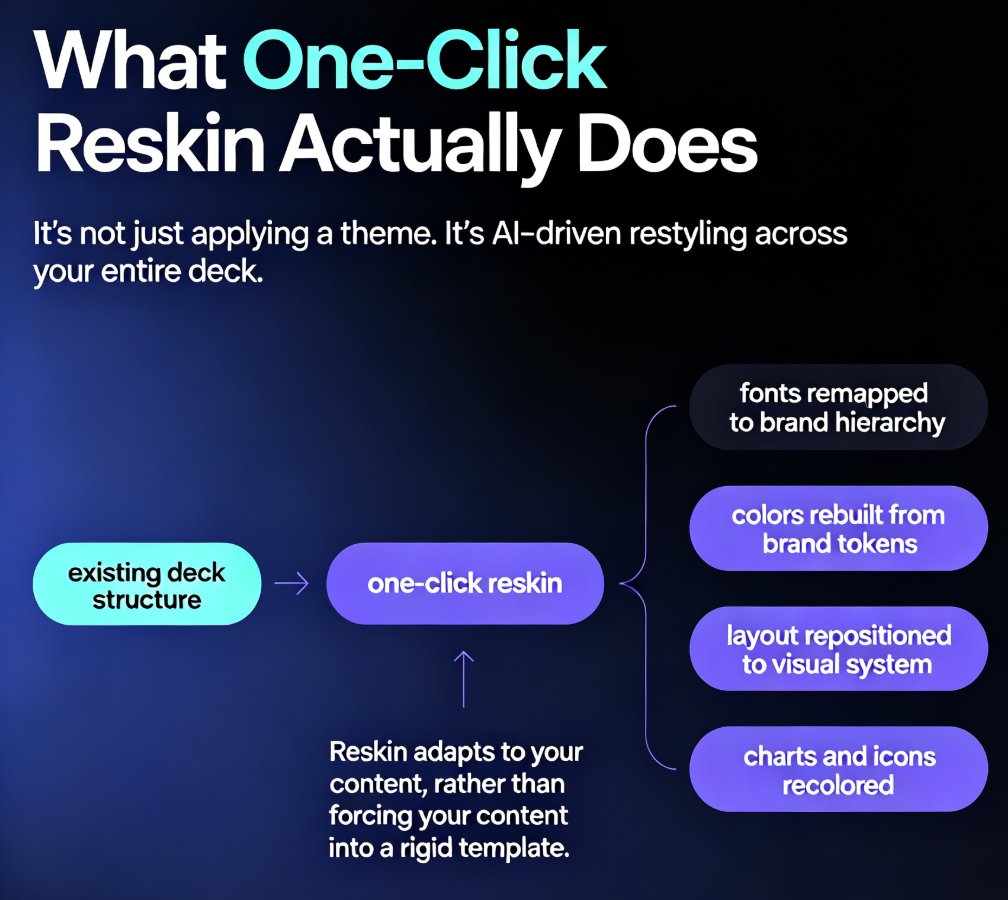
II. What One-Click Reskin Actually Does
Zendeck's one-click reskin is exactly what it sounds like: you click a button, and the AI applies your brand kit to the entire deck. But under the hood, it's doing a lot more than a simple find-and-replace.
The AI analyzes your existing slides, identifies all visual elements—text boxes, shapes, images, charts—and then applies your brand kit's rules: colors, fonts, logo placement, and layout spacing. It doesn't just swap colors; it rebalances the design so everything looks cohesive. For example, if your old deck used a dark background with light text, and your new brand kit uses a light background with dark text, the AI adjusts contrast and text placement automatically.
The result is a fully rebranded deck that looks like it was designed from scratch—without you touching a single slide manually.
This isn't just about aesthetics. It's about maintaining trust with your audience. When your slides look professional and on-brand, people pay more attention to your content. When they look messy, they question your credibility. Zendeck ensures your legacy content gets a fresh, modern look that aligns with your current brand identity.
III. Step-by-Step: How to Rebrand a Legacy Deck in Minutes
Ready to try it? Here's a simple walkthrough using Zendeck:
- Import your legacy deck. You can upload a PPTX, PDF, or even paste raw text. Zendeck supports multiple formats, so you don't have to convert anything first.
- Choose your brand kit. If you haven't set one up yet, Zendeck lets you create a brand kit with your colors, fonts, and logo. You can also pick from the template library if you don't have a formal brand kit.
- Click "Reskin." The AI processes the entire deck in seconds. You'll see a preview of the new design.
- Make tweaks if needed. Zendeck's editor is intuitive—you can adjust individual slides, swap images, or fine-tune text placement.
- Export and share. Once you're happy, export to PPTX, PDF, or share directly via a link.
That's it. No design skills required. You can rebrand a 50-slide deck in under five minutes, start to finish.
IV. Real-World Scenarios: When Reskin Saves the Day
Let's look at a few situations where one-click reskin is a lifesaver:
Marketing Agencies
You're managing multiple clients, each with their own brand guidelines. A client asks for a proposal deck that was originally created for another client. Instead of rebuilding from scratch, you import the deck, apply the new client's brand kit, and reskin. In minutes, you have a personalized, on-brand proposal that impresses the client.
HR and Onboarding
Your company just went through a rebrand, and all training materials need updating. You have dozens of onboarding decks, each with the old logo and colors. With Zendeck, you can batch-reskin them all in one afternoon. No more hunting down every file and manually editing.
Educators and Trainers
You've built a course over the years, and now your institution has a new visual identity. Instead of redoing every lecture slide, you reskin the entire course in one click. Your students get a consistent, professional experience, and you save hours of prep time.
Sales Teams
Your sales team has a library of pitch decks. When the company updates its brand, you need to ensure every deck reflects the new identity before the next big meeting. One-click reskin ensures your team walks into client meetings with polished, consistent materials—no last-minute scrambling.
V. Comparison: Manual Rebranding vs. Zendeck One-Click Reskin
Still on the fence? Let's put it in perspective with a side-by-side comparison.
| Aspect | Manual Rebranding | Zendeck One-Click Reskin |
|---|---|---|
| Time for a 50-slide deck | 4–6 hours | 3–5 minutes |
| Consistency | Prone to human error | 100% consistent across slides |
| Design skills required | Yes, or you'll end up with a mess | None—AI handles the design |
| Cost | Hours of billable time or overtime | Minimal—just your Zendeck subscription |
| Scalability | One deck at a time | Batch process multiple decks |
| Flexibility | High, but time-consuming | High—you can tweak after reskin |
| Risk of breaking layout | High | Low—AI preserves content and adjusts layout |
The numbers speak for themselves: Zendeck reduces rebranding time by over 95%. That's not just a nice-to-have; it's a game-changer for teams that need to move fast without sacrificing quality.
VI. Tips for a Smooth Reskin
Here are a few things I've learned from using Zendeck's reskin feature—think of these as friendly advice, not official instructions:
- Set up your brand kit first. The more complete your brand kit (colors, fonts, logo, spacing rules), the better the reskin will look. If you haven't done this yet, check out our guide on creating a custom brand kit for consistent decks.
- Review the preview. Zendeck shows you a preview before you commit. Take 30 seconds to scan a few slides—especially ones with complex layouts—to make sure everything looks right.
- Don't be afraid to tweak. After reskinning, you can still edit individual slides. If a chart or image needs manual adjustment, it's easy to do.
- Use templates for speed. If you don't have a formal brand kit, Zendeck's template library has 500+ options. You can reskin with a template and then customize it to match your brand. It's a great shortcut for one-off projects.
Remember, the goal isn't just to change colors—it's to make your content shine with a fresh, professional look. Zendeck handles the heavy lifting so you can focus on what matters: your message.
VII. FAQ
What does one-click reskin mean in Zendeck?
One-click reskin in Zendeck automatically applies your brand kit—colors, fonts, logos, and layout styles—to an existing presentation. You upload or import a legacy deck, choose your brand kit, and Zendeck instantly reformats all slides to match your brand identity, saving hours of manual editing.
Can I reskin a PowerPoint file with Zendeck?
Yes. Zendeck supports importing PPTX files directly. After import, you can apply a brand kit or template to reskin the entire deck. The tool preserves your content while updating the visual design, so you don't have to rebuild slides from scratch.
Will my content be altered during reskin?
No. Zendeck's reskin focuses on visual elements—colors, fonts, backgrounds, and layout spacing. Your text, images, and data remain intact. The AI adjusts the design to fit the new brand style without changing your core message.
How long does it take to rebrand a 50-slide deck?
With Zendeck's one-click reskin, a 50-slide deck can be rebranded in under five minutes. The AI processes the entire presentation in one go, and you can make minor tweaks afterward if needed. Manual rebranding would typically take several hours.
Do I need design skills to use the reskin feature?
Not at all. Zendeck is built for non-designers. The one-click reskin requires no design knowledge—just pick a brand kit or template, and the AI handles the rest. You can also customize individual slides with simple drag-and-drop tools if you want finer control.
Rebranding legacy decks doesn't have to be a dreaded chore. With Zendeck's one-click reskin, you can transform outdated presentations into polished, on-brand decks in minutes. Whether you're a marketing agency juggling multiple clients, an HR team updating onboarding materials, or an educator refreshing course content, this feature saves you time and ensures consistency across every slide.
Ready to stop wasting hours on manual rebranding? Give Zendeck a try and see how easy it is to make your legacy decks look brand new. Your future self—and your audience—will thank you.