Keep Your Brand Consistent: One-Click Reskin for Every Presentation
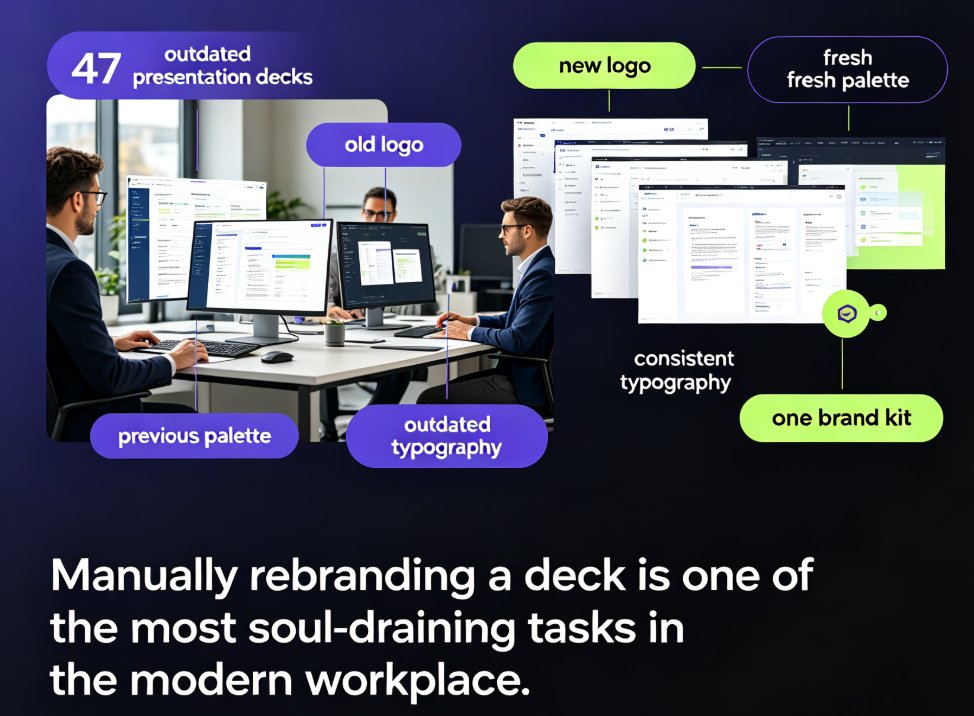
You've been there. The sales team sends a deck with the old logo. HR uses a different shade of blue on every slide. Marketing's latest pitch has three different fonts fighting for attention. Nobody set out to break the brand — it just happens, one deck at a time.
Brand inconsistency is the silent killer of professional credibility.
When your slides look like they were made by five different people (because they were), your audience notices. They might not say anything, but they're judging. And in a world where your deck is often the first impression a client gets, that judgment sticks.
The fix isn't another 40-page style guide PDF that nobody reads. The fix is making brand compliance automatic — and that's exactly what one-click reskin does.
I. Why Your Decks Keep Drifting Off-Brand
Here's the uncomfortable truth: brand inconsistency isn't a design problem. It's a workflow problem.
When five people build decks independently, each one makes micro-decisions about fonts, colors, spacing, and layout. The sales rep picks a template they found online. The HR manager uses last year's deck as a base. The intern "improves" the title slide. Every one of those decisions is reasonable in isolation — but together, they produce a visual mess.
The cost is real. Clients and partners notice when your materials don't look cohesive. It reads as disorganization, even when your actual work is flawless. Internally, it means endless back-and-forth: "Can you change the font on slide 12?" "Which blue are we using now?" "Who updated the logo last?"
Manual restyling is the most expensive way to maintain brand consistency.
Every hour spent adjusting fonts and colors by hand is an hour not spent on the actual content — the strategy, the story, the data that makes your presentation worth watching.
II. What One-Click Reskin Actually Does
One-click reskin is exactly what it sounds like: you click a button, and Zendeck restyles your entire deck to match a chosen brand profile. Fonts, colors, layout, spacing — all unified in seconds.
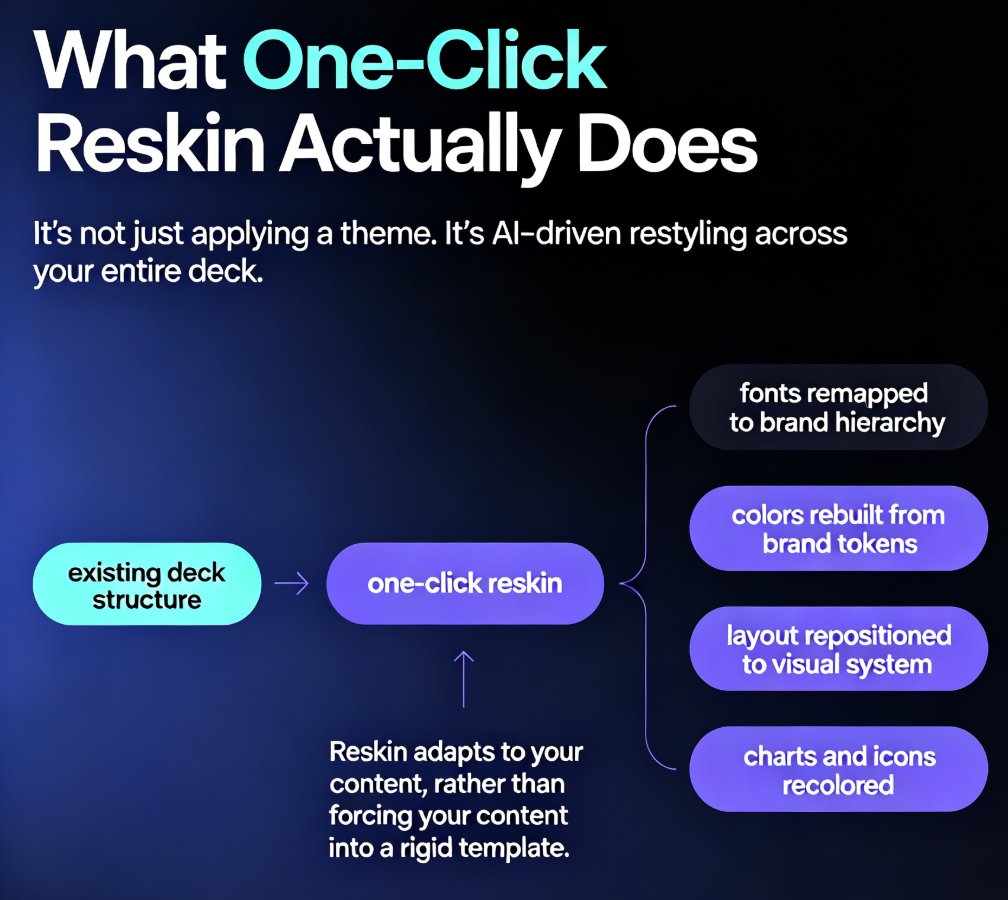
But let's be precise about what's happening under the hood. Reskin isn't just "apply a theme." It's an AI-driven process that understands the structure of your slides and makes intelligent design decisions:
- Fonts: Every text element is remapped to your brand's type hierarchy — titles, subtitles, body text, captions all get their correct styles.
- Colors: The color palette is rebuilt from your brand tokens. No more "close enough" blues or "that looks about right" greens.
- Layout: Slide elements are repositioned to fit the new visual system. If your brand uses a left-aligned layout with specific margins, reskin respects that.
- Visual elements: Charts, icons, and images are recolored or restyled to match, so nothing sticks out as foreign.
The key difference from traditional template switching? Reskin adapts to your content rather than forcing your content into a rigid template. That's the context-aware approach that separates modern AI deck tools from old-school PowerPoint themes — the same philosophy behind why AI deck tools are moving beyond templates.
III. Manual Restyling vs. One-Click Reskin: The Honest Comparison
Let's put the numbers on the table. Here's what a typical 30-slide deck looks like when you're restyling it by hand versus using one-click reskin:
| Task | Manual Restyling | One-Click Reskin |
|---|---|---|
| Change fonts across all slides | 20-40 minutes | Seconds |
| Rebuild color palette | 30-60 minutes | Seconds |
| Fix layout and spacing issues | 1-2 hours | Seconds |
| Recolor charts and icons | 30-45 minutes | Seconds |
| QA pass for consistency | 1-2 hours | 5-10 minutes |
| Total time | 3-6 hours | Under 15 minutes |
Those numbers aren't pulled from thin air — they're the reality of anyone who's ever manually restyled a deck. The gap only widens as decks get longer and more complex.
IV. How to Use One-Click Reskin in Zendeck
The workflow is simple enough that you'll wonder why you ever did this by hand:
- Open your deck in Zendeck. This works for decks you've generated with AI or imported from PowerPoint, Word, or Google Docs.
- Select your brand profile. If you've set up a brand kit, your fonts, colors, and logo rules are already saved. If not, you can create one on the spot.
- Click "Reskin." Zendeck analyzes every slide and applies your brand system across the entire deck.
- Review and adjust. Because reskin is AI-driven, it handles the heavy lifting — but you're always in control. Spot-check a few slides and make tweaks if needed.
That's it. No design skills required. No fighting with master slides. No "why won't this template just work" moments.
The best part? Once you've set up a brand kit, every future deck starts from a consistent foundation. You're not just fixing today's deck — you're preventing next month's inconsistency. If you want to go deeper on setting up your brand kit, check out 5 Ways to Create a Custom Brand Kit in Zendeck.
V. Beyond Reskin: Building a Brand System That Scales
One-click reskin is powerful on its own, but it's even better when you pair it with a broader brand workflow. Here's what we've seen work well for teams:
Start with a brand kit. Define your fonts, colors, and logo usage once. Then every deck — whether it's a sales pitch, a training module, or an internal update — pulls from the same source of truth. This is the foundation of AI-governed brand consistency.
Use smart templates as your starting point. Instead of letting each person pick their own template, standardize on a few approved options. Zendeck's template library includes options that are designed to work with your brand, not against it.
Make reskin part of your review process. Before a deck goes out, run a reskin pass. It catches the "I copied this slide from an old deck" problem before your client does.
Leverage your asset library. When charts, icons, and illustrations come from a single, brand-aligned library, they naturally stay on-brand. That's why AI asset libraries are changing how teams maintain brand consistency.
VI. When Reskin Isn't the Answer
Let's be real: reskin isn't magic. It won't fix a deck with terrible content or a confusing narrative. It won't save you if your slides are so cluttered that no amount of styling can help.
Reskin solves the visual consistency problem — not the content problem.
If your deck is a wall of text with no visual hierarchy, reskin will make it a consistent wall of text. That's better, but it's not great. If you're dealing with genuinely messy slides, you might need to address the root causes first — here's why AI-generated slides can still look messy and how to fix them.
The good news? Zendeck's broader AI capabilities help with content too. You can generate slides from an outline, get design suggestions, and even turn your deck into a narrated video. Reskin is one tool in a larger workflow — use it where it fits.
VII. The Bottom Line
Brand consistency doesn't have to be a constant battle. With one-click reskin, you stop spending hours on manual restyling and start shipping decks that look like they came from one team — because they did.
If you're tired of the "which blue are we using?" conversations, reskin is the answer. Set up your brand kit once, click reskin on every deck, and let the AI handle the rest. Your team will thank you. Your clients will notice. And your brand will finally look as polished as your work actually is.
For more on how AI presentation tools are reshaping workflows, explore our AI courseware hub.
FAQ
Q: What does one-click reskin mean in Zendeck? A: One-click reskin is a Zendeck feature that automatically restyles an entire presentation to match your brand profile. It unifies fonts, colors, layout, and visual elements across all slides in a single action, so you don't have to manually adjust each slide.
Q: How long does it take to reskin a presentation? A: For a typical 30-slide deck, reskin takes under 15 minutes including a quick review pass. The actual reskin action itself takes seconds — most of the time is spent spot-checking the result and making any minor tweaks.
Q: Does reskin change my content or just the design? A: Reskin only affects the visual design — fonts, colors, layout, and styling. Your text, data, and content structure remain untouched. If you want to improve the content itself, you'd use other Zendeck features like AI slide generation or design suggestions.
Q: Can I use reskin on decks I imported from PowerPoint or Google Slides? A: Yes. Zendeck supports importing decks from PowerPoint, Word, and Google Docs, and you can apply reskin to imported decks just like you would with AI-generated ones.
Q: Do I need to set up a brand kit first? A: It's recommended but not required. If you have a brand kit saved, reskin will use your defined fonts, colors, and logo rules. If not, you can create a brand profile on the spot or choose from Zendeck's template library.