From Markdown to Slides: The Fastest Way to Create a Developer Deck
From Markdown to Slides: The Fastest Way to Create a Developer Deck
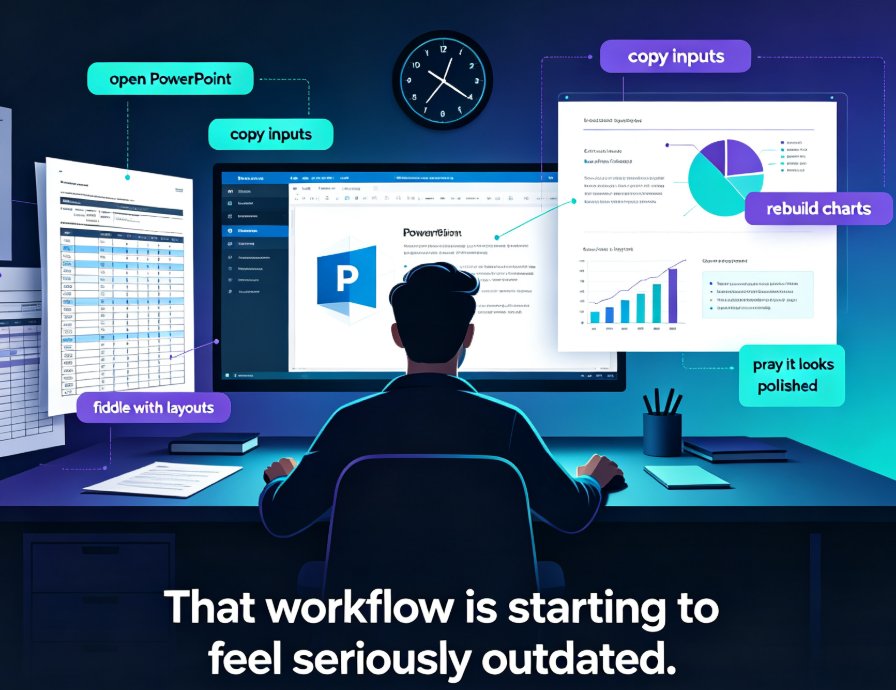
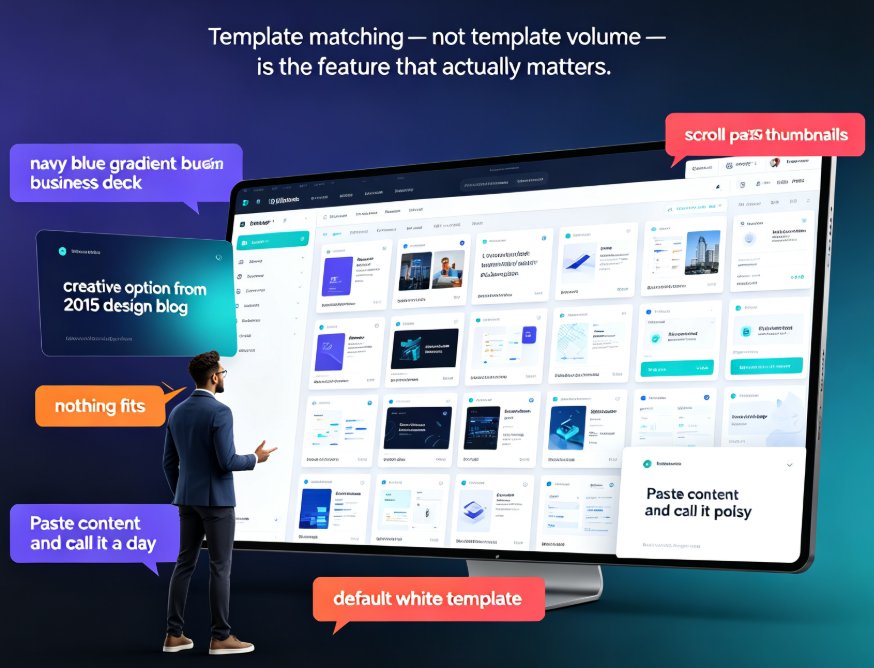
Let's be honest: most developers would rather write a 200-line config file than open PowerPoint. The tool feels like it was designed for a different species — ribbon menus, text boxes that fight you, and that default template that screams "2013 called, it wants its deck back."
But here's the thing: you still have to present. Architecture reviews, sprint demos, tech talks, onboarding sessions for new engineers. The content is already in your head — and half the time, it's already sitting in your Markdown files, waiting to be reused.
That's the gap this guide closes. We're going to walk through how Zendeck turns Markdown and TXT outlines into clean, professional slides in minutes — without you ever touching a design tool. If you've been avoiding deck-building because it feels like a waste of engineering time, this is the workflow you've been missing.
If you can write a README, you can build a presentation. That's the entire premise behind Zendeck's Markdown workflow, and it's about to save you hours of formatting hell.
01 Why Markdown Is the Developer's Native Language for Slides
Think about how you actually document things. Your README files, your API docs, your design notes — they're all Markdown. It's plain text, it's version-controlled, it lives happily in your repo, and it doesn't require a proprietary file format to open or diff.
Traditional presentation tools break that flow. You write content in one place, then manually rebuild it in a slide editor. Every bullet point gets re-typed. Every code snippet gets re-pasted and re-formatted. Every font size gets re-adjusted. It's the same content, translated twice, with nothing gained.
That's the pain point: the double-entry problem. You write once, then you write again in a tool that doesn't respect how you work. And the more technical your content, the worse it gets — because code formatting in PowerPoint is genuinely painful.
Zendeck solves this by accepting Markdown and TXT directly. You paste your outline — the same Markdown you'd write for a README — and Zendeck parses it into a structured deck. Headings become slide titles. Bullet lists become content blocks. Code fences stay intact, formatted for readability.
The outcome? You go from "I have an outline" to "I have a deck" in the time it takes to make coffee. No copy-paste roulette, no reformatting, no fighting with text boxes.
02 What Zendeck Does with Your Markdown: From Outline to Structured Slides
Here's where it gets interesting. Zendeck doesn't just dump your text onto slides — it treats your Markdown as a structural contract.
This means your Markdown structure directly determines the slide structure. No guessing, no "where does this go?" — the hierarchy you already wrote becomes the hierarchy of the deck. That's a huge deal for technical content, where structure matters more than decoration.
Zendeck treats your Markdown as a structural contract, not a text dump. That's the difference between a tool that pastes text and a tool that builds a presentation.
And because Zendeck's smart layout engine handles the visual side — fonts, colors, spacing, alignment — you never have to touch a design tool. The deck comes out looking consistent, professional, and on-brand. If you want to keep your company's visual identity locked in, Zendeck's brand kit feature makes that automatic across every deck your team generates.
03 Step-by-Step: From .md to a Polished Deck in Minutes
Let's walk through the actual workflow, because it's almost embarrassingly simple.
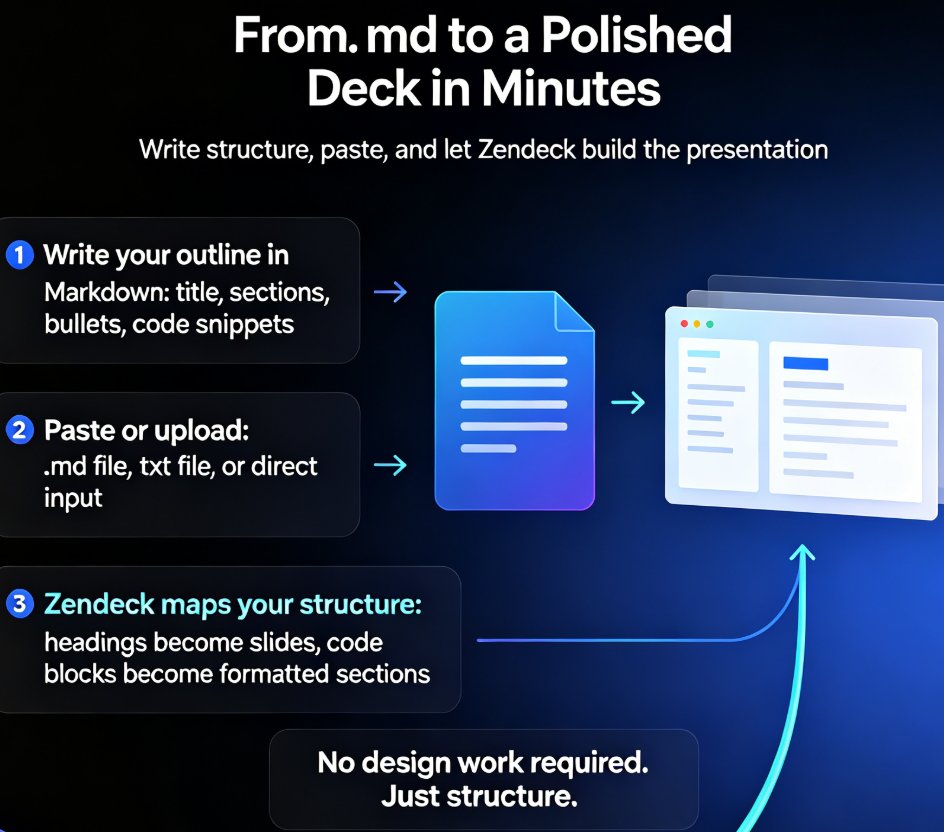
Step 1: Write your outline in Markdown. You already do this. Write your talk as a structured outline — title, sections, bullets, code snippets. Don't worry about design. Just structure. If you're presenting a technical topic, this is the same outline you'd write for a design doc.
Step 2: Paste or upload. In Zendeck, paste your Markdown directly into the input field, or upload your .md / .txt file. Both work the same way. If you're coming from a Word document, Zendeck handles that too — the same structural parsing applies, as covered in our guide on Word and Google Docs integration.
Step 3: Let Zendeck map your structure. Zendeck parses your headings, bullets, and code blocks, and generates a first-pass deck. This takes seconds, not minutes. The result is a deck where every section of your outline has become a slide, and every code block is already formatted.
Step 4: Pick a template. Choose from Zendeck's template library — or apply your brand kit if you want consistent colors and fonts across your whole org. The template applies automatically to every slide, so you don't have to format anything manually.
Step 5: Review and refine. Skim the deck. Adjust anything that needs a human touch — maybe reorder a section, tweak a headline, add a chart. Then export as PPTX, PDF, or share via link.
That's it. Five steps, most of which you'd do anyway. The difference is that steps 2–4 take about two minutes total, instead of the hour you'd spend manually building slides in a traditional tool.
04 Markdown-to-Slides: Zendeck vs. Traditional Tools
Let's put this in perspective with a quick comparison:
| Aspect | Markdown + Zendeck | Markdown + Static Tools (pandoc, etc.) | Traditional PPT Tools |
|---|---|---|---|
| Input format | Markdown / TXT | Markdown (with config) | Native PPT format |
| Setup time | None — paste and go | Requires CLI config, themes | None, but manual work |
| Design quality | Built-in smart layouts | Depends on your CSS/theme skills | Manual, inconsistent |
| Code formatting | Automatic, clean | Manual or template-dependent | Manual, painful |
| Time to first draft | ~2 minutes | 15–30 minutes setup | 30–60 minutes |
| Collaboration | Online, link sharing | Git-based (if you're fancy) | Version chaos |
| Export options | PPTX, PDF, video | PDF, HTML | PPTX, PDF |
The takeaway is clear: Markdown + Zendeck gives you the speed of plain text with the polish of a design tool. You keep your developer workflow, and you get a deck that doesn't embarrass you in front of stakeholders. If you've tried other AI slide tools and ended up with messy output, this workflow is different — the Markdown structure gives Zendeck clear signals about what belongs where, which is exactly how we fix messy AI-generated slides.
05 Structuring Technical Content So Slides Don't Suck
Here's the part nobody tells you: even with the right tool, a technical deck can still be terrible if the content structure is wrong. Let's fix that.
One idea per slide. If a slide has three separate concepts, split it. Your audience's working memory is limited; don't overload it. A slide about "Database Optimization" should be three slides: "The Problem," "The Fix," and "The Results."
Code snippets: show the minimal version. Don't paste 40 lines of code on a slide. Show the 5 lines that matter, and put the full version in the appendix or a linked repo. Your audience will thank you, and your code will actually be readable from the back of the room.
Use the slide title as a claim, not a topic. Instead of "Database Optimization," write "Indexing Cut Query Time by 80%." That's a claim people remember. It also makes your deck skimmable — someone can scan your titles and get the whole story.
Let whitespace do the work. Dense slides are unreadable slides. Zendeck's smart layouts handle spacing automatically, so you don't have to fight for breathing room. Trust the layout engine; it's better at this than you are.
Structure for skimming. Your audience will skim. Make sure the hierarchy — title, bullets, code — is visually obvious at a glance. That's exactly what Zendeck's Markdown mapping gives you for free, because your Markdown hierarchy becomes the visual hierarchy.
06 Beyond Slides: Turn Your Developer Deck into a Video
Here's a bonus that most people don't expect: once your deck is built, you can turn it into a narrated video without leaving Zendeck.
For technical teams, this is huge. Onboarding docs, architecture walkthroughs, API tutorials — these are all things you'd normally record with screen capture software, fighting with audio sync and video editing. It's a whole separate workflow that eats your afternoon.
Zendeck's PPT-to-video feature converts your slides into a micro-course with narration. Add voiceover, subtitles, and export a video that your team can watch on their own time. Same content, new format, zero extra design work. If you're building training material for new engineers, this turns a one-time deck into a reusable asset — and our guide on adding narration to slides walks you through the whole flow.
This is especially useful for developer education: write the deck once, ship it as slides and as a video. Your remote team gets both formats, and you never rebuild anything. The video format also works great for async reviews — stakeholders can watch your architecture walkthrough on their own schedule instead of blocking a meeting.
FAQ
Q: What Markdown syntax does Zendeck support? A: Zendeck supports standard Markdown including headings, bullet lists, ordered lists, code blocks, blockquotes, and horizontal rules. Headings map to slide titles, lists become content, and code blocks stay formatted with proper spacing.
Q: Can I upload a .md or .txt file directly? A: Yes. Zendeck accepts both pasted Markdown and uploaded .md or .txt files. The parsing is identical either way, so you can use whichever workflow fits.
Q: Do I lose control over slide design? A: No. Zendeck generates a structured first pass, then you can apply templates, adjust layouts, and customize colors. The design is automated, but you stay in control — and your brand kit keeps everything consistent.
Q: Can I export my Markdown-generated deck to PowerPoint? A: Yes. Zendeck exports to PPTX, PDF, and video formats, so you can share or present however your workflow requires.
Q: Is this only for developers? A: Not at all. Anyone who writes structured outlines — technical writers, educators, consultants — can benefit. But if you live in Markdown, this is the fastest path from outline to deck you'll find.