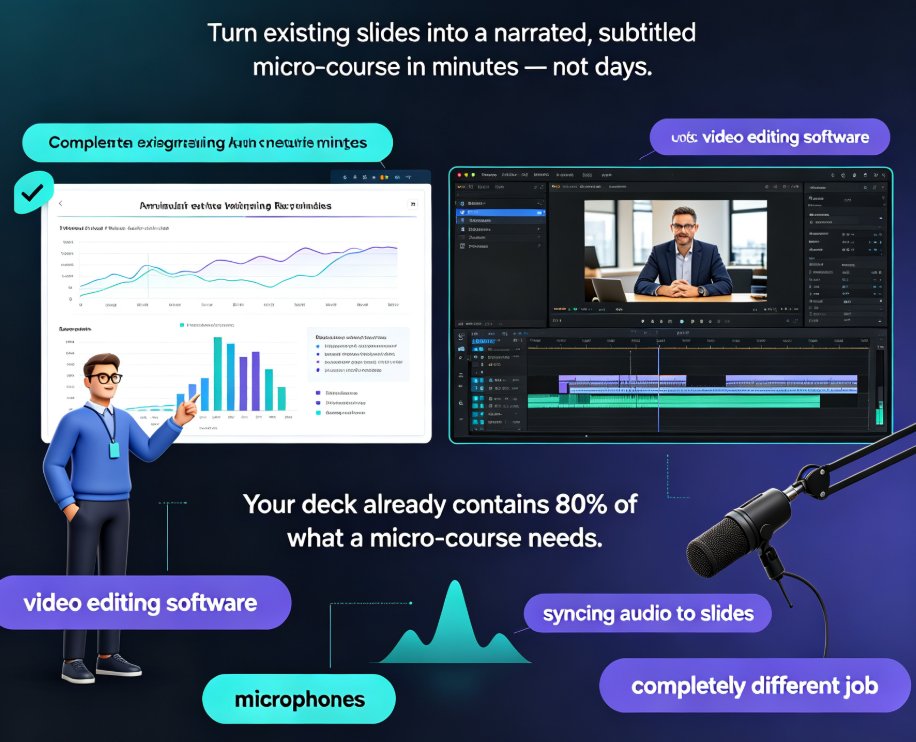
PPT to Video in 2026: AI Narration & Smart Timing Beat Manual Editing
The Friday Night Video Trap
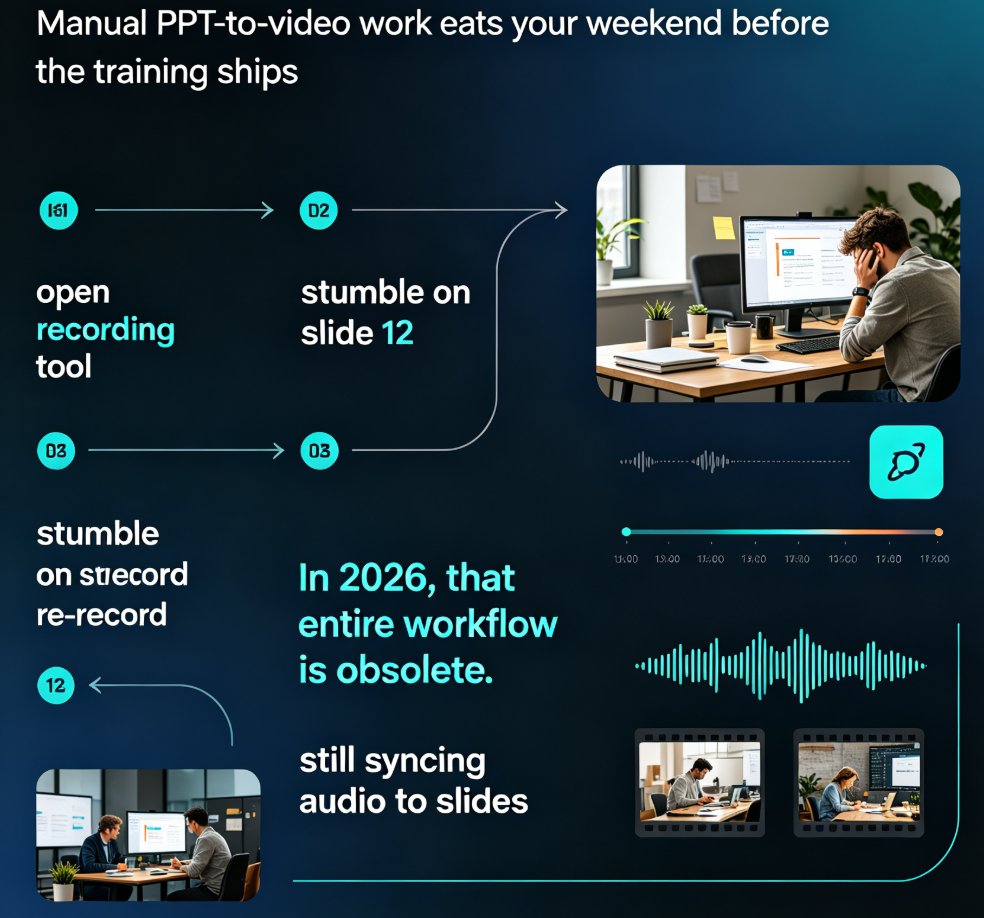
You know the drill. Friday afternoon, you tell yourself you'll finally turn that 40-slide training deck into a video. You open your recording tool, hit record, stumble on slide 12, re-record, and by Sunday night you're still syncing audio to slides you already moved. Sound familiar?
Here's the thing: in 2026, that entire workflow is obsolete. AI narration and smart timing have quietly turned PPT-to-video from a manual editing chore into a generate-and-review process. The tools that understand your slide content—not just your file format—are the ones making it happen.
Let's dig into what actually changed, and where you should be spending your time instead.
01 Why Manual Video Editing Is the Bottleneck
Let's be honest about what manual video production really looks like. It's not the recording that kills you—it's everything around it:
- Recording voiceover slide by slide, hoping you don't cough on slide 7
- Re-recording entire sections because you changed one bullet
- Manually syncing audio to slide transitions
- Adjusting pacing so the video doesn't feel rushed or glacial
- Exporting, re-exporting, and praying the audio stays in sync
For a typical 10-minute training video, that's easily half a day of work. And the worst part? Most of it is mechanical. You're not making creative decisions—you're just moving pieces around.
The real cost isn't the hours; it's the opportunity cost of the training you never produce. When every video takes six hours, you produce fewer of them. Your team gets less training. Your course library stays thin. And the content you do ship is already outdated by the time it's published.
The shift to AI-driven production isn't about saving a few hours here and there. It's about changing what's possible with the time you have.
02 What AI Narration Actually Understands
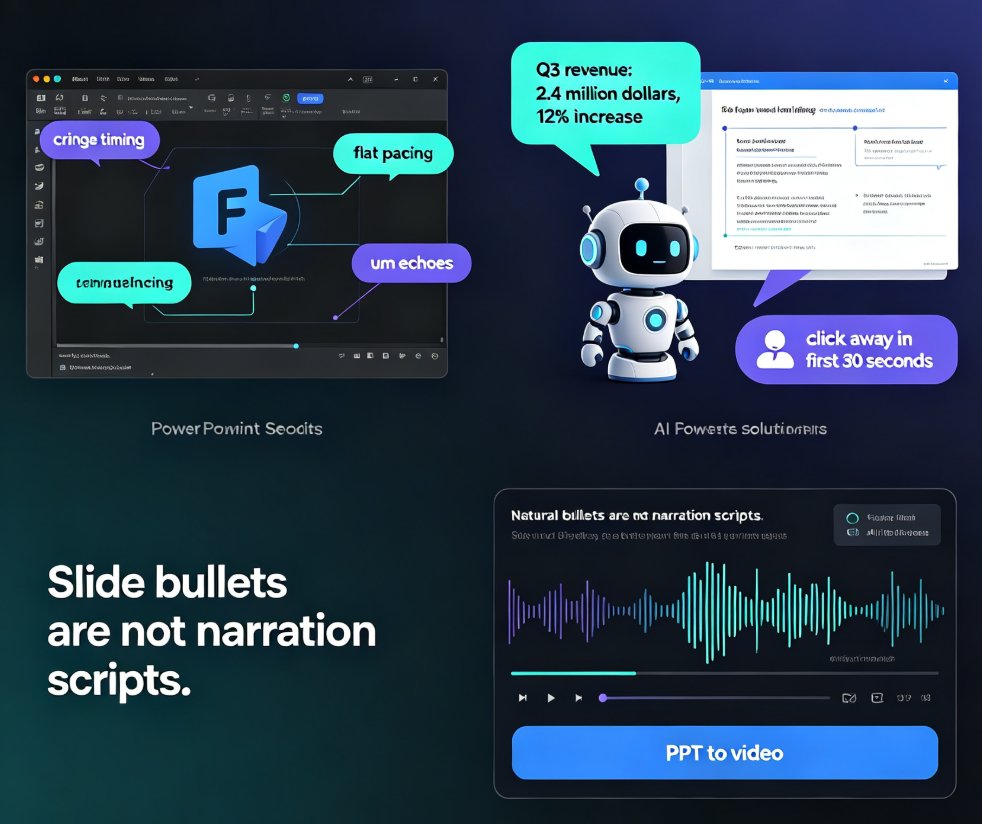
Here's where 2026 tools differ from the early AI voiceover experiments. The first generation of AI narration was basically text-to-speech bolted onto a slide deck. It read your bullet points aloud in a robotic voice and called it a day.
The new generation actually understands the content. When you upload a deck to a tool like Zendeck, the AI doesn't just extract text—it parses the structure:
- It identifies the title slide, section dividers, and content slides
- It recognizes where you've used bullet points versus full sentences
- It detects visual elements like charts, diagrams, and images
- It understands the logical flow from one slide to the next
That understanding changes everything about the voiceover. Instead of reading every bullet verbatim, the AI generates narration that flows like a presenter talking through the content. It knows when to elaborate on a key point and when to keep it brief. It even adjusts tone based on whether you're introducing a concept, explaining a process, or summarizing a conclusion.
This is a fundamentally different experience from the old text-to-speech tools. If you've tried those and been disappointed, it's worth revisiting the category—the gap between then and now is massive. For a deeper look at how voiceover and subtitle generation work in practice, check out our guide on adding voiceover and subtitles to slides with Zendeck's AI.
03 Smart Timing: The Part Nobody Talks About
Voiceover quality gets all the attention, but timing is what actually makes or breaks a video. You've watched videos where the presenter speaks for 30 seconds on a slide that only needs 10. Or worse, slides that flip before you've finished reading them.
Smart timing solves this by analyzing both the content and the narration:
- Content density: A slide with a complex chart gets more screen time than a simple title slide
- Narration length: The slide stays visible as long as the voiceover needs it
- Transition pacing: Section breaks get natural pauses so viewers can process
- Visual emphasis: Key points align with what's being said at that exact moment
Good timing is invisible—you only notice it when it's wrong. And that's exactly why AI-driven timing is such a win. It removes the most tedious part of video editing: the constant nudging of slide boundaries to match audio. No more zooming into the timeline to shave 200 milliseconds off a transition.
The result is a video that feels intentional. Pauses land where a human presenter would pause. Slides hold long enough to be read, but not so long that viewers check out. It's the difference between a slideshow with narration and an actual micro-course.
04 The Workflow: From Slides to Micro-Course in Minutes
So what does this actually look like in practice? Let's walk through the modern workflow:
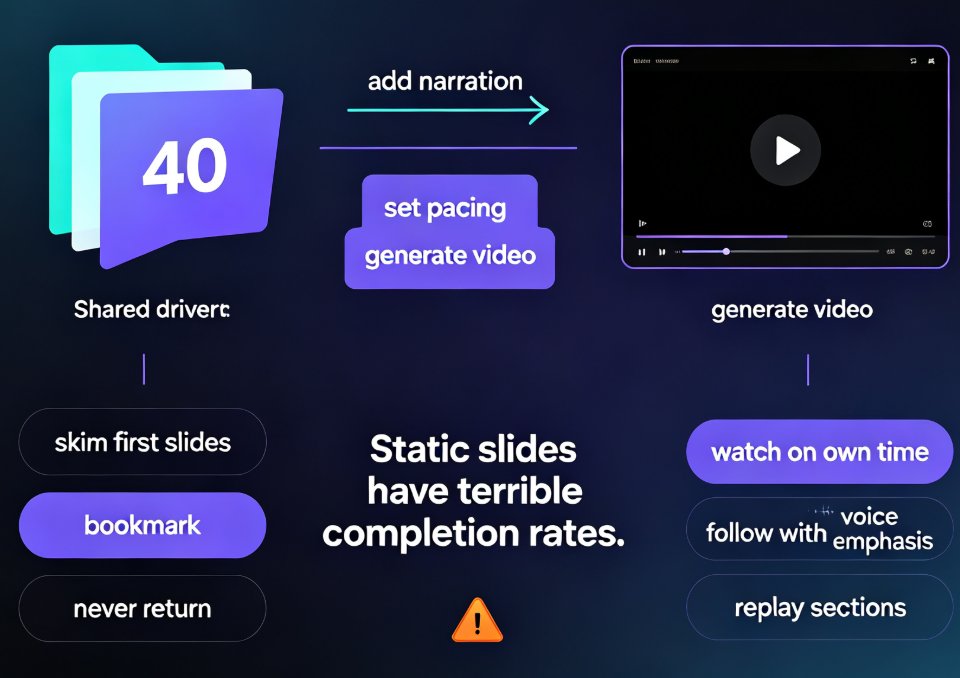
- Upload your deck — Word outline, Markdown, or an existing PPT file
- Let the AI rebuild the slides — consistent layout, fonts, and colors applied automatically
- Generate narration — choose a voice, and the AI writes and records the voiceover based on slide content
- Review the timing — the AI sets slide durations to match the narration, with natural pauses at section breaks
- Export as video — done
The whole process takes minutes, not hours. And because the AI understands the content, you're not babysitting it. You're reviewing, not building.
This is where Zendeck's approach stands out. The PPT-to-video feature doesn't just record your slides—it treats them as a script. The narration, timing, and transitions are all generated from the content itself, which means the output feels like a real presenter walked through your deck, not like a slideshow with a voiceover track. If you want the step-by-step details, our tutorial on adding narration to slides with Zendeck's PPT-to-video walks through the full process.
The same pipeline also works for bigger projects. If you're building an entire course rather than a single video, the AI agents workflow from outline to published micro-course shows how far you can push this approach.
The Time Math: What AI Actually Saves You
Let's put some numbers on this. The chart below compares typical production times for a 10-minute training video across three workflows:
Those numbers are illustrative, but they match what most trainers and educators report. The gap isn't a small efficiency gain—it's an order-of-magnitude difference. And when you multiply that across a library of courses, the compounding effect is enormous.
05 Who Benefits Most
The time savings aren't evenly distributed. Some roles feel this shift more than others:
| Role | Manual workflow | AI workflow | What changes |
|---|---|---|---|
| Corporate trainer | 4–6 hrs per module | 20–30 min | Ship more training, update content faster |
| University educator | Records lectures, edits out mistakes | Generates micro-courses from slides | Flipped classroom content without studio time |
| HR / L&D manager | Outsources video production | Produces in-house | Lower costs, faster iteration |
| Content operator | Hires voice talent, edits audio | Reviews AI narration | Scales output without scaling headcount |
The pattern is clear: anyone who produces training content regularly is the biggest winner. If you make one video a month, the savings are nice. If you make ten, the workflow change is transformative. This is why AI PPT-to-video is becoming the 2026 corporate training standard—not because it's trendy, but because the math is undeniable.
For educators specifically, the implications go beyond time savings. When you can turn any lecture deck into a narrated video in minutes, you can build a library of supplementary materials for students without burning your weekends. That changes what's feasible in a semester.
06 What to Watch Out For
I'm not going to pretend AI narration is perfect, because it's not. Here's what you should keep an eye on:
Voice quality varies. Some AI voices still sound synthetic, especially for long-form narration. Test a few voices before committing to one for a full course. The good news is that voice synthesis has improved dramatically—the robotic quality that plagued early tools is largely gone.
Accuracy matters. If your slides contain specialized terminology, review the narration carefully. AI can mispronounce acronyms or technical terms. Most tools let you edit the script before export, so take advantage of that for anything technical.
You still need judgment. AI handles the mechanics, but you decide what to include, what to cut, and what tone to use. The tool accelerates your work; it doesn't replace your thinking.
One more thing worth flagging: don't assume the first voice you try is the right one. Spend five minutes sampling different voices and pacing options. That small upfront investment pays off in the final product feeling much more natural.
The good news? These are all review tasks, not production tasks. You're checking the AI's work, not doing the work yourself. That's a fundamentally different—and much better—position to be in.
The Bottom Line
Manual video editing for slide-based content is on its way out. Not because editors are bad at their jobs, but because the work itself is mechanical. AI narration and smart timing handle the repetitive parts—recording, syncing, pacing—and leave you with the parts that actually matter: deciding what to teach and how to frame it.
The tools that win in 2026 are the ones that understand your content, not just your file format. Zendeck's PPT-to-video does exactly that: it reads your slides, generates narration that sounds like a real presenter, and paces everything automatically. You upload, review, and export. That's the whole job now.
If you've been putting off video production because it feels like too much work, the excuse just expired. The workflow has changed. Your training library will thank you.
FAQ
How long does it take to convert a PPT to video with AI narration?
For a standard 20–30 slide deck, expect 15–30 minutes from upload to finished video, including review time. The AI generates narration and timing automatically; you spend your time reviewing rather than recording.
Can I customize the AI voiceover?
Yes. Most tools, including Zendeck, let you choose from multiple voices and adjust the narration style. You can also edit the generated script before exporting if specific phrasing matters.
Do I need video editing skills to use PPT-to-video tools?
No. The entire point is removing the editing step. The AI handles slide timing, transitions, and audio sync. If you can review a document, you can produce a video.
Will AI narration replace human voiceovers entirely?
For internal training and micro-courses, largely yes. For high-stakes external content—brand campaigns, keynote presentations—human voiceovers will still be preferred. The middle ground is AI narration with human review.
What file formats can I start with?
Most tools accept PowerPoint files, Word outlines, Markdown, and sometimes PDFs. Zendeck, for example, lets you upload a Word outline and generates both the slides and the video from it.