Markdown to Slides: Create Developer-Ready Decks with Zendeck AI
Markdown to Slides: Create Developer-Ready Decks with Zendeck AI
You live in Markdown. Your docs, your notes, your READMEs—all plain text. Then you have to make a presentation, and suddenly you're fighting PowerPoint's formatting quirks. Sound familiar? There's a better way.
Markdown-to-slides conversion is having a moment. Developers and technical writers are tired of dragging text boxes around a canvas. They want to write once, in their favorite editor, and get a deck that doesn't look like a ransom note. That's where Zendeck AI steps in—not just to convert your .md files, but to make them look like a designer spent hours on them.
In this guide, I'll walk you through the entire markdown-to-slides workflow, share best practices I've picked up from years of building technical decks, and show you why Zendeck is the tool that finally makes this painless. Let's dive in.
I. Why Markdown Is the Perfect Source for Slides
Markdown is the most developer-friendly way to create presentations because it keeps your content in plain text, versionable, and free from formatting distractions.
Here's the pain: you've got a brilliant idea, you outline it in a .md file, and then you open PowerPoint. Suddenly you're spending 20 minutes adjusting bullet indents, wrestling with font sizes, and praying the alignment tool works. The content is already written—why is the formatting such a fight?
Markdown solves this by separating content from presentation. When you write in Markdown, you focus on structure: headings become slide titles, bullet lists become content, code blocks stay intact. No more copy-pasting into a template and hoping it sticks. The result? You can generate a deck in minutes, not hours, and your content stays in sync with your docs.
For teams, this is a game-changer. Your presentation becomes part of your version control. You can review changes, roll back, and collaborate without emailing .pptx files back and forth. It's the same workflow you use for code, applied to slides.
II. How Markdown-to-Slides Conversion Works
Before we get to Zendeck, let's understand the mechanics. Most markdown-to-slides tools follow a simple rule: each # or ## heading becomes a new slide, and the content under it becomes that slide's body. But the details matter.
Here's a quick mapping based on the SlidesMate guide and common conventions:
| Markdown Element | Slide Component | Design Behavior |
|---|---|---|
# Heading 1 |
Title slide heading | Large, centered, hero-style |
## Heading 2 |
Section slide title | Standard slide heading |
### Heading 3 |
Subsection heading | Smaller heading within a slide |
| Bullet list | Content bullets | Spaced, styled list |
| Numbered list | Ordered content | Numbered steps |
> Blockquote |
Callout or quote | Styled emphasis block |
| Code block | Code with syntax highlighting | Monospace, themed code area |
| Table | Formatted slide table | Styled rows and columns |
alt |
Image | Sized and positioned |
bold |
Emphasized text | Bold styling |
Most tools also support YAML frontmatter for metadata like title, author, and theme. This is where Zendeck shines—it not only parses these elements but also applies its AI design engine to make them look cohesive.
III. Zendeck's Markdown Import: From .md to Polished Deck in Minutes
Zendeck doesn't just convert Markdown to slides—it applies design intelligence so your deck looks like a designer built it.
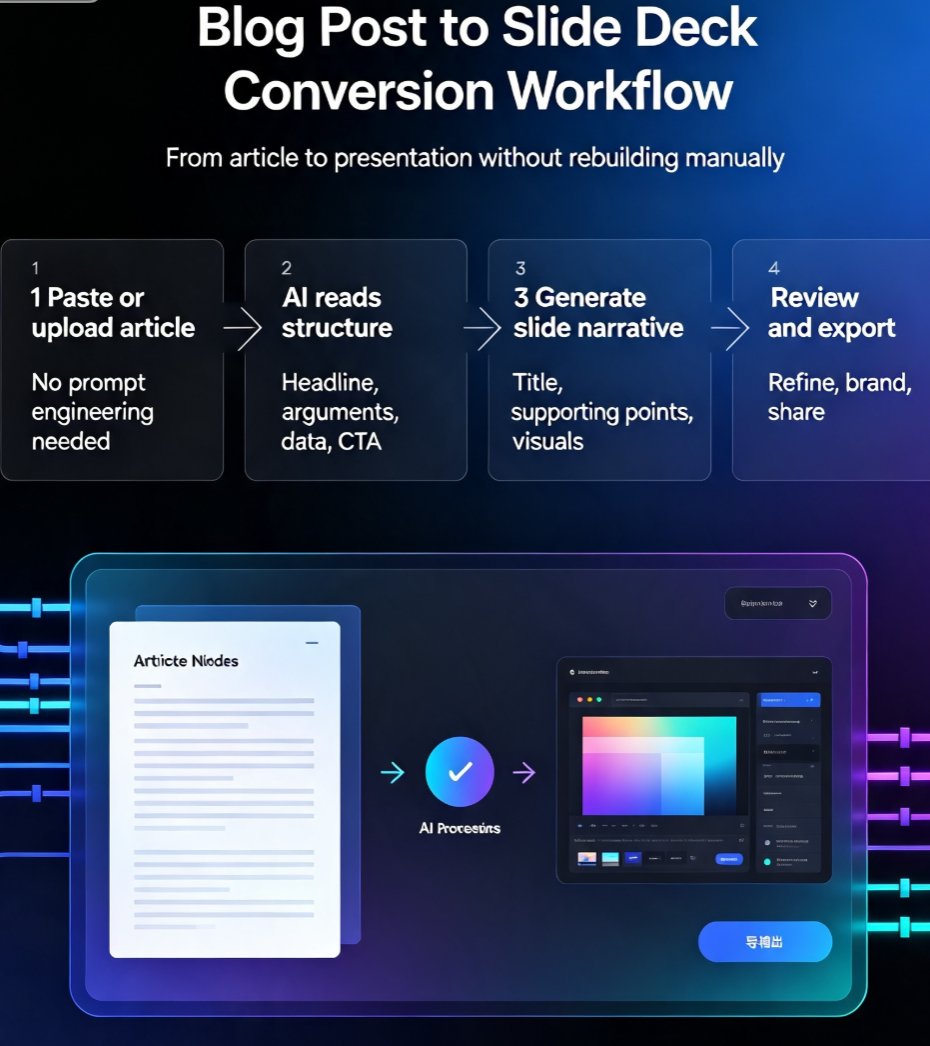
Here's the workflow: you paste your Markdown into Zendeck's editor (or upload a .md file). The AI parses your content, identifies the structure, and generates a slide deck with clean layouts. But unlike basic converters, Zendeck goes further. It uses your brand kit (if you've set one up) to apply your colors, fonts, and logo automatically. It also suggests visual elements—icons, charts, images—that match your content.
Let's be real: most markdown-to-slides tools output plain, unstyled slides. You still have to spend time making them look professional. Zendeck eliminates that step. You get a deck that's ready to present, or at least 90% there. And if you need to tweak something, the editor is fully visual—you can drag, drop, and edit without touching code.
For developers, this is a revelation. You write your content in Markdown, hit import, and boom—a deck that doesn't embarrass you in front of the CTO. And if you're worried about messiness, check out why your AI-generated slides might look messy and how Zendeck fixes it.
IV. Best Practices for Writing Markdown That Converts Well
Not all Markdown is created equal. To get the best results from Zendeck (or any converter), follow these tips:
- Use consistent heading levels.
#for the title,##for each slide,###for sub-points. This gives the AI clear signals about slide breaks. - Keep bullets short. Aim for 3-5 words per bullet. Long paragraphs become walls of text on slides.
- Leverage code blocks. If you're showing code, use fenced code blocks with language tags. Zendeck will highlight syntax automatically.
- Add YAML frontmatter. Include title, author, and any custom metadata. Zendeck uses this to populate the title slide and footer.
- Use blockquotes for key takeaways. They become callout boxes, which are great for emphasizing a point.
One more tip: don't over-nest. Too many sub-levels confuse the converter. Stick to two or three levels max. If you need more detail, that's what speaker notes are for.
V. Automating Recurring Decks with Markdown and Zendeck
If you're like me, you have a few decks you recreate every week: sprint reviews, status updates, release notes. With Markdown, you can automate these. Write a template in Markdown, fill in the variables, and import it into Zendeck. The AI will apply your brand kit and template, so every iteration looks consistent.
This is where Zendeck's brand kits really pay off. Once you've set up your brand colors, fonts, and logo, every deck you generate from Markdown automatically follows your guidelines. No more hunting for the right hex code or font size.
For teams, this means onboarding new members is faster. They don't need to learn design rules—just write Markdown and let Zendeck handle the rest. And if you're working with external clients, you can use real-time collaboration to review and edit together.
VI. Comparing Markdown-to-Slides Tools
Let's be honest: there are several tools out there. SlidesMate is a static converter, FlashDocs is API-first, and then there's Zendeck. Here's a quick comparison based on what I've seen:
| Feature | Zendeck | SlidesMate | FlashDocs |
|---|---|---|---|
| AI-powered design | ✅ Yes | ❌ No | ❌ No |
| Brand kit support | ✅ Yes | ❌ No | ❌ No |
| Visual editor | ✅ Yes | ❌ No | ❌ No |
| API access | ❌ No (yet) | ✅ Yes | ✅ Yes |
| Export to PPTX/PDF | ✅ Yes | ✅ Yes | ✅ Yes |
| Collaboration | ✅ Real-time | ❌ No | ❌ No |
| Template library | ✅ 500+ | Limited | ❌ No |
Zendeck wins on design and ease of use. If you're a developer who wants to write in Markdown and get a beautiful deck without touching CSS, Zendeck is the clear choice. FlashDocs is great if you need to automate slide generation at scale via API, but you'll still need to style the output. SlidesMate is fine for simple conversions but lacks the polish.
And if you're wondering about cost, Zendeck offers a smart value proposition that beats most competitors when you factor in the time saved.
VII. Real-World Use Cases
Markdown-to-slides isn't just for developers. Here are three scenarios where this workflow shines:
- Technical documentation reviews: Write your API docs in Markdown, convert to slides for a team review, and keep everything in sync.
- Sprint retrospectives: Use a Markdown template to capture what went well, what didn't, and action items. Import into Zendeck for a clean, shareable deck.
- Training materials: If you're creating a micro-course, you can write the script in Markdown and then use Zendeck's PPT-to-video feature to turn it into a narrated video.
In each case, the key is that Markdown is your single source of truth. You're not duplicating content across docs and slides—you're generating one from the other.
VIII. Conclusion
Markdown-to-slides conversion is more than a trend—it's a workflow that saves time, reduces errors, and keeps your content consistent. Zendeck takes this to the next level by adding AI-powered design, brand kits, and collaboration features that make the output look like a designer crafted it.
If you're still copy-pasting from Markdown into PowerPoint, stop. Give Zendeck a try. Paste your next .md file into the editor and see how fast you get a deck that's ready to present. Your future self will thank you.
FAQ
How do I convert Markdown to slides in Zendeck?
In Zendeck, you can paste your Markdown directly into the editor or upload a .md file. The AI parses your content, identifies headings, bullet lists, code blocks, and tables, then automatically generates a structured slide deck. You can then apply a template or brand kit to instantly style it.
Can Zendeck handle YAML frontmatter and code blocks in Markdown?
Yes. Zendeck's Markdown import respects YAML frontmatter for metadata like title and author, and it preserves code blocks with syntax highlighting. This makes it ideal for technical presentations where code snippets are essential.
What are the benefits of using Markdown for presentations?
Markdown keeps your content in plain text, making it version-control friendly, easy to edit, and free from formatting distractions. It's also portable—you can write in any editor and convert to slides without manual copy-pasting. This saves time and ensures consistency across decks.
How does Zendeck compare to other markdown-to-slides tools?
Unlike API-first tools like FlashDocs or static converters like SlidesMate, Zendeck combines Markdown conversion with AI-powered design. It automatically applies layouts, brand kits, and visual hierarchy, so you get a polished deck without writing CSS or tweaking templates. It also supports collaboration and export to PPTX, PDF, and Google Slides.
Can I automate recurring decks with Zendeck and Markdown?
Absolutely. Because Markdown is text-based, you can generate recurring decks (sprint reviews, status updates) by updating a few lines of content and re-importing. Zendeck's brand kits and template library ensure every iteration stays on-brand, saving you hours of manual formatting.