Find the Perfect Icon in Seconds: Zendeck Asset Library Search Guide
Let's be honest: the last time you needed a single icon for a slide, how long did it actually take?
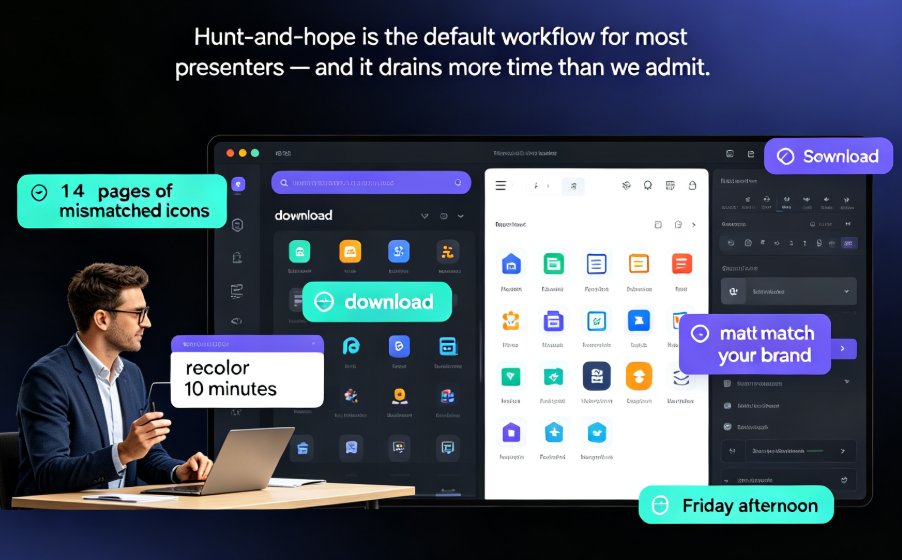
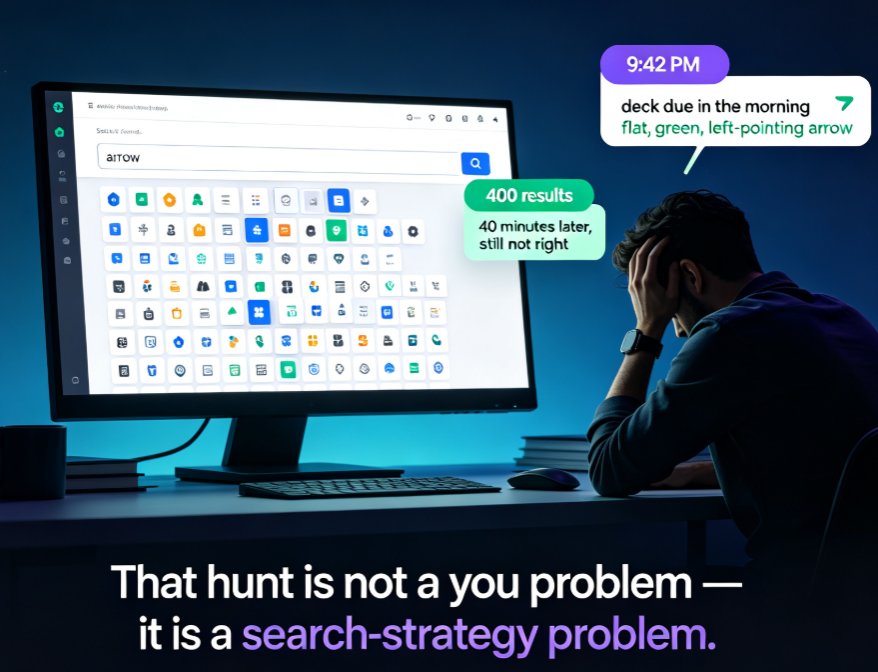
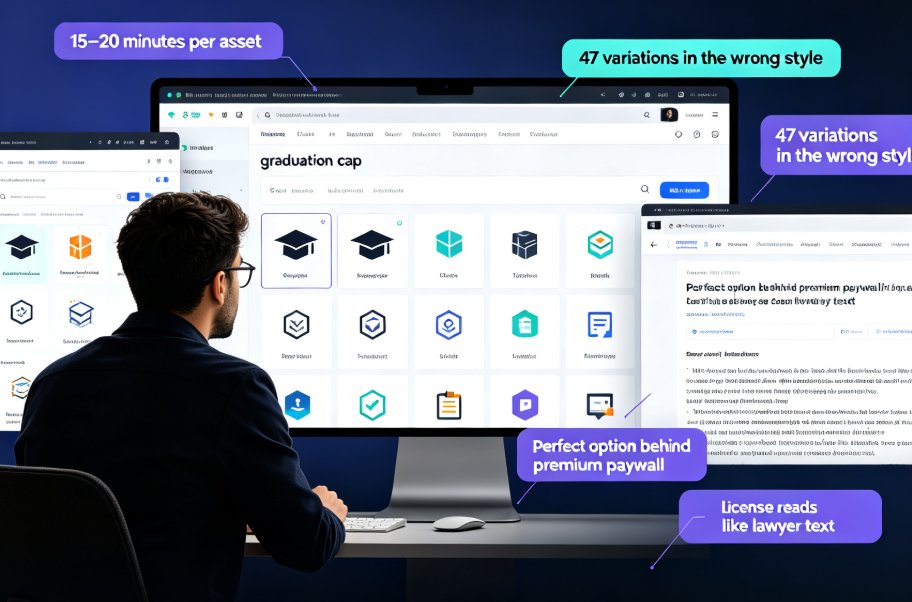
If your answer is “longer than my coffee went cold,” you're in good company. I've spent entire afternoons chasing one graduation cap icon — scrolling page after page of free icon sites, staring at 47 variations in the wrong style, finding the perfect option locked behind a premium paywall, then re-reading a licensing page that reads like it was drafted by lawyers who hate designers.
The average professional burns 15 to 20 minutes per asset just locating the right icon or illustration. Scale that across a typical 30-slide courseware deck, and you've lost nearly half a day on visuals alone — before you even start designing.
The answer isn't searching harder. It's searching smarter, in a single place built for exactly this job: Zendeck's built-in asset library. Let's break down why that changes the game for anyone who makes decks for a living.
01 — Why the Icon Hunt Eats Your Afternoon
Let's break down what “finding an icon” actually costs you. It's not just the clock. It's three hidden taxes:
- Time. Free icon sites are engineered to keep you browsing. Every visit costs 15–20 minutes of scrolling, clicking, and second-guessing.
- Licensing risk. That gorgeous icon you downloaded from a random site might require attribution — or worse, it could be a trademarked logo you have no right to use in a paid project. One careless download can sink a client deliverable.
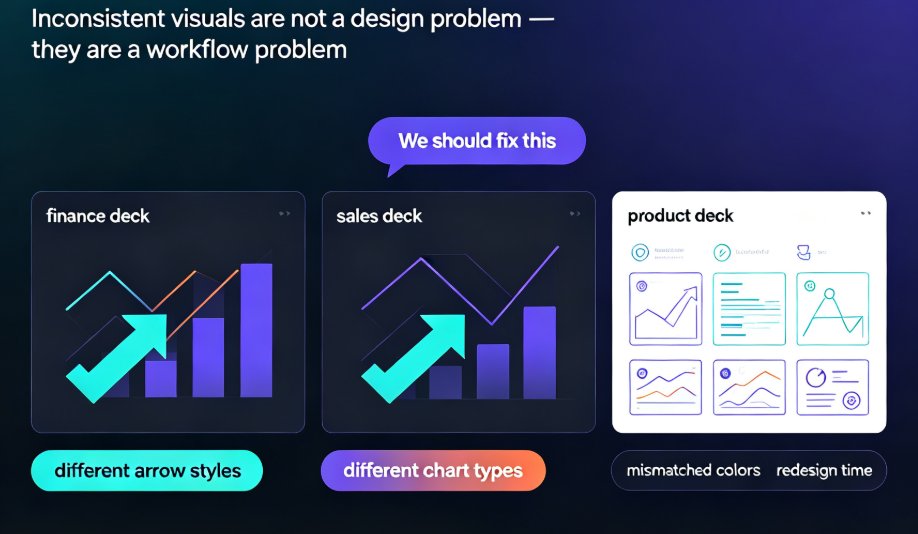
- Style inconsistency. You pull an icon from one site, an illustration from another, and a chart from a third. Suddenly your deck looks like a collage of strangers' art.
The outcome? Inconsistent courseware, stressed-out creators, and decks that feel cheap no matter how much effort you put into the words.
The solution is a single centralized library — with cleared licensing, consistent styles, and search that responds in seconds instead of minutes.
02 — What a Modern Asset Library Does Differently
If you've ever worked at a company with a shared folder of “approved” visuals, you already understand the appeal of a central asset library. Professional digital asset management (DAM) platforms exist precisely because scattered assets create chaos: version confusion, outdated logos, and no reliable way to know which file is current.
A well-run library solves three things:
- Version control. You always know which icon or logo is current, so a deck never ships with an outdated visual.
- Consistent style. Every asset speaks the same visual language, so slides look cohesive even when visuals come from different categories.
- Safe usage. Assets are pre-cleared for professional use, so you quit re-reading licensing terms mid-flow.
That's the foundation. Now imagine those same benefits built directly into your presentation tool — no separate platform, no exporting, no file management at all. That's exactly what Zendeck's integrated asset library brings to your workflow. (If you want the broader story of how AI is upgrading asset management, this piece on AI-powered asset libraries covers the trend in detail.)
Let's put the difference in plain numbers:
| How you search | Avg. time per icon | Licensing risk | Style consistency | Cost |
|---|---|---|---|---|
| Free icon sites (Flaticon, etc.) | 15–20 min | High — attribution terms vary | Low — mixed styles | “Free,” but huge time cost |
| Google image search | 10–15 min | Very high — random web images | Very low | Free |
| Premium stock marketplaces | 5–10 min | Moderate — per-asset licenses | Medium — mixed stores | Recurring fees |
| Zendeck asset library | 2–3 min | Low — cleared for professional use | High — curated, on-brand | Included |
That table tells the real story: the cheapest-looking option is usually the most expensive in time and risk.
03 — Zendeck's Asset Library: Search Smart, Not Hard
Here's what using Zendeck's asset library actually feels like in practice.
You're building a compliance training deck and need an icon for “data protection.” You open the asset panel, type data protection, and within seconds you're looking at a clean grid of icons and illustrations — all in matching styles, not 47 random interpretations scraped from the corners of the internet.
The search filters do the heavy lifting. Narrow by category (icons, illustrations, charts), by style, or by relevance to your current slide's topic. Everything is one click away — no downloading, no importing, no file management. You go from “I need a visual” to “it's on my slide” in about ten seconds.
For non-designers, that's the whole ballgame: search, drag, drop, done. No more exporting files, renaming assets, or praying the transparent background imported correctly.
And as these tools evolve, AI plays a bigger role in surfacing the right asset before you even ask precisely. If that interests you, check out how AI-generated icons and charts are changing asset libraries.
04 — Six Search Habits That Make You Faster (Learned the Hard Way)
Nobody hands you a manual for asset hunting. These are the habits I've picked up after years of building courseware — steal them.
- Be specific, not vague. Search “data protection shield” instead of “security.” Specific terms return assets that match your slide's actual meaning, not a pile of unrelated visuals.
- Set style filters first. Configure the style filter before searching, not after. It shrinks the pool dramatically from the start.
- Search once, save forever. Use favorites and recent searches so you never re-hunt for the same asset twice.
- Recolor instead of re-searching. Drop an icon, then adjust its color to your palette. You don't need the perfect shade of blue — you need one asset and one click.
- Batch your asset hunting. Collect five visuals for your deck in a single sitting instead of pausing design work every time you hit a gap. Your flow state will thank you.
- When in doubt, go simpler. If you've been staring at the search box for more than five seconds, a more common, recognizable icon will communicate better than the niche one you're chasing.
One more honest tip: don't over-engineer the search. If you can't identify the right icon in five seconds, that icon probably won't communicate clearly to your audience either. Sometimes the generic shield beats the clever fingerprint lock.
05 — The Math: 80% Less Time Hunting
Let's put numbers to all of this. Comparing the average time to find one usable asset across the most common methods:
The math is simple: switching from free-icon-site hunting to Zendeck's smart search cuts asset-finding time by roughly 80% — from about 20 minutes to about 3 minutes per visual.
That's not a fuzzy productivity claim; it's a measurable workflow shift. A deck with 15 visuals goes from five hours of hunting to 45 minutes. A month of courseware work adds back literal days.
06 — Beyond Icons: Charts, Illustrations, and a Cohesive Deck
Icons are the most visible part of an asset library, but they're not the whole story.
Zendeck's library also includes illustrations and chart components, so you can keep an entire deck visually consistent without juggling three tools. When you need to visualize data, you can add interactive charts directly from the asset library instead of exporting PNGs from a spreadsheet.
Because the library syncs with brand color and style preferences, the assets you drop in don't just look professional — they look yours. If you want a deeper look at how asset libraries help corporate teams maintain brand consistency, that's a topic on its own.
For educators and trainers specifically, a consistent visual style is what separates polished courseware from a random pile of slides. That's why most of the asset-search advice in this guide lives in our courseware design collection too.
FAQ
What can I actually find inside Zendeck's asset library?
Icons, illustrations, charts, and other visuals in multiple styles — all searchable with smart filters and ready to drag and drop into your slides. Every asset is cleared for professional use, whether you're building courseware, training decks, or client presentations.
Can I use Zendeck's icons and illustrations in client work and commercial projects?
Yes. The built-in library is designed for professional use, so you don't have to worry about attribution clauses or re-reading licensing terms every time you borrow an asset for a paid project.
Can I change the color or size of an icon after adding it to a slide?
Absolutely. Icons drop into your slide as smart design elements, so you can recolor them to match your brand palette and scale them without losing quality. No need to re-search for the perfect matching asset ever again.
How much time can Zendeck's smart search actually save me?
A realistic comparison: hunting on free icon sites averages 15–20 minutes per asset; Google image search runs 10–15 minutes with serious licensing risk; Zendeck's asset library typically gets you the right icon in 2–3 minutes — roughly an 80% reduction.
I'm new to design. Is the asset library easy to pick up?
That's exactly who it's built for. You type what you need, filter by style if you want, and drag the icon onto your canvas. If you can search the web, you can master Zendeck's asset library in one sitting.