Unify Fonts and Colors in One Click: Zendeck Smart Layout Guide
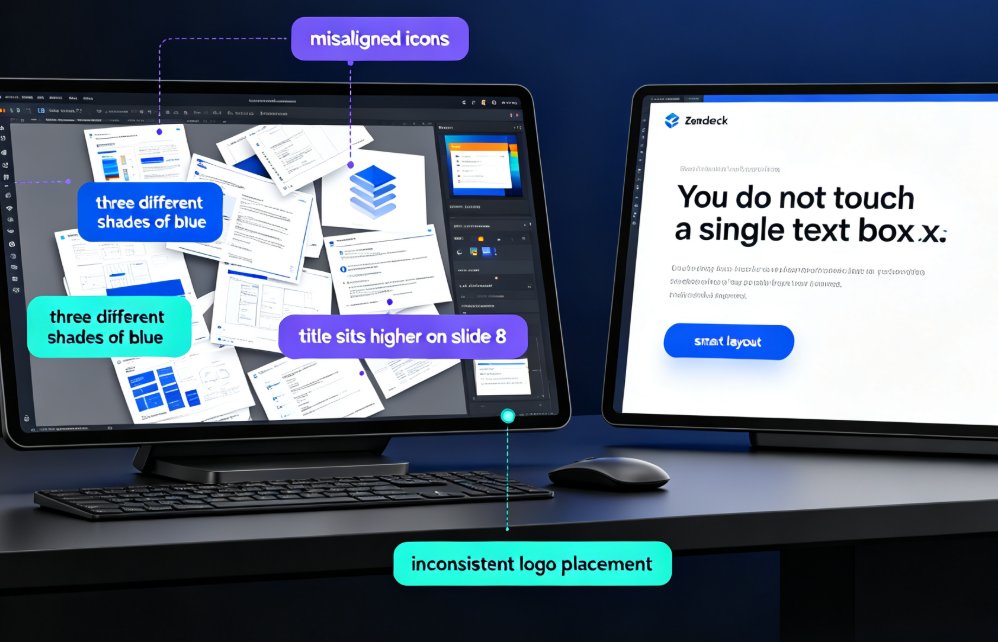
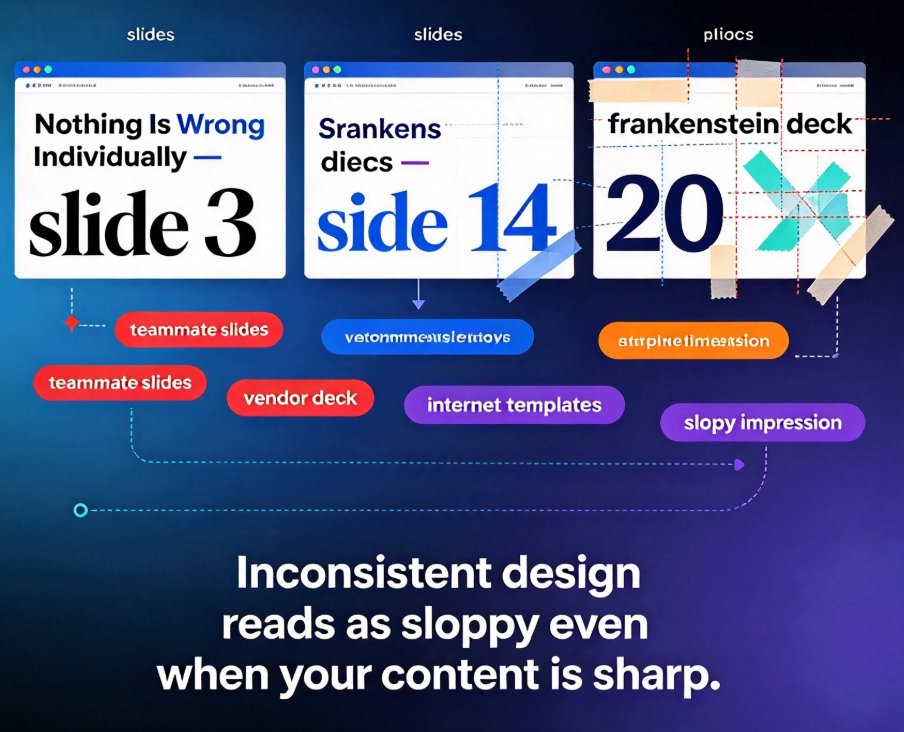
You know the feeling. You gather slides from three teammates, a vendor deck from last year, and two templates you found somewhere on the internet. You stitch them together, and now slide 3 is using a bold serif, slide 14 is a slightly different shade of blue, and slide 20's bullets are a completely different size. Nothing is wrong individually — everything is wrong together.
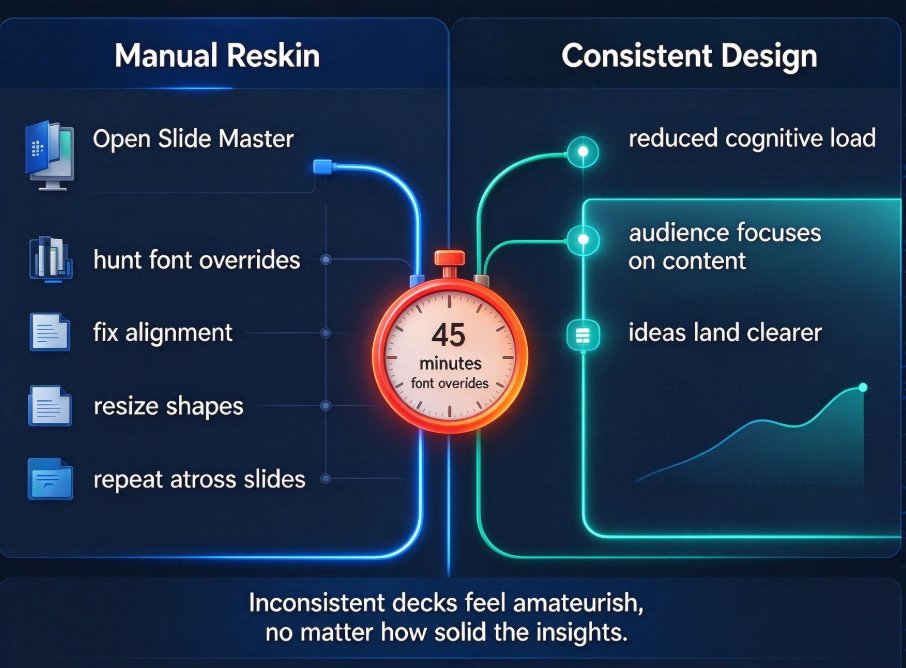
That is the quiet killer of presentation quality: inconsistent design. It reads as sloppy even when your content is sharp. Fixing it normally means an hour of clicking through every slide, updating fonts and color codes one by one. Or you just publish it ugly and hope nobody notices.
Let's skip both. Zendeck's Smart Layout is a one-click reskin that unifies fonts, colors, and layout across your entire deck. This guide walks through the exact workflow, shows you where it saves real time, and tells you honestly where it won't help.
01 | Why Consistency Matters More Than Pretty Slides
Before we get to the clicks, let's talk about why this matters.
The human brain processes visual hierarchy in about 50 milliseconds. That's not a poetic number — it means your audience forms a judgment about the quality of your deck before they read a single word. When fonts clash or colors drift from slide to slide, that judgment lands on "messy," and it colors everything after it.
Consistency is a credibility signal. When your deck looks like one person designed it, your message feels more trustworthy. Mixed fonts and off-brand colors don't just look bad — they actively undermine the content you worked hard to write.
This matters even more for teams. Schools, HR departments, and content teams share templates constantly, and the "frankenstein deck" problem grows with every collaborator who joins. The fix isn't more discipline; it's a tool that does the discipline for you.
02 | What Zendeck Smart Layout Actually Does
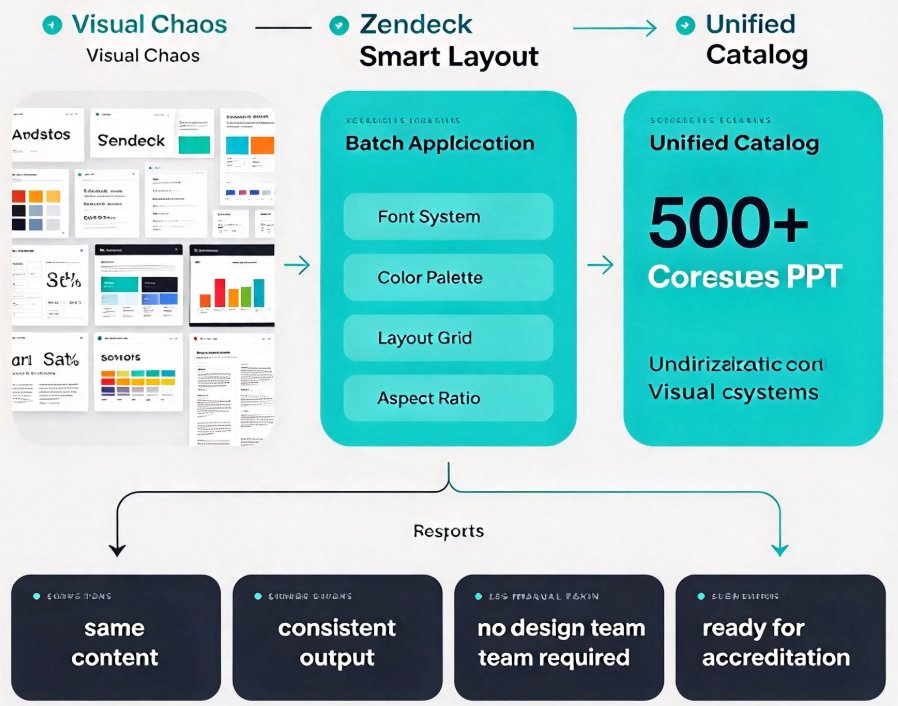
Smart Layout is Zendeck's automated reskin engine. Roughly speaking, it does three things:
- Unifies typography — detects the font families floating around your deck and maps them to a single hierarchy: heading font, subheading font, body font.
- Harmonizes color — finds inconsistent accent colors and pulls them into one palette applied across all slides.
- Rebalances layout — adjusts spacing, text sizes, and alignment so every slide follows a consistent grid.
The one-click part is real, but understanding what's happening under the hood matters if you want predictable results. Smart Layout reads each slide's content — title, bullet levels, images, tables — and reflows the styling to fit a unified template. It doesn't translate your content or throw your images into random spots. It restyles.
This is the part most of us get wrong with manual formatting: we fix the font on slide 3, then slide 8 has different line spacing, then slide 15's title is too big for its box. Smart Layout solves the system, not the slide.
03 | Step-by-Step: Your One-Click Workflow
Here's the full workflow, from messy deck to clean one. It takes about two minutes even if you're being slow about it.
Step 1: Start with any deck
Zendeck accepts existing PowerPoint files, Word outlines, or Markdown. If you have a messy deck sitting in your Downloads folder, start right there. Nothing needs to be pre-cleaned — that's the entire point.
Step 2: Open Smart Layout
Inside Zendeck, find the Smart Layout option. This gives you the reskin control. You'll see a preview of the unified styling before you commit — pick the option that matches the vibe you're going for.
Step 3: Let it run across the whole deck
Hit apply. Smart Layout processes every slide and restyles fonts, colors, and spacing to match the unified system. In seconds, the deck looks coherent.
Step 4: Spot-check edge cases
Here's the honest part. Complex slides — dense data tables, heavily customized graphics — might need a manual nudge. Smart Layout handles about 90% of typical slides flawlessly, but on that odd slide with a hand-built diagram, a quick manual tweak is the right call.
Step 5: Lock it in with a brand kit
If you want this consistency on every future deck, pair Smart Layout with a custom brand kit. That way your palette and fonts are locked, and every future reskin uses them automatically.
04 | The Time Math: Manual vs Smart Layout
Let's put real numbers on it. Say you have a 30-slide deck that needs formatting fixes, and you're a competent but not design-savvy user. Here's what the options look like:
Manual fixing in PowerPoint — changing fonts and colors slide by slide, adjusting sizes and spacing so nothing overflows. This realistically takes 90 to 120 minutes for a 30-slide deck, and you'll still miss a slide.
Generic AI presentation tools — most "AI" tools generate new decks from a prompt but don't restyle your existing one. When they do offer a reskin, results on complex slides are inconsistent.
Zendeck Smart Layout — one click, roughly 2 minutes, applied uniformly across all slides.
The SVG chart below shows this comparison clearly.
The math isn't subtle. Zendeck Smart Layout reformats a 30-slide deck in about 2 minutes, versus 90–120 minutes of manual work — roughly a 95% time saving. More importantly, the result is applied consistently, so you don't end up "missing" that slide 17 outlier you always forget.
The 90–120 minute estimate comes from real-world team experience — if you're fast, maybe 60; if you're a perfectionist, more. But the point holds: the manual route is repetitive, error-prone, and nobody at 6 p.m. does it well.
05 | How It Compares: A Quick Table
| Reformatting method | Time for 30 slides | Handles complex slides | Applies uniformly |
|---|---|---|---|
| Manual PowerPoint formatting | 90–120 min | Yes, with effort | No — you will miss a slide |
| Generic AI generators | 10–30 min | Often not (design varies) | Not on existing decks |
| Zendeck Smart Layout | ~2 min | Yes, with light manual touch-up | Yes — one click for all slides |
The column that matters most is the last one. Uniformity is the whole game. A deck that's slightly less bold but entirely consistent beats a deck where every slide is individually attractive and nothing matches.
06 | When One Click Isn't Enough (Be Honest With Yourself)
I promised honesty. Smart Layout is genuinely powerful, but here's where it won't magically save you:
Dense, hand-built diagrams. If you've got a custom org chart made of 40 connected shapes, Smart Layout won't know your intent. Light manual clean-up is expected.
Deliberate visual breaks. Maybe slide 5 is intentionally different — a dark background to signal a section change. Smart Layout will standardize it unless you tell it otherwise.
The good news? These exceptions are exactly where a quick manual nudge does the job. And once you have a brand kit in place, future decks skip most of this entirely.
This honesty matters because it sets proper expectations. The tool handles the tedious 90% cleanly — the uniform fonts, the coordinated colors, the consistent spacing — and leaves the genuinely intentional choices to you.
07 | Beyond the One-Time Fix: Building a System
Here's the thing about one-click reskinning: it's not just a fix for today's messy deck, it's a system for every future deck.
Once you've set up your brand kit and template preferences in Zendeck, every new deck starts consistent. Smart Layout becomes a safety net that catches drift before it spreads. Colleagues can add slides, import content, collaborate freely — and one click pulls everything back to brand.
This pairs especially well with Zendeck's contextual template library, where templates are matched to your content type and goals, so the foundation is already aligned. And if you're working with a team, Zendeck's collaboration features mean everyone contributes from within a consistent framework, instead of pasting their own styles in from the outside.
For a deeper look at what this workflow replaces, check out our guide on 5 Ways Zendeck Smart Layout Cuts Presentation Design Time. If brand consistency is your main worry, 5 Ways to Create a Custom Brand Kit in Zendeck for Consistent Decks covers the setup in detail. Curious about the technology behind the reskin? AI-Driven Design Automation: The 2026 Shift to Smart Layouts explains it. And if you're exploring the full range of capabilities, browse the PPT Tutorial category.
FAQ
[Question 1]: Does Zendeck Smart Layout work on decks I already have?
[Answer]: Yes. Import any existing PPTX, Word outline, or Markdown and run Smart Layout. It restyles the deck without touching your content.
[Question 2]: Can I use my own brand colors and fonts?
[Answer]: Yes. Set up a custom brand kit and Smart Layout applies your palette and typefaces consistently across all slides — no more off-brand blues.
[Question 3]: Will it change my content or just the styling?
[Answer]: Just the styling. Your words, images, and data stay exactly where they are; Smart Layout adjusts fonts, colors, sizes, and spacing.
[Question 4]: Does one click work on every slide, even complex ones?
[Answer]: For about 90% of typical slides, yes. Dense hand-built graphics might need a small manual touch-up, which is expected and quick.
Alright, that's the whole workflow. The next time you open a deck and your eye twitches at slide 14's font, remember: you don't need to click through forty dialogs. One button, two minutes, done. Go unify.