Micro-Learning at Scale: How AI Turns PPTs into Video Courses
Let's be real: your last training rollout probably went like this — two weeks building a 45-slide deck, a booked conference room, and half the team checking their phones while you talked. Then you emailed the PPT to everyone who couldn't make it, and it sat in their inboxes like a paperweight. The content was good. The delivery was the problem.
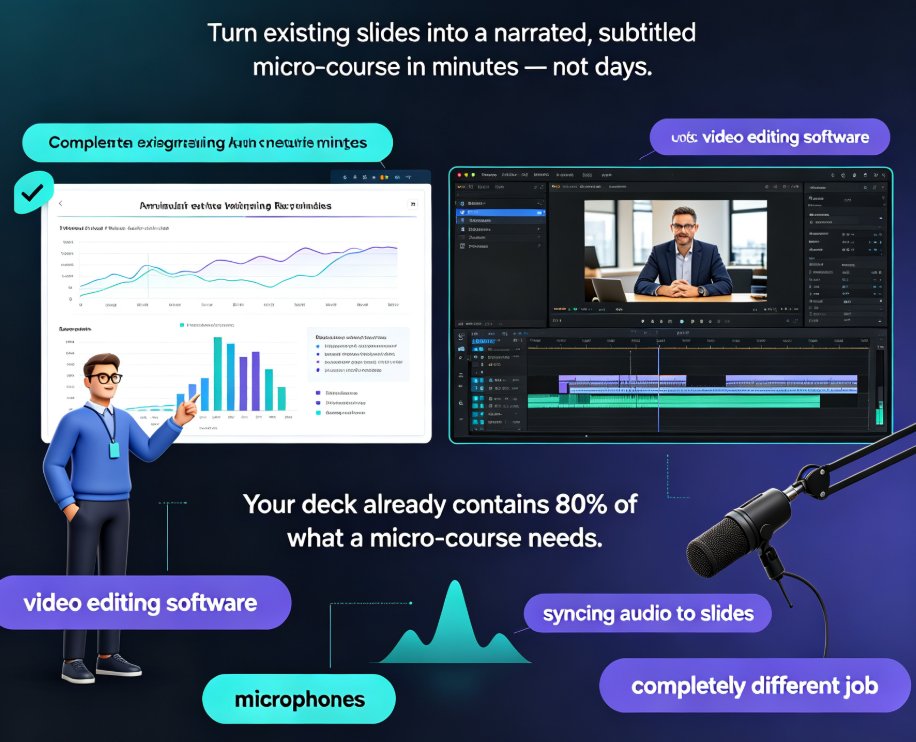
That's where micro-learning at scale comes in. And here's the plot twist: you don't need a video studio, a voice actor, or a six-figure production budget. You need to turn the PPT you already have into a video course — and AI now does that in minutes, not weeks.
01 Why Micro-Learning Is the Only Format That Scales
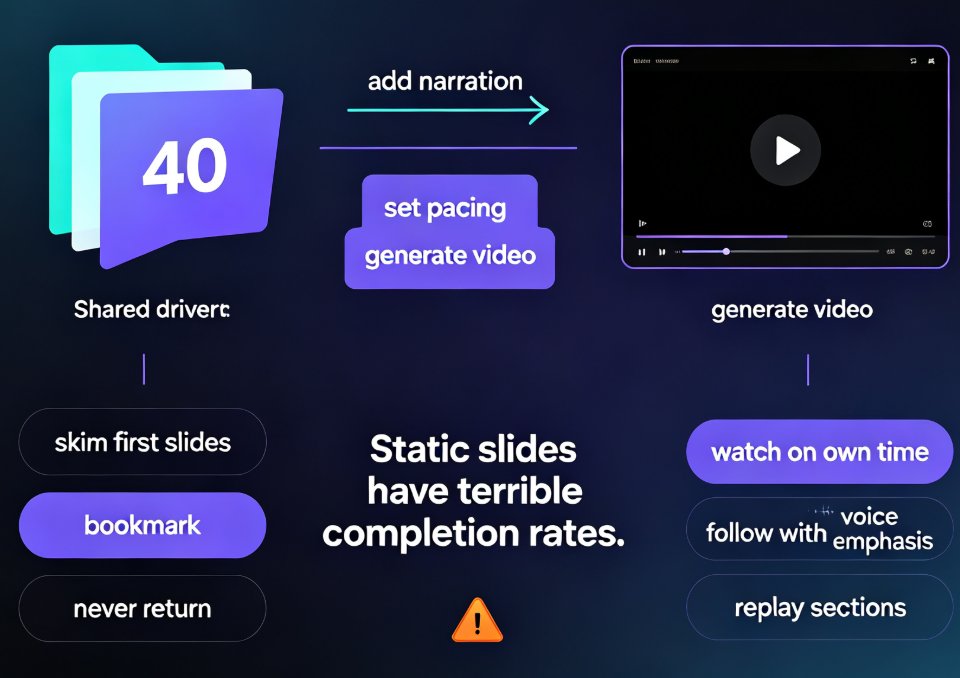
Here's the uncomfortable truth about corporate training: long sessions don't work. When you cram 40 slides into a 90-minute webinar, you're fighting biology. Attention spans cap out, retention plummets, and the only thing people remember is the awkward silence when you asked for questions.
The average learner watches a 6-minute video to completion, but completion rates drop sharply past the 10-minute mark. That's why micro-learning — short, focused modules of 3 to 7 minutes — has become the default format for teams that actually care about completion rates.
The pain point is obvious: you have expertise locked in decks, but no scalable way to deliver it. The solution is equally obvious: break that deck into bite-sized modules, each one a self-contained video. The outcome? Learners finish what they start, managers see completion data, and you stop repeating the same onboarding spiel four times a quarter.
Micro-learning isn't just about shorter videos. It's about maintainability — when a policy changes, you update one module, not a 40-slide deck that everyone has already memorized wrong. And when you're running training across multiple teams, time zones, or even languages, that maintainability is what makes scale possible at all.
02 The Old Way vs. The AI Way
Let's compare how training videos used to get made versus how they get made now.
The old way: you booked a studio, set up a camera, recorded yourself talking over slides, then spent days editing out the "um"s. If a data point changed on slide 4, you re-recorded the whole thing. If you skipped the studio and just did a screen recording, you got a passive, hard-to-maintain file with no narration, no traceability, and no way to know who actually watched it.
The AI way is a completely different process. Here's how it works, based on how modern AI conversion platforms handle it:
- Import and analysis — the platform reads your PPT file (structure, text, images, presenter notes) and breaks it down slide by slide.
- Narration and avatar generation — the text from each slide, plus presenter notes, becomes narration via speech synthesis. You pick the voice, language, and avatar — or use a voice recorded by a real speaker.
- Export and distribution — the result is an MP4 video or a SCORM/xAPI-compatible module ready to upload to any LMS, or shareable via direct link.
The key difference is maintainability. Need to update a data point on slide 4? You regenerate only that segment. No re-recording, no re-editing the entire video.
Here's what that looks like in practice:
Structured slides cut editing time by 30-50% across real production projects. That's not a marketing claim — it's what happens when you stop fighting your own deck structure and let the AI do what it does best.
03 The 3-Step Workflow: From PPT to Video Course
Let's walk through the actual workflow, step by step. This is the part that matters if you're going to do this more than once.
Step 1: Upload and Analyze
You upload your PPT, DOCX, PDF, or TXT file. The AI system automatically analyzes your content structure, key topics, and learning objectives. It reads the hierarchy — your slide titles, your bullet points, your presenter notes — and maps out how the course should flow.
◉ What if my slides are a mess? That's fine. The AI still extracts the structure. But here's a tip from real projects: slides with one idea per slide, clear titles, and highlighted key bullets produce dramatically better output. Keep it minimal. The less noise in your deck, the cleaner the video module comes out.
Step 2: Generate Narration and Visuals
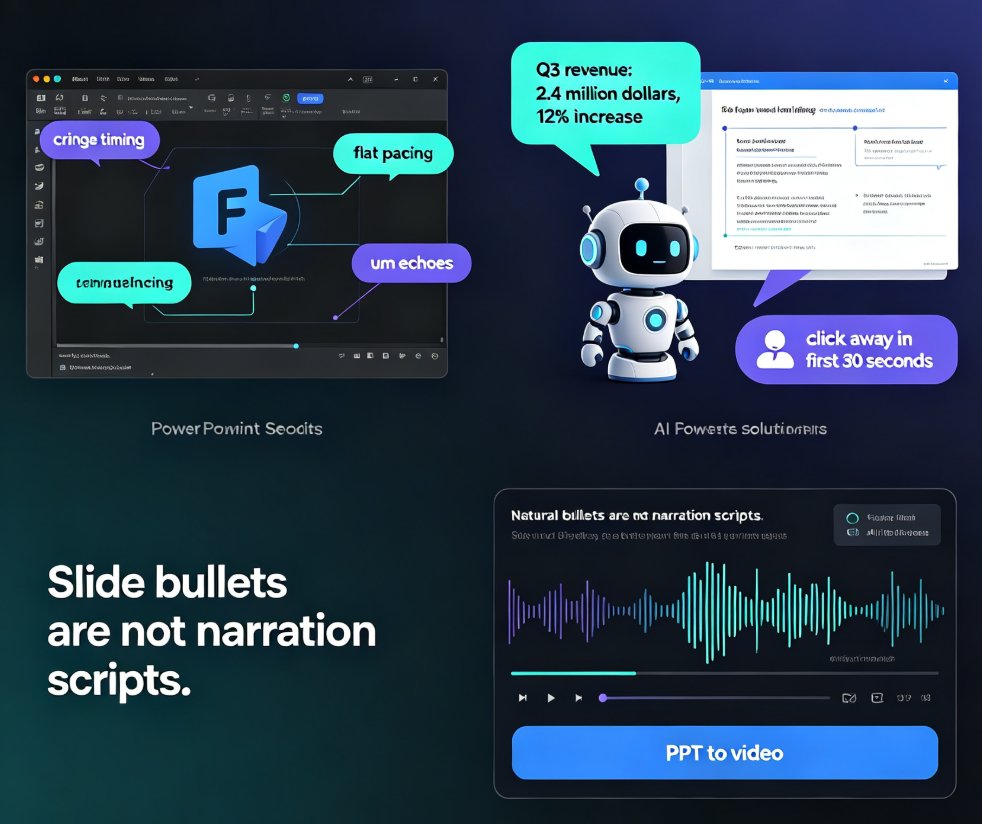
The platform turns your slide text into narration. If you've written presenter notes, those become the script — which is why adding explanatory context to your notes significantly improves the quality of the generated audio. Slides with only body text produce mechanical narration. Slides with good notes produce something that sounds like a human actually cares.
You choose the voice, language, and avatar. Or you record your own voice and let the AI sync it to the slides. This is also where you can add your own branding, apply a template, and make sure the output doesn't look like a generic AI slideshow.
◉ What if I don't have presenter notes? You can still convert, but expect the narration to be more literal — it will read the body text as-is. If you want natural-sounding audio, spend 10 minutes adding notes to your key slides first. It's the highest-leverage prep work you can do.
Step 3: Export and Distribute
You export as MP4 for direct sharing, or as a SCORM/xAPI module for your LMS. The platform uses your slide title structure to generate a navigable video index — so learners can jump to specific sections, and your LMS can track who watched what, for how long.
This is where the "at scale" part kicks in. A single deck becomes a library of indexed modules. Learners don't have to sit through 40 minutes to find the one section they need. They search, they jump, they finish.
04 Best Practices for PPT Structure That Converts
Not every PPT converts well. Here's what separates decks that become great video courses from decks that become robotic narration:
| Practice | Do This | Avoid This |
|---|---|---|
| Slide titles | Use clear titles in the title field | Floating text boxes that aren't part of the hierarchy |
| Content density | One idea per slide | 8 bullet points crammed together |
| Presenter notes | Add explanatory context as narration script | Relying on body text alone |
| Key bullets | Highlight the 2-3 most important points | Highlighting everything (which highlights nothing) |
| Metadata | Add audience + learning goals | Skipping metadata entirely |
The platform uses your slide title hierarchy to segment the module and generate the navigable video index. A PPT with well-defined titles produces a more navigable module that's better indexed by the LMS. That's not a nice-to-have — it's the difference between a video that gets watched and a video that gets abandoned.
One more thing worth saying: don't treat this as a one-time conversion. The real win is building a repeatable pipeline. Once your team gets comfortable with the workflow, you can turn every existing deck into a video course — onboarding, compliance, product training, sales enablement — without adding headcount.
05 How Zendeck Fits Into Your Micro-Learning Pipeline
If you're using Zendeck, the PPT-to-video workflow is baked right in. You can add narration to your slides directly, create micro-courses from scratch, or follow the full outline-to-video workflow if you're starting from a document rather than a deck.
The same principles apply: structured slides, clear titles, good presenter notes. Zendeck reads that structure, generates narration, and exports a video your LMS will actually index. If you're replacing traditional corporate training, AI-generated video decks are already doing the heavy lifting for teams like yours.
And if you're building interactive elements into your training, you can create interactive training modules that go beyond passive video — branching scenarios, clickable elements, and knowledge checks that make micro-learning actually stick.
06 FAQ
How long does it take to convert a PPT into a video course with AI?
Most AI platforms convert a standard 20-30 slide deck into a narrated video in under 10 minutes. The real time savings come from editing — structured slides reduce editing time by 30-50% compared to unstructured decks, according to production data from real projects.
Do I need to re-record when I update a slide?
No. This is the biggest advantage of AI conversion. If a data point changes on slide 4, you regenerate only that segment. The rest of the video stays untouched — no re-recording, no re-editing the entire module.
What formats can I export for my LMS?
Most platforms export MP4 for direct sharing and SCORM/xAPI-compatible modules for LMS upload. The slide title structure generates a navigable video index that LMS platforms use for tracking who watched what and for how long.
Can I use my own voice instead of AI narration?
Yes. Most platforms let you record your own voice and sync it to the slides, or you can choose from a library of AI voices in different languages. Presenter notes become the narration script, so the more context you add there, the better the audio sounds.
Do I need design skills to make this work?
No. The AI handles layout, narration, and structure. Your job is to provide clear slide titles and presenter notes — the AI does the rest. Tools like Zendeck also let you apply brand kits and templates so the output stays on-brand without manual design work.