5 Steps to Turn a PDF Report into a Presentation with Zendeck's Doc Import
It's 4:30 PM on a Thursday. You just received a 47-page market research PDF, and your manager wants a 10-slide executive briefing by Monday morning. Sound familiar?
If you've ever stared at a dense PDF report and wondered how to turn it into something presentable, you know the pain. The manual route means reading hundreds of paragraphs, hunting for the key numbers, restructuring everything into a logical flow, and then wrestling with formatting. That's hours of work — most of it not actual thinking, just shuffling content around.
The good news: you can now import a PDF directly into Zendeck and have the AI extract the essentials, structure the narrative, and generate a clean, on-brand deck in minutes. This guide walks through the exact 5-step workflow, with practical tips I've picked up from watching analysts and consultants do this week after week.
01 — Why PDF-to-deck is still a bottleneck
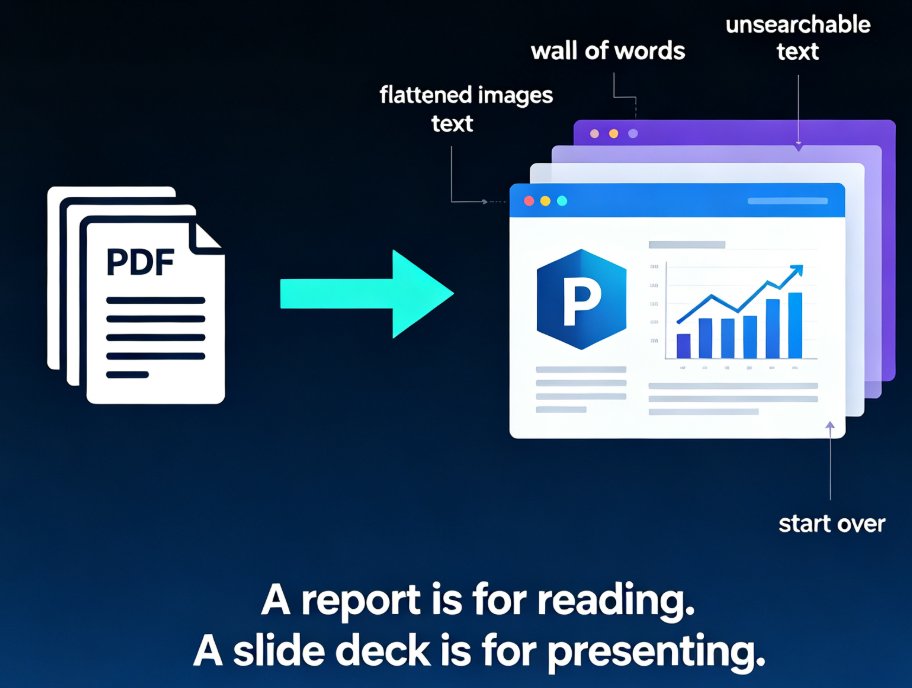
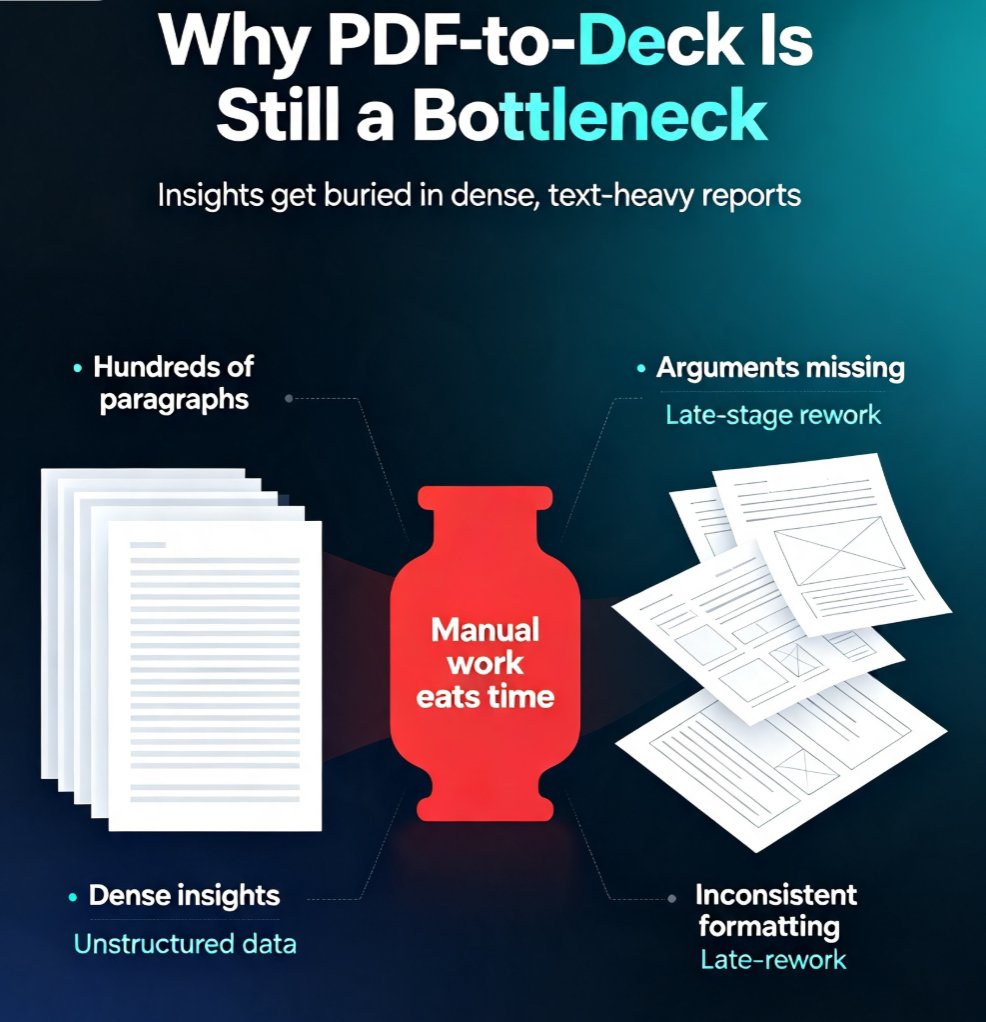
Let's be real: PDF reports are where insights go to die. They're dense, text-heavy, and almost never designed for presentation. The problem isn't the content — it's the format.
When you manually convert a PDF report into slides, you're doing four distinct jobs:
- Synthesizing — reading through hundreds of paragraphs to find the core arguments, market baselines, and demand outlooks.
- Structuring — translating those findings into a logical presentation flow (executive summary, market drivers, bottlenecks, scenarios).
- Visualizing — building charts, tables, and infographics that represent complex data clearly without cluttering the slides.
- Formatting — ensuring consistent fonts, colors, and alignment across every slide.
That last one is the silent killer. Formatting alone can eat 30-40% of your total time, and it adds zero strategic value. You're not getting smarter — you're just aligning text boxes.
The real cost isn't the hours spent; it's the thinking time you lose. Every minute you spend on formatting is a minute you could have spent stress-testing your arguments or prepping for Q&A. This is why the workflow we're about to walk through matters — it collapses the mechanical work so you can focus on judgment.
02 — Step 1: Upload your PDF to Zendeck
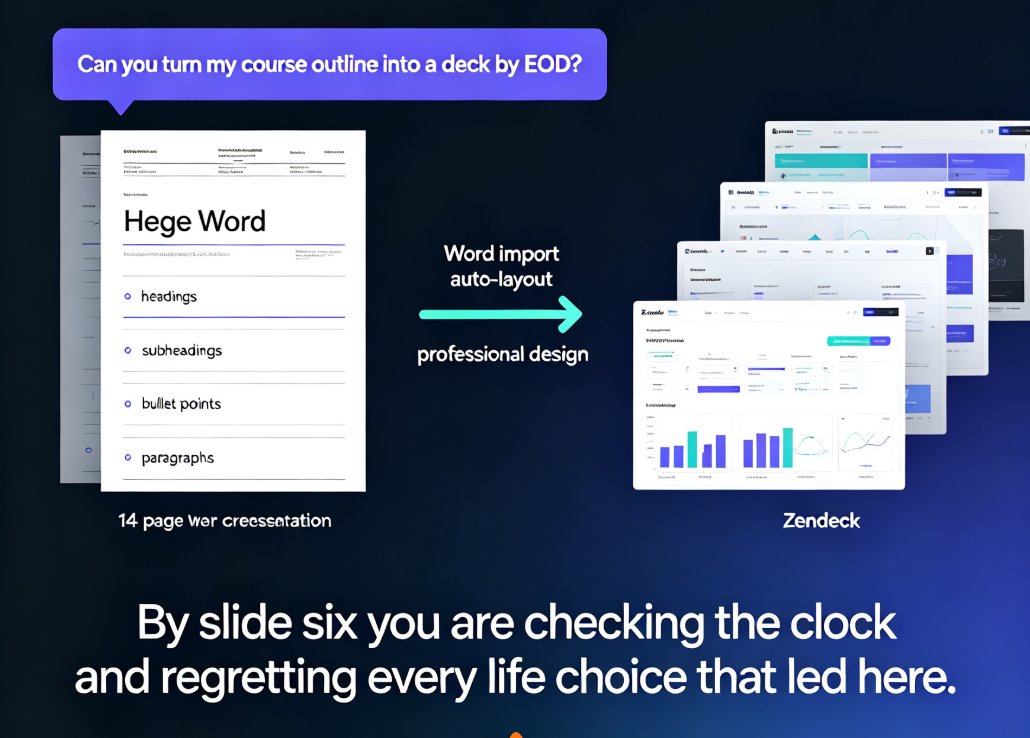
The workflow starts simpler than you'd expect. Open Zendeck, start a new presentation, and choose the document import option. Drag your PDF in — or paste content directly if you're working from a text file or Markdown.
Zendeck's import isn't just a file upload. The AI engine reads the document, identifies the key narrative threads, and prepares to restructure them into a slide flow. It's not doing a naive copy-paste; it's actually parsing the document's logic.
You can also upload multiple documents at once. If you're synthesizing a report plus a supplementary data file, Zendeck will merge the information across both into a unified deck. That's a huge time-saver for analysts who work with multiple sources — the same way you might combine a quarterly report with a competitor analysis before building your briefing.
Quick tip: If your PDF has a clear executive summary section, make sure it's near the front. The AI tends to weight early content more heavily when identifying key points — same way a human reader would.
03 — Step 2: Let AI extract the narrative arc
Once your PDF is uploaded, Zendeck's AI gets to work. It's not just pulling random sentences — it's identifying the document's core argument and building a slide structure around it.
For a market research report, that might mean: - Executive Summary — the top-line findings - Market Drivers — what's pushing growth - Bottlenecks — what's holding things back - Scenarios — what could happen next
For a financial report, it might be: - Performance Overview - Revenue Breakdown - Cost Analysis - Outlook & Guidance
The AI reads the document the way a good analyst would — looking for the argument, not just the data points. This is the difference between a deck that feels assembled and one that feels authored. The output isn't a generic template filled with placeholder text; it's a highly contextualized deck tailored to your source material.
If you've ever tried turning a blog post or a brain dump into slides manually, you know how much of the work is just deciding what matters. The AI handles that judgment call for you — and then you get to override it.
04 — Step 3: Review and restructure the outline
Here's where you earn your keep. After the AI generates the initial outline, take five minutes to review it. You know the audience; the AI doesn't.
Drag sections to reorder them. Delete slides that don't matter. Merge two slides that are saying the same thing. This is the "editor" step, and it's where the deck goes from good to great.
The key insight: the AI gives you a 90% draft in minutes, and you spend your time on the 10% that actually matters — judgment. That's a fundamentally different workflow from building slides from scratch, where 90% of your time goes into mechanical work.
If you're working with a colleague, Zendeck's real-time collaboration means you can review the outline together, leave comments, and iterate without version-control chaos. For client-facing work, you can even share a link with external stakeholders for feedback before you finalize. This is the same muscle you'd use when turning a brain dump into a structured presentation — except now the structure comes pre-built.
05 — Step 4: Apply smart layouts and visuals
Once the outline is locked, it's time to make it look like a real deck. Zendeck's smart layout engine automatically applies consistent fonts, colors, and alignment across every slide. No more manually adjusting text boxes or hunting for the right chart style.
The AI also suggests visuals — charts, icons, and illustrations — based on the content of each slide. If a slide is about market share, it might suggest a pie chart. If it's about growth trends, a line chart. You're not choosing from a blank canvas; you're picking from smart suggestions that match your content.
If you've set up a brand kit, the AI applies your brand colors, fonts, and logo automatically. That's a game-changer for consultants who need to deliver on-brand decks to multiple clients. Setting up a brand kit once means every PDF-to-deck conversion from that point forward comes out looking like your firm made it — not like a template.
06 — Step 5: Export, share, and present
The final step is the easiest. Zendeck lets you export your deck in standard formats — PowerPoint, PDF, or a shareable link. The exported file is fully editable, so you can continue refining in PowerPoint if that's your team's workflow.
You can also take it a step further: turn your slides into a narrated video using Zendeck's PPT-to-video feature. That's especially useful for training content or asynchronous briefings where your audience can't attend a live presentation. Imagine sending a narrated walkthrough of that market research deck to stakeholders who missed the meeting — no extra work required.
For recurring reports — quarterly reviews, monthly market updates — you can save your structure as a template and reuse it next time. Upload the new PDF, and the AI rebuilds the deck with the same structure and branding. That's the workflow that turns a one-time fix into a repeatable system.
07 — Manual vs AI: the real cost comparison
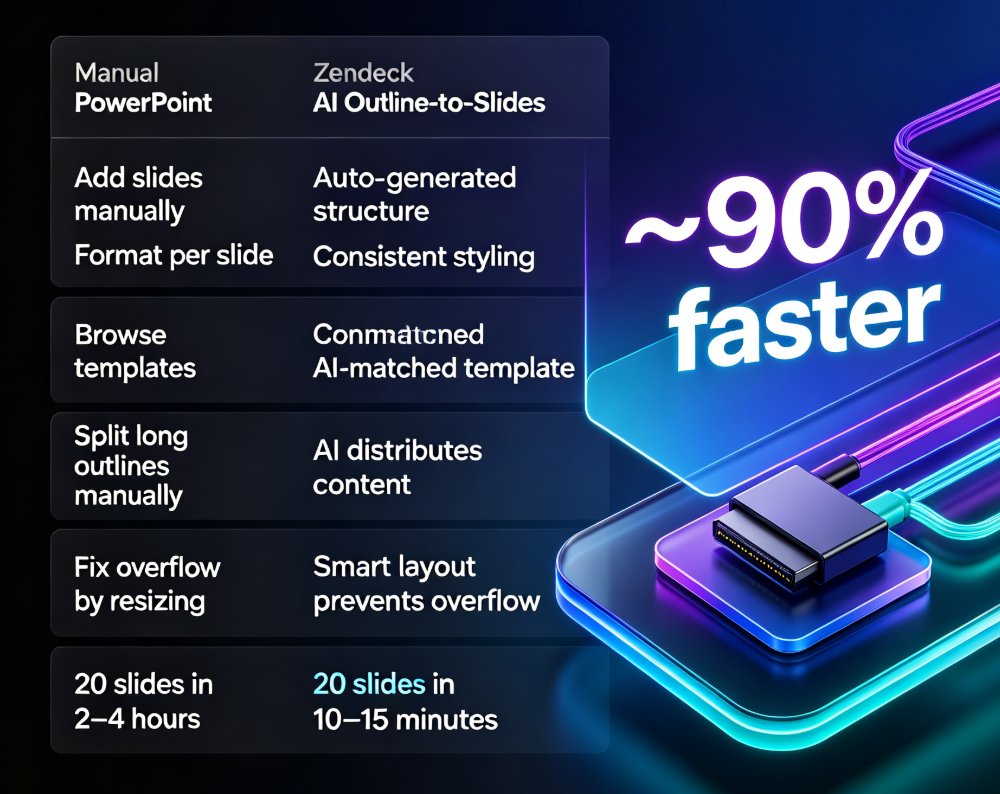
Let's put some numbers on this. Here's what the manual conversion of a 40-page PDF report into a 12-slide deck typically looks like:
| Task | Manual (hours) | Zendeck AI (minutes) | Time Saved |
|---|---|---|---|
| Reading & synthesizing | 2.5 - 4 | 1 - 2 | ~95% |
| Structuring the narrative | 1 - 1.5 | 1 - 2 (review) | ~80% |
| Building charts & visuals | 1.5 - 2.5 | 2 - 3 (AI-suggested) | ~85% |
| Formatting & alignment | 1 - 2 | 0 (auto-applied) | 100% |
| Total | 6 - 10 hours | 10 - 15 minutes | ~97% |
The numbers are rough, but the pattern is consistent: the mechanical work — reading, structuring, formatting — collapses to near zero, and your time shifts to judgment and polish. That's not a marginal improvement; it's a different way of working. A consultant who used this workflow to build a data-rich case study deck in 10 minutes would tell you the same thing.
08 — Pro tips for cleaner conversions
After watching dozens of analysts and consultants run this workflow, here are the tips that actually matter:
Tip 1: Clean your PDF before importing. Remove cover pages, TOCs, and appendix material if you don't need them. The AI works better with focused input.
Tip 2: Use the outline review step seriously. The AI's first pass is good, but your audience knowledge makes it great. Spend the extra five minutes.
Tip 3: Set up a brand kit once. If you're creating client-facing decks regularly, the brand kit setup pays for itself within the first week. You'll never manually match colors again.
Tip 4: Save your structure as a template. For recurring reports, this turns a 15-minute workflow into a 5-minute one.
Tip 5: Don't be afraid to manually edit. Zendeck's output is fully editable — you can adjust text, swap layouts, and fine-tune visuals. The AI gives you a strong starting point, not a finished product. Think of it as a brilliant intern who drafts everything and then hands it to you for the final pass.
FAQ
Q: What file formats can I import into Zendeck to create a presentation? A: Zendeck supports PDF, Word (.docx), Markdown, and plain text files. You can also paste content directly. The AI engine reads the document, extracts key points, and structures them into slides. You can even attach multiple documents at once, and the AI will synthesize information across all of them into a unified deck.
Q: Can I edit the AI-generated slides after importing a PDF? A: Yes. Every slide Zendeck generates is fully editable. You can adjust text, swap layouts, change visuals, and apply different templates without starting over. The exported file is also fully editable in PowerPoint or other standard presentation software, so you're never locked into the AI's first pass.
Q: How long does it take to convert a PDF report into a presentation with Zendeck? A: Most PDF-to-deck conversions complete in under 5 minutes. A 40-page report typically becomes a 10-15 slide deck with a clear narrative structure. The bulk of your time — if you spend any — goes into reviewing and refining the outline, not into mechanical formatting.
Q: Will my imported PDF's charts and data be preserved in the presentation? A: Zendeck extracts the key data points and can rebuild them as clean charts and visuals that match your deck's design system. If you want to keep original figures or images from the PDF, you can upload those separately and drop them into the slides.
Q: Can I maintain my brand colors and fonts when converting a PDF to slides? A: Yes. If you've set up a brand kit in Zendeck, the AI automatically applies your brand colors, fonts, and logo to the generated slides. This is especially valuable for consultants and agencies that need to deliver on-brand decks to multiple clients without manual styling.