From Outline to Video: A Complete Workflow for Creating Micro-Courses with AI
Why Every Educator Needs a Faster Way to Create Micro-Courses
Let’s be real: creating a micro-course from scratch is a pain. You start with a solid outline, then spend hours wrestling with slide layouts, hunting for icons, recording voiceovers, and stitching everything together in a video editor. By the time you’re done, you’ve lost a whole afternoon — and the content is already outdated.
But what if you could go from a Word outline to a polished, narrated video in under 10 minutes? That’s the promise of AI-powered tools like Zendeck. In this article, I’ll walk you through a complete workflow that turns your raw ideas into production-ready micro-courses — no design skills, no video editing, no stress.
I. The Pain of Traditional Micro-Course Creation
Before we dive into the solution, let’s quantify the problem. A typical micro-course (5–10 slides, 3–5 minutes of narration) created manually requires:
- Building slides from scratch: 1–2 hours
- Finding or creating visuals: 30–60 minutes
- Recording and editing voiceover: 30–45 minutes
- Exporting and uploading: 15 minutes
Total: 2.5 to 4 hours per micro-course. That’s not sustainable if you need to produce weekly training content.
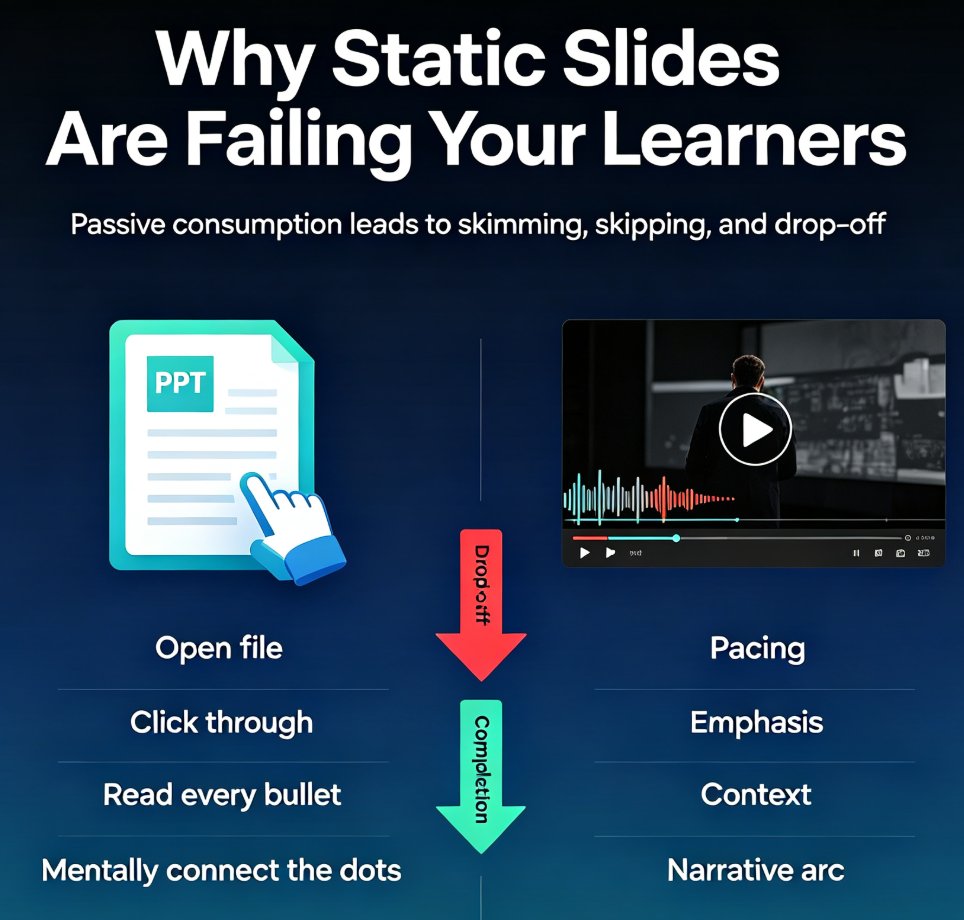
Educators and trainers today need speed without sacrificing quality. Learners expect short, visually engaging videos that they can access on any device. Traditional methods can’t keep up.
II. Step 1: Import Your Outline — No Formatting Required
The beauty of Zendeck’s workflow is that it starts where you already are: a Word document, a markdown file, or even a messy email. You don’t need to clean up formatting or follow a strict template.
Simply paste your outline into Zendeck, and the AI reads the structure — hierarchy, intent, and relationships between points. It’s like having a teaching assistant who instantly understands your narrative arc.
Pro tip: Keep your outline to 5–10 main points for a micro-course. Each point becomes a slide. Too many? The AI can condense. Too few? It can expand with relevant subpoints.
For a detailed walkthrough on importing, check out our guide on importing Word outlines into Zendeck.
III. Step 2: AI Generates a Fully Designed Deck in Seconds
Once your outline is loaded, Zendeck’s AI presentation generator takes over. It doesn’t just dump your text onto slides — it creates a narrative flow, selects layouts, adds relevant imagery, and applies consistent typography. The result is a complete deck, not a placeholder.
You can choose from 500+ templates in the Zendeck template library, or let the AI pick the best one for your content. If you have brand guidelines, set up a Brand Kit to ensure colors, fonts, and logos are applied automatically.
This step alone saves you 1–2 hours of manual design work.
IV. Step 3: Refine and Customize with AI Assistance
Your first generated deck is a strong draft, but you’ll likely want to tweak it. Zendeck’s AI-powered design suggestions let you:
- Change the tone of a slide (e.g., from technical to conversational)
- Add or remove elements like charts, icons, or callout boxes
- Adjust the slide count from 5 to 50+ with a single prompt
You can also collaborate with your team in real time using Zendeck’s collaboration features. Version control keeps everyone in sync — no more “final_v3_edited.pptx” nightmares.
Pro tip: Use natural language prompts like “make this slide more visual” or “convert this bullet list into a comparison table.” The AI handles the heavy lifting.
V. Step 4: Convert Your Deck to a Narrated Video
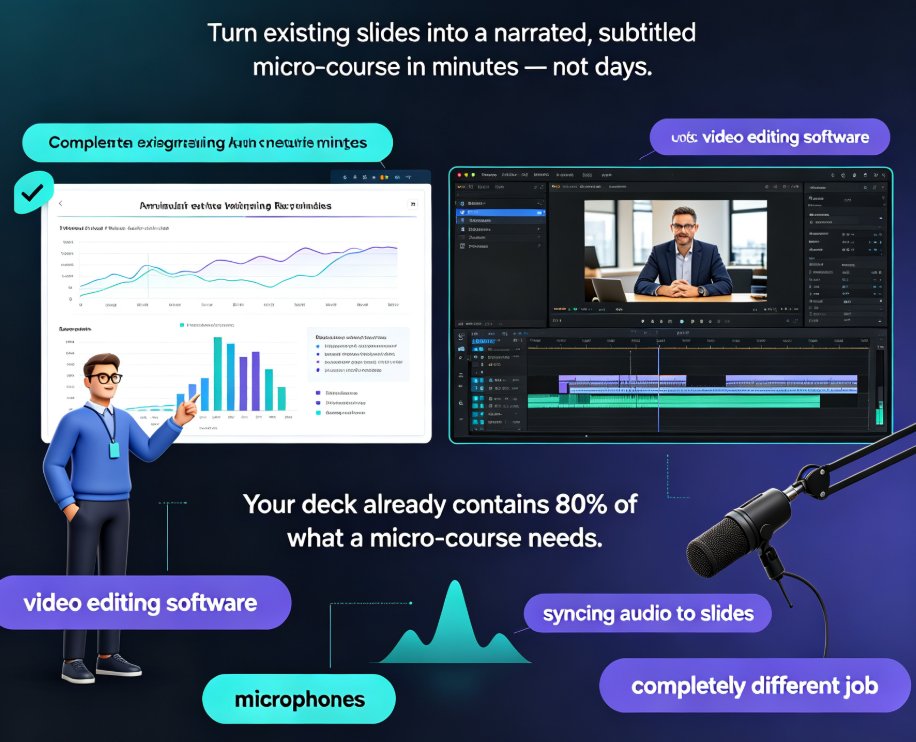
This is where the magic happens. Instead of recording a separate voiceover and syncing it to slides, Zendeck’s PPT-to-video tool does it all in one click.
Upload your deck, choose an AI voice (dozens of languages and accents available), and set the pacing. The tool reads your speaker notes or generates a script from the slide content. In under two minutes, you get a shareable MP4 with:
- Professional narration
- Slide transitions and animations
- Optional background music and captions
For educators, this is a game-changer. You can create a micro-course in the time it takes to brew a cup of coffee. And because it’s AI-generated, you can update the content anytime — just edit the deck and re-export.
VI. Why This Workflow Wins: A Side-by-Side Comparison
| Aspect | Traditional Method | Zendeck AI Workflow |
|---|---|---|
| Time to create a 10-slide video | 2.5–4 hours | 8–12 minutes |
| Design skills required | Yes | None |
| Narration quality | Depends on recording setup | Consistent, studio-quality AI voices |
| Ease of updates | Re-record voiceover, rebuild slides | Edit outline, re-generate in minutes |
| Collaboration | Email attachments, manual merging | Real-time co-editing with version control |
The result: you produce more micro-courses, faster, without burning out.
VII. Pro Tips for Creating Engaging Micro-Courses
1. Keep slides text-light. The AI might generate dense slides — use the “Simplify” prompt to reduce text to key takeaways. Aim for no more than 20 words per slide.
2. Use visuals that reinforce learning. Choose images that illustrate concepts, not just decoration. Zendeck’s asset library has thousands of icons and illustrations; pick ones that match your content.
3. Add interactive elements. While the video is static, you can include a link to a quiz or discussion forum in the description. For a more advanced approach, turn static slides into interactive micro-courses with AI narration.
4. Leverage Brand Kits for consistency. If you’re creating a series of micro-courses, a Brand Kit ensures every video looks like it belongs to the same family. That builds learner trust and brand recognition.
5. Repurpose existing content. Have a PDF of a training manual? Import it directly into Zendeck and let the AI extract the key points into a deck.
VIII. Real-World Scenarios: Who Benefits Most?
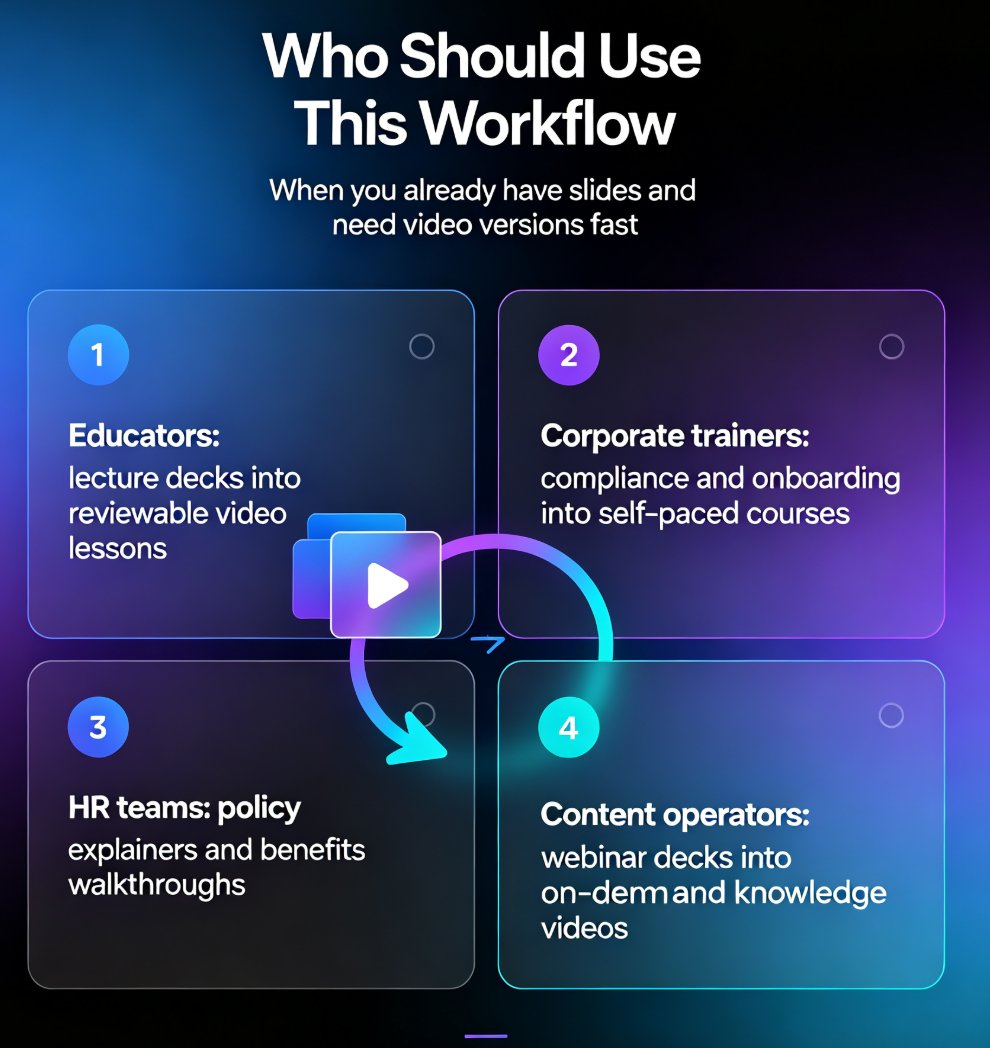
- Corporate L&D teams: Convert compliance policies into 5-minute micro-courses that employees actually watch.
- University instructors: Turn lecture notes into short, narrated summaries for flipped classrooms.
- Training consultants: Create client-specific onboarding videos in minutes, not days.
- HR departments: Transform annual training modules into bite-sized, mobile-friendly videos.
In every case, the workflow is the same: outline → AI deck → AI video. The result is a library of micro-learning content that’s always up-to-date and always engaging.
IX. Conclusion: Stop Spending Hours, Start Creating
The days of wrestling with slide designers and audio editors are over. With Zendeck, you can go from a raw outline to a professional narrated video in under 15 minutes. No design skills, no video editing, no excuses.
Your next micro-course is just an outline away. Try it, and see how much time you free up to focus on what really matters: teaching and engaging your learners.
FAQ
Q: How long does it take to create a micro-course from a Word outline using Zendeck? A: Typically under 10 minutes for a 10-slide deck and a 3-minute narrated video. The AI generates the presentation in seconds, and the PPT-to-video conversion takes another minute or two.
Q: Can I edit the AI-generated slides before turning them into a video? A: Absolutely. Zendeck lets you refine text, swap images, apply brand kits, and adjust layouts with natural language prompts. You can also co-edit with your team in real time.
Q: Do I need any design or video editing skills? A: No. Zendeck handles layout, visuals, and narration automatically. You just need to provide the outline and optionally choose a voice and style. The platform is designed for non-designers.
Q: What formats can I export the video in? A: Zendeck exports to MP4, with options to include AI narration, background music, and captions. You can also download the original PPTX or PDF separately.
Q: Is this workflow suitable for corporate training? A: Yes. Many HR teams and L&D departments use Zendeck to turn policy documents, onboarding guides, and compliance outlines into short, engaging micro-courses that employees can watch anytime.