Word Outline to PPT: Zendeck AI Builds Slide Decks in Minutes
You've got a Word doc stuffed with notes, a training outline, or a lecture script. The last thing you want is to spend three hours dragging bullets into placeholder slides, adjusting font sizes, and praying the alignment doesn't fall apart. Let the generic AI treadmill handle the grinding. Zendeck turns that text into a polished presentation in minutes.
We're not talking about a glorified template with "Insert text here" placeholders. Zendeck actually reads your document, pulls out the key messages, and generates a cohesive slide deck that's ready to present or refine. Here's how it works, why it matters, and how to get the best results.
I. Why Manual Word-to-PPT Conversion Is a Time Sink
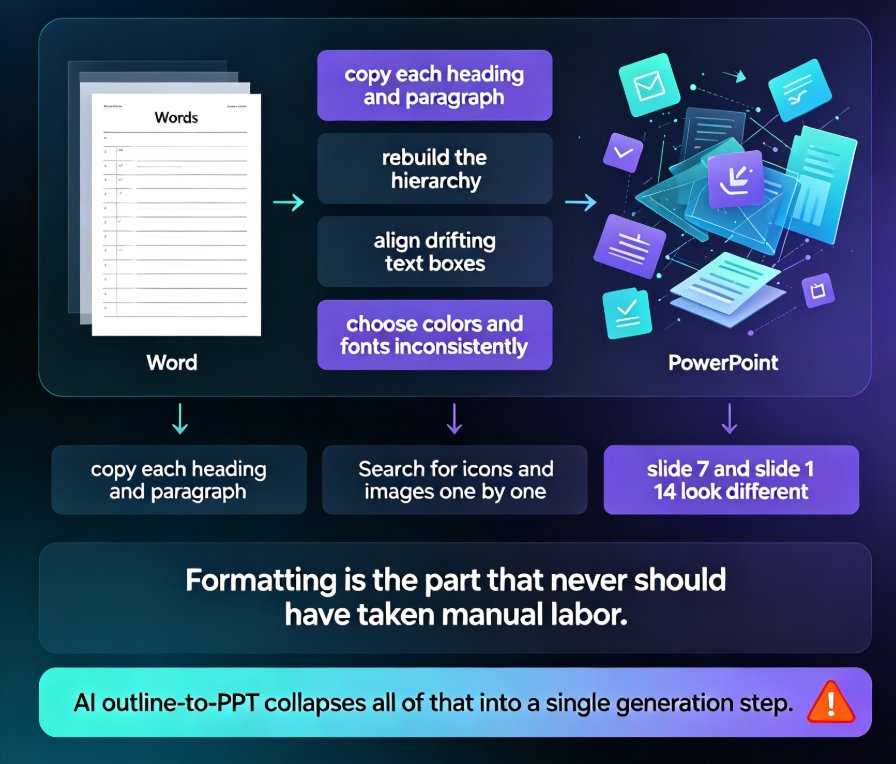
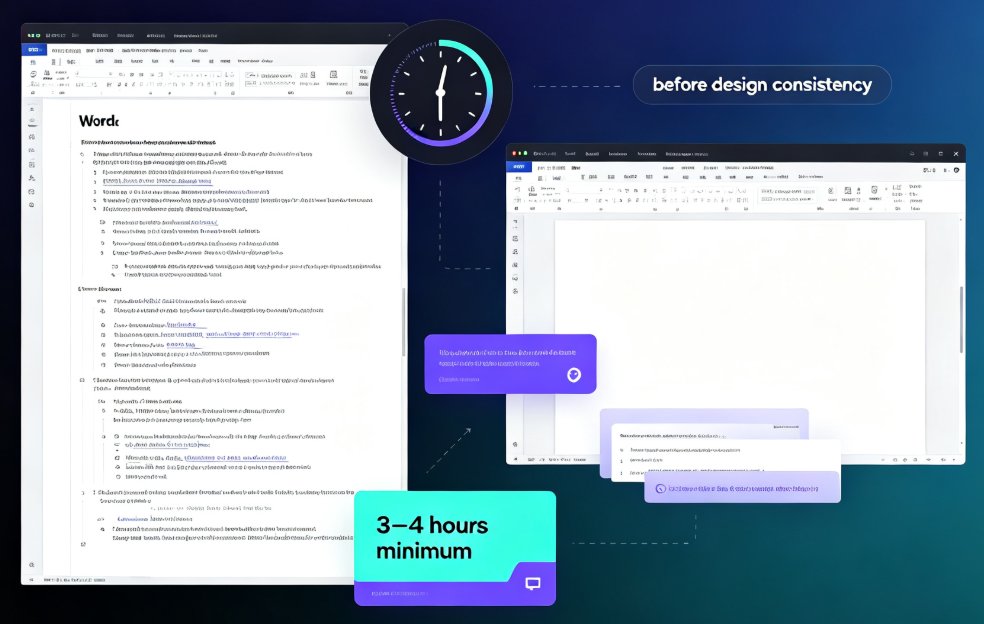
If you've ever converted a Word document into slides manually, you know the pain. You copy the headings, paste bullet points, and then start the endless cycle of resizing text boxes, aligning images, and fixing overflow. According to presentations.ai, that process takes 3–4 hours minimum for an average deck. And that's before you even think about design consistency.
Worse, an outline captures ideas, not flow. When you convert it manually, the narrative often becomes disjointed—slides feel like fragments instead of a coherent story. What should be a 30-minute task becomes a three-hour exercise in alignment, spacing, and design fixes. By the end, the message often loses clarity.
That's why AI-powered conversion is becoming the default, not the nice-to-have. Tools like Zendeck flip the script: paste your outline, click generate, and get a complete deck in under 10 minutes. Not a skeleton—actual content, professionally designed.
II. How Zendeck Reads and Structures Your Word Outline
Zendeck isn't just scanning your document for keywords. It uses AI to understand the logical hierarchy of your content. When you upload a Word file, Zendeck analyzes heading levels (H1, H2, H3), bullet nesting, and sentence structure to map out a slide-by-slide narrative. This is a huge step beyond simple text extraction—it's the difference between a dump and a deck.
For example, say you have a training manual with chapters, sub-sections, and key takeaways. Zendeck detects the chapter titles as section dividers, the sub-headings as slide titles, and the bullets as content points. It even skips filler sentences and keeps only the core ideas. The result is a deck that feels like a designed presentation, not a repackaged document.
This context-aware approach is what makes AI presentation tools smarter than static templates. Zendeck also supports Word and Google Docs integration, so you're not locked into a single workflow.
III. Step-by-Step: From Word Document to Finished Deck in Five Minutes
Let's walk through the actual process. It's almost boringly simple.
- Open Zendeck and create a new deck. Choose "Import" and select your Word file (or paste text/Markdown). The AI cleans up messy formatting, nested bullets, even stream-of-consciousness writing.
- Let Zendeck generate the structure. In about 30 seconds, you'll see a preliminary slide list that mirrors your document's outline. You can rearrange sections if needed—drag and drop is live.
- Pick a visual direction (optional). Zendeck offers a library of premium templates, but you can also let the AI choose based on your content type (pitch deck, training, board report). Zendeck's template selection AI matches the right look automatically.
- Review and refine. Every slide is fully editable. You can tweak wording, swap icons, or apply a custom brand kit in one click.
- Export or present. Download as PPTX, PDF, or share a link. Done.
Total time? Under 10 minutes. Often closer to five.
IV. Real-World Use Cases: Teachers, Trainers, and Team Leads
- A high school teacher converts a lesson plan Word doc into a visual deck for the classroom in five minutes, complete with images and charts from Zendeck's asset library.
- A corporate trainer turns a dense training manual into a micro-learning module, then uses PPT-to-video to create a narrated video for remote teams.
- A team lead transforms meeting notes or a project outline into a stakeholder update deck—no designer required.
In each of these scenarios, the content already existed. The challenge was presentation. Zendeck removes that friction, letting you focus on the message instead of the mechanics.
V. Manual vs AI: A Side-by-Side Comparison
Let's put the numbers in perspective. According to presentations.ai, manual conversion takes 3–4 hours. Zendeck's average is under 10 minutes—that's a 96% time reduction. Here's a chart and a table to make it concrete.
| Task | Manual (hours) | Zendeck (hours) |
|---|---|---|
| Extracting key points | 0.5–1 | 0.01 |
| Designing slides | 1.5–2 | 0.05 |
| Aligning and formatting | 0.5–1 | 0 |
| Total | 3–4 | 0.17 |
The table breaks down where the time goes. Manual means hours of busywork; Zendeck automates all of it. You simply don't pay a tax for turning document into deck anymore.
VI. Best Practices for a Clean Outline (So Your Deck Comes Out Better)
To get the most out of Zendeck (or any AI presentation tool), your source document matters. Here's what I've learned from prepping outlines for AI over the past few years:
- Use heading hierarchy properly. H1 for the deck title, H2 for sections, H3 for sub-points. Zendeck respects this structure. If you've got an unstructured wall of text, it still works, but you'll get a more logical flow if you follow convention.
- Keep bullets short. Long paragraphs become cluttered slides. Zendeck will summarize and trim, but if you give it concise bullets, the output stays true to your voice.
- Include a closing takeaway. A "Key Takeaways" or "Next Steps" heading at the end gives Zendeck a natural closing slide. Otherwise, it might end on a random point.
- Don't worry about formatting. Zendeck ignores font issues, weird spacing, and messy indentation. That's the point—clean input isn't required. But structured input helps the AI make better decisions.
Following these tips can shave another minute off generation and drastically improve quality. It's a tiny investment with a big payoff.
VII. Common Pitfalls and How to Avoid Them
Even with AI, there are mistakes people make. Here are five I see all the time:
- Too much text per slide. Zendeck will split long sections, but you can help by proving shorter bullets. Remember, slides are not documents.
- Ignoring the narrative. An outline is a list of ideas, not a story. Use Zendeck's slide sorter to rearrange into a logical flow after generation.
- Skipping brand settings. If your organization has brand colors or fonts, set up a brand kit before generating. Otherwise, you'll have to restyle later.
- Not reviewing speaker notes. Zendeck auto-generates speaker notes from your text. Read them—they might have great talking points you forgot.
- Forgetting about accessibility. Add alt text (Zendeck can auto-add it) and check color contrast if your audience includes people with visual impairments.
Most of these are one-click fixes in Zendeck, not mountains to climb. The tool was built to reduce busywork, not add more.
VIII. Beyond Slides: What Else Zendeck Can Do with Your Content
Once your deck is ready, Zendeck doesn't stop. It can turn the same content into a narrated video course with subtitles, or you can add interactive quizzes for training. That means a single Word document becomes a full learning experience—slides, video, and assessment—without re-authoring.
If you're new to AI presentation tools, check the AI courseware category for more tips. And if you're wondering about the wider trend, this breakdown of AI deck automation shows why we'll never go back to manual conversion.
FAQ
How fast does Zendeck convert a Word outline into a presentation?
Zendeck typically generates a complete, design-ready deck in under 10 minutes. Most users see a first draft in 3–5 minutes, depending on document length and complexity.
Do I need design skills to use Zendeck for Word-to-PPT?
No. Zendeck's AI handles layout, typography, color, and visual hierarchy automatically. You can edit later, but the initial output is presentation-ready without any design knowledge.
Can I edit the slides after generation?
Yes, absolutely. Zendeck gives you full editing control—reskin, reorder, modify text, swap images, or apply your brand kit—right inside the online editor, then export to PPTX or PDF.
What Word document formats does Zendeck support?
Zendeck accepts .docx files, Markdown, and plain text. It also handles pasted outlines from emails, meeting notes, or any messy text block, cleaning up formatting automatically.
Does Zendeck preserve my original document's structure?
Yes. Zendeck reads your heading hierarchy (H1, H2, H3) and bullet nesting to map content to slides logically. You'll see a clear section-to-slide flow, not random chunks.