From PPT to Video: Creating Narrated Micro-Courses with Zendeck
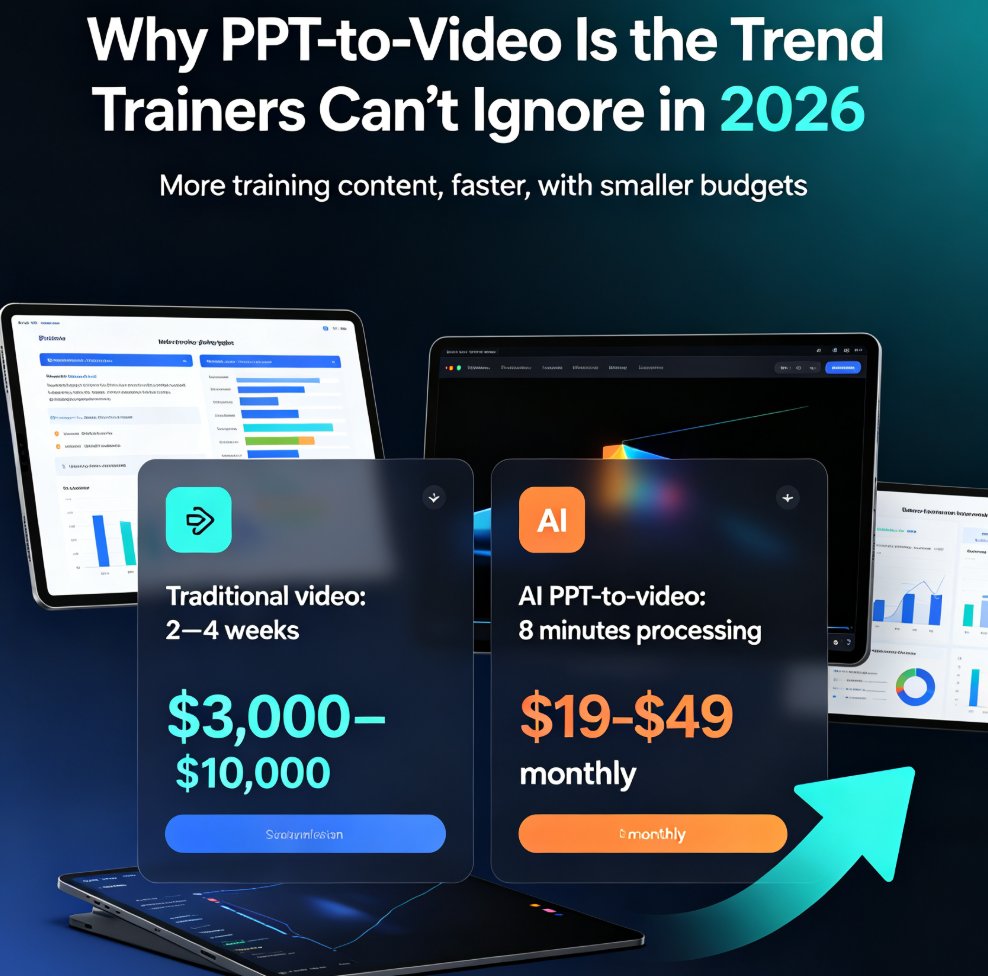
You've got a deck that took you hours to build. Maybe it's a training module, a sales enablement deck, or a lecture you've delivered a dozen times. The content is solid. The structure is clean. But here's the uncomfortable truth: a static PPT is the weakest possible way to deliver that content in 2026.
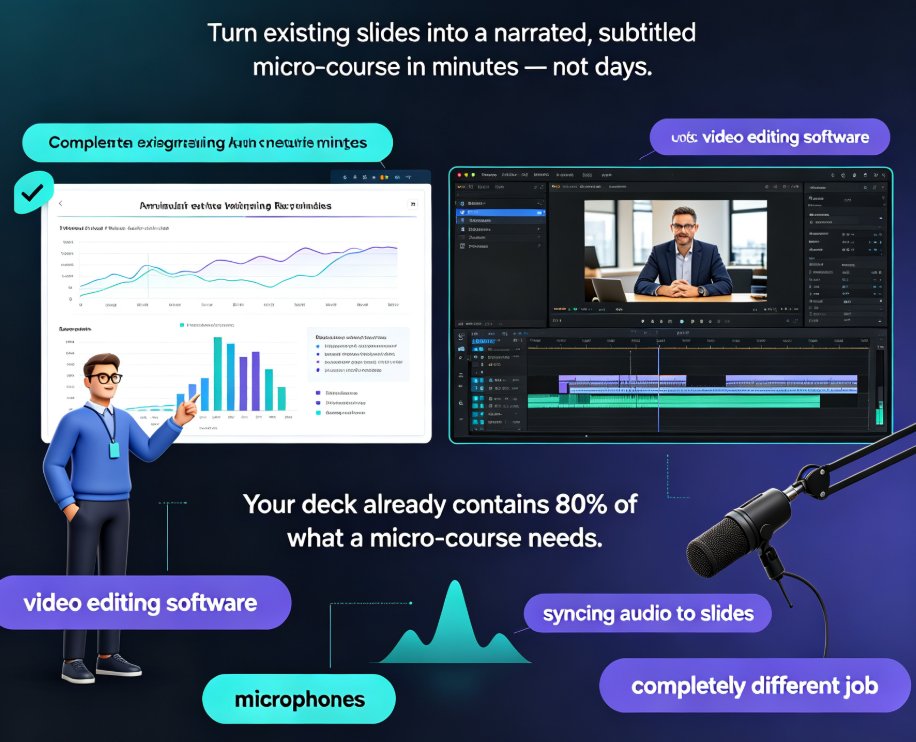
Learners don't want to click through slides on their own. They want to press play, listen, and absorb. That's why narrated micro-courses are taking over corporate training, university lectures, and onboarding programs. And the good news? You don't need a video studio, an editor, or a design team to get there. You just need the deck you already have and the right tool.
This guide walks you through exactly how Zendeck's PPT-to-video feature turns static slides into narrated micro-courses — with voiceover, subtitles, and a clean export you can share anywhere. No extra tools. No learning curve. Just your existing content, finally doing the work it was meant to do.
01 Why static slides are failing your learners
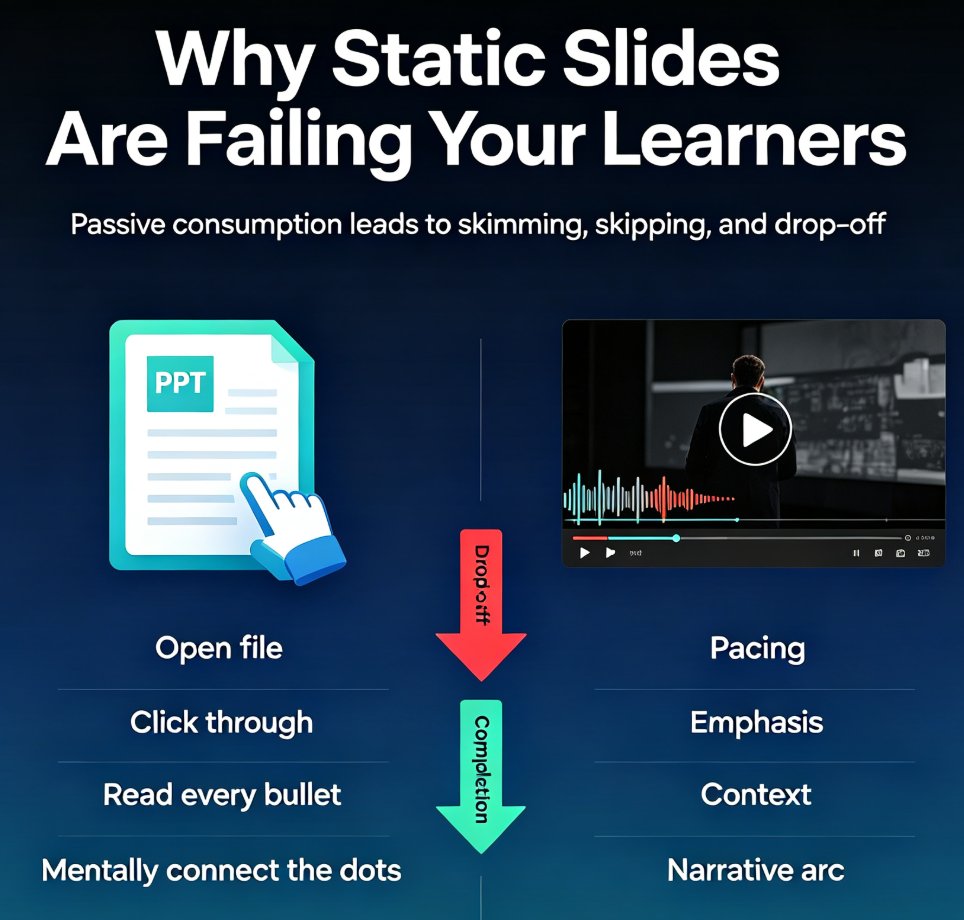
Let's be real: when you send someone a PPTX file, you're asking them to do the work. They have to open the file, click through slides, read every bullet, and mentally connect the dots. That's passive consumption at its worst. Most people skim, skip, and move on.
I've watched this happen in real training rooms. A facilitator spends forty minutes walking through a dense deck, and by slide fifteen, half the room has checked out. The content was good. The delivery format was the problem.
Video changes the equation. A narrated micro-course carries the pacing, the emphasis, and the context that a static deck can't. The viewer hears your voice, sees the key points land on screen, and follows a narrative arc instead of a bullet list. The same content that felt like homework becomes something people actually finish.
The shift from slide decks to video isn't a trend — it's the new baseline for how professionals and learners consume information.
That's why more educators and trainers are repurposing their existing decks instead of building new content from scratch. You already have the expertise. You already have the slides. The missing piece is turning them into something people will actually watch.
02 What Zendeck's PPT-to-video actually does
Here's the part that surprises most people: you don't need to create a video from nothing. Zendeck reads your existing PPT structure — slide order, headings, bullets, even your speaker notes — and turns it into a scene-by-scene video plan.
Upload your slides, choose an avatar and voice, and click "Create Video." Zendeck handles the rest: it drafts a narration line for each slide, plans the timing, and renders the whole deck as a narrated video. The result is a micro-course that feels intentional, not like a screen recording of someone clicking through PowerPoint.
What makes this genuinely useful:
- Your slides stay the source of truth. You're not rebuilding content — you're repackaging it.
- Narration is drafted for you. Zendeck writes a talk track from your slide content and notes, so you're not staring at a blank script.
- Subtitles are generated automatically. Viewers who watch with sound off still get the full message.
- Everything stays editable. You can tweak the narration, adjust timing, and restyle captions before you export.
If you want the full walkthrough of the narration workflow, check out our guide on how to add narration to your slides with Zendeck's PPT-to-video.
03 Step-by-step: from PPT to narrated micro-course
Let's walk through the actual workflow, because "just upload and click create" undersells how much control you keep.
Step 1: Upload your deck. Drop in a PPTX file, a PDF export, or paste your content as Markdown. Zendeck reads the slide order, headings, bullets, embedded images, and speaker notes to build the scene plan. If you're starting from a written outline instead of a finished deck, you can also import a Word document and let Zendeck generate the slides first.
Step 2: Review the scene plan. Each slide becomes its own scene with timing and a drafted narration line. Headings turn into hooks. Bullets get rewritten as talk track. Your notes drive the voiceover script. This is where you catch anything that needs rephrasing before it goes to video. Take the extra two minutes here — it saves you from re-rendering later.
Step 3: Pick your voice and avatar. Choose a voice that fits your audience — warm and conversational for training, more formal for executive updates. If you're using an avatar, pick one that matches your brand's tone. Don't overthink this step; you can change it later if it doesn't land.
Step 4: Add subtitles and polish. Zendeck generates captions automatically. You can style them, adjust their timing, and make sure they're readable on any device. This matters more than you think — a huge share of video viewers watch with the sound off, especially on LinkedIn and in shared workspaces.
Step 5: Export and share. Render the video and export it in the format you need. Share it on your learning platform, embed it in a course, or drop it into a Slack channel. The project stays open, so you can come back and make a second cut for a different channel without rebuilding anything.
The whole flow takes minutes, not hours. And because the project stays open for edits, you can refine the narration, swap the voice, or restyle captions without starting over. For more on the broader workflow, browse our PPT-to-video category for related guides.
04 Voiceover and subtitles: the engagement layer
Here's what separates a narrated micro-course from a glorified screen recording: the voiceover and subtitles work together to carry the message.
A good narration line doesn't read the slide back to the viewer. It adds context, connects ideas, and guides attention. Zendeck drafts that talk track for you, but you should always review it — your voice, your expertise, your phrasing. The tool gets you 80% there; the last 20% is what makes it sound like you.
Subtitles are the other half of the equation. They're not just an accessibility feature — though they absolutely matter for that. They're also how your content gets consumed in noisy environments, on phones, and by viewers who prefer reading along. If you want the full breakdown of how to layer voiceover and captions effectively, read our guide on adding voiceover and subtitles to slides with Zendeck's AI.
A narrated micro-course with clean subtitles isn't just more engaging — it's more accessible, more shareable, and more likely to actually get finished.
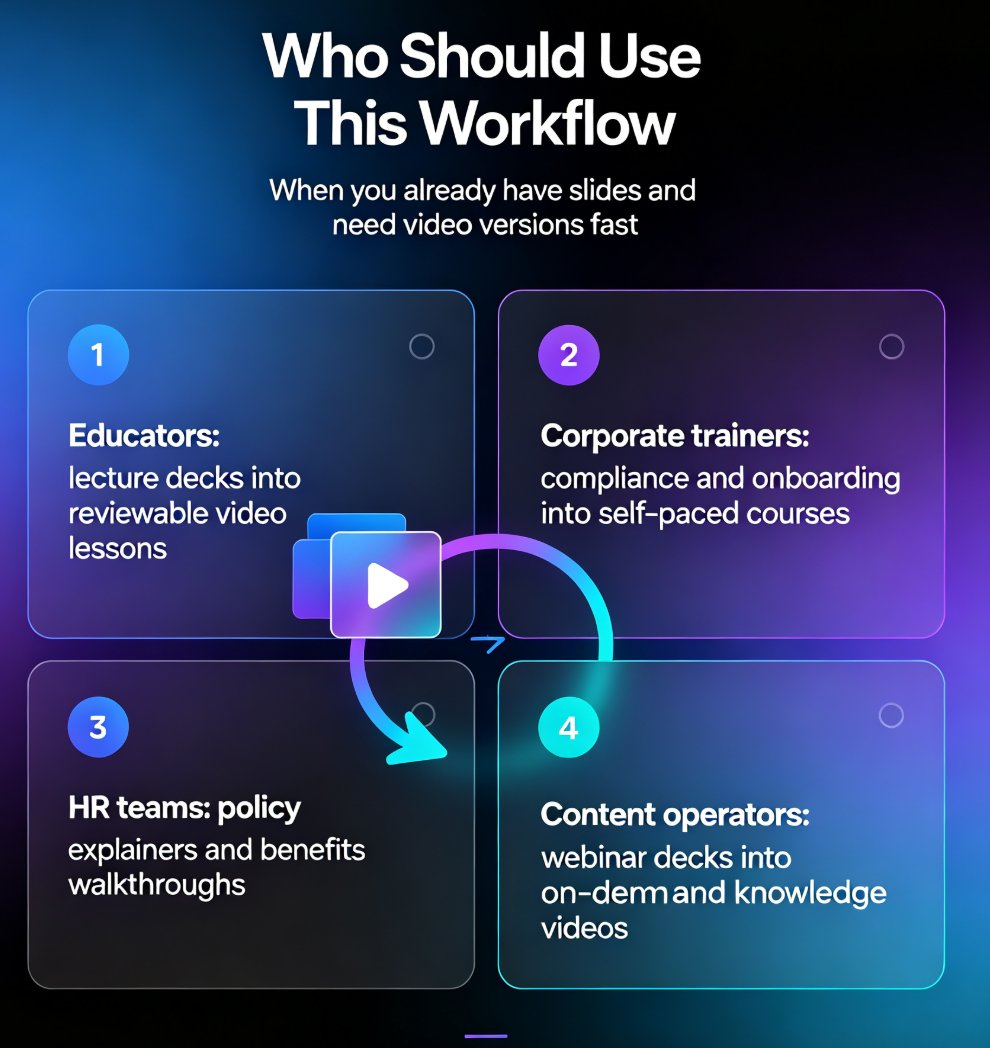
05 When this workflow pays off: real use cases
This isn't a one-size-fits-all tool. It's a workflow that shines in specific scenarios. Here's where I see it working best:
Corporate training and onboarding. You've got a deck that every new hire needs to see. Turn it into a narrated video, and suddenly onboarding doesn't require a live presenter every time. This is part of a broader shift we're seeing — AI-generated video decks are increasingly replacing traditional corporate training.
University lectures and courseware. Educators are repurposing lecture slides into micro-courses students can review on their own schedule. Same content, better delivery. Students get a consistent explanation every time they hit play, which is a real advantage over relying on a single live lecture.
Sales enablement. A narrated pitch deck becomes a shareable asset. Reps can send it before a meeting, and prospects can watch it on their own time. It's the same deck you already use, but it works while you sleep.
HR and policy updates. Instead of a 40-slide deck nobody reads, you get a five-minute narrated video that actually gets watched. Compliance training, benefits updates, culture onboarding — all of it converts cleanly.
Micro-course production. If you're building a library of short courses, this workflow is your fastest path from outline to finished video. You can batch-convert multiple decks and build a catalog in days, not months. For more on this, check out our micro-course production category.
06 Static PPT vs narrated micro-course: the comparison
Here's the honest comparison table I'd show anyone deciding whether to make the switch:
| Dimension | Static PPT | Narrated Micro-Course |
|---|---|---|
| Time to produce | Hours of building slides | Minutes from existing deck |
| Viewer effort | High — they click, read, connect | Low — they press play and listen |
| Engagement | Passive, easy to skim past | Active, guided by narration |
| Accessibility | Limited — text-heavy, no audio | Subtitles + voiceover built in |
| Shareability | File attachments, awkward links | Video link, embed anywhere |
| Consistency | Depends on the presenter | Same narration every time |
| Editability | Manual slide edits | Editable scenes, captions, voice |
The pattern is clear. If you're still sending PPTX files and hoping people will read them, you're leaving engagement on the table. The deck you already have is a finished asset waiting for the right delivery format.
FAQ
How do I convert a PPT to video with Zendeck? Upload your PPTX, PDF, or Markdown content to Zendeck, review the auto-generated scene plan and narration lines, choose a voice and avatar, then click "Create Video." Zendeck renders the deck as a narrated video with subtitles, and you can edit everything before export.
Can I edit the narration and subtitles after conversion? Yes. The project stays open for edits — you can rephrase narration lines, adjust timing, restyle captions, and even swap the voice without rebuilding the video from scratch.
Do I need design or video editing skills to use PPT-to-video? No. Zendeck handles the layout, narration drafting, and subtitle generation automatically. If you can upload a file and review text, you can create a narrated micro-course.
What types of content work best as narrated micro-courses? Training modules, onboarding decks, lecture slides, sales enablement materials, and policy updates all work well. Any content that's currently a static deck with a clear narrative can be repurposed into a video.
Can I keep my brand consistent in the video? Yes. Zendeck's brand kits and smart layout tools apply your fonts, colors, and logo across the slides and video, so the final output stays on-brand. You can learn more in our guide on creating a custom brand kit for consistent decks.