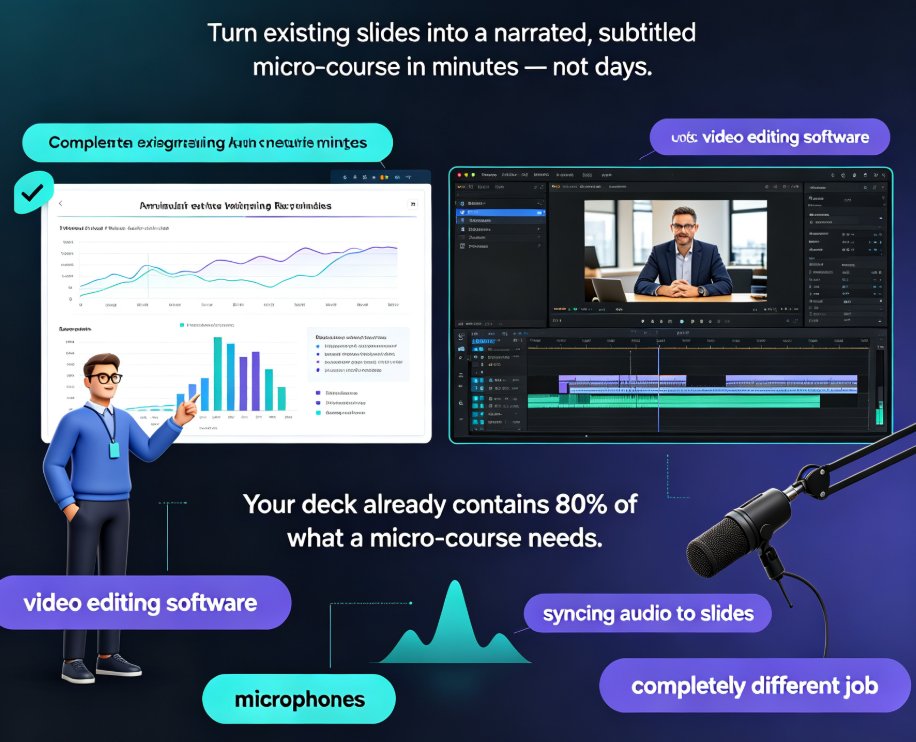
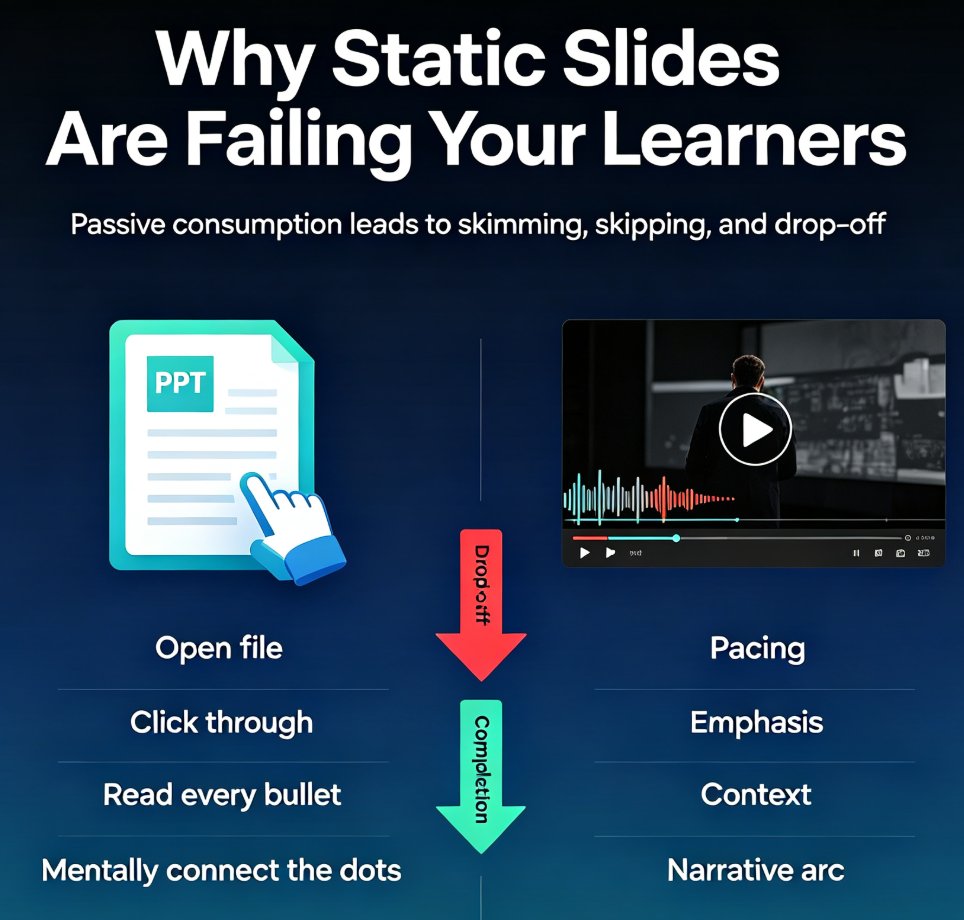
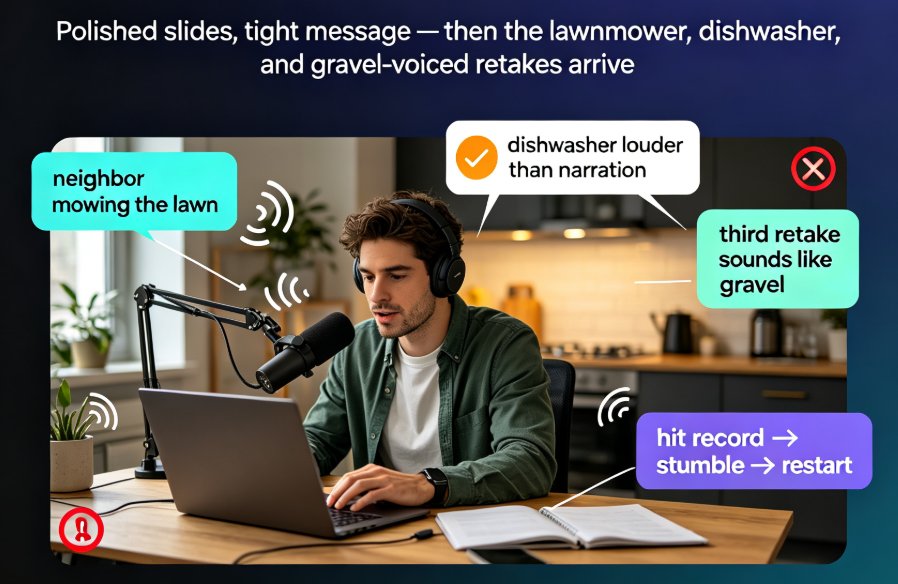
PPT to Video: The 2026 Trend of Turning Slides into Micro-Courses
You've got a 40-slide training deck that took three weeks to build. Now your manager wants it as a video course by Friday — with narration, subtitles, and something that doesn't look like a screen recording from 2014. Sound familiar?
If you're an educator, corporate trainer, or L&D lead, you've felt this squeeze. The demand for video learning content keeps climbing, but the time to produce it keeps shrinking. That's exactly why PPT to video conversion became one of the defining e-learning trends of 2026 — and why it's not a niche hack anymore, but a standard workflow.
Let's be real: you don't need a camera crew, a voiceover studio, or a video editor to make a micro-course. You need a deck you already own and an AI that does the heavy lifting. Here's how the trend works, what it actually costs, and how to use it without losing your sanity.
01 | Why PPT-to-Video Is the Trend Trainers Can't Ignore in 2026
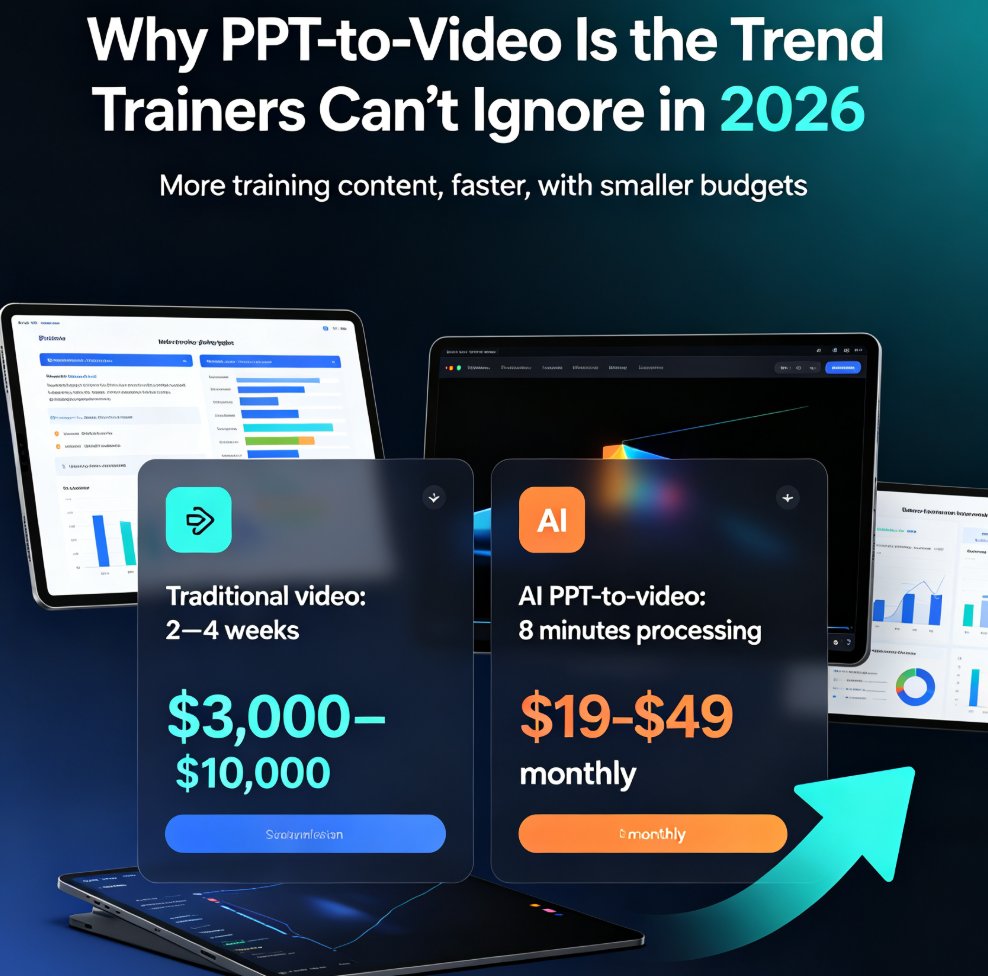
The shift isn't about technology for its own sake. It's about a math problem that got worse every year: organizations need more training content, faster, with smaller budgets.
Traditional video production for a 10-minute training module involves scripting, storyboarding, recording, editing, captioning, and revisions. That's typically 2–4 weeks and anywhere from $3,000 to $10,000 when you factor in studio time and an editor. Meanwhile, the same content already exists as a PowerPoint deck on someone's laptop.
AI-powered PPT-to-video flips the equation. A 50-slide deck becomes a 12-minute narrated course in about 8 minutes of processing time, according to workflow benchmarks from tools like X-Pilot. The cost drops to a monthly subscription — often $19–49 — or even free for a first export.
The outcome is simple: what used to take a production team three weeks now takes one person a single afternoon. That's not an efficiency tweak. That's a structural change in how training content gets made.
02 | What Actually Happens When You Convert a PPT to Video
If you've never done this, the mental model of "upload a PPT, get a video" undersells what's happening under the hood. Modern converters don't just screenshot your slides and add a robot voice. They rebuild your content for a video medium.
Here's the typical pipeline:
- Upload — You drag a PPTX file (usually up to 100MB) into the tool. The AI parses the slide hierarchy, bullet points, embedded charts, and speaker notes.
- Script generation — The AI writes a narration script from your slide text and notes. This is where the quality bar gets set. Good tools let you edit this script before rendering.
- Visual re-rendering — Your bullet points and tables get converted into animated "motion boxes," diagrams, and flowcharts optimized for video. This is the key difference from a screen recording.
- Narration and subtitles — The AI generates a voiceover and syncs subtitles to it.
- Export — You get an MP4 ready to upload to your LMS.
There's also an important choice most tools offer: slide-by-slide replay versus narrative mode. Slide-by-slide preserves your original layout and animations — great for compliance decks where structure matters. Narrative mode restructures your content into a flowing story, reorders sections, and generates new transitions — better for text-heavy decks that were never designed to be presented.
03 | The Cost and Time Reality: AI vs. Traditional Production
Let's put the numbers side by side. The chart below compares the time investment to produce a 10-minute training video through three different routes.
And here's the cost breakdown in a table, so you can see the full picture before you pitch this to your boss.
| Production Route | Time to Deliver | Cost | Skills Required | Revisions |
|---|---|---|---|---|
| Traditional video production | 2–4 weeks | $3,000–$10,000 | Scriptwriter, videographer, editor, voice talent | Slow, expensive |
| AI-assisted editing (record + AI polish) | 3–5 days | $500–$1,500 | Recording setup, basic editing | Moderate |
| AI PPT-to-video (Zendeck) | 1 afternoon | $19–49/month | None — just your deck | Instant, in-app |
The takeaway: AI PPT-to-video delivers roughly 95% of the production value at 1% of the cost and a fraction of the time. For internal training, onboarding, and compliance refreshers, that trade-off is a no-brainer.
04 | The 2026 Workflow: From Deck to Micro-Course in Five Steps
Here's the exact workflow I'd walk a trainer through today. It takes about an hour of your attention, most of it optional.
Step 1: Prep your deck (10 minutes). Make sure your slide text is editable, not embedded in images. If you have speaker notes, keep them — the AI uses them to enrich the narration script. A quick cleanup of typos here saves you editing time later.
Step 2: Upload and generate (3–5 minutes). Drop your PPTX into the tool. The AI parses the structure and generates a first-pass script. This is where you choose between slide-by-slide replay and narrative mode. If your deck is text-heavy or was never designed for presentation, pick narrative mode.
Step 3: Edit the script (10–20 minutes, optional but recommended). Read the generated narration out loud in your head. Shorten long sentences. Change the tone from corporate-speak to conversational. This is the highest-leverage editing you'll do — the audio quality of your course lives or dies here.
Step 4: Apply branding and export (5 minutes). Add your brand kit so colors, fonts, and logo stay consistent. Then export as MP4. If you're building a course library, this is also where you'd add subtitles for accessibility — a growing requirement in 2026, not a nice-to-have.
Step 5: Upload to your LMS. Drag the MP4 into Canvas, Moodle, or your corporate platform. Done. You now have a narrated micro-course that took one afternoon instead of one month.
05 | Where This Trend Pays Off Most: Real Scenarios
Not every deck deserves to become a video. But three scenarios keep coming up again and again in 2026:
Compliance training. The compliance manual is 60 pages of dense text that nobody reads. Convert it into a 15-minute narrated video with animated diagrams, and suddenly completion rates climb. This is such a common use case that dedicated workflows have emerged around it — you can see how a full compliance manual becomes an engaging course in practice.
Onboarding and internal training. New hires need to absorb company process, product knowledge, and tooling. A library of short video micro-courses beats a 200-slide deck every time. And because the content already exists in your training decks, the conversion cost is nearly zero.
Educator courseware. Teachers and professors are turning lecture slides into narrated lessons students can rewatch before exams. The accessibility win is huge: subtitles help non-native speakers and hearing-impaired students, and the video format works on any device.
The common thread in all three: the content already exists as slides. The bottleneck was never the material — it was the production pipeline. AI PPT-to-video removes that bottleneck entirely.
06 | How Zendeck Fits Into This Workflow
If you're already using Zendeck to build decks, the PPT-to-video feature is the natural next step — you don't need to export your deck and import it into a separate tool. The same platform that generates your slides handles the narration, subtitles, and animated visuals.
A few things worth knowing if you're evaluating tools:
- Script control matters. The best tools let you edit the narration before rendering. Zendeck does this inline, so you can adjust tone without leaving the editor.
- Brand consistency carries over. If you've set up a brand kit for your decks, the video output respects it. No more mismatched colors between your slides and your video.
- Subtitles are automatic. Voiceover and subtitle generation are built in, which saves you a separate captioning tool and a lot of manual syncing.
- Speaker notes become narration. If you've been writing speaker notes in Zendeck, they feed directly into the script generation — so your existing preparation work isn't wasted.
One honest caveat: AI narration still can't replace a charismatic human presenter for high-stakes external content. But for internal training, compliance refreshers, and educational micro-courses, the quality bar is more than sufficient — and the cost difference makes it an easy call.
07 | Practical Tips Before You Convert Your First Deck
A few things I've learned the hard way, so you don't have to:
Don't convert a deck that was never meant to be presented. If your slides are just a wall of text with no visual hierarchy, the video will inherit that mess. Spend 15 minutes cleaning up the deck first, or use narrative mode so the AI restructures the content.
Always read the generated script before rendering. AI writes competent narration, but it doesn't know your audience's inside jokes or your organization's preferred terminology. A 10-minute script edit saves you a full re-render later.
Keep videos short. A 12-minute micro-course is fine. A 45-minute video is a webinar, and nobody watches those on a Tuesday afternoon. If your deck is huge, split it into a series of short videos instead of one long one.
Mind the accessibility requirements. Subtitles aren't optional anymore in many organizations. Make sure your tool generates them automatically and that you can edit them if the AI mistranscribes a term.
08 | The Bottom Line
PPT-to-video isn't a gimmick or a shortcut that produces mediocre results. It's a legitimate production method that's reshaping how training content gets made in 2026. The economics are too lopsided to ignore: one afternoon and a monthly subscription replaces a three-week production cycle and a five-figure budget.
If you've got a deck sitting in your drive that should be a video course, the only thing standing between you and a finished MP4 is the upload button. The trend is clear, the tools are mature, and the audience is waiting.
FAQ
What is PPT to video conversion?
PPT to video conversion transforms a static PowerPoint file into a narrated, animated MP4 course. Instead of recording your screen or reading slides aloud, AI parses the slide text and speaker notes, generates a narration script, and re-renders bullet points, tables, and diagrams as animated visuals optimized for video. The output is a professional lesson video, not a screen recording.
How long does it take to convert a PPT into a video course?
With AI-powered tools, a 50-slide deck typically becomes a 12-minute narrated video in about 8 minutes of processing time. Upload takes 30–60 seconds, script and visual generation runs 2–3 minutes, and rendering finishes in 1–2 minutes. Compare that to traditional video production, which often takes 2–4 weeks.
Do I need design or video editing skills to make a micro-course?
No. That's the whole point of the 2026 workflow. AI handles the narration script, subtitle timing, visual animation, and layout. You only review and tweak the script if you want to adjust tone or wording. Tools like Zendeck also let you apply a brand kit so the video matches your organization's colors and fonts automatically.
Can I edit the AI-generated narration after conversion?
Yes. Most modern PPT-to-video tools, including Zendeck, generate a script you can edit before export. You can shorten sentences, change the tone from formal to conversational, or add context. The AI re-syncs the audio and subtitles to your edited script, so you don't have to re-record anything manually.
What video formats can I export for an LMS or training platform?
Standard output is MP4, which works with virtually every LMS, including Canvas, Moodle, and corporate training platforms. Some tools also offer WebM. If you're building a micro-course library, export MP4 and upload directly to your LMS module — no transcoding needed.