PPT to Video 2026: Narration and Auto-Subtitles Become Table Stakes
Introduction
Remember when a PowerPoint deck was the final deliverable? In 2026, that's not enough. Audiences expect video—narrated, subtitled, and ready to share. Whether you're training employees, pitching investors, or teaching students, a static slide deck feels like a relic. The solution? Convert your PPT into a video with AI-generated narration and auto-subtitles. And here's the kicker: these features are no longer premium add-ons—they're table stakes.
Narration and auto-subtitles are no longer nice-to-have features—they're the baseline for any professional presentation. If your tool doesn't offer them, you're already behind.
01. Why Narration and Auto-Subtitles Are Now Table Stakes
Let's be real: nobody wants to read a 50-slide deck on their own. They want to watch a short video that explains the key points. Narration brings your slides to life, guiding viewers through the content. Auto-subtitles make that video accessible to everyone—including those in noisy environments, non-native speakers, and people with hearing impairments.
The demand for video content is exploding, and presentations are no exception. According to recent industry reports, video content is projected to account for over 82% of all internet traffic by 2026. That means your audience is already consuming video everywhere. If your training module or sales pitch is still a static PPT, you're missing out.
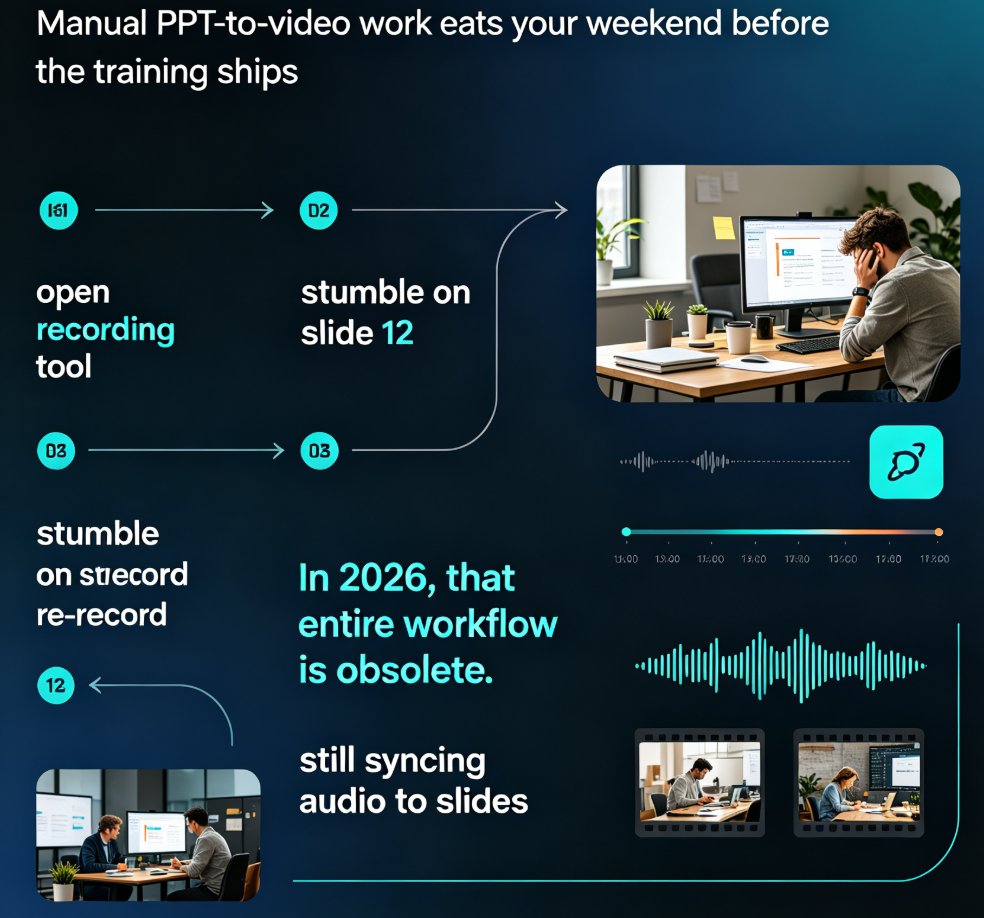
Pain point: Creating a narrated video from slides used to require expensive recording equipment, voice actors, and hours of editing. Solution: AI-powered tools now generate realistic voiceovers and subtitles automatically. Outcome: You can produce a professional video in minutes, not days.
02. What to Look for in a PPT-to-Video Tool
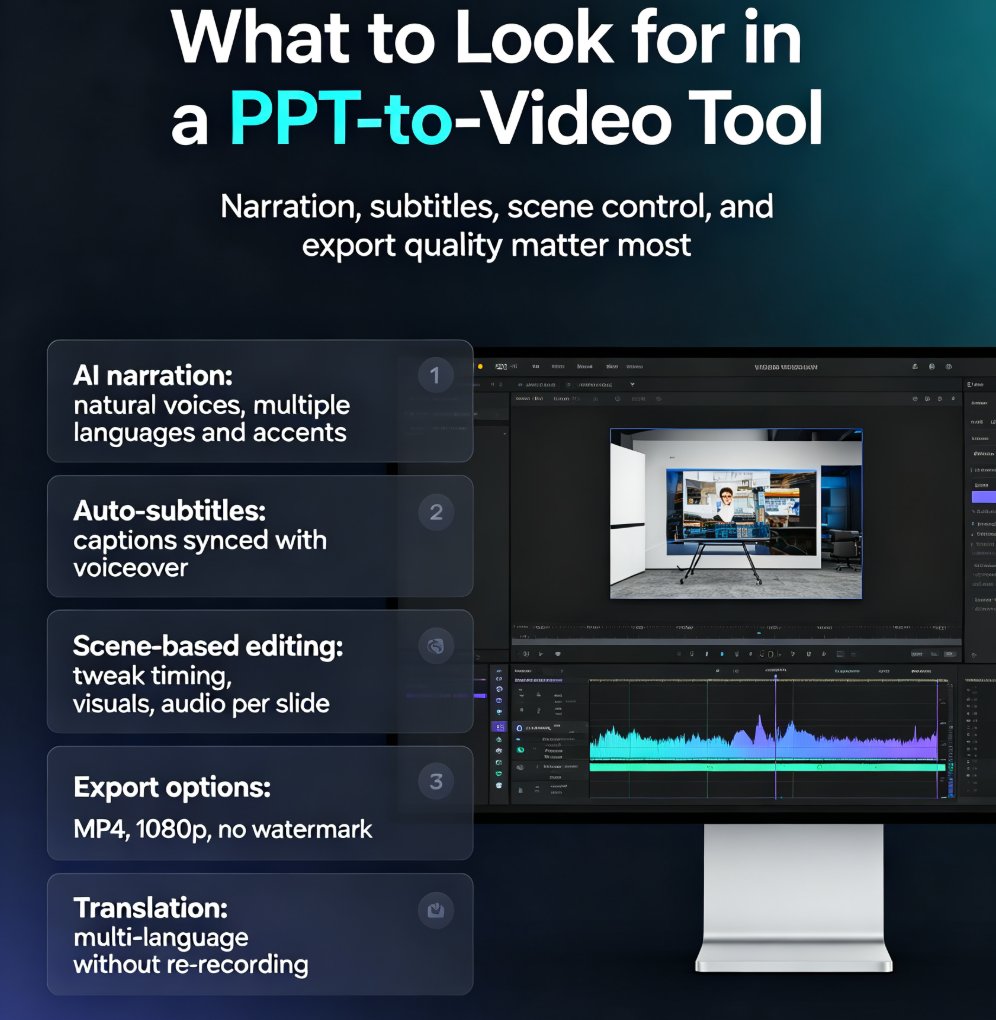
Not all PPT-to-video converters are created equal. Here's what separates the best from the rest:
- AI narration: Natural-sounding voices in multiple languages and accents.
- Auto-subtitles: Automatically generated captions that sync with the narration.
- Scene-based editing: Each slide becomes a separate scene, so you can tweak timing, visuals, and audio individually.
- Export options: MP4, 1080p, no watermark (or at least a free tier).
- Translation: The ability to translate the video into multiple languages without re-recording.
Let's compare some popular tools:
| Tool | AI Narration | Auto-Subtitles | Scene Editing | Translation | Free Tier |
|---|---|---|---|---|---|
| Colossyan | Yes | Yes | Yes | Yes | Limited |
| Vidocu | Yes | Yes | Yes | Yes | Yes (no watermark) |
| VEED | Yes | Yes | Yes | Yes | Limited |
| SlideSpeak | Yes | Yes | Yes | No | Limited |
| Zendeck | Yes | Yes | Yes | Yes | Yes |
Zendeck stands out with its seamless integration of narration, subtitles, and brand consistency. Plus, it's designed for educators and teams who need to create micro-courses quickly. For a deeper dive into Zendeck's narration features, check out how to add narration to your slides and how to add voiceover and subtitles.
03. Step-by-Step: Convert Your PPT to a Narrated Video with Auto-Subtitles (Using Zendeck)
Let's walk through the process with Zendeck, because it's one of the few tools that handles the entire workflow—from slide design to video export—without breaking a sweat.
Step 1: Upload your PPT or outline. Zendeck accepts Word outlines, Markdown, or existing PPTX files. It parses each slide, including speaker notes.
Step 2: Let AI generate the narration script. Zendeck uses your slide content and speaker notes to create a natural-sounding script. You can edit it per slide if needed.
Step 3: Choose your AI voice. Pick from a range of voices, accents, and languages. Zendeck supports 30+ languages, so you can localize your video without re-recording.
Step 4: Add auto-subtitles. Zendeck automatically generates subtitles that sync with the narration. You can adjust timing or style to match your brand.
Step 5: Export your video. Render as MP4 at 1080p, ready to share on your LMS, YouTube, or social media.
The entire process takes about 10 minutes for a 20-slide deck. Compare that to the hours you'd spend recording and editing manually. For a more detailed walkthrough, see our guide on converting PowerPoint to an AI-narrated video.
04. Common Mistakes to Avoid
Even with AI, there are pitfalls. Here are the ones I see most often:
Mistake 1: Not editing the AI narration. AI voices are good, but they can mispronounce names or industry terms. Always review the script and add custom pronunciations if your tool supports it.
Mistake 2: Ignoring subtitle accuracy. Auto-subtitles are great, but they're not perfect. Check for errors, especially with technical jargon.
Mistake 3: Forgetting about mobile viewers. Many people watch videos on their phones. Make sure your slides are readable on small screens—avoid dense text and tiny fonts.
Mistake 4: Overloading the video with effects. Keep transitions and animations subtle. The focus should be on the content, not the flash.
Pro tip: If you're creating a series of training videos, use a consistent template and voice. This builds familiarity and reinforces your brand. Zendeck's brand kits make this easy. Explore more tips in our article on AI presentation mistakes to avoid.
05. The Future of PPT-to-Video in 2026
The trend is clear: AI is making video creation faster and more accessible. In 2026, we're seeing:
- AI agents that can generate an entire video deck from a text prompt.
- Interactive videos with branching scenarios and quizzes.
- Real-time translation that lets you reach global audiences instantly.
- Deeper integration with learning management systems and corporate training platforms.
The tools that survive will be the ones that combine narration, subtitles, and interactivity seamlessly. Zendeck is already moving in that direction with its PPT-to-video feature and interactive training modules. If you're still converting PPTs manually, now's the time to upgrade. The gap between static slides and video is only going to widen.
For more on where this is heading, check out our analysis of AI-generated video decks replacing corporate training and the PPT to video category for the latest guides.
FAQ
Q: Can I convert a PPT to video with narration for free? A: Yes, many tools offer free tiers. Zendeck's free plan includes basic narration and subtitles, though you may have a watermark or resolution limit.
Q: How long does it take to convert a PPT to video? A: With AI tools, a 20-slide deck can be converted in about 10 minutes, including narration and subtitles. Manual methods can take hours.
Q: Can I edit the AI-generated narration? A: Absolutely. Most tools, including Zendeck, let you edit the script per slide and even re-record with your own voice if needed.
Q: Do auto-subtitles support multiple languages? A: Yes, many tools generate subtitles in multiple languages and even translate the narration. Zendeck supports 30+ languages.
Q: What's the best format for exporting a PPT-to-video? A: MP4 is the most versatile format, compatible with almost every platform. Look for 1080p resolution for crisp quality.