PPT-to-Video in 2026: How Static Slides Become Interactive Courses
The 10-Minute Slide That Nobody Watched
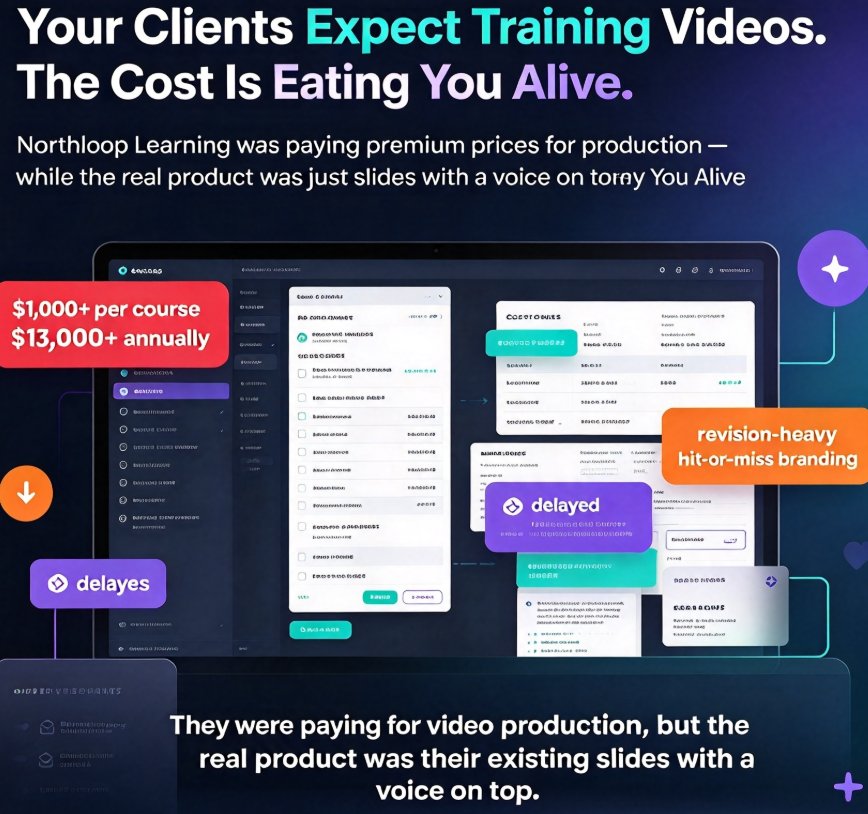
Let's be honest about one thing: most static slide decks are doing very little work. You build a beautiful 40-page onboarding deck, share it as a PDF, and hope people read it. Then the data comes back — 30% completion, maybe less — and someone suggests re-training. Nobody watched the thing. That's not a content problem; it's a format problem.
In 2026, the format is fixing itself. PPT-to-video has moved past simple screen recording and into intelligent, interactive video production. Tools can now write a script from your slide text, generate a natural voiceover, burn in synchronized subtitles, and even drop a quiz at the end. You upload a deck; you get a micro-course.
If you're an educator, trainer, or HR lead, this changes the math on content production entirely. Here's how we got here, what the pipeline actually looks like, and why interactivity — not just narration — is the real game-changer.
01. Why Static Decks Are Losing in 2026
Look at how your team actually consumes training. They're on a phone between meetings, on a commute, or multitasking at a desk. A static slide deck demands full attention with zero payoff — no pacing, no voice, no feedback loop. Underperforming training content is usually a delivery problem, not a knowledge problem.
The shift to video-first learning doesn't mean people suddenly love watching hour-long lectures. It means short, narrated, self-contained videos that feel finished and respect a viewer's time. Micro-courses of 5–15 minutes work because they fit into real schedules and give immediate closure.
That's the real reason the 2026 conversation has shifted from "should we make video?" to "how do we make video without a production team?" Everyone agrees on the destination. The debate is purely about cost and effort.
02. The Three Pillars of Modern PPT-to-Video
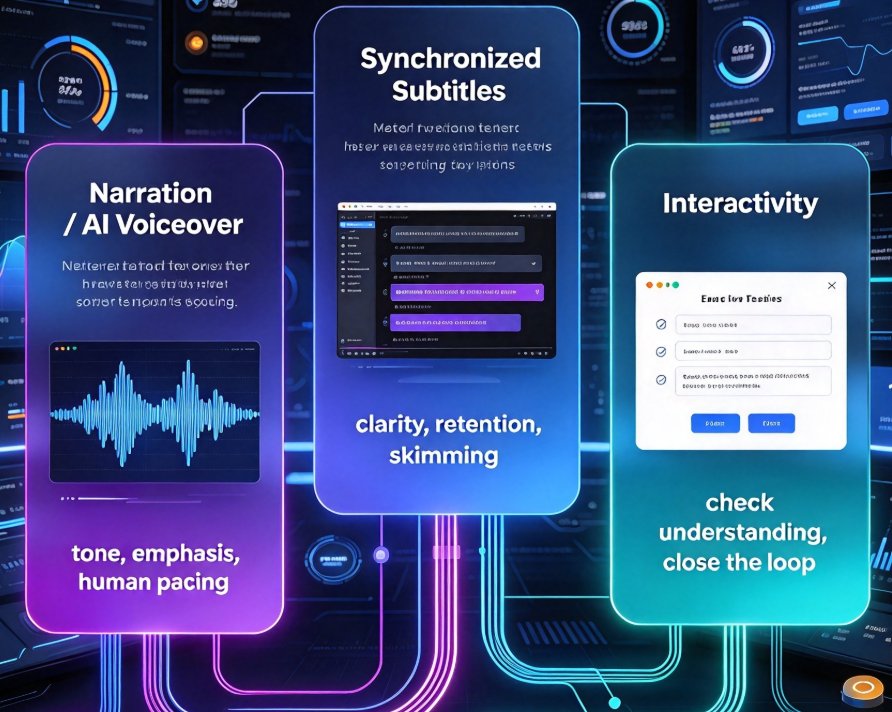
Narration, subtitles, and interactivity. These three things separate a "converted PPT" from an actual micro-course. Let's break each one down.
Narration (AI voiceover). Text on a slide doesn't explain; it states. A voiceover adds tone, emphasis, and a human cadence that carries the learner through the material. Modern AI voices are good enough that most viewers can't tell the difference — and you can pick a pace that fits the content, from calm compliance walkthroughs to energetic sales training.
Auto-subtitles. This one is non-negotiable. A huge portion of corporate training is watched on mute — in open offices, on commutes, in noisy environments. Auto-generated subtitles aren't an accessibility add-on anymore; they're the default way people actually consume video. They also make your content searchable and easier to skim for key points.
Interactivity. Here's where 2026 differs from last year. The best tools now let you embed polls, quizzes, and branching questions into the video flow. A viewer doesn't just watch — they answer, get feedback, and move on. That active engagement is what lifts completion and retention rates, especially for compliance and onboarding content.
03. What the Production Math Actually Looks Like
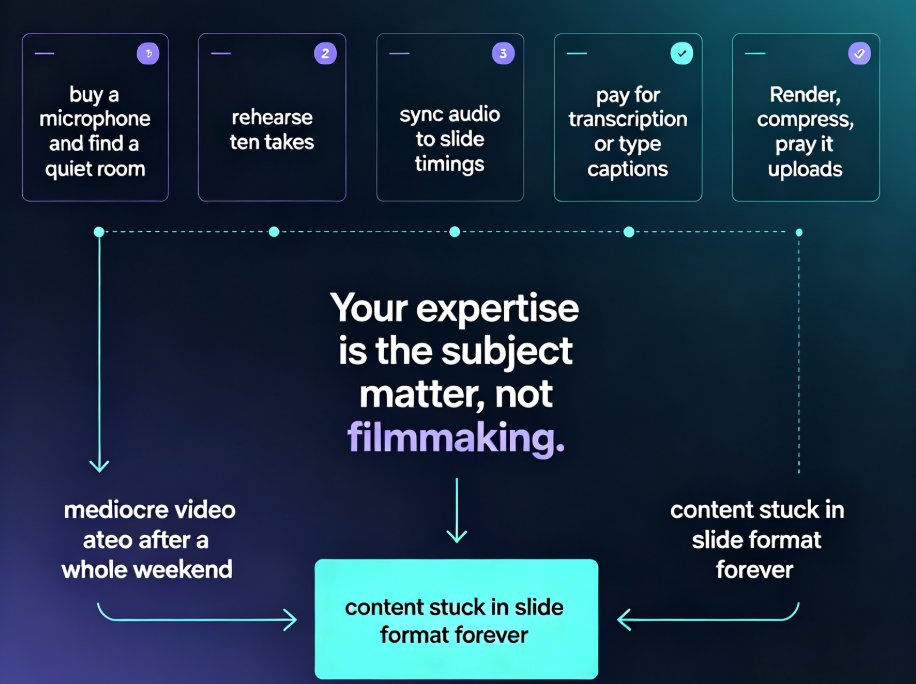
Let's put real numbers on this. For a standard 10-minute micro-course, the traditional production pipeline looks like this: write the script (a few hours), record voiceover in a quiet room or book a studio (half a day), sync subtitles manually (surprisingly painful), edit the video (longest step), and export multiple versions for different platforms.
Here's a comparison of the traditional pipeline versus an AI-assisted pipeline using a tool like Zendeck, based on typical project estimates for the same 10-minute course:
| Production step | Traditional workflow | AI-assisted (Zendeck) |
|---|---|---|
| Script writing | 3–4 hours | ~30 minutes (AI draft + your edits) |
| Voiceover recording | 4–5 hours (studio or retakes) | AI voice synthesis in minutes |
| Subtitle generation & sync | 2–3 hours manual | Auto-generated, lightly reviewed |
| Editing & transitions | 5–6 hours | AI-applied layouts and pacing |
| Export & formatting | 1 hour | One-click MP4 export |
Across three common course lengths, here's how the total hours stack up:
The numbers are dramatic but honest: an AI pipeline cuts production time by roughly 85–95%, depending on course length. The real insight isn't just the hours saved — it's that the time you do spend shifts from mechanical editing to creative review. You're deciding how to phrase a point, not syncing subtitles frame by frame.
04. The End-to-End Pipeline: Outline to Published Video
Here's where this gets practical. The best way to think about modern PPT-to-video is as a pipeline, not a single button. A mature tool like Zendeck walks you through the whole thing in stages.
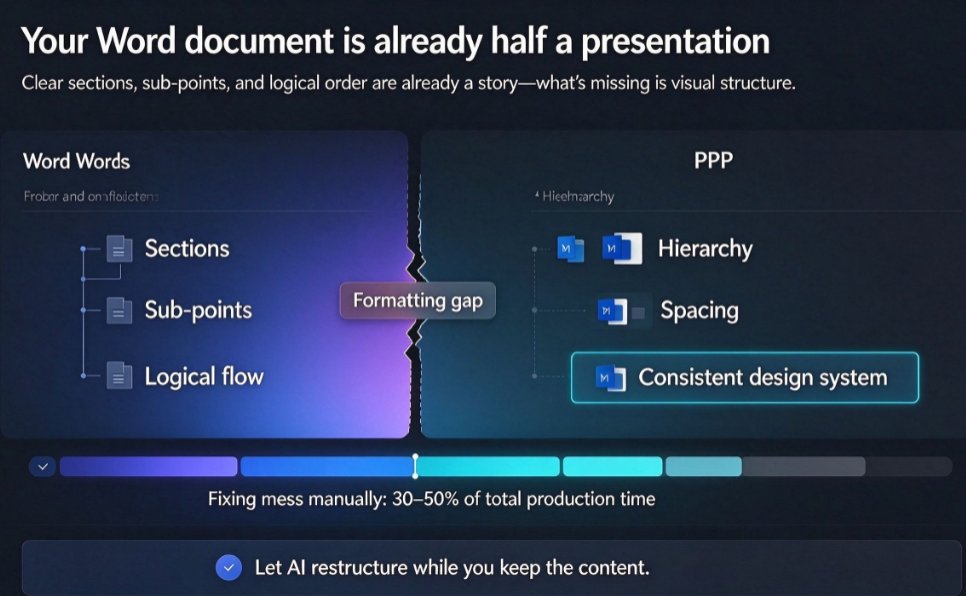
Step 1 — Start with a deck or even an outline. You can upload an existing PowerPoint, paste Markdown or TXT, or start from a Word outline. The AI builds a structured, visually consistent deck first if you don't have one. This matters if your source material is a mess of old bullet points — you get a fresh, clean layout before any video work begins.
Step 2 — Let the AI generate the script. The tool reads your slide content and drafts narration that flows naturally between points. This is your moment to edit. Read it out loud, tighten the language, cut anything that sounds promotional, and add the specific details only you know. The AI drafts; you decide the voice and the tone.
Step 3 — Pick a voice and generate narration. Choose from the available AI voices, set the pace, and generate. If the first voice feels wrong, pick another — it costs seconds, not a studio booking.
Step 4 — Review auto-subtitles. Subtitles appear automatically and sync to the narration. You skim for accuracy — names, acronyms, technical terms — and fix anything the AI got wrong. For accessible courseware, this is where you also verify caption quality, which matters more than ever in 2026.
Step 5 — Add interactivity and export. Drop a quiz question at the end, add a poll, or insert a branch. Then export an MP4 that's ready to upload to your LMS, YouTube, or internal sharing tool. No editing suite, no rendering queue, no version chaos.
The whole flow works whether you're converting compliance training, onboarding material, or a lecture deck. If you're starting from scratch, you can also build the entire course from an outline directly — the video is just the final output of a course-creation workflow, not a separate production chore.
05. Keeping the Micro-Course Human (and Actually Good)
A faster pipeline doesn't automatically mean better content. Let's be real — AI narration is great, but bland AI narration is still bland. Here are a few habits that keep your converted courses feeling human.
Write for the ear, not the slide. Slide headlines are short and abrupt; spoken narration needs connective tissue. When reviewing the generated script, ask: would I actually say this sentence in a meeting? If not, rewrite it. Short sentences, natural transitions, a clear "here's why this matters" at the top of each section.
Use the subtitle pass as a quality gate. This is a free proofread. If the subtitles force a long awkward pause or split a word badly, that's usually a sign the script needs tightening too. Fix both at once.
Add one interaction per course, minimum. A quiz after the key section or a poll halfway through breaks the passive viewing trance. It also gives you data — completion and quiz results — which is exactly what training teams need to justify the program to leadership.
A friendly tip that doesn't sound like a corporate mandate: keep your courses under 15 minutes unless the topic genuinely demands more. If you have a 40-slide deck, that's likely two or three micro-courses, not one long video. Short and finished always beats long and abandoned.
06. Where This Is Heading Next
The 2026 trajectory is clear. Video creation is becoming a byproduct of good course design, not a separate production discipline. AI agents are starting to generate an entire video deck from a text prompt, and interactive videos with branching scenarios and embedded quizzes are becoming the norm rather than the exception.
Real-time translation is also arriving, which means a single narrated course can reach global teams without re-recording. And as tools integrate more deeply with learning management systems and corporate training platforms, the day will come when you publish straight from the authoring tool into the LMS, results included.
The tools that will survive this wave are the ones that combine narration, subtitles, and interactivity seamlessly. That's exactly the direction Zendeck is moving with its PPT-to-video feature and interactive training modules. If you're still converting decks manually — recording your own voiceover in a closet, building subtitles in a video editor, exporting multiple versions — the gap is only going to widen.
07. Where to Start Today
You don't need to overhaul your whole content strategy to benefit from this. Pick one underperforming deck — the onboarding walkthrough, the compliance refresher, the safety training that everyone clicks through — and convert it into a narrated micro-course.
Upload the deck, let the AI draft the script, pick a voice, review the subtitles, add one quiz, and export the MP4. That's a complete loop you can finish in a couple of hours, and it will perform better than the static PDF ever did. When you see the completion numbers, you'll know why the format is the message.
For a deeper breakdown of the workflow and the time savings, check out our guide to AI PPT-to-video in corporate training, or if you're ready to act, walk through the step-by-step process of converting a deck to video with Zendeck.
FAQ
Q: What exactly does an AI PPT-to-video tool do? A: It converts a slide deck (or a Word outline) into a narrated video automatically. The AI writes or refines the script, generates a voiceover, burns in synchronized subtitles, and can add transitions and interactive elements. With Zendeck, you upload a deck, review the generated script, pick a voice, and export an MP4 that's ready to share.
Q: Do I need a microphone, camera, or video-editing software? A: No. That's the whole point. The voiceover comes from AI voice synthesis and subtitles are auto-generated, so you don't record or edit anything. All you need is a finished deck — or even just an outline — and Zendeck handles the rest.
Q: Can I edit the narration and subtitles after the AI generates them? A: Yes. You can read through the generated script, tweak wording, change the voice and pace, and refine subtitle text before export. The pipeline is designed for humans to stay in control of tone and accuracy, so the final video sounds like you, not a robot.
Q: Why are interactive videos better than static slides for training? A: Static slides rely on passive viewing, which loses attention quickly. Video adds narration, pacing, and visual flow. Adding interactive quizzes and branches turns watching into doing, which improves retention and completion rates — critical for compliance training and onboarding.
Q: How long does it really take to convert a deck with Zendeck? A: For a standard 10-minute micro-course, the AI-assisted pipeline typically takes under two hours of actual work, compared to roughly 15 hours with traditional production. Most of that time is your review of the script and subtitles, not manual production.