Word Outline to Deck in 10 Minutes: Zendeck AI Generator Workflow Guide
Word Outline to Deck in 10 Minutes: Zendeck AI Generator Workflow Guide
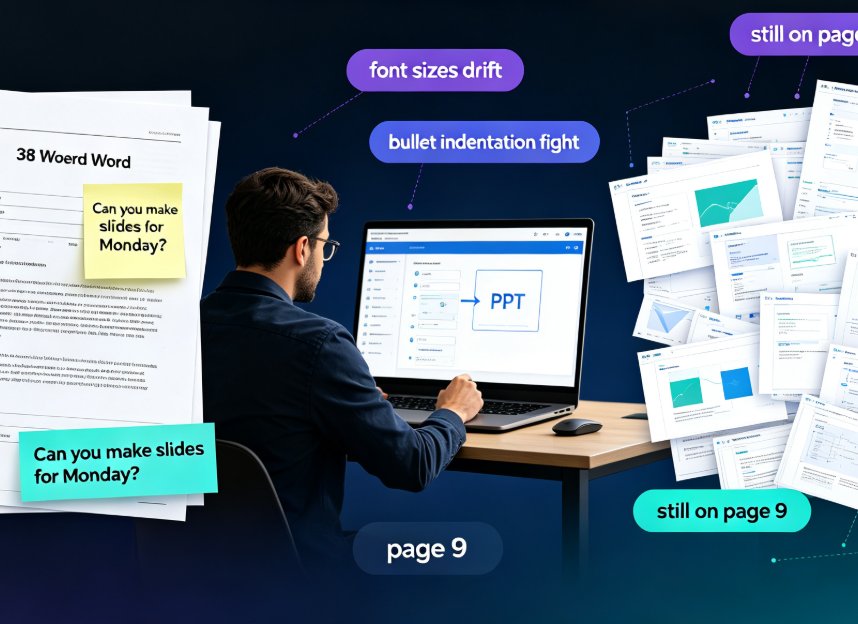
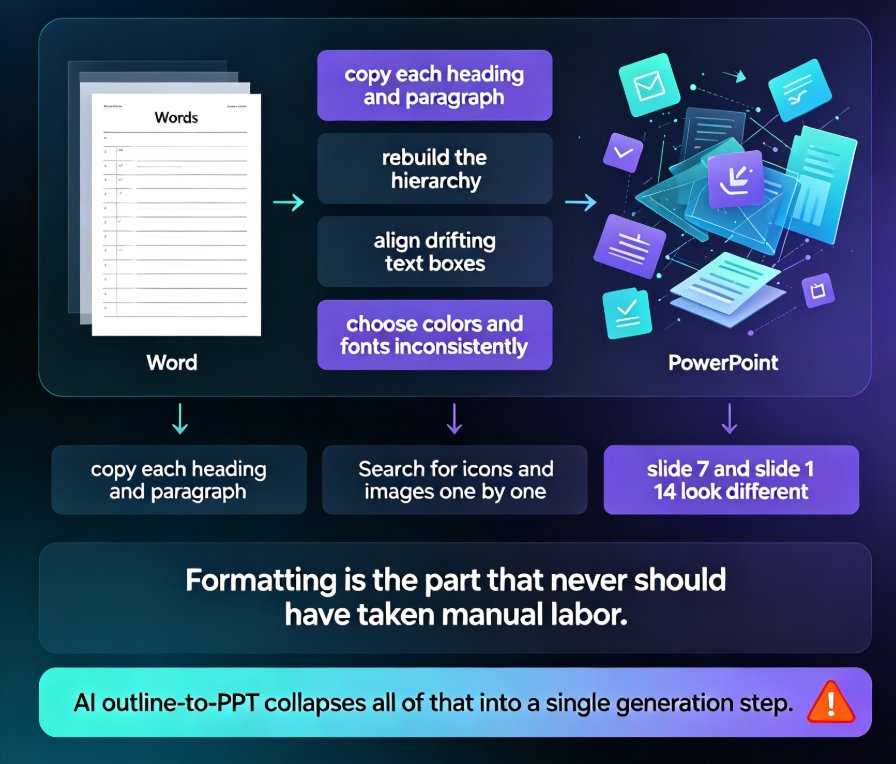
You've already done the hard part. The thinking, the research, the 40 pages of course notes — it's all sitting in a Word outline with every argument sequenced, every example cited, and every lesson mapped out. Then you open PowerPoint, and the real work begins: dragging placeholders, fighting bullet indent levels, manually aligning shapes, and praying the colors don't clash on slide 17.
Sound familiar? If you teach or train for a living, you've burned entire evenings on this exact grind. The outline took you hours to write, but the formatting took twice as long — and it added zero educational value.
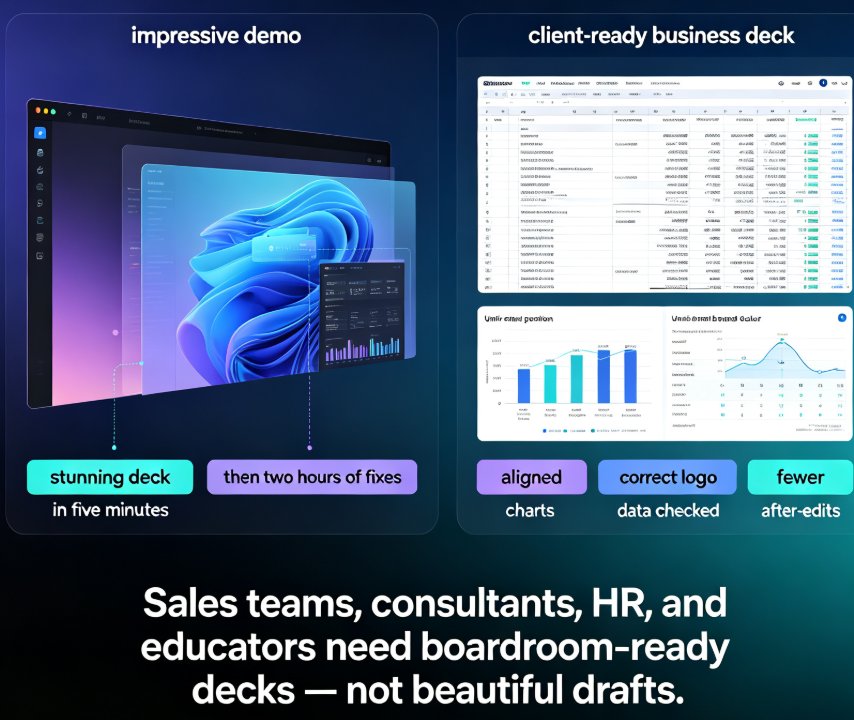
Here's the good news: that formatting tax is now a solved problem. AI presentation tools like Zendeck can convert a plain Word outline into a structured, visually consistent deck in roughly ten minutes, with no design skills required. This guide walks you through the complete pipeline — prep, import, generation, reskin, and review — plus the pitfalls that trip up most first-time users.
01 Why a Word Outline Is the Perfect Starting Material
Let's be real: most AI presentation guides assume you're starting from a blank prompt. You type a topic, the AI conjures slides out of thin air, and you hope the content matches your actual teaching plan. That's a fun demo, but it's a terrible workflow for educators and trainers, because the content is the part you already know better than any AI.
A Word outline is the ideal input because it carries structure. Your headings, sub-headings, and bullet levels encode a logical hierarchy that the AI can read directly: main points become slide headers, sub-points become body content, and the narrative flow is preserved.
Small tip from a friend: before you import, check your heading styles. If you've been bold-facing headers instead of using real Heading 1 / Heading 2 styles, the AI can't tell your main points from your asides. Fix that first — it takes 60 seconds and saves you a full review pass.
This is exactly how the better AI deck generators work under the hood. As SketchBubble's documentation puts it, the AI preserves your outline's hierarchy, "turning main points into slide headers and sub-points into body content" — no design skill, no layout headaches, no wasted time. Zendeck does the same, but with an extra layer of smart layout control aimed at teaching materials.
02 The Three-Phase Pipeline: Outline → Structure → Design
Zendeck's Word-to-deck pipeline breaks down into three phases, each with a distinct job:
- Import — upload your .docx file, paste Markdown, or drop in a TXT outline.
- Generate — the AI maps your outline hierarchy into slide structure, writes concise slide copy, and proposes a layout for each slide.
- Reskin — you apply a template or custom brand kit so every slide shares fonts, colors, and visual rhythm.
That final step is where most of your time savings live. In the manual world, maintaining visual consistency across 30 slides is a constant, soul-draining chore. In the AI world, it's a single click, because the design system is enforced by software, not by your willpower. If you want to dig deeper into how this works, our guide on Word and Google Docs integration for AI presentation tools covers the import mechanics in more detail.
03 Step by Step: Converting Your Word Outline in Zendeck
Here's the exact workflow I use when prepping a training deck or lecture series. It's the same sequence I'd walk a colleague through — no shortcuts, no magic.
Step 1: Clean Up Your Outline
Spend five minutes before importing, not after. 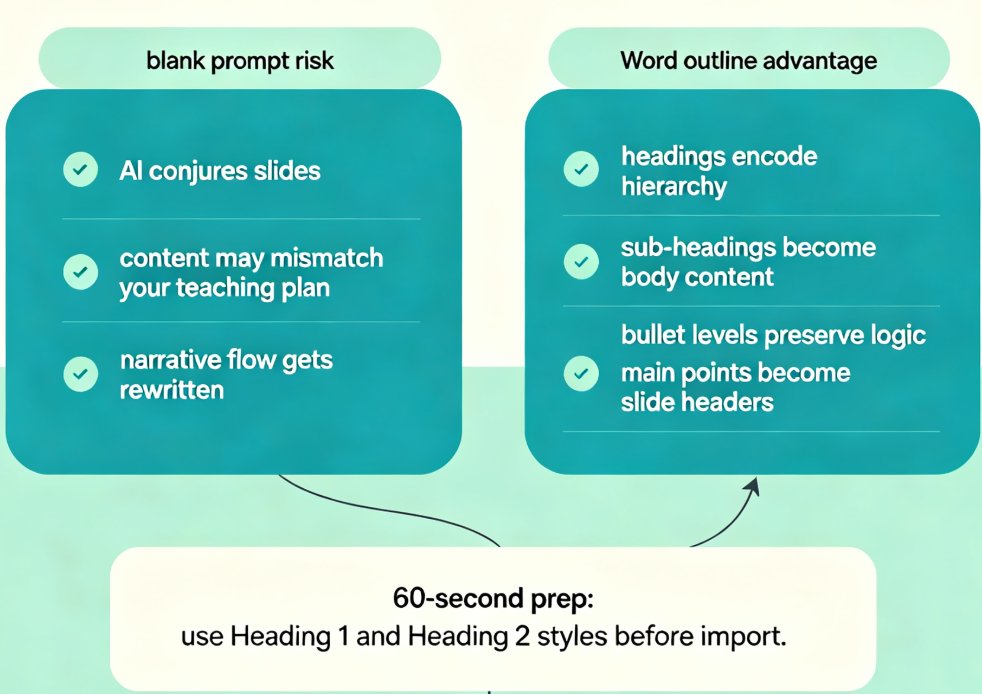
- Turn each main point into a Heading 1 — these become your slide titles.
- Turn supporting sections into Heading 2 — these become section breaks or body headers.
- Keep bullets under 5 per slide idea. If you have more, split the slide.
- Eliminate full paragraphs. The AI will compress them anyway, so save yourself the surprise.
This cleanup changes everything. A clean outline means the AI has nothing to guess about — and when an AI doesn't need to guess, it makes far fewer mistakes.
Step 2: Import Into Zendeck
Open Zendeck, create a new deck, and choose import. You can upload a .docx file directly, paste Markdown or TXT, or copy-paste your outline from Google Docs or Word. The tool reads the heading hierarchy and sends it to the generation engine.
Step 3: Let the AI Generate the Deck
Within seconds, Zendeck returns a structured deck: slide titles matched to your main points, body copy trimmed to crisp bullets, and a default layout applied across the board. You don't review every slide at this stage — you review the structure. Scroll through, check that the slide order mirrors your teaching flow, and flag any slide where the AI mangled the hierarchy.
Step 4: Apply a Template or Brand Kit
Here's where Zendeck shines for organizations with visual guidelines. If you've set up a custom brand kit, you can apply it here — your colors, fonts, and logo propagate to every slide automatically. If you haven't, pick from Zendeck's template library and let the AI match it to your content type. Our article on how Zendeck picks the right template for you walks through the selection logic if you want the details.
Step 5: Tweak, Export, Ship
Do a final pass on the generated copy. AI-compressed bullets occasionally drop a key qualifier like "always" or "except when." Read every slide aloud, fix the two or three slides that need it, then export to PPTX, PDF, or share via link. Total time: 10 to 15 minutes for a 20-to-30-slide deck.
04 Common Pitfalls (and How to Dodge Them)
Every new user hits the same walls. Here's what they are and how to vault them.
Pitfall 1: Your Outline Is Actually a Full Script
If your "outline" contains 200-word paragraphs, the AI will compress them hard — and you'll lose nuance. Fix: cut the prose before importing. Write your full script in a separate file if you need it for live delivery, but keep the outline lean.
Pitfall 2: Inconsistent Heading Levels
I once imported a course outline where every third section was bolded text instead of a heading style. The AI correctly treated those as body text, and the deck came out with slide titles that made zero sense. Fix: normalize your heading styles before import, every time.
Pitfall 3: Skipping the Content Review
AI makes plausible mistakes — a wrong date, a dropped caveat, an example that lands awkwardly when visualized. Always do one full read-through after generation. Our roundup of AI presentation mistakes to avoid in 2026 has more details on what to look for.
Pitfall 4: Ignoring Accessibility
If you share decks with learners, remember that visual consistency isn't enough. Text needs contrast, images need alt text, and video needs subtitles. Zendeck's auto-generated alt text and PPT-to-video subtitles can handle part of that for you, but you should still verify contrast on any template you pick.
05 What 10 Minutes Buys You: Before and After
Numbers make this real. Based on typical trainer workflows and the time estimates cited in AI presentation tool documentation, here's how manual PowerPoint work compares to the Zendeck pipeline for a 30-slide deck:
The takeaway: roughly 225 minutes of manual work collapses to 15. Design and layout alone — the part that requires the most skill and attention — drops from 80 minutes to 4. And because the design system is enforced automatically, consistency stops being a maintenance task entirely.
That's the quiet revolution here. You're not just saving time on individual slides; you're eliminating an entire category of work — the "make it look respectable" passes that eat your evenings. If you're interested in where this trend is heading, our piece on AI-driven design automation and smart layouts in 2026 charts the bigger picture.
06 When to Go Further: From Deck to Video Course
A polished deck is usually step one of a bigger asset. If you're a corporate trainer producing onboarding material, or a teacher building a flipped classroom, you probably want narrated video out of that deck, not just slides.
Zendeck's PPT-to-video feature takes the deck you just generated and adds narration with auto-generated subtitles, turning your Word outline into a full micro-course. That means the same source content can power a live lecture deck, a self-paced video, and a shared handout — all from one import. For a deeper look at how to extend a deck into video, check our guide on adding narration to slides with Zendeck's PPT-to-video.
07 The Bottom Line
If you've been avoiding AI presentation tools because you think they force you to start from scratch, you're missing the best use case. Your existing Word outlines are gold — they carry the structure, the pedagogy, and the expertise. Zendeck just removes the formatting tax.
- Clean your outline with real heading styles (5 minutes).
- Import into Zendeck (1 minute).
- Generate, reskin, review (10 minutes).
- Ship the deck — and optionally convert it to a narrated micro-course.
That's the whole workflow. You keep the authorship; the machine handles the production. And honestly, for anyone who's spent a Sunday evening realigning bullet points, that trade is worth every keystroke.
FAQ
Do I need design skills to turn a Word outline into a deck with Zendeck?
No. That's the entire point of the pipeline. Zendeck automatically maps your outline's main headings to slide headers and sub-points to body content, then applies consistent layouts, fonts, colors, and spacing for you. You write the content, and the tool handles the visual structure.
What file formats can I import into Zendeck?
You can upload a Word document (.docx), paste Markdown or plain TXT content, or copy an outline directly from another app. As long as your source preserves a heading hierarchy, Zendeck's AI can read the structure and convert it into slides.
How long does the conversion actually take?
With a well-structured outline, most decks generate in 10 to 15 minutes including template selection and final review. That compares to roughly three to four hours of manual formatting in PowerPoint for a 30-slide deck, according to typical trainer workflows.
Can I keep my company or course branding on the generated deck?
Yes. Zendeck's smart layout engine supports custom brand kits, so you can set your colors, fonts, and logo once and have every slide follow them automatically. You can also one-click reskin an existing deck instead of rebuilding it.
Can I turn the finished deck into a video course?
Absolutely. Zendeck's PPT-to-video feature converts your slides into narrated micro-courses with auto-generated subtitles. That makes a Word outline the starting point for not just a deck, but a full training asset.