Stuck Choosing a PPT Template? Zendeck Library Search Hacks
Stuck Choosing a PPT Template? Zendeck Library Search Hacks
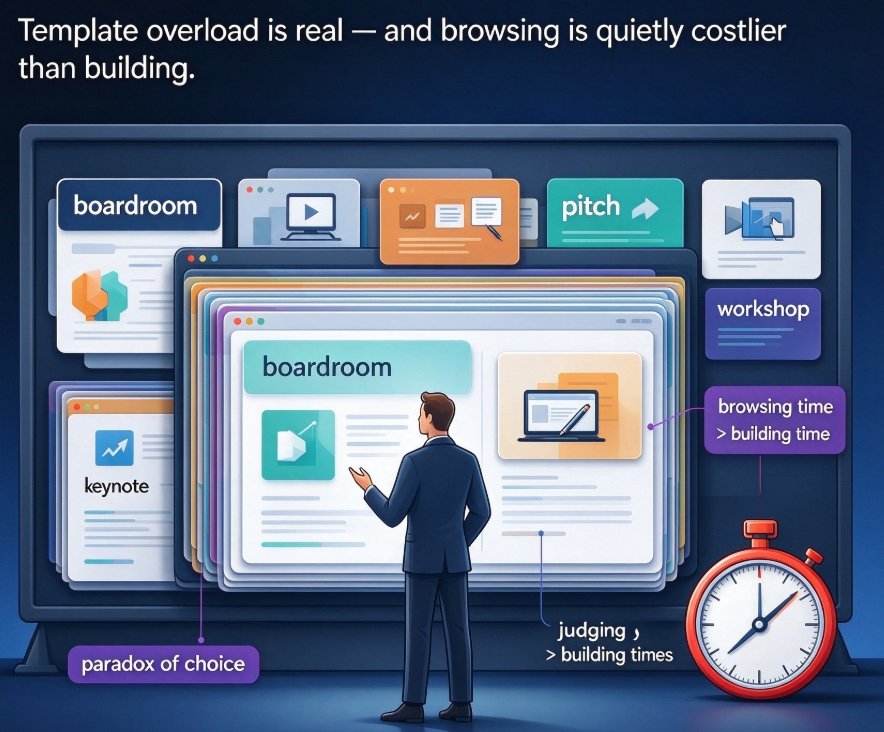
Here's a scene I bet you know: it's 9:40 PM, the deck needs to be ready for tomorrow's 9 AM meeting, and you've just spent twenty minutes flipping through template thumbnails. Sound familiar? You're not the problem — the problem is how you're searching.
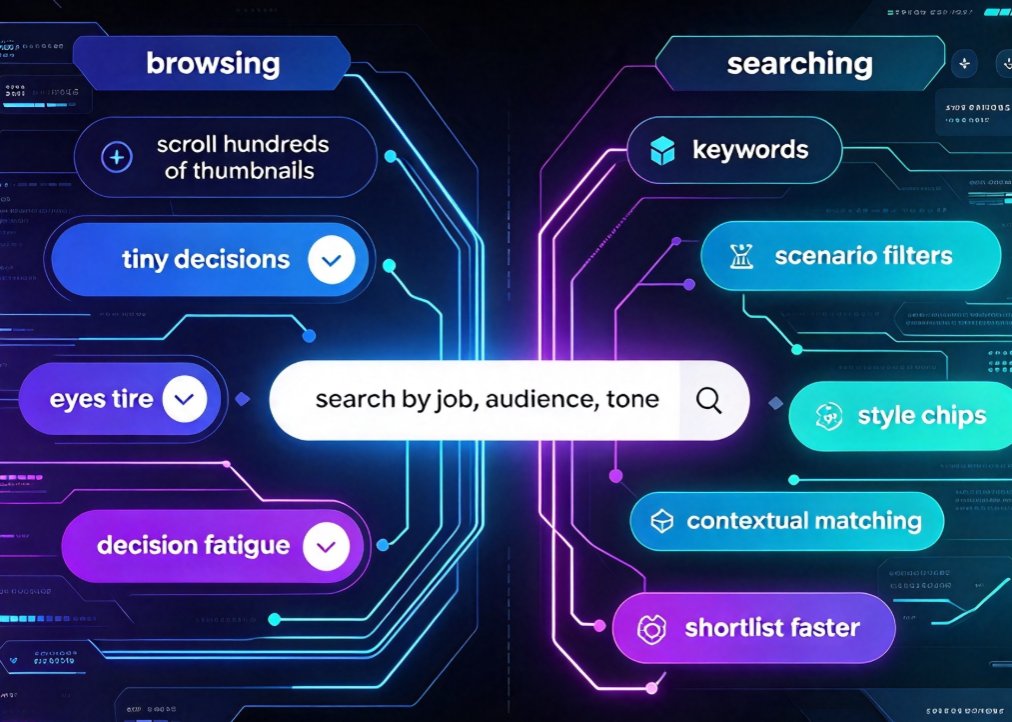
There's a reason this keeps happening. When you scroll through hundreds of templates, every slide block starts to blur together, and "just pick one already" takes over your brain. But here's the thing: template selection is a search problem, not a browsing problem. Once you treat it that way, you can go from twenty minutes of thumb-scrolling to about thirty seconds of searching.
That's exactly what we're covering today: the keyword moves, the filter combos, and the audience-matching shortcuts that power Zendeck's premium template library. Plus a quick test you can run on any shortlist before you commit.
I. Stop Scrolling: The Case for Searching
Let's be honest about what happens when you browse a template gallery the lazy way. You open the library, your eyes land on the first page of thumbnails, and you scroll. And scroll. And scroll. Ten minutes later, you're comparing two templates that look suspiciously similar, and you still haven't made a call.
The real culprit is decision fatigue. Each thumbnail is a tiny decision — "Do I like this?" "Will my audience get it?" "Does this look professional enough?" — and your brain runs out of gas long before you reach the bottom of the page.
The fastest way to find the right template isn't browsing — it's searching.
Search forces you to commit to what you actually need before your eyes touch any visuals. And that's exactly what modern template libraries are built for. As platforms move toward contextual template matching over generic galleries, the search bar becomes the most powerful tool on the screen — which is why you need a strategy for using it well.
If you're wondering why libraries went down this road, the short version is that contextual templates simply outperform generic ones — they're picked for the job at hand, not for looks alone. That shift is quietly reshaping how everyone builds decks.
II. Think in Keywords, Not Categories
Here's the mental model that changes everything: don't look for a template by its visual style — look for it by what's inside. The search bar isn't a category browser; it's a keyword engine. Type what your content is about, and let the library do the matching.
What kind of keywords actually work? Think in four buckets:
1. Audience words. Who is this deck for? Try "education," "corporate," "startup," "sales," or "training." These pull up templates tuned to that audience's expectations.
2. Tone words. How should the deck feel? Words like "minimal," "bold," "professional," "playful," or "modern" narrow the visual mood fast.
3. Content words. What's actually inside the slides? Got timelines? Search "timeline." Charts? "Chart" or "data." A roadmap? "Roadmap." Matching the template's internal layout to your content saves you hours of rearranging later.
4. Color words. If your company or classroom has a color identity, type it — "blue," "green," "black and gold." Filtering by color upfront means you won't spend the next half hour recoloring every slide.
Let me make this concrete. Building a quarterly business review? Don't browse the "business" category and hope for the best — search "quarterly review" plus "chart." A K-12 teacher building courseware? Skip the slow scroll through the education folder and search "lesson plan" or "science project," and you'll get layouts that already make room for your content.
The payoff: keyword-first searching gets you to a usable shortlist in under a minute, while browsing often takes five to ten. That's not just a speed win — it's a quality win, because the templates you land on already match your content structure, not just your taste.
This is the same logic behind why AI-driven template selection is taking over — the platform gets good at guessing what works for your content, so you stop guessing entirely.
III. Combine Filters Like a Pro
A single keyword gets you started, but the real magic happens when you stack filters. Most people try one filter, get a mediocre batch, and give up. Don't. Combining two or three filters narrows the field so dramatically that the right template basically picks itself.
Here's a practical filter-stacking recipe that works across modern template libraries, including Zendeck's:
Step 1: Set the scenario. Pick the use case — business, education, marketing, medical, and so on. This instantly drops templates built for other jobs. A flashy marketing template rarely serves a medical training deck well, and nobody has time to discover that at slide twelve.
Step 2: Lock the style. Choose the visual mood — professional, minimal, playful, digital, aesthetic. Now you've gone from "all business templates" to "minimal business templates."
Step 3: Match the color. Select a target color that aligns with your brand or your classroom theme. This final filter kills the "I'll just recolor it later" trap — because you won't have to.
Let me run a real scenario to show how this stacks up:
- Goal: A clean corporate onboarding deck in your brand blue.
- Search: "onboarding"
- Filters: Scenario = Business | Style = Minimal | Color = Blue
- Result: A shortlist of maybe five templates, all fit for purpose — done in about two minutes.
Compare that to browsing: thirty or forty thumbnails, three tabs open, and a vague feeling that you're settling. Which workflow sounds better when it's 9:45 PM?
IV. Match the Template to the Audience, Not Your Taste
Here's the trap a lot of us fall into: we pick templates we personally like, then try to force the audience into them. Wrong order. The template should serve your audience first and your taste second — and the filters let you switch into audience-matching mode fast.
Different audiences reward different template traits. The table below is my go-to cheat sheet for translating audience needs into a filter combo:
| Audience | Template traits to look for | Filter combo to try | Search keywords that work |
|---|---|---|---|
| Educators & trainers | High contrast, spacious text areas, clear hierarchy | Scenario: Education; Style: Clean; Color: Brand or neutral | "lesson plan," "courseware," "lecture," "training" |
| Corporate & HR | Brand-consistent, data-friendly, professional | Scenario: Business; Style: Minimal; Color: Brand colors | "onboarding," "quarterly review," "proposal" |
| Sales & startups | Bold, momentum-driven, visual-heavy | Scenario: Business; Style: Bold/Creative; Color: Single accent | "pitch deck," "product launch," "fundraising" |
| Students | Vibrant, visual, chart- and image-heavy | Scenario: Education; Style: Playful; Color: Any | "thesis," "book report," "science project" |
The pattern repeats every time: know who's watching, translate that into traits, then translate traits into filters. If you build courseware often, the Education scenario paired with a clean style is worth bookmarking — it saves you from re-litigating that decision on every single deck.
And if you produce a lot of educational material, these matching habits carry straight into the courseware design workflow — once the template fits, everything downstream gets smoother.
V. Save Your Winning Combos (and Build a Mini Brand Kit)
Here's the hack that pays off forever: every time you find a killer template + filter combo, save it. Don't rebuild the same search next time — make it a one-click repeat.
Most modern libraries let you preserve your preferences, and this is where you start building what's effectively a personal brand kit — save your brand colors, your go-to fonts, and your favorite style filter. Next time you open the library, your shortlist looks like your work, not a random sample of everything.
This matters more than you'd think. When a team consistently picks templates that share the same palette and typography, every deck starts to feel on-brand without anyone actively trying. That consistency compounds into real brand trust — the kind that makes people say "yeah, that looks like us" when a new deck lands in their inbox.
Building that habit takes five minutes but saves dozens on every future project. It's the closest thing to a zero-design brand governance system — and you get it just by using your template library smarter.
VI. The 30-Second Template Test
Once your search and filters have narrowed things down to a shortlist, you still need to commit. Here's a quick test you can run on any shortlist — thirty seconds per template, no more:
1. Is the title slide instantly readable? If the headline area fights with the background, your audience will feel it on slide one.
2. Are the layouts built for your content? Charts on the agenda? A template with chart placeholders is worth more than the prettiest slide you'll never use.
3. Can you swap in your brand colors without a fight? If a template's default palette is locked into your least favorite orange, either recolor it in a couple of clicks or move on.
4. Does it have slide variety? A strong template doesn't repeat one layout five times. Look for a mix of content slides, section dividers, and image-heavy layouts.
If a template passes those four checks, stop looking and start building. Perfectionism is the enemy of a finished deck. The search hacks you just learned already got you to a qualified shortlist — trust the filters, pick one, and go make the content great. That's where your time actually pays off.
FAQ
Q: What keywords should I type in Zendeck's template search? A: Think in four buckets: audience words ("education," "corporate"), tone words ("minimal," "bold"), content words ("timeline," "chart"), and color words ("blue," "green"). Combining a content word with an audience word — like "quarterly review chart" — gets you the most relevant results fastest.
Q: Can I combine multiple filters in the template library? A: Yes. Stack a scenario filter (business, education, marketing), a style filter (professional, minimal, playful), and a color filter. Using two or three filters together narrows the field dramatically and gets you to a shortlist of high-fit templates in about two minutes.
Q: How do I use the template library for education and courseware decks? A: Select the Education scenario filter and pair it with a clean or playful style, depending on your audience. Then search content-specific words like "lesson plan," "lecture," or "science project" so the layouts already match the structure of your material.
Q: Can I save my favorite template and filter combos for reuse? A: Yes. Save your preferred style, scenario, and brand colors to build a mini brand kit. On your next session, your shortlist already matches your identity, turning template selection into a one-click step instead of a fresh search.
Q: Do the templates work with my brand colors and fonts? A: Yes. After picking a template, apply your brand palette and fonts — and if you've saved your brand kit, the platform can apply them consistently so every deck feels unified.