From Word Outline to Narrated Video: The Complete AI Workflow
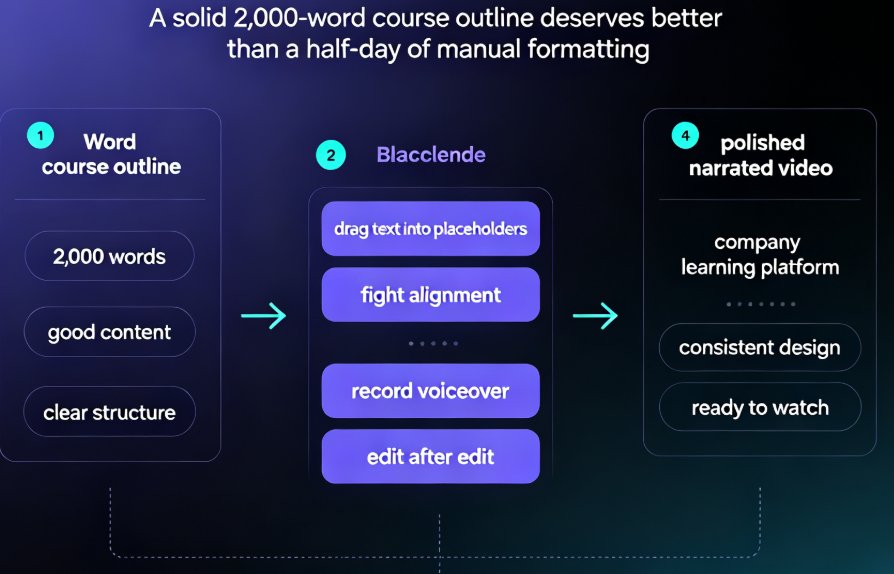
Picture this: you're an instructional designer. You've just finished a solid 2,000-word course outline in Word. The content is good. The structure is clear. But now you need it as a narrated video for your company's learning platform, and your design skills are, let's say, best described as 'functional.'
Sound familiar?
For years, the answer was to open PowerPoint, manually drag text into placeholders, fight with alignment, record your voiceover, and then sit through edit after edit. That's a half-day project, minimum.
We're not living in those years anymore. Let's walk through the exact workflow that takes you from a Word outline to a polished, narrated video without opening a single design or editing tool.
01 Why the Word-to-Video Pipeline Is a Game-Changer
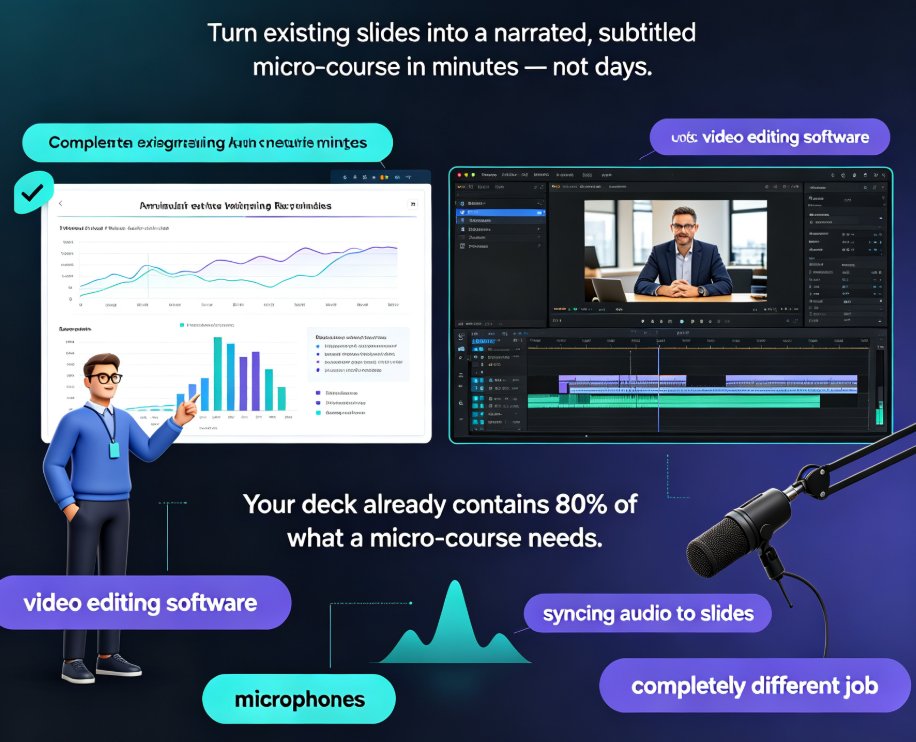
The old way of turning written content into video involves anywhere from three to six separate tools: Word, PowerPoint, a screen recorder, an audio editor, and maybe a video editor if you're feeling ambitious. Each step is a chance for formatting to break, timings to drift, or design consistency to fall apart.
The AI alternative collapses the entire chain into one automated pipeline: import, structure, design, narrate, export.
Zendeck handles this by reading your document's heading hierarchy, mapping it to slide layouts, applying consistent design, then layering on narration and subtitles to produce a final MP4. What took 3-4 hours of manual formatting now runs in about 20 minutes from start to finish.
The real win isn't just speed — it's the removal of context-switching friction. You stay in one workflow, from word processor to video player, without touching a design tool.
02 The Complete Workflow: From Import to Narration
Let's trace the entire process stage by stage, so you understand what's happening behind the scenes — and why each step matters for the final output.
Stage 1: Import and Structure Detection
Everything starts with a clean, well-structured Word document. Zendeck's AI reads your heading hierarchy (Heading 1, Heading 2, etc.) and maps that structure to slides. A document with five main sections becomes a five-section deck, with subheadings distributed as supporting points.
This is where content quality directly impacts output quality. A structured outline produces a structured deck. If you've been writing with vague headings, that fuzziness will propagate into the slides.
Friend's advice: before uploading, do a 2-minute pass through your Word doc and ask yourself: "Could a stranger understand my argument just from the headings?" If yes, you're ready.
Stage 2: Template Selection and Design Consistency
Once your content is mapped, Zendeck applies a template that fits your context. If you're building a training module, the system picks layouts optimized for learning; if you're creating an investor update, it favors data-forward slides.
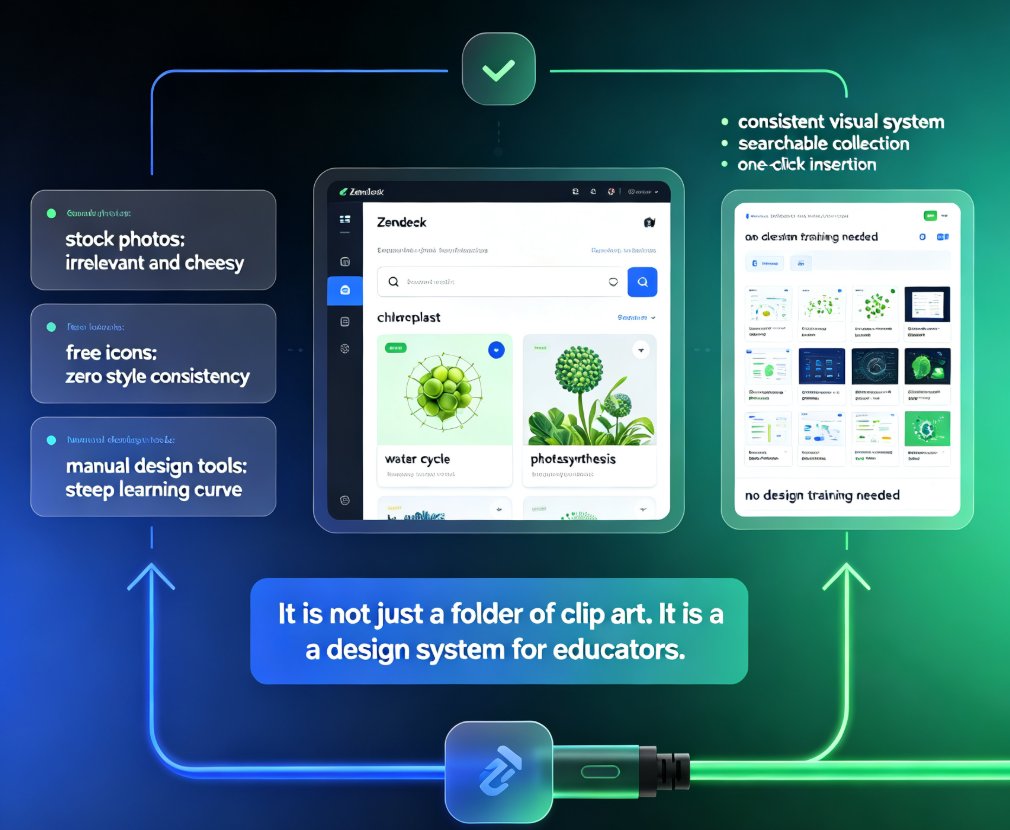
You can also pull from your custom brand kit to keep everything on-brand across every slide and video frame. This matters more than you think — corporate training videos that follow visual brand guidelines are taken far more seriously than ones that look cobbled together.
Stage 3: AI Narration and Subtitles
The magic moment arrives when your deck transitions into video. Zendeck's PPT-to-video feature generates narration from your slide content, creating a voiceover that walks viewers through each point.
The system can also generate subtitles automatically, which is a game-changer for accessibility. Subtitled videos aren't just for deaf and hard-of-hearing learners — they also help non-native speakers and people watching in sound-off environments, which is practically everyone on public transit or in an open-plan office.
The combination of AI narration and automatic subtitles means your video is accessible from day one, no extra editing required.
Stage 4: Export and Share
After reviewing and tweaking the narration (or regenerating it if something sounds off), you export the final video. From there, it's ready to upload to your LMS, share via a link, or embed in a course page.
The entire journey—from Word document to published video—takes roughly 20 minutes for a 10-15 minute micro-course. Compare that to the traditional workflow, and the time savings become genuinely dramatic:
| Stage | Traditional Manual Workflow | Zendeck AI Workflow |
|---|---|---|
| Content creation in Word | 5-6 hrs | 2-3 hrs (you still write) |
| Designing slides from outline | 2-3 hrs | ~10 min |
| Recording voiceover | 1-2 hrs (and re-records) | ~2 min generation |
| Adding captions/subtitles | 40-60 min | Automatic |
| Video assembly and export | 1-2 hrs | ~5 min |
| Total | 11-15 hrs | 3.5-6 hrs |
For courseware producers producing multiple videos per week, that time difference compounds into days of saved effort every month.
03 The Workflow in Numbers: Visualizing the Time Savings
To make the comparison clearer, here's what the typical time breakdown looks like for a 10-slide narrated video project:
Slide design alone drops from 150 minutes to about 10. Narration goes from 90 minutes of recording and re-recording to 2 minutes of generation. These aren't incremental improvements; they're a full order-of-magnitude reduction in effort.
04 Real-World Scenarios: Where This Workflow Shines
Scenario 1: The Corporate Trainer with 20 Documents to Convert
Maria runs onboarding training for her company's new hires. She has 20 Word documents—product overviews, compliance policies, software walkthroughs—that all need to become quick video modules.
With the traditional workflow, Maria would schedule 3 hours per document and a full month to finish. With the AI pipeline, she gets each video done in under 30 minutes. The whole batch, about 10 hours of hands-on work, spreads across two focused days instead of swallowing an entire month.
Scenario 2: The University Lecturer Creating Flipped-Classroom Content
Professor Chen teaches introductory economics. His lecture notes are already well-structured Word outlines. Instead of standing in front of a camera for hours, he imports his notes, selects a clean template, generates narration, and exports a 8-minute explainer video for students to watch before class.
This turns 'flipped classroom' from a nice idea into a practical reality because the production burden drops to nearly zero.
Scenario 3: The Course Creator Repurposing Existing Content
David sells a project management course. His core syllabus exists as a detailed Word document. He converts it into a narrated video deck to use as a pre-sales teaser. No re-shooting, no expensive video editor—just a direct transformation of content he already owns.
05 Best Practices for Getting Stunning Results
A few habits separate 'nice output' from 'production-ready output' when running this workflow:
-
Clean outline hierarchies. Your Word document's heading levels will become your slide structure. Make sure you're not skipping levels (like going from H1 straight to H3) because that will confuse the slide mapping.
-
Keep paragraphs tight. Long paragraphs in a Word doc won't reformat themselves into slide-friendly bullets. If a Word paragraph exceeds four lines, split it into sub-points.
-
Review the narration script once. Auto-generated narration is accurate, but it can read more literal than natural. A quick review pass where you adjust one or two sentences per slide makes a significant difference in perceived quality.
Offhand advice: don't skip the review step out of laziness. AI-generated narration is like a smart intern's first draft—good, but better with a human pass.
- Add interactive elements when appropriate. Zendeck's platform lets you enhance the final deck with quizzes or polls, which then flow into your video module. Interactive elements boost retention, especially for training content.
06 Why This Workflow Matters More Than You Think
The shift from "Word to PPT" and "PPT to video" as separate processes toward a single unified pipeline represents a major change in how digital content is produced. It's not just about saving time—it's about making video production feasible for people who would never have attempted it before.
Consider the reality of most organizations: they have a mountain of documentation sitting in Word files that has never been converted into videos because the cost (time, skill, resources) was too high. The AI workflow removes that barrier entirely.
The most important output of this workflow isn't the video itself — it's the possibility of creating dozens of videos when you previously could only create one or two.
That's the real transformation: when production cost approaches zero, content strategy changes completely. Suddenly, you can afford to repurpose every training manual, every course outline, every policy document into video format for learners who prefer watching over reading.
Related reading: if you're working on branded or template consistency, explore our guide to Zendeck's template library trends for 2026. For a deeper look at the PPT-to-video features used in this workflow, check our full breakdown of AI narration and voiceover options.
07 Getting Started With Your First Word-to-Video Conversion
Ready to try it? The workflow is straightforward:
- Prepare your Word document with clean heading hierarchy.
- Upload it to Zendeck and let the AI map your outline to slides.
- Select a template — or let Zendeck choose one based on your content.
- Review and adjust your slide deck, adding or reordering content.
- Generate narration and review the script for natural flow.
- Export as video, with subtitles included.
- Share it with your learners, teammates, or audience.
That's it. No design skills, no video editing experience, no voiceover talent necessary.
The Word-to-PPT conversion workflow is the foundation. The video layer adds reach, accessibility, and engagement.
In a world where video content gets 10 times the engagement of text and where attention spans are shrinking every year, the ability to convert existing written content into narrated videos on demand isn't just a convenience — it's a competitive advantage.
FAQ
What formats can I import into Zendeck to start the narrated video workflow?
Zendeck accepts Word documents (.docx), Markdown, and TXT files. The AI reads your heading structure and converts it into a slide deck first, which then becomes the visual foundation for your narrated video.
How does Zendeck generate narration for slides?
Zendeck's PPT-to-video feature synthesizes narration from your slide content and can also generate matching subtitles automatically. You can review and edit the script before exporting the final video.
Can I add subtitles to the narrated videos automatically?
Yes, Zendeck generates subtitles as part of the PPT-to-video pipeline, which is particularly useful for accessible micro-courses and for viewers who watch without sound, like learners in noisy environments or non-native speakers.
How long does it take to convert a Word document into a narrated video?
On average, turning a Word outline into a polished slide deck takes about 10 minutes. Adding narration, subtitles, and exporting the final MP4 usually completes the entire workflow in roughly 20 minutes, versus 3–4 hours manually.
Can I customize templates and brand colors during this workflow?
Absolutely. After importing your Word document, Zendeck applies a consistent design using your chosen template or existing brand kit, ensuring every slide—and therefore every video frame—matches your organization's visual identity.
Ready to see the full pipeline in action? Upload a Word outline to Zendeck and watch your content transform into a narrated video in the time it takes to brew a cup of coffee.