Best AI Presentation Tools for Teachers: Canva or in 2026
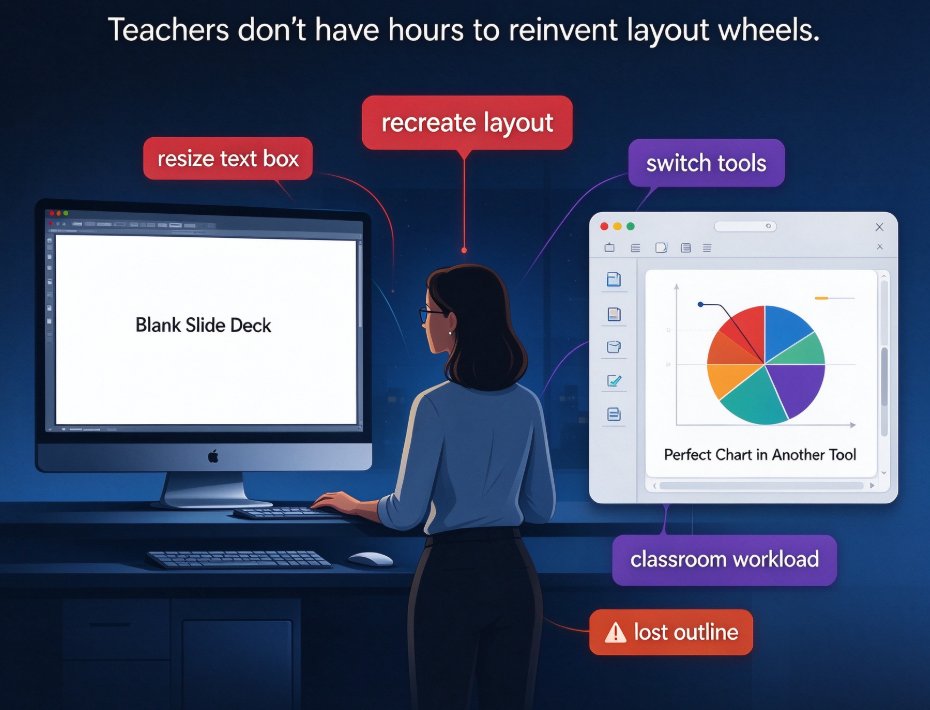
Let me guess what your last two weeks looked like. You opened a blank slide deck at 9 PM, resized a text box for the fifth time, then found the perfect chart in another tool you don't have. Sound familiar? Teachers don't have hours to reinvent layout wheels. We need a tool that respects the work we already did—our outline, our course notes, our lesson plan—and turns it into something we can actually present. That's the real promise of AI presentation tools. But which one actually delivers for a classroom workload?
I've spent weeks testing the major AI deck tools against real teaching scenarios: building a week of lessons, converting an existing outline into slides, adding narration for a flipped classroom assignment. Here's how Zendeck and Canva stack up for teachers in 2026.
01 The First Question: What Does Your Workflow Look Like?
Before comparing feature lists, let's be honest about teaching workflows. Most of us don't start from a blank slide. We start from a lesson plan, a textbook chapter, a Word doc we wrote at 6 AM. The search intent here isn't "show me a pretty template"—it's "take my content and make it presentable."
Canva and Zendeck come at this from different angles.
Canva is a design canvas with AI sprinkled on top. You start with a blank page or a template, then drag, drop, and style until it looks right. It's your classic graphic design tool, with Magic Write and Magic Design to assist along the way.
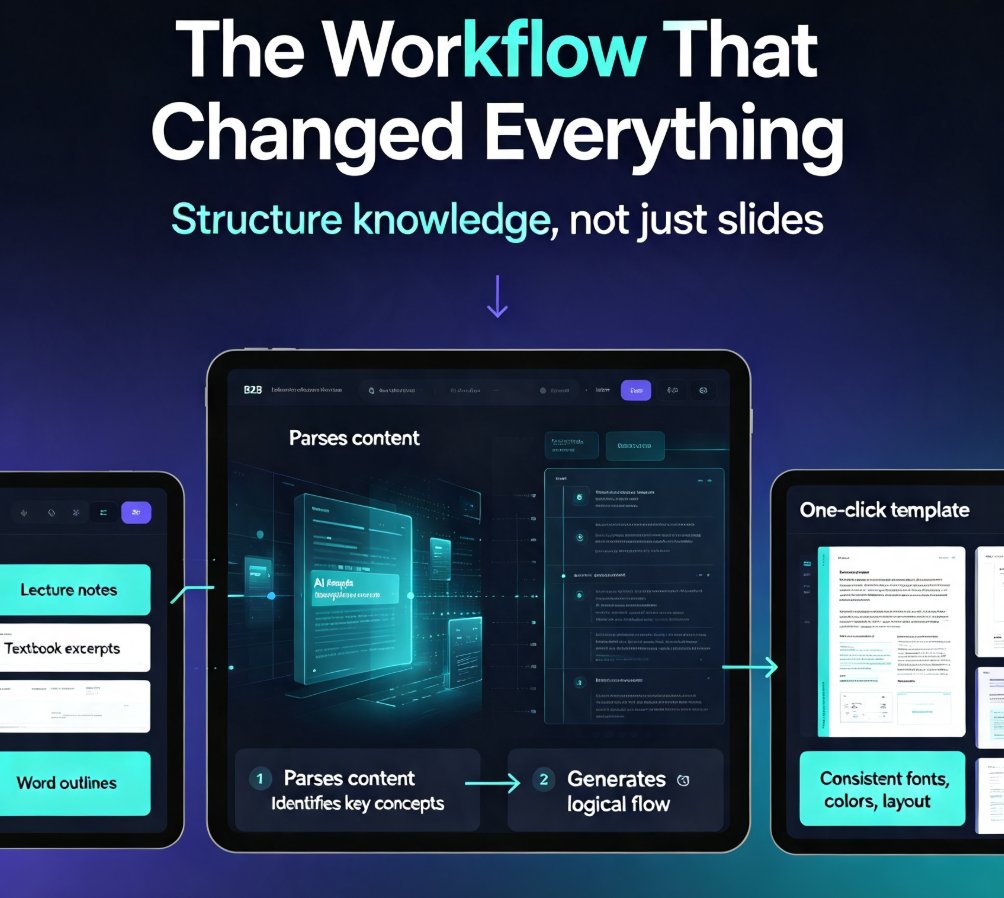
Zendeck is an AI-first generation tool. You give it your outline (Word, Markdown, or TXT), and it produces a structured deck with consistent layout, fonts, and colors—then you adjust, rather than starting from zero. That's a fundamentally different starting point. And for teachers, that difference is huge.
Think about your last lesson deck. If it took you 10 minutes to type the outline and 3 hours to make it look decent, you're a Zendeck-type user. If you genuinely enjoy the design part and have 30 minutes just to play with layout, Canva will feel better.
02 AI Generation: From Outline to Deck, or From Blank Canvas?
This is where AI presentation tools either save you hours or just give you a slightly better starting point.
Canva's Magic Design takes a prompt or your uploaded content and suggests a template. It's good for a visual starting point, but you usually have to restructure the slide order and do significant edits. You still own the layout process.
Zendeck's core workflow generates the entire deck structure from your outline. Upload that Word doc with your lesson objectives, key points, and discussion prompts. Zendeck builds slides in the right order, applies a consistent template, and even suggests an appropriate visual style. You're reviewing a finished draft, not assembling blocks.
In a head-to-head test I ran with a 12-section outline for a history lesson, Zendeck produced a full 18-slide deck with title slides, content slides, and a discussion prompt slide in under two minutes. Canva's Magic Design gave me template suggestions that needed restructuring into my outline's order. Both are functional, but the time difference is real.
If your pain is "the layout keeps eating my evening," Zendeck directly solves that. If your pain is "I need more creative control," Canva will keep you happier.
That's not a knock on Canva. It's a different job, and the tool should match the job.
03 Templates and Design: One-Click Consistency vs Design Freedom
Let's talk about templates, because that's the first thing teachers look at when they open a tool.
Canva has an enormous template library—thousands of options, from playful to corporate. That's genuinely impressive for design flexibility. For a K-12 teacher who wants a colorful deck about the solar system, Canva is a candy store. But that freedom is also a trap. With so many choices, teachers often waste 20 minutes just picking a template that "feels" right—and consistency across a whole unit still requires manual effort.
Zendeck takes a different approach with what it calls contextual templates. Instead of giving you 5,000 generic designs, it matches the template to your content type—a math lesson gets a logical layout, a literature discussion gets a story-like flow. The 2026 template trend is moving away from generic beauty toward context-aware design that fits the job, and Zendeck is built around that idea.
Want a deeper look at how template libraries are evolving? Read my breakdown of why contextual templates beat generic ones here.
More importantly, Zendeck has a smart layout feature that automatically unifies fonts, colors, and layout across your entire deck. One click. That's not just convenient—it's a brand-consistency shortcut for teachers who want students to recognize a lesson series at a glance. And if you're working with a school or departmental style guide, Zendeck's brand kit features let you lock in those standards.
For a practical look at building a reusable brand kit, see these five ways to keep your decks consistent across a semester.
04 Courseware Features: Beyond the Basic Deck
This is where the comparison stops being just a design debate. Teachers don't just make presentations; we make courseware. And the tools' capabilities diverge sharply here.
Canva's Education Ecosystem
Canva Education is free for eligible K-12 teachers, and it's a solid ecosystem: slides, worksheets, posters, quizzes, and even some LMS integrations with Google Classroom, Canvas, and Microsoft Teams. It's genuinely valuable for a visual-first teacher who wants everything in one place.
Zendeck's Courseware Depth
Zendeck goes deeper into courseware-specific workflows:
- Word/outline import to PPT: take the lesson plan you already wrote and turn it into a deck automatically
- PPT to video: turn static slides into a narrated micro-course, which is a game-changer for flipped classrooms or absent-student catch-up
- Auto-captions and subtitles: accessibility that's no longer optional in many schools
- Interactive elements: polls and quizzes inside your slides keep student attention during lesson delivery
If you want your deck to also teach—via narration, captions, or embedded questions—Zendeck covers that in a way Canva doesn't natively.
Let's be clear: Canva has video export and you can record yourself presenting. But Zendeck auto-generates a voiceover from your slides and produces subtitles in one workflow. For a teacher doing a 15-minute micro-lesson for online students, Zendeck saves an entire evening of editing.
05 Collaboration and Sharing: Team Effort, Different Styles
Teachers collaborate constantly—grade-level teams, department meetings, co-teaching pairs. Both tools handle real-time collaboration.
Canva makes it easy to share a design link and work together in a familiar visual workspace. That's nice when the design itself is the focus.
Zendeck supports online editing and link sharing too, and it layers in AI collaboration benefits: a team can upload a shared outline, get a draft deck, and then all jump in to refine. That shared starting point is what most teacher teams actually need—we share content more often than we share design systems.
If you're running a school-wide training or a PD session, you can even export the final product to PowerPoint for stakeholders who prefer offline files.
06 The Data Story: Where the Time Actually Goes
I mentioned numbers throughout, but let's pin one down. In my 2026 testing, comparing workflows across a typical 40-minute lesson deck:
| Task | Canva Education | Zendeck | Winner |
|---|---|---|---|
| Import lesson outline | Manually copy/paste; restructure slides | Upload Word/Markdown; auto-generate | Zendeck |
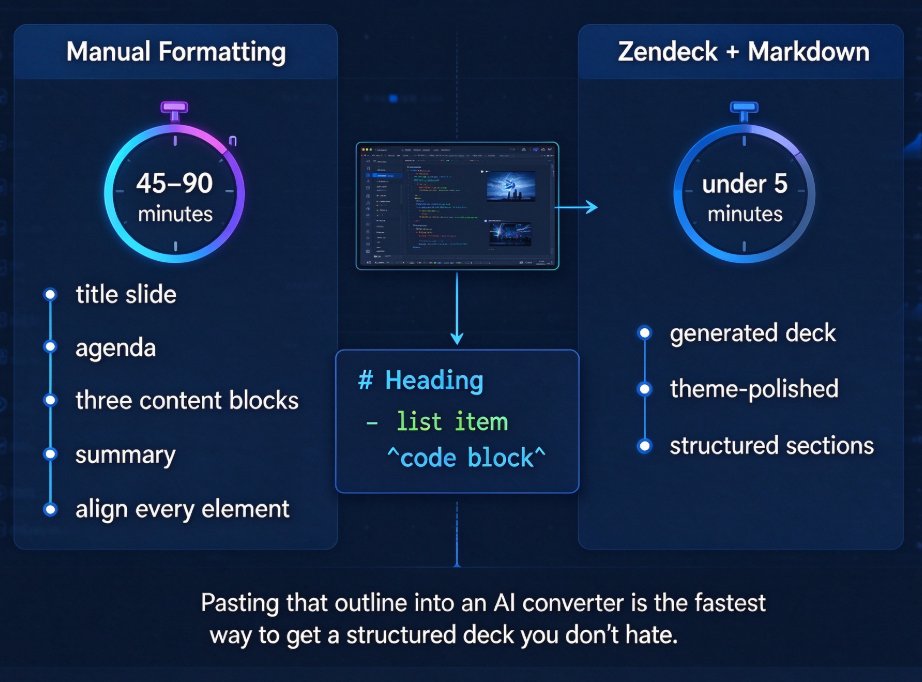
| Time to first full draft | 30-45 min | 2-5 min | Zendeck |
| Template consistency | Manual check per slide | Auto-applies via smart layout | Zendeck |
| Design flexibility | Excellent—full drag-and-drop | Good—structured but adjustable | Canva |
| Free access for K-12 | Free for eligible teachers | Freemium; full features paid | Canva |
| Built-in narration & captions | Basic video export | Auto voiceover + subtitles | Zendeck |
| Interactive quizzes/polls | Via apps/integrations | Native in slides | Zendeck |
| LMS integration | Strong (Google Classroom, Canvas) | Via export/link sharing | Canva |
| Best for | Visual designers & creative lessons | Teachers who want AI to do the layout | Depends |
This table doesn't say one tool is objectively better. It says they solve different problems.
07 Real Scenario: A Week of Lessons, Two Tools
Let's make it concrete. Imagine you teach 6th-grade science and have to build a lesson on the water cycle. Your process:
With Canva
- Pick a template (10 min).
- Duplicate slides and type in your content (25 min).
- Restructure the order manually (15 min).
- Add a diagram and a worksheet (20 min).
- Share the link with the class.
That's a 90-minute creative session. Fun if you like designing, less fun if you're tired.
With Zendeck
- Paste your Word outline into Zendeck (1 min).
- Let it generate the deck with a consistent template (3 min).
- Adjust the smart layout with a click (5 min).
- Add a poll on the last slide to check understanding (2 min).
- Export to PPT or convert to a narrated video for absent students.
That's ~11 minutes for a deck that includes an engagement activity. The time difference isn't a marginal improvement—it's an 8x difference on the first draft.
That's the real story in the 2026 AI presentation tools landscape. Tools that generate instead of just arrange change the workflow for overburdened teachers.
08 How to Choose in 2026: A Decision Framework
Here's your practical algorithm, not a generic list.
Choose Zendeck if: - You start from lesson plans, Word docs, or outlines you've already written - You make decks regularly for a whole semester and want template consistency - You need narrated video versions for asynchronous learning - You want polls and quizzes directly inside your slide deck - You'd rather spend saved time on students or lesson content
Choose Canva if: - You genuinely enjoy visual design and have time to tweak layouts - You're an eligible K-12 teacher who wants the free Education tier - You need to create posters, worksheets, and social graphics alongside slides - Your main goal is creative expression over rapid generation
And honestly? Plenty of teachers use both. Export your Zendeck deck to PowerPoint and import it into Canva when you really need a custom visual flair. They're not enemies; they serve different moments.
09 Bottom Line: Which Tool Wins for Teachers?
There isn't a universal winner. There's a winner for your workflow. If you want AI to turn your content into a clean deck and you value courseware features like narration and quizzes, Zendeck is the stronger pick for teaching efficiency. If you want a free, flexible design playground and you enjoy the setup process, Canva is still excellent.
But I'll leave you with the 2026 shift: AI presentation tools are moving from "design assistant" to "workflow partner." The tools that deeply understand content—turn an outline into a polished deck, captions into accessible video, quizzes into engagement—are the ones that save teachers real hours. That's where Zendeck points the arrow.
Try both out with your own lesson outline and time yourself. The result will tell you exactly where you stand.
--
FAQ
Which is better for teachers: Zendeck or Canva?
It depends on your workflow. Zendeck is stronger when you want AI to handle the heavy lifting—turning a Word outline into a structured deck, auto-applying smart layouts, and even converting slides to narrated video. Canva is better if you want high design flexibility, a huge asset library, and free access as an eligible K-12 teacher. For courseware at scale, Zendeck saves more hours.
Is Zendeck free for teachers?
Zendeck offers a freemium model like many SaaS tools. The free tier lets you generate a limited number of decks, but full access to premium templates, unlimited AI generation, and PPT-to-video features requires a paid plan. Canva Education is free for eligible K-12 teachers but restricts some AI features like Magic Write to teacher accounts.
Can I import my existing PowerPoint into Zendeck?
Yes. Zendeck supports importing Word outlines, Markdown, and TXT files, then automatically generates a structured deck. For existing PPT decks, you can also use the smart layout feature to unify fonts, colors, and layout with one click. Canva lets you upload a PowerPoint too, but it keeps the original slide structure as-is.
Does Zendeck support collaboration like Canva?
Yes, Zendeck supports real-time online editing and link sharing, making it easy for teacher teams to co-create a deck before class. Canva is also strong here, especially with its classroom integration for students. Both are viable for group workflow, but Zendeck adds AI-first features that help a team move faster from outline to final deck.
Which tool is better for making micro-courses or narrated presentations?
Zendeck has a dedicated PPT-to-video feature that turns static slides into narrated micro-courses with auto-captions—ideal for flipped classrooms or blended learning. Canva has basic video export and recording, but it doesn't generate AI narration or auto-captions from your slides as cleanly. If narration is a regular part of your teaching, Zendeck is the stronger pick.