Word to PPT: How Zendeck Turns Outlines into Polished Decks Fast
Word to PPT: How Zendeck Turns Outlines into Polished Decks Fast
If you teach, train, or brief teams, you already have the content — it's sitting in a Word document. The painful part is turning that outline into a deck that doesn't embarrass you in front of a room.
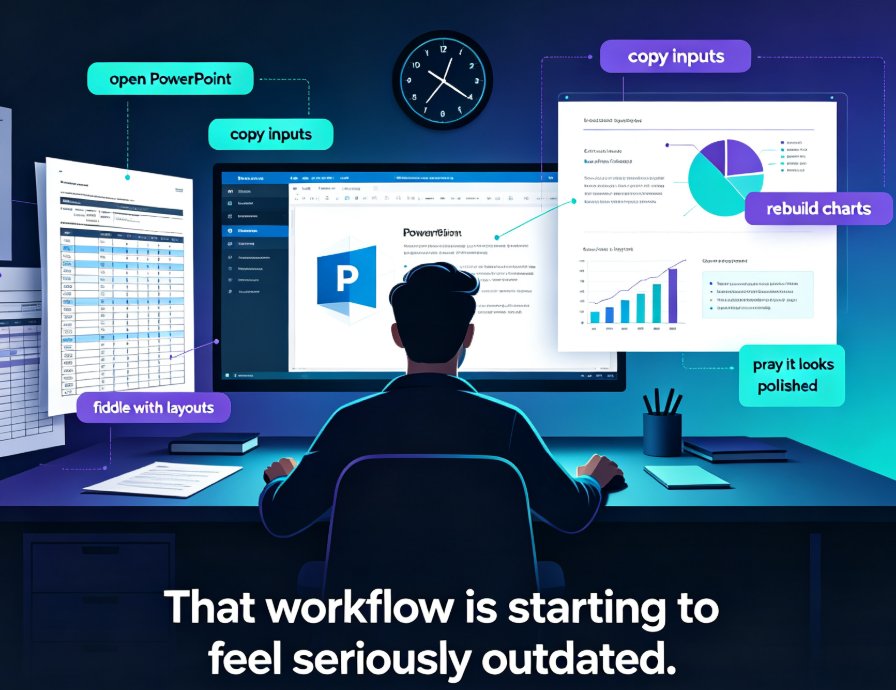
Twenty minutes before your workshop, you're resizing bullet points, moving image placeholders, and praying the text doesn't overflow. The content was never the problem. The assembly was.
That's the exact pain point Zendeck's Word-to-PPT workflow removes. Upload your Word outline, Markdown, or plain TXT file, and the AI builds a structured, design-consistent presentation in minutes. Let's walk through how it works, plus the simple habits that make any import cleaner.
01 | The Pain: Your Lesson Notes Make Terrible Slides by Default
Here's the scenario most instructors know too well. You write a training guide in Word with clear headings: "Module 1: Onboarding Basics," a few subpoints, maybe paragraphs of context. It reads well on the page. So you open PowerPoint and start copying.
Before long you've hit the classic slide problems:
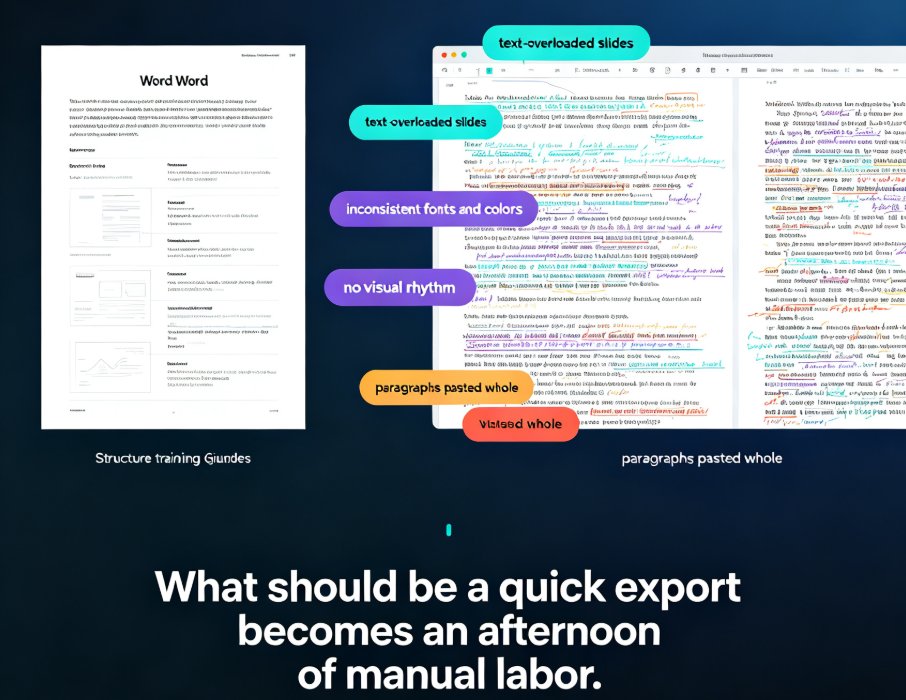
- Text-overloaded slides — paragraphs pasted whole, with no visual hierarchy
- Inconsistent fonts and colors — because you were grabbing from three different sources
- No visual rhythm — nothing to guide the audience's eye from one idea to the next
Now multiply that by twenty slides and a tight deadline. What should be a quick export becomes an afternoon of manual labor.
Copying text from Word into a slide template isn't conversion; it's manual labor that eats into your teaching time. Every font tweak and text-box drag is a task that software could handle — and should.
02 | The Solution: Let the AI Do the Assembly
Zendeck doesn't ask you to start from a blank canvas. If you have a Word outline, a Markdown doc, or a TXT dump, you're already further along than you think. The platform's import-to-slides workflow reads your document's structure, segments it into logical slides, and applies a template that keeps everything visually consistent.
The outcome is immediate: your outline becomes a working deck with titles, bullet hierarchy, and balanced layouts — before you've touched a single design tool. From there, you refine instead of rebuild.
This is a fundamentally different approach from traditional presentation software, and it aligns with where AI deck generation is heading in 2026.
03 | Step 1: Structure Your Outline So the Import Is Clean
The secret to a fast, clean conversion isn't design skill — it's document hygiene. For best results, use Word's built-in heading styles: Heading 1 for slide titles, Heading 2 for key points, and body text for supporting details.
Why it matters: the AI reads those styles as structural signals, not raw text. A doc with proper headings converts into a deck with a logical slide-by-slide flow. A doc where everything is bolded Arial? The output will reflect that ambiguity.
A quick checklist before you upload:
- Use Heading 1 for the top-level topic of each section
- Use Heading 2 or bullet lists for sub-points
- Keep paragraphs short — two to four lines max
- Avoid massive embedded graphics; plain text converts cleanly
The rule of thumb: if your Word document reads like a clear agenda, it becomes a clear deck. Messy in, messy out — that's the one non-negotiable.
04 | Step 2: Import and Generate
Once your outline is structured, the actual import takes seconds. Here's the exact sequence:
- Open Zendeck and start a new project
- Upload your Word (.docx), Markdown (.md), or TXT file
- Choose your approach — reformat the existing content, or let the AI summarize and expand slide points
- Watch the AI generate a slide-by-slide outline
Within about a minute, you'll see a draft deck. Slide titles align to your headings, bullet hierarchy is respected, and the layout is already balanced. You can edit the slide outline directly before styling — reorder slides, merge points, or cut whole sections that don't belong.
This same import logic is how Zendeck handles the broader reality that many teams live in Word and Google Docs daily — the integration story matters as much as the design engine does. If you want the full picture, see how AI presentation tools integrate with Word and Google Docs.
05 | Step 3: Unify the Design with Smart Layout and One-Click Reskin
The draft is structured, but the design is where Zendeck earns its keep. Instead of manually setting fonts, colors, and spacing slide by slide, you apply a template and let smart layout handle the details.
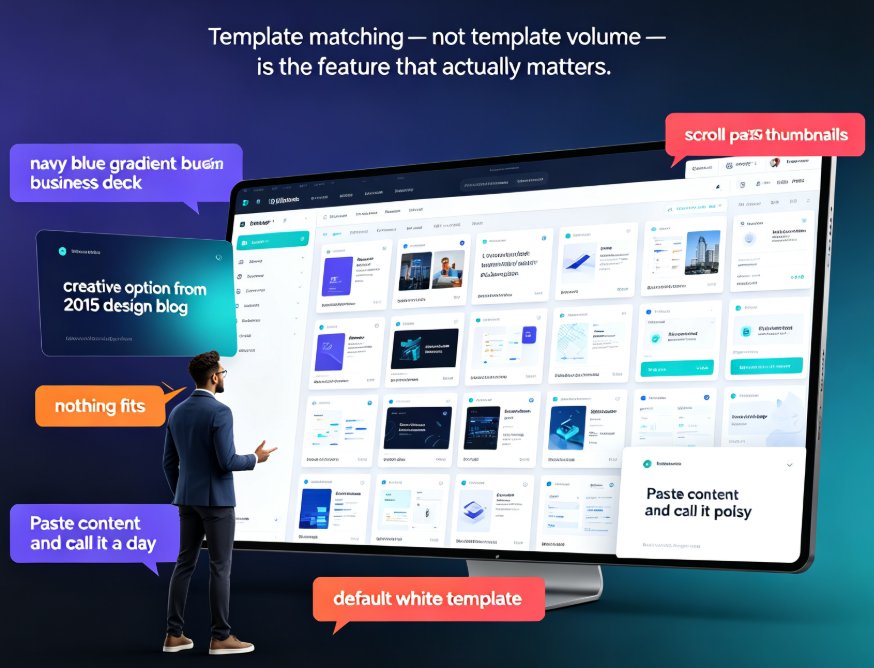
Want a different look? The one-click reskin is the feature trainers love most: pick a new template, and the whole deck — fonts, colors, spacing, slide structure — updates at once. No more hunting for the one slide that still uses the old orange accent.
If you're building branded training material, pair this with a custom brand kit for consistent decks. When a colleague swaps in a template, the logo and color scheme stay locked. For a deeper look at how template selection works on the platform, check out how Zendeck picks the right look for your deck.
06 | Step 4: Polish with Assets, Charts, and Export
Structure and style are sorted; now you make it feel finished. Zendeck's asset library covers common needs without leaving the platform:
- Icons for process steps and key concepts
- Charts to turn your data points into visual comparisons
- Illustrations for scenarios that need a human touch
If you need to visualize module outcomes — pre-test vs. post-test scores, attendance trends, budget breakdowns — add a simple bar or line chart in a couple of clicks. For a full walkthrough, see how to add interactive charts with Zendeck's asset library.
Once you're happy, you have two solid endings:
- Export as PPTX for offline delivery or official submission
- Turn it into a video — Zendeck's PPT-to-video feature adds narration and generates a shareable micro-course. If your outline becomes a training deck, it can become a branded micro-course without extra editing
The result: a Word outline becomes a polished, deliverable presentation — and optionally a narrated video — all from the same import. No design tool, no video editor, no late-night slide rescue.
07 | How the Methods Compare
Let's put the workflows side by side. Time estimates assume a typical one-hour training outline with 20–30 slides of source content.
| Workflow | Setup Needed | Time to Draft | Design Consistency | Skill Level |
|---|---|---|---|---|
| Manual copy-paste into PowerPoint | None | ~90 minutes | Low — you fix it slide by slide | Basic PowerPoint |
| PowerPoint "Slides from Outline" | Heading styles required | ~45 minutes | Medium — default layouts only | Intermediate |
| AI import (Zendeck) | Heading styles recommended | ~5 minutes | High — smart layout + one-click reskin | None |
The bar chart below shows the same story visually.
Estimates based on a typical 20–30 slide training outline; individual times vary with document complexity.
08 | Final Thoughts: Start From the Content You Already Have
The reason most Word-to-PPT conversions feel like a chore is that they treat the document and the design as separate jobs. Zendeck treats them as one: your outline is the source of truth, and the AI handles the visual assembly.
The biggest time saver isn't the fancy template — it's that you're no longer rebuilding your content in a second tool. Your next training session could start by uploading this morning's notes instead of staring at a blank slide.
And if you're building a whole course library, this workflow scales. Trainers can reuse the same import process across modules while brands stay consistent. It's the kind of approach covered in Zendeck's trainer template library guide — built for people who produce more than one deck a month.
Stop treating Word as the working file and PowerPoint as the redesign. Your notes are already the deck — they just needed the right converter.
FAQ
Can Zendeck import Word files directly?
Yes. Zendeck accepts Word (.docx) files, along with Markdown and plain TXT. Upload the file, and the AI parses your document's heading structure to generate a slide outline you can refine before styling.
Do I need to use heading styles in my Word document?
It's highly recommended. Heading 1 and Heading 2 styles act as structural signals, helping the AI map content to slide titles and bullet hierarchy. A well-structured document produces a noticeably cleaner deck with fewer manual edits.
Which file formats does Zendeck support for import?
Zendeck supports Word (.docx), Markdown (.md), and TXT files. If your content isn't in a file yet, you can also paste Markdown directly to generate slides the same way.
Can I change the template after the deck is generated?
Yes. Use the one-click reskin feature to apply a different template, and the entire deck's fonts, colors, and layout update at once — no manual slide-by-slide fixes. For branded material, pair this with a custom brand kit to lock in colors and logos.
What if my document has no clear structure?
The AI still processes it, but results improve dramatically when you clean up the outline first. Add heading styles, keep paragraphs short, and remove oversized embedded graphics before uploading. Clean input, clean output.