Co-Edit and Share Course Decks Securely with Zendeck for Teachers
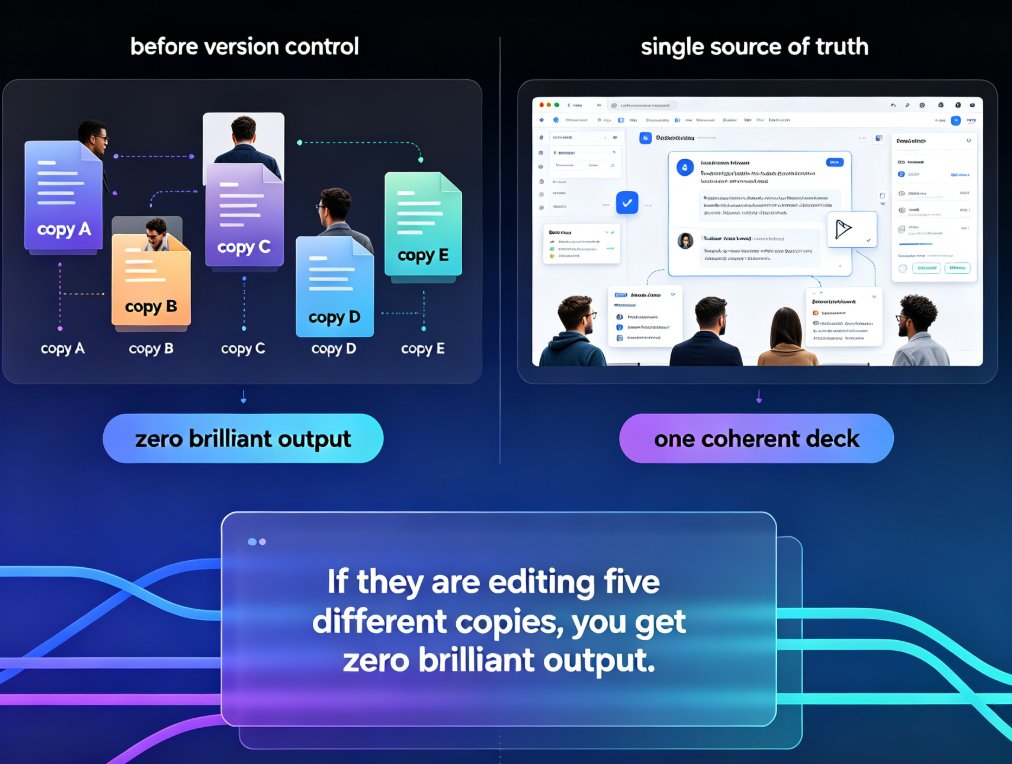
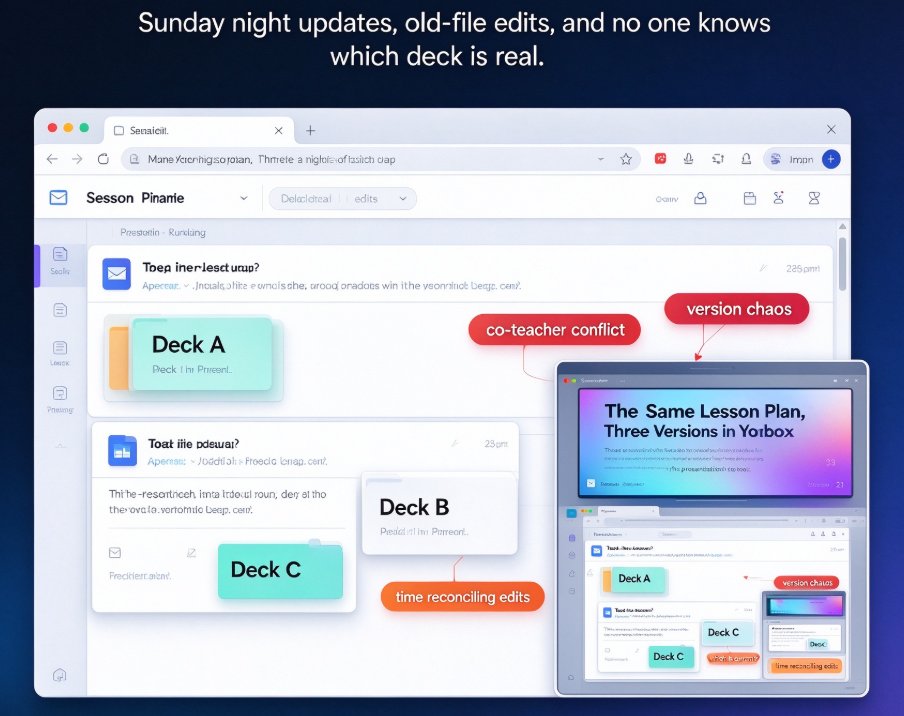
If you've ever found three different versions of the same lesson plan floating in your inbox, you know the pain. On Sunday night, one co-teacher sends an update, another edits an old file, and suddenly no one is sure which deck is the real one. The solution isn't more emails—it's real-time co-editing and secure sharing built into your presentation tool. Zendeck brings both, letting teachers collaborate on a single deck and share it with the right people, for the right amount of time, without compromising student privacy.
I. The Real Cost of Sharing Course Decks the Old-Fashioned Way
Let's be honest: the traditional way of sharing course decks is a mess. You email a PowerPoint, a colleague downloads it, edits a slide, sends it back, and now you have two versions. This isn't just inefficient—it's risky. Lesson materials often contain student names, grades, or internal notes. When you share a deck via a generic link or an open folder, you're handing that information to anyone who stumbles upon it.
The old way of emailing decks back and forth doesn't just waste time—it creates version chaos and security gaps.
The outcome? You spend more time reconciling edits than actually planning lessons, and you worry about who can see your files.
The fix is to move to a tool that supports true collaborative editing and offers granular control over access.
II. Real-Time Co-Editing: How Zendeck Gets Multiple Teachers on the Same Page
Zendeck isn't just another AI presentation generator. It's a workspace where you and your co-teachers can open the same deck at the same time and work together. Here's what that looks like in practice:
- Live cursors and comments – When you're editing a slide, you can see teammates' changes as they happen, just like in a shared document. Leave a comment on a slide and a colleague can reply instantly.
- Role-based permissions – Decide who can edit, who can comment, and who can only view. This is crucial for keeping the "final" version safe.
- One-click version history – No more digging through old emails. Zendeck keeps a full history so you can roll back to a previous version any time.
Real-time co-editing doesn't mean more meetings; it means fewer. Because everyone works on the same deck, you eliminate the back-and-forth that steals hours from your planning period.
For a deeper look at how secure collaboration is becoming the norm in 2026, check out our analysis of AI presentation collaboration trends.
III. Secure Sharing: Password Protection, Expiration Links, and Access Control
Now let's talk about sharing. As a teacher, you often need to share a deck with your class, your department, or a substitute teacher. Zendeck gives you several levels of control:
- Password protection – Set a password so only students with the code can open the deck. This keeps sensitive material from leaking.
- Expiration links – Create a temporary link that stops working after a certain date—perfect for exam prep or a unit that ends Friday.
- View-only vs. editable links – Share a copy that students can view but not edit, or give a department head a link that allows editing for curriculum review.
Password protection and expiration links are not just nice-to-haves—they're the difference between a safe classroom file and a public-access problem.
With these controls, you can confidently send a deck to your class without worrying that the link will circulate beyond the bell.
IV. Workflow: From Lesson Planning to Student Delivery
Let's walk through a realistic scenario to see how Zendeck fits into a team's workflow.
Say you're a grade-level teaching team with three members: you, a math specialist, and a special education co-teacher. You start with a Word outline of the lesson. You import it into Zendeck, and the AI generates a first draft deck. Then:
- Co-editing session – You and your team meet over a video call (or just work asynchronously) to refine the deck. One person adds visual aids, another adjusts the pacing, and the third checks accessibility.
- Review and feedback – Use comments to flag a confusing chart or a missing scaffold. The special ed teacher adds notes for differentiation.
- Secure sharing – When it's ready, you generate a password-protected link with a 7-day expiration for your students. The deck goes live, and you know it will expire after the unit test.
- Reuse and adapt – Next year, you duplicate the deck, tweak it, and share again.
The result is a polished, accessible deck that reaches students on time and gets archived automatically—no email chains, no lost versions.
If you're also looking to cut design time, our guide on Zendeck's Smart Layout features shows how the tool can speed up your team's deck creation even further.
V. Zendeck vs. Traditional Tools: A Side-by-Side Comparison
Still wondering if Zendeck is worth switching to? Here's a quick comparison of collaboration and sharing features across popular tools.
| Feature | Google Slides | PowerPoint (online) | Zendeck |
|---|---|---|---|
| Real-time co-editing | Yes | Limited | Yes, with live cursors and comments |
| Password protection on shared links | No | No | Yes |
| Expiring links | No | No | Yes |
| Role-based permissions | Basic (view/edit) | Basic (view/edit) | Granular (edit, comment, view) |
| Version history | Limited | Yes | Full, with rollback |
| AI assistance for deck creation | No | No | Yes (outline import to polished slides) |
On nearly every axis that matters for secure classroom collaboration, Zendeck outperforms the default tools. You get the AI-powered deck generation that saves you hours and the secure sharing that gives you peace of mind.
VI. Pro Tips for Smooth Collaboration (and What to Avoid)
After working with dozens of teaching teams, here are some patterns that actually work—and a few that always backfire.
Do: Assign slide ownership. If you're co-editing a large deck, agree on who "owns" each section. That reduces merge conflicts and keeps the voice consistent.
Don't: Share editable links with students by default. Use view-only links unless they're working on a group project. Even then, set an expiration date.
Do: Use comments for asynchronous feedback. Instead of a separate email, drop a comment right on the slide. It stays with the content.
Don't: Forget to set permissions before sharing. Always double-check whether a link is view-only, editable, or protected by a password.
These might sound obvious, but they're the details that separate a smooth collaboration from a horror story.
FAQ
Q: Can multiple teachers edit a Zendeck deck at the same time? A: Yes. Zendeck supports real-time co-editing with live cursors and comments, so your team can work on the same deck simultaneously without version conflicts.
Q: How do I set a password for a shared deck in Zendeck? A: When you create a share link, choose the "Password protection" option and enter a password. Students will need to enter it to view the deck.
Q: Can I make a sharing link expire after a certain date? A: Absolutely. Zendeck lets you set an expiration date on any share link, after which it automatically becomes inaccessible.
Q: Is Zendeck suitable for K-12 classrooms? A: Yes. With granular permissions, password protection, and expiration links, Zendeck gives teachers the control needed to keep student data safe while enabling collaboration.
Q: Does Zendeck offer version history for rollback? A: Yes. Every edit is tracked, and you can view and restore any previous version of your deck.