Paste Markdown to Make Slides: Zendeck's AI Outline Converter
01 / Why You Should Stop Building Slides From Scratch
Let's be honest: you probably didn't open your presentation tool to design. You opened it to get an idea across — whether that's a quarterly review, a training module, or a lecture on data structures. But the moment you start a blank deck, you're not just writing content. You're choosing fonts, aligning shapes, resizing text boxes, and fighting with bullet indentation. That's not presentation work. That's formatting work.
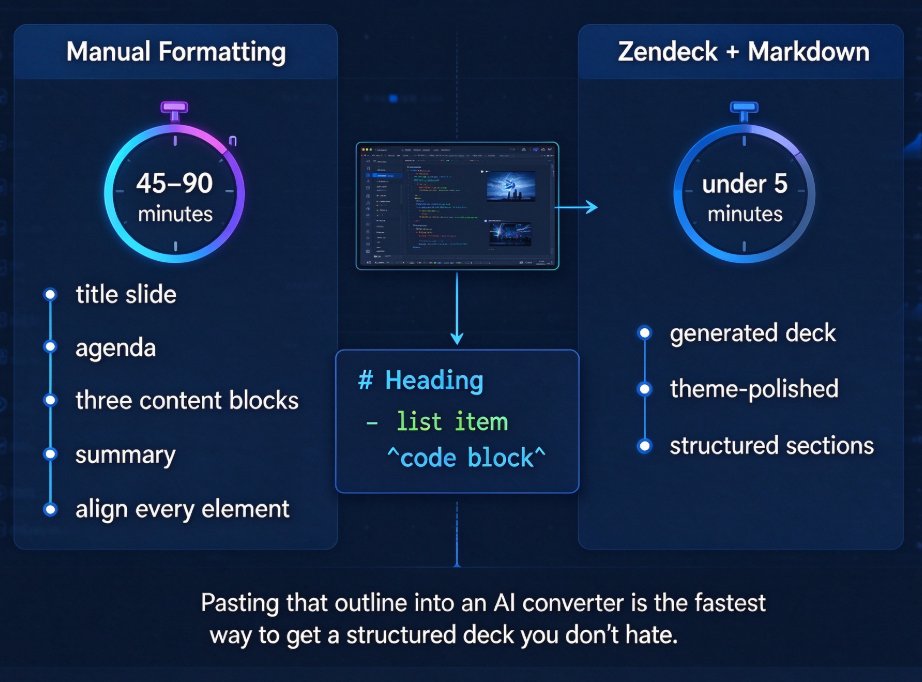
For anyone who already writes outlines in Markdown — developers, technical trainers, researchers — pasting that outline into an AI converter is the fastest way to get a structured deck you don't hate. Markdown is a clean, plain-text format designed for structure: # headings, - lists, and `code blocks`. Zendeck's AI reads that structure and maps it to a slide layout, picking a design for each section instead of making you place every element by hand.
Let's be real about the numbers. A typical five-section deck with a title slide, agenda, three content blocks, and a summary can take 45 to 90 minutes to format manually. With a Markdown outline and Zendeck, the same deck is generated and theme-polished in under five minutes. That's not a magic trick; it's just removing the mechanical work between your outline and your slides.
02 / A Quick Reality Check: Markdown Is More Common Than You'd Think
Some people hear "Markdown" and think "developer tool." But the format has quietly become the default for note-taking, documentation, and even course materials. Tools like GitHub README files, Notion pages, and many note-taking apps export or accept Markdown, which means a huge portion of your existing written content is already slide-ready.
The best part? You don't need to learn anything new. If you've ever written a list with a - or a heading with a #, you already know Markdown.
Here's a comparison of how different tools handle the Markdown-to-slides workflow. Most will get the job done, but the differences matter depending on how much control you want afterward.
| Feature | Zendeck | Gamma | SlideSpeak | Manual PowerPoint |
|---|---|---|---|---|
| Paste Markdown directly | Yes | Yes | Yes (drag & drop) | No |
| AI chooses slide layouts | Yes | Yes | Yes | No |
| Edit generated slides online | Yes | Yes | Yes | N/A |
| Apply custom brand kit | Yes | Limited | No | Manual |
| Export to PowerPoint (editable) | Yes | Yes | Yes | Native |
| Turn slides into narrated video | Yes | No | No | No |
| Free tier without credit card | Yes | Limited | Yes | Trial |
For a developer or educator who already drafts in Markdown, Zendeck's workflow offers something extra: the generated deck isn't locked inside a proprietary format. You can export to PowerPoint for offline editing, or keep refining in Zendeck's online editor.
03 / How to Convert a Markdown Outline to Slides in Zendeck
You've got a solid outline. Now let's convert it. The process is intentionally short.
Step 1: Prepare Your Markdown Outline
Write your content in any text editor — VS Code, Obsidian, Typora, even a plain notes app. The only rule is to use standard Markdown syntax.
# Remote Team Onboarding

## Agenda

- Introduction to our tools
- Security basics
- Weekly check-in schedule

## Tools We Use

- **Slack** for chat and quick questions
- **Notion** for docs and project trackers
- **Loom** for asynchronous video updates

## Security Basics

1. Use a password manager
2. Enable two-factor authentication
3. Never share credentials in chat

## First Week Check-Ins

| Day | Focus | Owner |
|---|---|---|
| Mon | Tool setup | IT |
| Wed | Security quiz | HR |
| Fri | Team intro | Manager |

## Summary

> Goal: make new hires confident by day five.
Notice what's here: clear headings, lists, a table, and a blockquote. Each of these maps to a specific visual treatment inside Zendeck.
Step 2: Paste Into Zendeck
Open Zendeck and look for the outline import option. Paste your Markdown text or upload a .md file. The AI parses the structure immediately — headings become slides, lists become bullet points, tables stay as tables, and blockquotes become callout boxes.
Step 3: Let the AI Pick the Layout, Then Adjust
Zendeck's AI reads each section and assigns a layout that fits the content. A bullet-heavy section becomes a clean list slide; a section with a table becomes a data-focused layout. You don't have to accept the first choice. If you want a different look, select the slide and switch layouts from the toolbar.
The key workflow tip: let Zendeck handle the base, then spend your saved time on the brand layer — colors, logo, fonts — not on moving text boxes.
Step 4: Export or Extend
Once the deck looks right, you can export to PowerPoint, PDF, or keep it in Zendeck for collaboration. If you're building a training module, you can also turn the deck into a narrated video with subtitles — a nice bridge between outline and micro-course.
04 / What the AI Actually Reads (and What Trips It Up)
The more you understand the conversion mechanics, the better your output will be. Zendeck's AI looks at content density, list types, and heading levels to decide what belongs on a slide.
Most tools share similar rules:
- Headings become slide titles. An H2 (
##) usually marks a new slide. - Lists become bullet points. Nested lists become indented bullets on the same slide.
- Code blocks stay monospaced. This keeps code snippets readable.
- Tables become visual grids. A table with headers gets a structured layout.
- Blockquotes become callout boxes. Great for key takeaways.
But here's where things go wrong: if your outline has headings that are too deep or text blocks that run too long, the AI might collapse content into one dense slide. To keep the structure intact, cap your outline at three heading levels and keep each section to five or seven lines of text.
For example, this works:
## Security Basics

1. Use a password manager
2. Enable two-factor authentication
This gets messy:
## Security Basics
### Password Manager
It's really important to use a password manager because weak passwords are a major cause of breaches. Also, long unique passwords are annoying to type but they're worth it. And for shared accounts, a team vault is the only sane approach. We should probably also talk about how 2FA works with SSO providers and why SMS fallback is weak. Let's cover all of that in this one slide.
Three sub-sections, two paragraphs, and a wall of text → one crowded slide. Keep it flat.
05 / When Would You Use This Outside of Slides?
The Markdown-to-slides conversion isn't just for the slide itself. The same outline can become a micro-course video when you combine Zendeck's deck generation with the PPT-to-video feature. That's a practical workflow for educators who want both a classroom deck and a self-paced version.
Let's map it out:
- You write your lecture notes in Markdown.
- Paste into Zendeck to get a clean deck.
- Add narration (text or voiceover) and publish as a video.
- Share the link; students get a narrated lesson without you recording in a studio.
That workflow turns an outline into two deliverables. If you're building training for a team, this is the kind of shortcut that makes you look twice as productive without twice the effort.
06 / A Few Practical Tips From Someone Who Lives in Markdown
After converting dozens of outlines, I can tell you what makes the biggest difference.
Write your outline like a story, not a document. Each slide should have one main idea. If a bullet has a comma-heavy clause, it's probably two bullets. If you can't explain the slide in one sentence, split it.
Use tables for comparisons, not for small lists. A table with three rows looks odd; a table with six rows looks like data. And use blockquotes sparingly — one per deck for a key takeaway is powerful, ten per deck is noise.
One more thing: keep your brand kit ready. Zendeck's template library and brand kit features mean your AI-generated deck can still look like your company — same colors, same fonts, same logo. That consistency is what separates a tool-generated deck from something that feels like your team made it.
07 / Is Markdown-to-Slides Right for You?
If your content already lives in text files, notes apps, or documentation, the answer is almost always yes. Anyone who writes outlines or notes in Markdown and spends time on slide formatting is losing time they could spend on content.
For educators, this means lecture notes become courseware without a redesign. For developers, a README or API spec becomes a technical presentation without rewriting. For HR or training teams, meeting notes become an onboarding deck.
The real test: write your next outline in Markdown, paste it into Zendeck, and see what comes out. If you like the structure, you've found your shortcut. If you don't, you're out two minutes and a clipboard paste. That's a pretty good trade.
If you want to explore more, check out the 2026 presentation tool trends article or see how the smart layout feature cuts design time for another angle on the same workflow.
FAQ
What Markdown syntax does Zendeck's AI converter support?
Zendeck reads standard Markdown headings (#, ##, ###), bullet and numbered lists, bold and italic text, code blocks, and blockquotes. Headings become slide titles and sections, lists become bullets, and code blocks stay monospaced so your structure carries over cleanly.
Can I still edit the slides after Zendeck generates them from Markdown?
Yes. The generated deck opens in Zendeck's online editor, where you can tweak the text, swap template themes, apply a brand kit, or adjust layouts slide by slide. You can also export to PowerPoint, PDF, or even turn the deck into a narrated video.
What's the fastest way to structure a Markdown outline for slides?
Keep it flat and descriptive. Use H1 for the title, H2 for each slide or section, and H3 only when you need sub-points. Avoid nesting more than three levels deep, because deeper nesting gets collapsed into bullets and loses visual hierarchy.
How does Zendeck choose layouts for each Markdown section?
Zendeck's AI reads the content type of each section — whether it's a list-heavy comparison, an image placeholder, a code block, or a simple statement — and picks a matching layout like title, two-column, list, or summary. The result keeps your structure but looks like a designer assembled it.
Is Markdown-to-slides actually faster than building a deck by hand?
For outline-first creators, yes. If you already write meeting notes, README files, or lecture notes in Markdown, the conversion step takes seconds. The remaining polish — tweaking themes and brand colors — takes minutes, not the hour or more you'd spend dragging text boxes manually.