Word Report to Professional PPT in Minutes: The 2026 AI Workflow
How to Turn a Word Report into a Professional PPT in Minutes
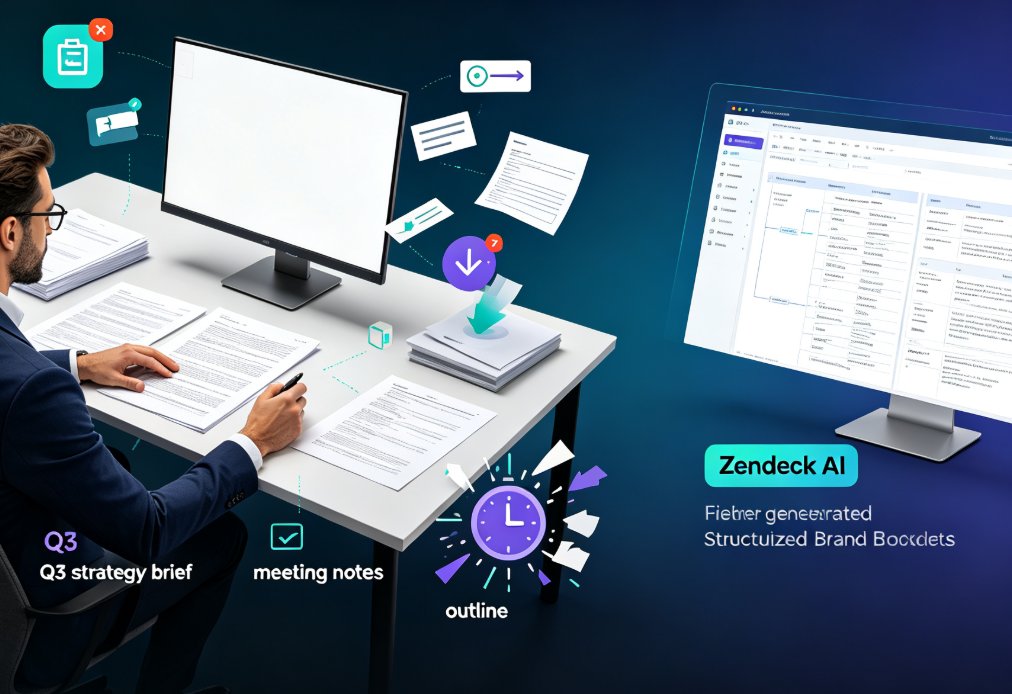
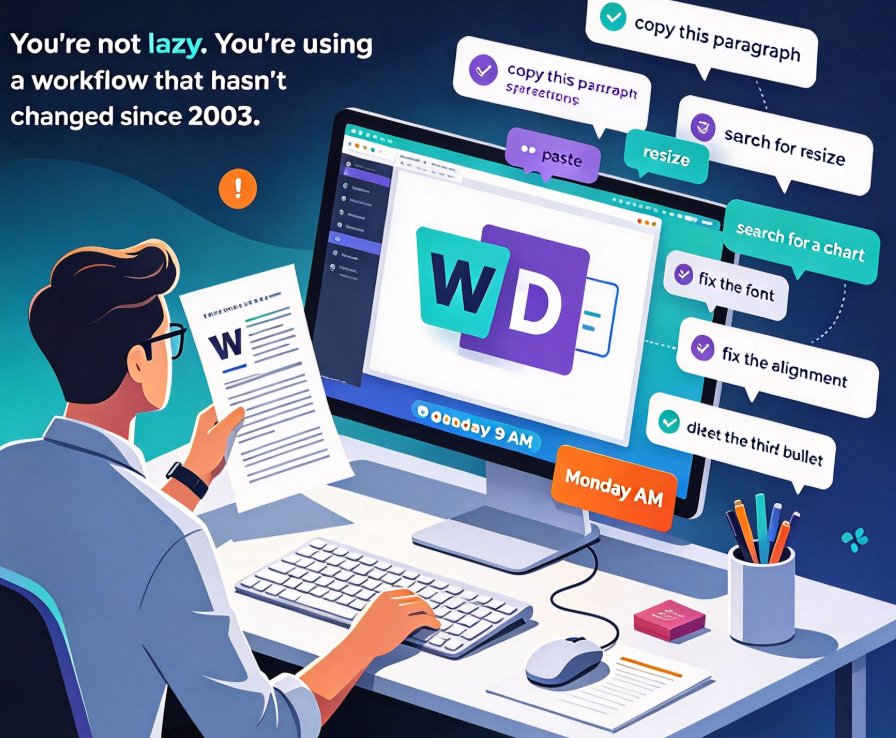
It's Friday at 4:40 PM. The board meeting is Monday at 9 AM. Your boss just sent back the quarterly report in Word — "make me a deck, please." So you open PowerPoint, and the old ritual begins: copy this paragraph, paste, resize, search for a chart, copy, paste, fix the font, fix the alignment, delete the third bullet because it doesn't fit...
Sound familiar? You're not lazy. You're using a workflow that hasn't changed since 2003. There's a better way, and it starts the moment you stop treating PowerPoint as a canvas and start treating it as an output — something your existing Word document can become, not something you rebuild from scratch.
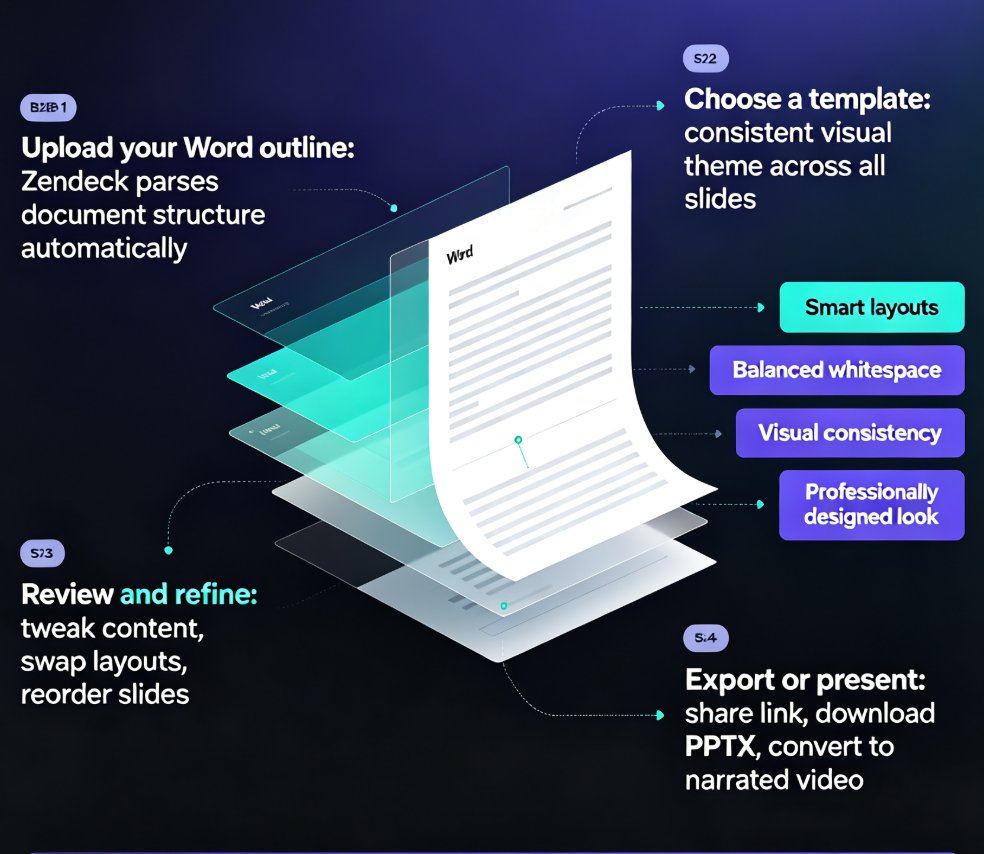
In this guide, I'll walk you through a four-step workflow that takes a finished Word report and turns it into a structured, design-consistent deck in minutes. No design skills required. No re-typing. No three-hour formatting session.
01 The Old Way Is a Slow-Motion Disaster
Copy-paste is the most expensive "free" workflow in the office. It looks easy — you're only moving text, right? — but every paste carries hidden baggage: inherited font styles, nested bullet chaos, weird spacing, and images that refuse to stay where you put them.
Most professionals I've watched spend 3 to 4 hours converting a 30-page Word report into a deck — and the bulk of that time goes to fixing formatting, not shaping content. That's the dirty secret of the manual approach: the actual thinking takes 30 minutes; the formatting takes the other three and a half hours.
The worst part isn't the time. It's the mental tax. By the time you've fought PowerPoint's placeholder boxes for two hours, you're too tired to notice that slide 7 is redundant and the headline on slide 14 says something nobody will understand. The deck ships looking okay, but the thinking in it is worse — because you ran out of energy before you ran out of slides.
02 What Actually Works: The Word-to-Deck Pipeline
Here's the insight that changes everything: a Word report is already 80% of your presentation. It has structure (headings), evidence (data and quotes), and a narrative arc (intro, findings, recommendations). What it lacks is layout — and layout is precisely what software should handle.
That's the idea behind Zendeck's Word import. Instead of asking "How do I design this slide?", you ask "What should each slide say?" — and let the tool map your existing content onto a visual structure. You stay the author; the machine becomes the layout designer.
The full pipeline looks like this:
- Prepare your Word document (10 minutes of heading cleanup)
- Import it into Zendeck (1 minute)
- Let the AI map headings to slides and suggest layouts (2 minutes)
- One-click reskin with a branded template and ship (5 minutes)
The outcome: a clean, organized deck a few minutes after you started. This is exactly the kind of AI-driven design automation that's reshaping how teams produce internal and client-facing materials in 2026.
03 Step-by-Step: Turn Your Word Report into a Deck
Step 1: Give Your Document a Backbone
AI can't read your mind, but it can read your headings — if they exist. The single biggest predictor of a clean import is heading structure, so let's fix that first.
Open your Word doc and check:
- Are section titles styled as Heading 1?
- Are sub-sections styled as Heading 2?
- Are bullets plain, lightly nested lists wherever possible?
If your document has never seen a heading style in its life, don't panic. Spend five minutes fixing the major ones — the first-level headings usually deliver 80% of the payoff. Every Heading 1 becomes a slide title in the resulting deck.
Offhand advice: if your report has a Table of Contents, make sure it's generated from heading styles rather than typed manually. The tool reads the styles, not the visible text. This one habit will save you more headaches than any other five minutes in the workflow.
Step 2: Drop the File into Zendeck
Once your headings are in place, the actual conversion is almost anti-climactic. You upload the Word file, and Zendeck analyzes the outline — mapping headings to slides, bullets to slide bodies, and tables to slide-ready layouts.
There's no empty template to start from, and no "blank presentation" anxiety. Your content becomes the skeleton of the deck automatically, which is a far cry from the old days of importing a Word doc and watching it explode into forty unstyled slides.
Step 3: Let the AI Map Content to Slides
This is where the actual thinking happens. Zendeck's AI presentation engine decides:
- Which headings are important enough to claim a full slide
- Whether a paragraph should stay as body text or become a supporting bullet
- How many slides your report naturally breaks into
For a 30-page report, you typically end up with 15 to 20 slides — not 60 and not 5. That compression is the real win: the AI keeps your narrative structure and drops the filler, so the deck reads like a presentation, not a document pasted onto slides. This is a key reason why AI deck generation is quietly replacing traditional PPT workflows inside teams that publish weekly or monthly.
Step 4: One-Click Reskin and Ship
Here's where Zendeck pulls ahead. After generation, you're not stuck with whatever design it chose. Zendeck's Smart Layout lets you switch themes, unify fonts and colors, and apply your custom brand kit in one click — no Slide Master archaeology, no re-doing each slide by hand.
The result reads like a designed deck, not a converted document. That distinction matters when the deck goes in front of a client or a board.
04 Manual vs AI vs Zendeck: A Reality Check
Let's be honest: every tool claims to be the fastest. Here's a realistic comparison for turning a typical 30-page Word report into a 20-slide deck.
| Task | Manual Copy-Paste | Basic AI Tool | Zendeck |
|---|---|---|---|
| Heading cleanup in Word | 10 min | 10 min | 10 min |
| File import & content mapping | N/A — done by hand | ~5 min | ~2 min |
| Slide-by-slide formatting | 2–3 hrs | 1–2 hrs | ~5 min |
| Font/color consistency | Manual, error-prone | Partial — you still fix it | One-click reskin |
| Preserving tables & charts | High effort | Varies | Built-in layouts |
| Total time | 3–4 hrs | 1.5–2.5 hrs | ~20 min |
Here's the same story as a chart, because numbers hit harder visually:
The pattern is unmistakable: once the source document is clean, the design layer becomes the bottleneck — and that's exactly the layer automation removes. The only honest caveat is the 10-minute heading cleanup, which stays manual no matter what tool you use.
05 When This Workflow Saves You the Most
Not every document deserves to become a deck. But in my experience, these are the cases where the Word-to-PPT pipeline pays off hardest:
Quarterly business reviews. Your team updates a long Word report every month. Turning it into a board-ready deck used to take an evening; now it takes a coffee break. The consistency also means your Q2 deck doesn't look completely different from Q1's.
Course outlines and training manuals. Trainers spend days turning curriculum documents into slides. With the Word import, the courseware structure stays intact while the design system does the heavy lifting — which is why this workflow is becoming standard in L&D teams.
Proposals and pitch documents. A 40-page RFP response becomes a 15-slide client deck in minutes. Then you can spend the saved time preparing for the tough questions instead of nudging text boxes into place. (For investor-facing versions of this, check our AI pitch deck workflow.)
Research summaries. Long-form research is dense with data. Import the report, and Zendeck's data visualization capabilities help turn numbered tables into readable charts — without re-keying a single figure.
06 The Bottom Line
If you're still copy-pasting a Word document into PowerPoint, you're paying a tax you don't need to pay. The Word-to-PPT import isn't just a convenience; it's a fundamentally different relationship with your content. You stay the author, and the tool becomes the layout designer.
Try it once with your next report. Start with a clean heading structure, import it into Zendeck, and watch your four-hour formatting session become a twenty-minute coffee break. And if you want to take it one step further, turn that finished deck into a narrated micro-course — the same content, now a video your team can watch instead of a file they'll skim.
FAQ
Q: Do I need to reformat my entire Word document before importing it?
No. Focus on the first two levels of headings (Heading 1 and Heading 2) — that's 80% of the benefit. Zendeck handles the rest. If your document uses no heading styles at all, spend 5–10 minutes adding them to the major sections first.
Q: Will my images, tables, and lists from Word carry over?
Yes, in most cases. Tables and bullet lists map to slide-ready layouts, and images are carried through with their positioning. Complex nested layouts may need minor cleanup, but you won't be rebuilding anything from scratch.
Q: How is this different from Microsoft Word's built-in "Export to PowerPoint"?
Word's built-in export has historically been limited — and in newer versions it's been replaced by Copilot, which requires a subscription and still produces only basic formatting. Zendeck's import is full-featured: it handles design, layout consistency, and theming as part of the pipeline, not as an afterthought.
Q: Can I change the design after Zendeck generates the deck?
Yes. Use Zendeck's Smart Layout or apply a brand kit to switch themes, unify fonts, and change colors in one click. The content stays; the design swaps.
Q: What if my Word doc has no headings at all?
Take five minutes to apply Heading 1 styles to your main section titles before importing. It's the single best time investment in the whole workflow — your slide titles will map cleanly, and the output will be dramatically better.