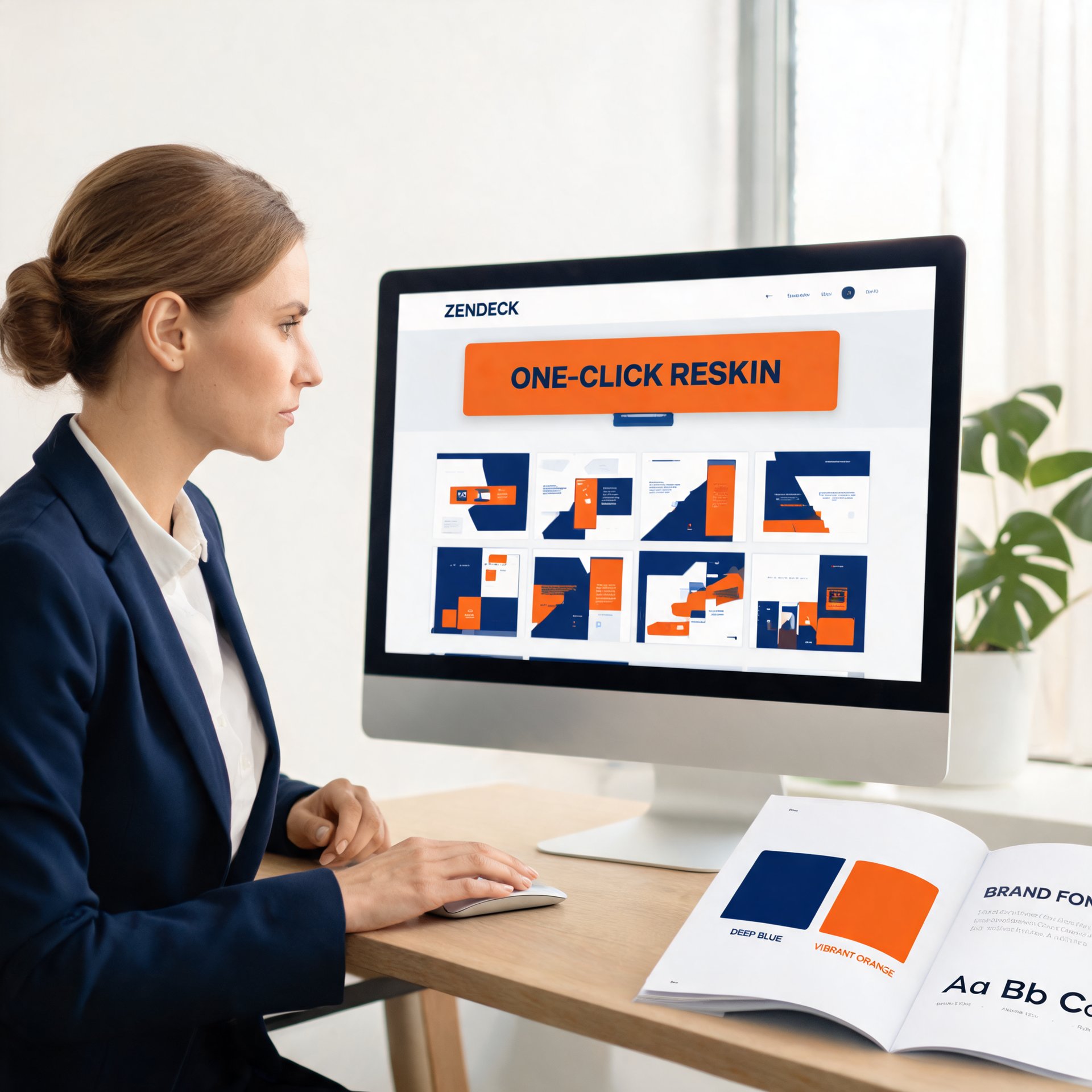
One-Click Reskin: Rebrand Your Entire Deck with AI in Minutes
The Hidden Cost of an Unbranded Deck Stack
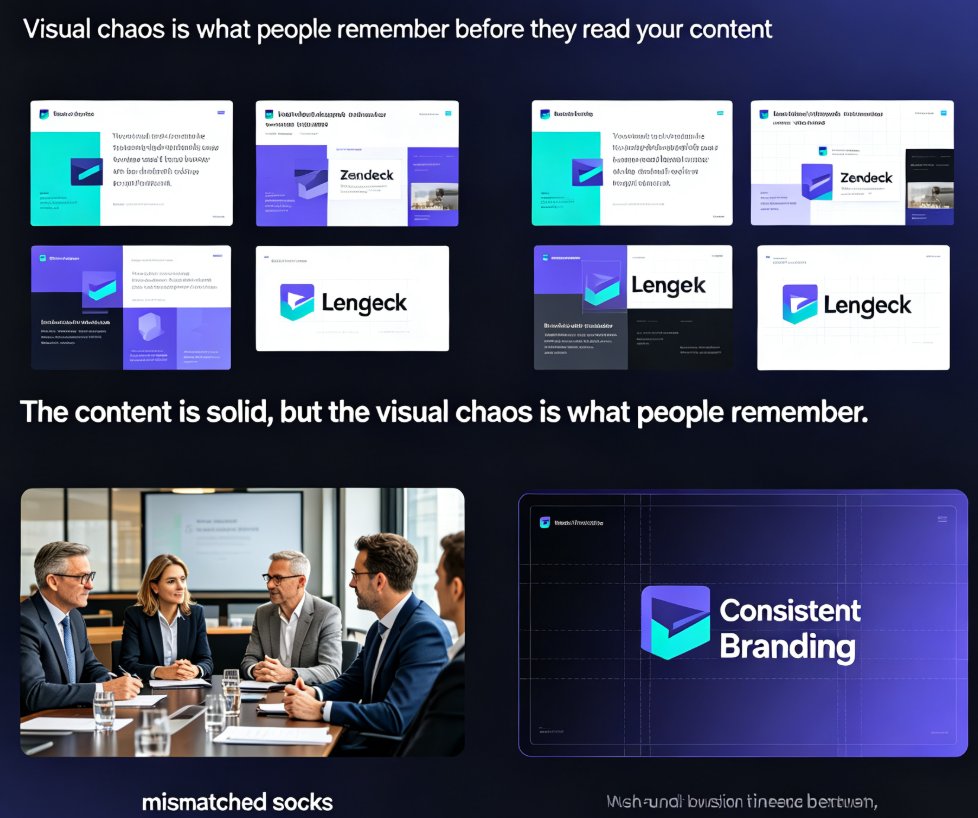
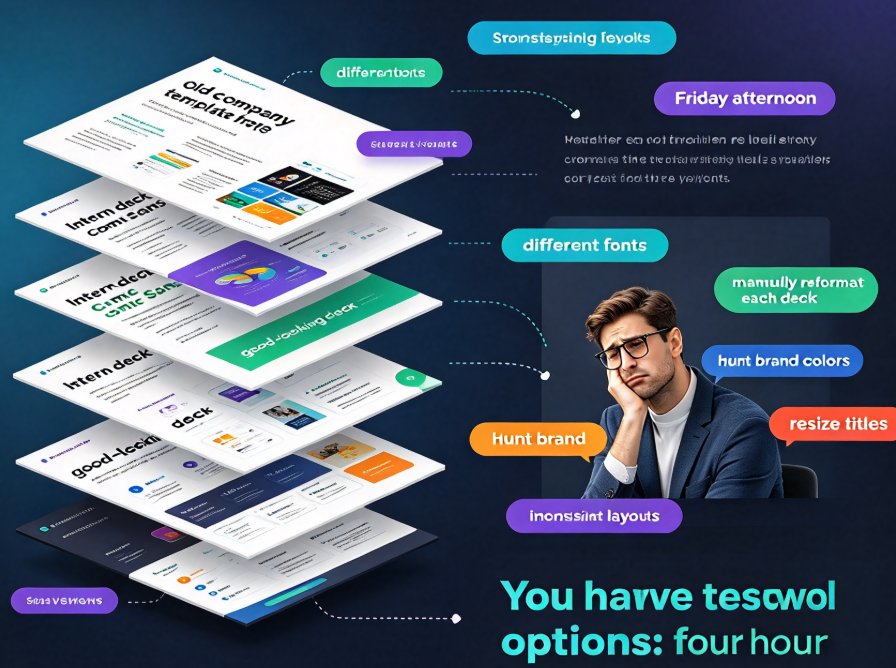
Let's be honest: the last thing you want on a Friday afternoon is to open six different team decks and realize they all follow different fonts, different color schemes, and completely inconsistent slide layouts. One was built on an old company template from 2019. Another was assembled by an intern who loved Comic Sans. The third one actually looks good—so why don't the rest?
You have two options. Spend four hours manually reformatting each deck, hunting down the right brand colors, resizing titles so they line up, and praying you did not miss a stray slide. Or use a one-click reskin and let AI do the whole thing in minutes.
Let's explore why this task is so painful, what exactly happens during a reskin, and how you can use it to finally standardize your entire team's presentations.
I. The Problem: Why Rebranding a Legacy Deck Takes Forever
Every organization has them. Legacy decks. The pitch deck that won you the client back in 2018, but now looks dated. The training courseware that your L&D team built across three different tools. The board deck that keeps getting edited by six people who all use different versions of PowerPoint.
The Real Cost of Manual Reformatting
Here is what most people do when they need to rebrand a deck:
- Open the old file and check what fonts are used
- Search through the brand guidelines for the correct hex codes
- Manually select every text box and change the font
- Recolor all shapes, charts, and icons one by one
- Adjust spacing and alignment so slide looks balanced
- Pray that slide 47 does not look broken
This process takes anywhere from two to six hours per deck, depending on the deck's length and complexity. For a team of ten people each managing their own decks, that is a full workweek burned on formatting. And that is before you factor in the risk of missing something—a single slide with the old font can make the whole deck feel off-brand.
The Emotional Toll, Yes Really
Nobody enjoys being the person who says "we need to update all our decks to the new brand guidelines." You are essentially volunteering to spend days doing what feels like glorified data entry. No design skill involved, no strategic thinking, just clicking and dragging and hoping you get it right.
The good news is that this entire workflow is now obsolete.
II. What Is One-Click Reskin and How Does It Work?
One-click reskin is exactly what it sounds like. You have an existing deck, and you want it to look completely different from a visual standpoint—same content, new style. Instead of manually updating every slide, the AI analyzes your deck's structure and applies a new visual system across all slides in one action.
The Core Mechanics
Here's the process Zendeck follows when you hit the reskin button:
| Step | What Happens | Result |
|---|---|---|
| 1. Analyze | AI scans the deck, identifies fonts, colors, spacing, and layout patterns | A complete map of the visual structure |
| 2. Map | AI maps slide types to the best matching layout in your brand kit or template | Every slide gets an appropriate frame |
| 3. Apply | New colors, fonts, spacing, and backgrounds replace old ones | Visual consistency across the entire deck |
| 4. Adjust | Smart layout fixes overflow, realigns elements, resizes text | No broken slides, no awkward gaps |
| 5. Preview | You review the deck slide by slide and tweak if needed | Full control before you share it |
The whole thing takes seconds per slide, and minutes for a full presentation. Compare that to the manual alternative, and it is not even close.
From Brand Kit to Finished Deck
If you have a brand kit set up, the reskin becomes even smoother. The AI knows your brand colors, your approved fonts, and your preferred layout styles. It applies those brand constraints automatically, which means you do not have to audit every slide for compliance. The system enforces the rules for you.
A practical tip: If you have never set up a brand kit, do it once, and then every future deck starts from a clean and compliant baseline. It is like creating a template for how all your future templates look.
Let's also be clear about what reskinning does not do. It does not rewrite your text, it does not change the narrative flow, and it does not invent new slides. It is a visual transformation, not a content transformation. If your deck needs a stronger storyline, that is a separate workflow—and Zendeck can help with that too, but it is not what reskinning is for.
III. Practical Steps: How to Reskin a Full Deck in Minutes
Let's walk through the exact steps you would take to rebrand an existing deck with Zendeck. This is the workflow that turns a two-hour formatting session into a five-minute coffee break.
Step 1: Upload or Import Your Deck
If your deck lives in PowerPoint, just upload it directly. If you have the content in a Word outline or Markdown, you can import that instead and start fresh. Zendeck accepts multiple formats, so the transition is seamless.
Step 2: Choose Your Brand Kit or Template
This is where the magic starts. Select your company brand kit from the library, or pick a premium template that matches the tone you are going for. If you have multiple brands or sub-brands, you can switch between them and preview how each one looks.
Step 3: Hit the Reskin Button
Yes, it is literally a button. One click, and the AI starts transforming every slide. Watch as fonts change, colors shift, and layouts snap into place. It is oddly satisfying.
Step 4: Review and Tweak
After the reskin completes, go through the deck slide by slide. The smart layout engine catches most issues, but you might still want to adjust a chart here or a photo there. Zendeck's editor makes these tweaks intuitive, so you do not need design skills to fix a misaligned element.
Step 5: Export or Share
Once the deck looks right, export it as a PPT file or share it via link with your team. You can even turn it into a narrated video directly, which is useful if the deck is meant for training or internal communication.
That is the whole process. Five steps, a few minutes, and a deck that is completely on-brand.
IV. When Does Reskinning Save You the Most?
Not every deck needs a reskin, and not every reskin is equally valuable. Let's look at the scenarios where this feature earns its keep.
Scenario 1: The Company-Wide Standardization Push
Your company just updated its brand. The logo changed, the color palette shifted, and the font family is different. Every deck in the organization is now out of compliance. Reskinning each deck individually would take days. One-click reskin makes it trivial to update all of them.
Key data point: A team of four people updated 12 sales decks in under an hour using one-click reskin. Manually, the same task was estimated at 3–4 days. That is roughly 30x faster, and nobody had to stay late.
Scenario 2: The Orphan Deck
A former colleague built a brilliant training presentation six months ago. It is packed with useful content, but it has a totally different look from everything your team ships. Reskinning it brings it into the fold without redoing any of the substance.
Scenario 3: The Pitch Deck Refresh
Your standard pitch deck is fine, but it feels stale. You want a new visual direction for an upcoming conference. Apply a fresh template, reskin the deck, and see if the new style resonates. If it does not, one click and you are back to the original.
Scenario 4: The Multi-Author Mess
When five people contribute to a single presentation, each slide often looks like it was made by a different person. Reskinning at the end forces everyone's slides into a unified visual system. The content stays individual, but the deck finally looks like one person designed it.
V. The Data Case: Why It Is Not Just Faster, but Better
Speed is the obvious win, but the quality improvement matters just as much. Here is what a comparison of manual rebranding versus AI reskinning tends to show.
Accuracy is the silent killer in manual rebranding. Miss one slide, and that deck is not fully compliant. The more slides you have, the higher the chance of human error. A 50-slide deck with a 95% attention to detail still has two or three slides off-brand. That is acceptable only when nobody notices, which usually does not end well.
AI reskinning does not get tired after slide 30. Every slide is processed with the same level of attention, regardless of the deck length. And the smart layout engine catches issues that a tired human would simply miss.
| Factor | Manual Rebranding | One-Click Reskin |
|---|---|---|
| Time per 30-slide deck | 2–4 hours | 3–5 minutes |
| Consistency across slides | Depends on attention | Guaranteed by AI |
| Error rate | Higher on longer decks | Consistent |
| Design quality | Limited by your skills | Leverages smart layouts |
| Brand compliance | Manual audit needed | Enforced automatically |
| Effort to redo | Painful | One click |
Here is the bottom line: reskinning is not a marginal improvement—it is the difference between dreading a rebrand project and finishing it between two meetings.
VI. How It Connects to the Bigger Picture
Brand Consistency at Scale
One-click reskinning is part of a broader transition in how companies handle presentation design. Instead of relying on individual discipline to follow brand rules, tools now enforce compliance automatically. This is what we mean by zero-design brand governance: the system makes it structurally difficult to produce an off-brand deck.
From Templates to Context-Aware Design
Traditional templates are static. You pick one, fill it in, and hope it works. The next generation of tools, including Zendeck, moves beyond that. Context-aware design analyzes the content you put on a slide and adjusts the layout to fit, which is what a reskin actually relies on under the hood. It is not just swapping colors; it is understanding how the new colors and fonts interact with your specific content.
The Role of Asset Libraries
When you reskin a deck, the visuals matter just as much as the fonts. Consistent icons, charts, and illustrations complete the transformation. A deck that uses the same visual vocabulary across all slides feels professional in a way that a deck mixing clip art and mismatched charts never will.
VII. Common Mistakes to Avoid When Reskinning
Even with a one-click solution, there are a few pitfalls worth knowing about.
Mistake 1: Reskinning Before Cleaning Up the Content
If your deck is full of outdated data or broken charts, reskinning only makes it look better while the content underneath is still wrong. Run the content pass first, then apply the new visuals. This way, you are not polishing a deck that you will need to heavily edit later.
An honest warning: You might be tempted to skip the content audit because it feels unnecessary. Do not. A beautiful deck with incorrect numbers is worse than an ugly deck with correct ones.
Mistake 2: Ignoring the Preview Step
The one-click part is real, but so is the review. Spend a couple of minutes scanning the reskinned deck. The AI is smart, but it does not know your audience the way you do. A quick look catches the edge cases that automation might miss.
Mistake 3: Using an Outdated Brand Kit
Make sure your brand kit actually reflects your current brand. If it is still set to the old colors, you will reskin everything into the style you are trying to move away from.
Mistake 4: Forgetting Accessibility
If your new colors have poor contrast, the deck becomes hard to read for some audience members. Zendeck accounts for this to some degree, but it is worth double-checking key slides, especially if you present to large or diverse groups.
VIII. The Outcome: A Team That Actually Ships On-Brand Decks
The best part about one-click reskin is what it does to your team's habits. When reformatting takes minutes instead of hours, people stop avoiding the task. Decks get updated, brand guidelines actually get followed, and the overall quality of what you ship goes up.
It also changes how you think about branding. Instead of treating it as a set of rules to remember, it is embedded in the tools you already use. You just create, and the system keeps you in line. That is less mental overhead for everyone.
For educators, the same principle applies to courseware. Old training decks can be reskinned to match current visual standards, or to align with a new learning management system's design language. You keep the pedagogical content and update the visual frame.
For startups, this is the difference between looking like a scrappy team and looking like a company that has its act together. Investors notice consistent fonts and colors. It is a subtle signal, but it matters.
IX. How to Get Started
If you are tired of playing font cop or spending entire evenings manually reformatting decks, the path is clear.
- Sign up or log in to Zendeck
- Upload an existing deck that needs rebranding
- Select or create a brand kit
- Hit the reskin button and watch the transformation
- Export your polished, on-brand deck
The first time you do it, you will wonder how you tolerated the old process for so long.
Final Thought
One-click reskinning does not make you a better designer. It makes you faster, more consistent, and less likely to ship a deck that embarrasses your brand. That is a pretty good deal for a single button.
FAQ
Does Zendeck's one-click reskin change my slide content?
No. Reskin only touches visual styles—fonts, colors, spacing, backgrounds, and layout framing. Your text, charts, data, and narrative flow stay exactly as written. If you want to restructure the storyline or rewrite the copy, that is a separate workflow, and Zendeck can assist there too via its AI outline features.
Can I apply a reskin to a deck built by another tool or an old PPT file?
Yes. You can upload existing PowerPoint files or import a Word outline into Zendeck. Once the deck is in the editor, one-click reskin will apply your selected brand kit or template across all slides, regardless of how the deck was originally created.
What if some slides have complex layouts after reskinning?
Zendeck's smart layout engine checks each slide after applying the new style. If a slide has too much content for the new layout, the AI adjusts spacing, font sizes, and element positions to prevent overflow or awkward gaps. You can also manually tweak any slide, and the reskin settings stay intact for that slide.
Is the one-click reskin suitable for a company-wide brand rollout?
Absolutely. That is actually one of its best uses. Create or import your brand kit, define the color palette, fonts, and standard layouts, then apply it to every deck in your team library. New decks can use the same brand kit as a starting template, so everything stays visually consistent without anyone having to remember the brand rules.
Does reskinning affect accessibility or readability?
Zendeck keeps contrast and legibility in mind during the restyle. If a text color from your brand kit has too little contrast against a background, the AI adjusts the shade or suggests an alternative while staying within your brand palette. You can also review each slide after the reskin and tweak contrast manually if needed.