Keep Training Decks On-Brand with Zendeck's One-Click Reskin
You've seen it a hundred times. A sales trainer opens a deck on Monday, and the fonts look like they came from a 2003 template. By Friday, another trainer's deck uses a completely different color palette. Nobody is trying to break the brand — it just happens because everyone builds slides differently.
For corporate L&D and HR teams, this is a constant headache. You're responsible for training content that reflects the company, but you can't babysit every deck your trainers create.
The result: a training library that looks like it was assembled by five different companies.
The good news? You don't need to hire a designer or become one yourself. You need a system.
01 Why Training Decks Keep Going Off-Brand
The problem isn't bad intentions. It's workflow.
When a team of trainers, HR specialists, and L&D coordinators each builds presentations from scratch, they make different design decisions. One person loves dark backgrounds. Another prefers white space. Someone else grabs a template from a random website because it "looks professional."
This is exactly why most AI presentation tools make things worse, not better. They generate slides with random visual styles. You get a deck that looks fine in isolation but completely breaks your brand when placed next to everything else your team produces.
Consistent branding makes presentations look professional and credible. When every slide follows the same visual standards, the audience focuses on the content instead of being distracted by inconsistent design.
For corporate training specifically, the stakes are higher. Learners are already juggling new information. If they're also processing visual inconsistency — "wait, why did the colors change?" — their cognitive load doubles. Your content gets lost in the noise.
02 What One-Click Reskin Actually Does
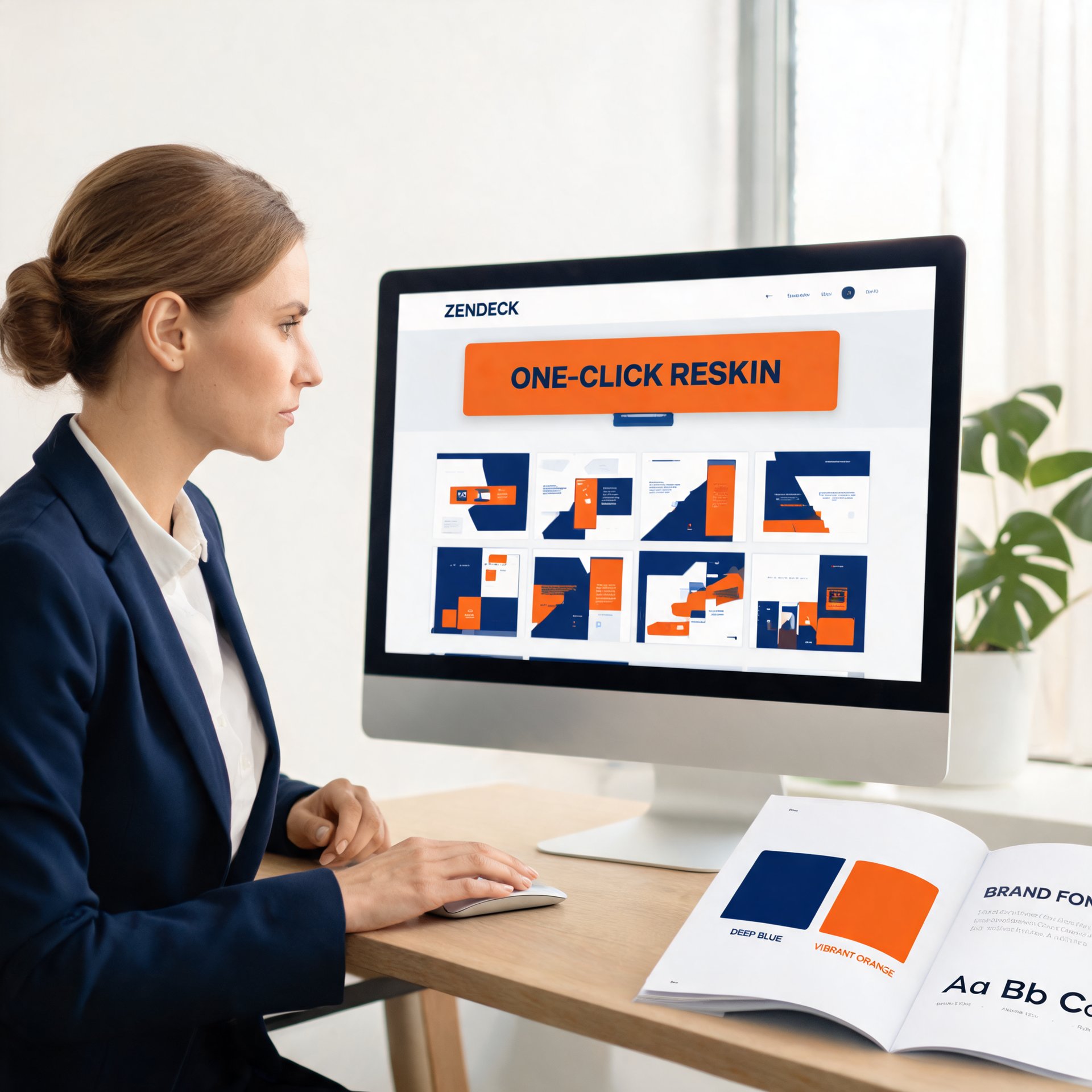
Here's where Zendeck takes a different approach. Instead of letting the AI pick colors and fonts arbitrarily, one-click reskin applies your saved brand identity across the entire deck — fonts, colors, logo placement, layout rhythm — in a single action.
One click. Every slide. Same brand. No design skills required.
The reskin feature works with your existing content. You don't need to rebuild slides or copy-paste elements. The AI reads your brand kit, then systematically applies it to every slide in the deck. If a slide uses a color outside your palette, it gets corrected. If a font isn't in your approved list, it gets swapped.
Here's a quick comparison of what this saves you:
| Task | Manual Approach | One-Click Reskin |
|---|---|---|
| Apply brand colors | Update each slide's theme manually | Applied automatically across all slides |
| Fix fonts | Replace font-by-font, slide-by-slide | Swapped in one pass |
| Logo placement | Drag and position on every slide | Consistent placement applied automatically |
| Time for a 50-slide deck | 2-4 hours | Under 2 minutes |
| Error rate | High (missed slides, inconsistent sizes) | Low (systematic application) |
That time difference matters when you're managing a training calendar with multiple decks shipping every week.
03 Set Up Your Brand Kit First
Before you reskin anything, you need a brand kit. This is the single source of truth for your visual identity.
In Zendeck, you can create a custom brand kit that stores your logo (with placement rules), brand colors (primary, secondary, accent), approved fonts for headings and body, and layout preferences.
A brand kit turns "make it on-brand" from a vague request into a repeatable system.
If you haven't set one up yet, start with your existing brand guidelines. Pull the hex codes from your style guide, export your logo files, and list your approved typefaces. Then upload everything into Zendeck's brand kit settings.
For a deeper walkthrough, check out our guide on setting up brand kits in Zendeck. You can also explore five ways to create a custom brand kit for consistent decks across your team.
04 The Reskin Workflow: Step by Step
Let's walk through a real scenario. You're an L&D manager with three training decks from different trainers. Each one uses different fonts, colors, and layouts. You need them all to match your corporate brand before next week's onboarding session.
Step 1: Open each deck in Zendeck. Step 2: Confirm your brand kit is active (or create one if it isn't). Step 3: Hit the reskin button. Step 4: Review the changes slide by slide. Step 5: Export or share.
That's it. The whole process takes minutes per deck, not hours.
The key difference: you're not fixing slides one by one. You're applying a system to the entire deck at once.
If you're dealing with slides that look especially messy after AI generation, our guide on fixing off-brand AI slides covers common issues and quick solutions.
05 Keeping Consistency Across a Team
One-click reskin solves the immediate problem, but the bigger challenge is preventing off-brand decks from being created in the first place.
Here's what works:
Make the brand-compliant option the easiest option. When your team opens Zendeck, they should see your branded templates first. They shouldn't have to hunt for them. Set your brand templates as the default starting point.
Create quick reference materials. A one-page brand summary — logo placement, color hex codes, approved fonts — helps trainers self-check before they even start building.
Teach brand troubleshooting. If a font isn't available, what's the approved substitute? If a slide needs a color outside the palette, how do you find a complementary one that still fits? These small decisions add up.
For teams that need to scale this across hundreds of decks, Zendeck's AI brand kits handle the heavy lifting. Learn more about maintaining brand consistency across hundreds of slides.
06 Measuring Brand Compliance
You can't improve what you don't measure. Here's a simple framework your team can adopt:
| Check | What to Look For | Frequency |
|---|---|---|
| Logo placement | Logo in correct position, correct size, no distortion | Monthly |
| Color accuracy | Hex codes match brand palette | Monthly |
| Font usage | Only approved typefaces used | Monthly |
| Layout consistency | Similar slide structures across decks | Quarterly |
| Overall brand feel | Deck looks like it belongs to your company | Quarterly |
Regular brand audits catch problems before they become habits. If everyone keeps using the wrong font, the problem is likely your templates or training — not individual team members.
FAQ
Q: How long does one-click reskin take on a 50-slide deck? A: Typically under two minutes. The AI processes the entire deck in one pass, applying your brand kit to every slide simultaneously. Compare that to the two to four hours it takes to manually update colors, fonts, and logos across the same deck.
Q: Can I manually edit slides after reskinning? A: Yes. Reskin applies brand standards automatically, but you can still manually adjust individual slides afterward. The reskin is a starting point, not a cage — you keep full control over the final output.
Q: Does reskin work with imported Word documents or existing PPT files? A: Yes. You can import content from a Word outline or an existing PPT file and then apply your brand kit via reskin. This is especially useful for converting legacy training materials into on-brand decks without rebuilding them from scratch.
Q: What if my brand has multiple sub-brands or campaign-specific colors? A: You can create multiple brand kits and switch between them. Each deck can use a different kit depending on the audience, campaign, or business unit, so you stay consistent without being rigid.
Q: Do I need design skills to use one-click reskin? A: No. The entire point is to remove design decisions from the process. If you can click a button, you can reskin a deck. The brand kit does the design thinking for you.