Reformat Decks for Rebranding? Zendeck's One-Click Reskin Saves Hours
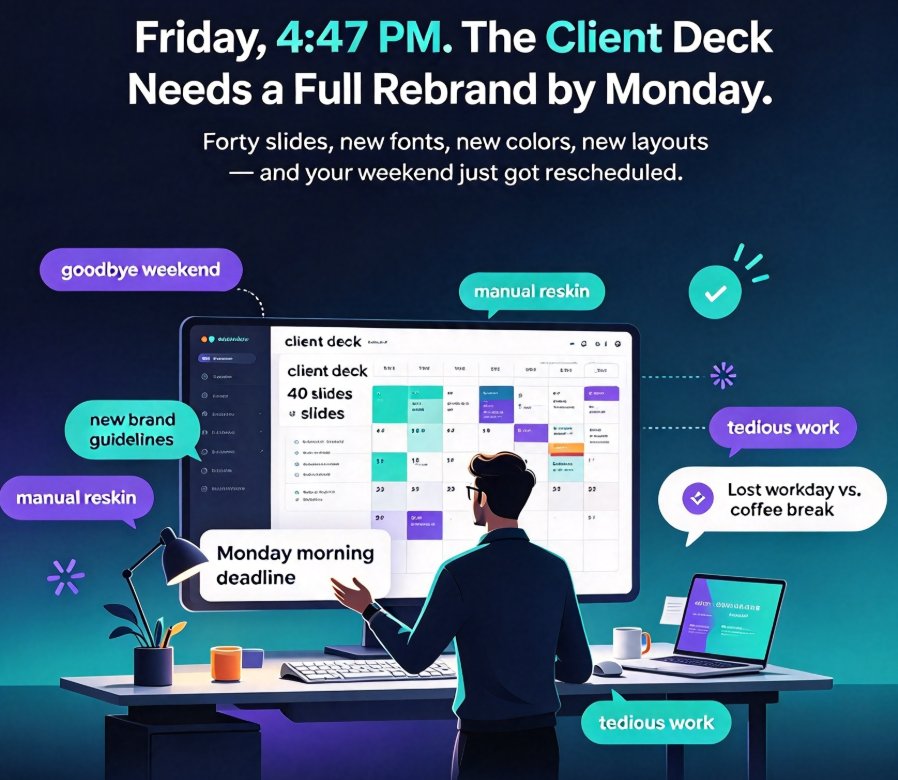
Friday, 4:47 PM. Your boss just dropped a "quick ask" — the entire client deck needs to match the new brand guidelines by Monday morning. Forty slides. New fonts, new colors, new layouts.
You look at your calendar and mentally say goodbye to your weekend.
We've all been there. And the worst part isn't the work itself — it's knowing how much of it is avoidable.
Rebranding isn't a design problem. It's a time problem — and Zendeck's one-click reskin is the difference between a lost workday and a coffee break.
01 Why Manual Reskinning Feels Like a Tax on Your Sanity
Let's be real: reskinning an existing deck by hand is tedious. Not difficult — tedious. And there's a big difference between those two. Difficult work engages your brain. Tedious work just eats it.
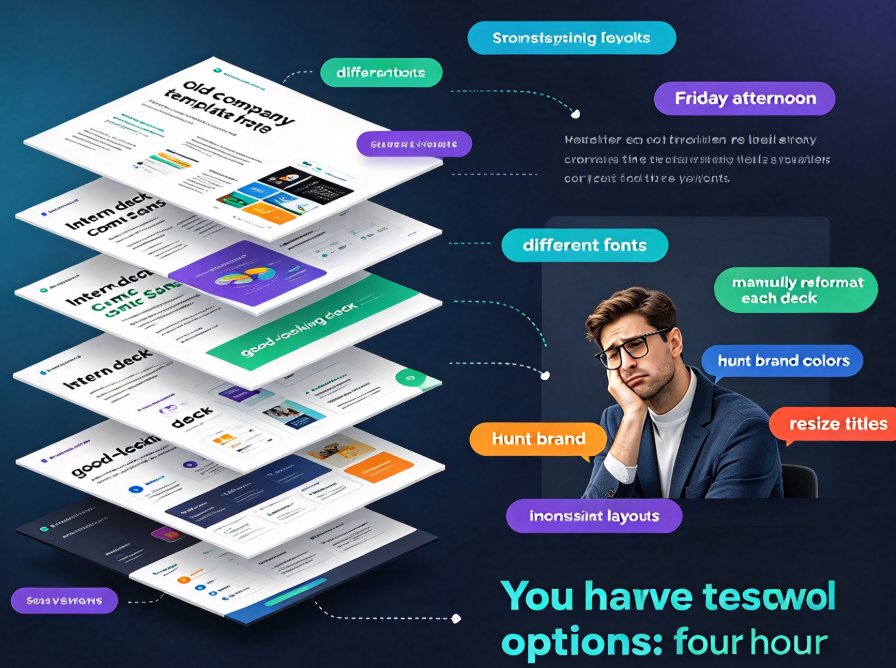
You start with fonts. You update the title font on slide 3... and forget slide 14, which still uses Helvetica while everything else is Inter. Then colors. Your new brand red isn't quite your old brand red, and now slide 7 has a footer that's still locked to the previous hex code.
The same story plays out in every organization that's been through a rebrand:
- Font inconsistency — someone updated the wrong slide master, and now half the deck uses the old typeface
- Rogue colors — hex codes that drifted from the official palette somewhere between departments
- Broken layouts — text boxes that badly fit the new template, leaving awkward empty space or overflow
- Footer and logo updates — dozens of tiny manual edits you'll never fully catch
- Frankenstein slides — decks assembled from five different templates that never matched in the first place
And the cost of these mistakes? It's not just hours. Off-brand decks erode trust with clients, and inconsistent visuals make your entire team look disorganized. As Prezent's template converter guide puts it, the goal is to say goodbye to "outdated decks, off-brand fonts, and rogue colors" — but doing it manually is a full day's work.
02 What Rebranding Really Costs (and Why Teams Avoid It)
Why do teams put off rebranding for months? Because they know what awaits: hours of mechanical, soul-sucking slide surgery.
Here's a realistic picture of what that looks like in practice:
| What Needs Fixing | Manual Approach | Typical Outcome |
|---|---|---|
| Fonts | Slide-by-slide replacement | Missed slides; mixed typefaces |
| Colors | Manual hex code updates | Drift and rogue shades remain |
| Layouts | Rebuild slide masters | Misaligned boxes; overflowing text |
| Template swap | Rebuild from scratch | Hours of rework; lost design intent |
| Team coordination | Chasing everyone to comply | Delayed launches; grumbling |
The pattern is so consistent that most teams simply avoid rebranding entirely. They keep shipping off-brand decks because the cost of fixing them seems worse than the cost of ignoring them.
Teams don't fail at rebranding because they lack design skills; they fail because manual reskinning is monotonous, error-prone work that eats hours from higher-value tasks.
The real bottleneck isn't not knowing what to change. It's having to change it manually, every single time.
03 One Click. Whole Deck Updated. That's the Point.
This is where Zendeck's one-click reskin changes the conversation.
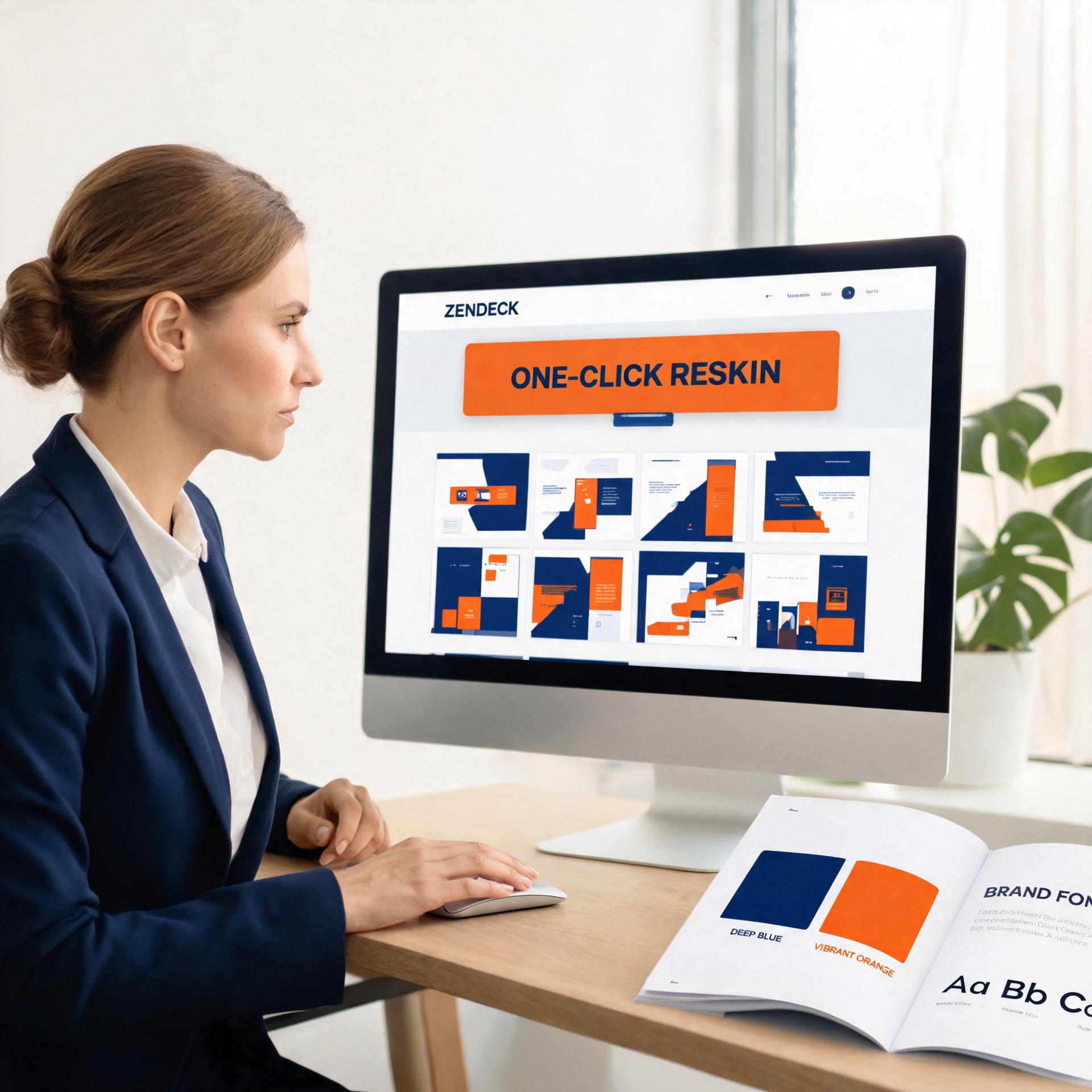
Instead of opening PowerPoint or Google Slides and manually hunting down every element that needs updating, you let Zendeck handle the whole thing — fonts, colors, layouts — unified across every slide in your deck in one action.
Here's what a reskin actually does:
- Unifies fonts across all slides, applying your chosen type hierarchy consistently
- Applies your brand palette to backgrounds, text, accents, and chart elements
- Reshapes layouts so text boxes and images conform to the new template without overflow or awkward gaps
- Swaps templates entirely when you need a full brand shift, not just a color tweak
- Preserves your content — the words, structure, and data stay exactly where you wrote them
The result? A deck that looks like it was born in the new brand. Not a deck that was "converted" — a deck that appears purpose-designed.
The outcome: from legacy deck to fully on-brand in minutes. Not hours. Not a lost weekend.
04 The Real Workflow: From Legacy Deck to On-Brand in Minutes
Let's walk through the actual workflow, because this is where the value becomes tangible.
Step 1: Upload your existing deck. Word outline, Markdown, or an existing PPT. Doesn't matter how messy it is — that's the tool's job to clean up.
Step 2: Pick your template. Your brand template, a new template from the library, or something custom. AI deck template selection matches the template to your content type, so you're not stuck with a generic layout that fights your material.
Step 3: Click reskin. Fonts, colors, layouts — all unified with a single action. No slide-by-slide hunting. No chasing discrepancies.
Step 4: Review and refine. Maybe you want to swap the hero image on slide 12 or adjust a chart color on slide 28. You can. But the mechanical reskinning work is already done.
The full cycle takes minutes, not hours. And if you're on a team, the benefit multiplies: when everyone reskins from the same template, brand consistency stops being an individual responsibility and becomes an automatic default. Setting that up is easier than you'd think — more on that below.
05 The Hidden Win: Smart Layout Means Fewer Design Decisions Later
Here's the part people don't expect from a reskin: it's not just a paint job.
Because the smart layout re-flows content into the new template's structure, you're not only updating colors — you're standardizing layouts across the deck. Text boxes that were misaligned get corrected. Overflowing text gets re-flowed. Content that previously felt cramped now has room to breathe.
This is the difference between a reskin and a real transformation. A reskin changes the paint. A real tool changes the structure. And the outcome is a deck that doesn't look "rebuilt" — it looks designed.
The real ROI you should measure isn't hours spent. It's hours not spent.
And when you pair smart layout with the asset library's icons, charts, and illustrations, you're not just reskinning — you're elevating the deck's quality bar with minimal effort.
06 When Reskinning Won't Save You (Be Honest)
Let's be honest about the edge cases, because pretending reskinning is magic never helps anyone.
Very old, image-heavy decks. If your deck is 80% raster images with baked-in text, a reskin updates the master, but those images won't magically match your new brand. You'll still need to swap them out.
Genuinely bad content. Reskinning won't fix weak arguments or confusing structure. It makes bad content look clean — which is often enough to avoid embarrassment, but it won't turn a vague pitch into a sharp one.
Massive 200+ slide decks. The reskin handles the formatting, but reviewing 200 slides takes time no matter what. Plan for it.
Custom animations. If your old deck relies heavily on specific animations, they may not survive a template swap intact. Consider it a reason to refresh motion design anyway.
For the other 90% of everyday corporate decks — client proposals, training materials, quarterly reviews — the reskin handles the heavy lifting while you handle the judgment calls.
07 Beyond One-Time Reskin: Making Brand Consistency Reusable
The real power move? Don't treat reskinning as a one-off repair job. Make it a system.
When you build a custom brand kit in Zendeck, every future deck you create inherits those settings. New decks are born on-brand from the start. Legacy decks can be brought up to spec in a single click whenever you need them.
This is what AI-governed brand consistency looks like in practice: not policing people's slides, but making compliance automatic. Your team never has to remember the official brand color hex, because the system already knows.
The shift matters. Instead of reactive reskinning every time branding changes — hunting down rogue colors and mismatched fonts — you get proactive consistency. Every deck matches, every time, without anyone managing it.
And if you're curious about where this is heading with agentic AI in presentation tools, reskinning is already part of the larger automation trend, where decks adapt not just to branding, but to audiences and contexts.
FAQ
How fast is a Zendeck one-click reskin?
Seconds to a few minutes for a full deck, depending on slide count and how much custom review you want afterward. The mechanical formatting is instant; your review time is the only variable.
Does reskinning change my content?
No. The reskin affects visual styling — fonts, colors, layouts, template structure — not your actual words, data, or narrative. Your content stays exactly where you put it.
Can I switch between templates after reskinning?
Yes. You can reskin to a new template any time — you're not locked in. If branding shifts again or you need a client-specific template, just re-reskin from the updated template.
What if my deck has orphaned slides or inconsistent layouts?
That's actually the tool's strength. The reskin unifies layouts across the entire deck, fixing misaligned text boxes, nonstandard footers, and slides that don't match the master.
Does Zendeck's reskin work for courseware and training decks too?
Absolutely. It's the same mechanism teams use to standardize courseware across programs and keep training materials visually consistent — whether you're on the office efficiency track or building out structured learning content.