Complex Word Docs Break PPT? Zendeck AI Rebuilds Clean Slides
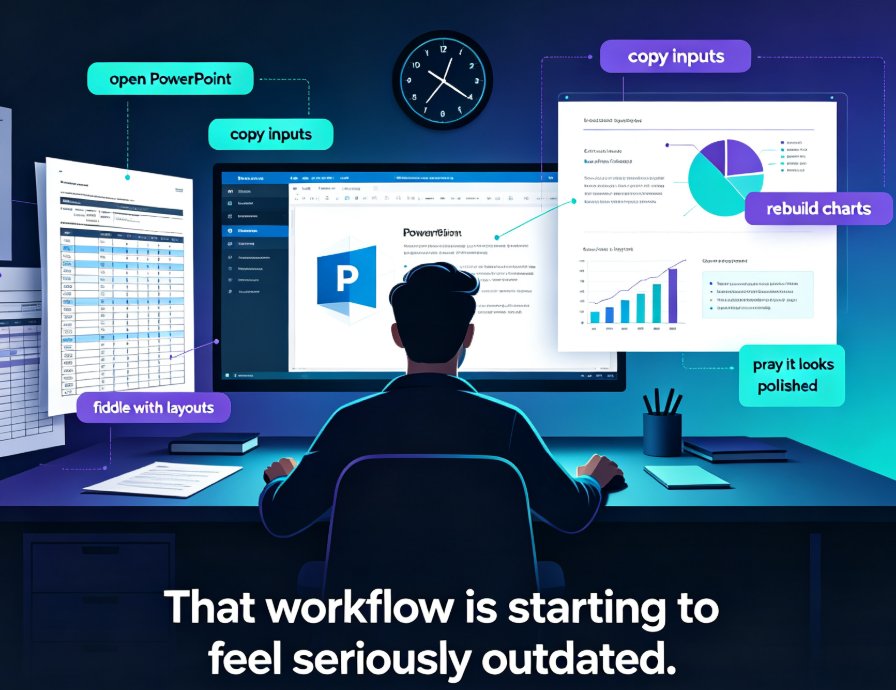
You know the drill. You've spent three days perfecting a 40-page Word document — nested heading styles, embedded charts, a comparison table that took you an hour to format, screenshots with detailed captions. Then you try to convert it to a presentation. The result? Text overflows slide edges, tables collapse into unreadable mush, and your carefully structured hierarchy of headings becomes a flat wall of bullet points.
Let's be real: this isn't a rare edge case. It's the everyday reality for educators, trainers, HR teams, and content operators who live in Word but present in PowerPoint.
The core problem isn't the conversion tool — it's the approach. Most tools try to "import" your document, mapping Word content onto slide placeholders and hoping the formatting survives. Zendeck does something fundamentally different: it reads the document's structure, understands the hierarchy of headings, tables, and images, and rebuilds each section as a clean, professionally designed slide from scratch.
I. Why Complex Word Documents Break in PPT
The Three Usual Suspects
Nested heading styles. Word documents often use Heading 1, Heading 2, and Heading 3 in ways that don't map cleanly to slide titles and subtitles. When a converter tries to force this hierarchy into a flat slide structure, you get either too many slides or one overcrowded slide with a wall of text.
Tables and data blocks. A 6-column comparison table that looks perfect on a Word page becomes a disaster on a 16:9 slide. Columns shrink to unreadable widths, rows wrap awkwardly, and the whole thing looks like a spreadsheet that got hit by a truck.
Embedded images and captions. Screenshots, diagrams, and charts with captions are the first casualties of naive conversion. Images get stretched, cropped, or dumped at random positions. Captions detach from their images and float somewhere in the slide margins.
The Hidden Cost
Here's what nobody tells you: the actual conversion takes 30 seconds. The cleanup takes 3 to 6 hours. You're not saving time — you're just shifting the work from "building slides" to "fixing broken slides."
This is exactly the problem we covered in our guide to why AI-generated slides still look messy — the root cause is almost always a mismatch between the source document's structure and the target slide format.
II. Import vs. Rebuild: The Fundamental Difference
Most tools treat your Word document as a set of text blocks to be placed onto slides. Zendeck treats it as a structured outline with semantic meaning.
| Aspect | Traditional Import | Zendeck AI Rebuild |
|---|---|---|
| Approach | Maps text onto slide placeholders | Parses document structure, rebuilds each section as a designed slide |
| Heading hierarchy | Flattens to bullet points | Preserves as slide titles, subtitles, and section dividers |
| Tables | Shrinks to fit, often unreadable | Rebuilds as clean, styled data tables or charts |
| Images | Stretches or crops to placeholder | Reflows with proper aspect ratio and captions |
| Nested lists | Merges into one giant bullet list | Splits into logical slides with clear hierarchy |
| Time for 40-page doc | 2.5 hours of manual fixes | ~15 minutes, mostly review |
| Result | "Good enough" but messy | Presentation-ready, on-brand |
The key insight: Zendeck doesn't convert your document — it reconstructs it. The AI reads the outline, identifies the narrative arc, and generates slides that match the document's intent, not just its text.
III. How Zendeck Rebuilds Complex Documents into Clean Slides
Step 1: Upload or Paste Your Document
You can upload a Word file directly or paste Markdown/TXT content. Zendeck's parser handles the messy stuff — inline styles, weird spacing, embedded objects — and extracts the semantic structure underneath. If you're already working in Google Docs, Zendeck's Word and Google Docs integration means you don't even need to download and re-upload.
Step 2: The AI Reads the Structure
This is where the magic happens. The AI identifies:
- Heading levels → slide titles, subtitles, and section dividers
- Body text → concise slide content, not copy-pasted paragraphs
- Tables → either rebuilt as styled tables or converted to charts
- Images → placed with proper sizing and captions
- Lists → split into logical slide groupings
Step 3: Template Matching and Layout
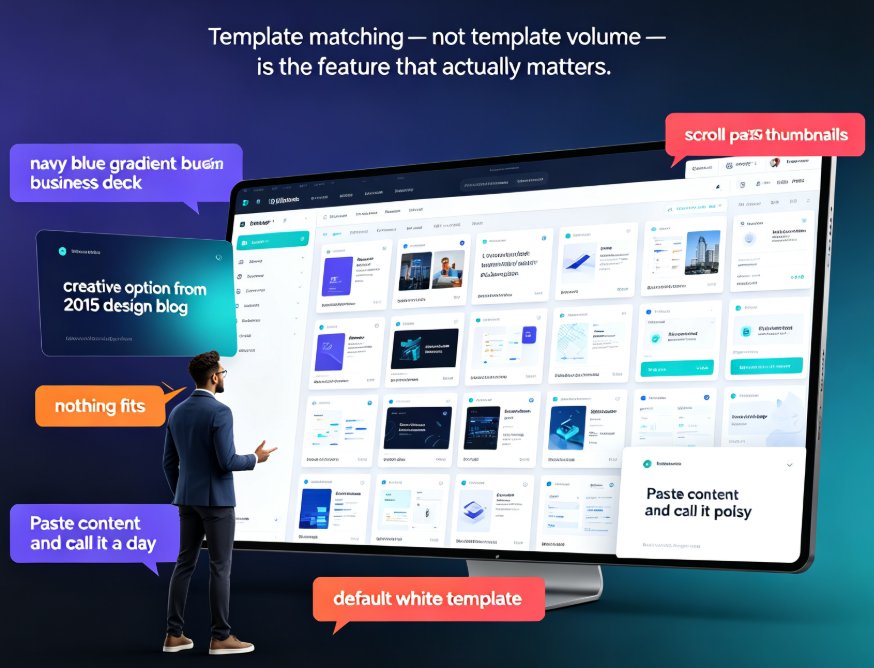
Zendeck matches the document's content type to an appropriate template from its library. A training manual gets a courseware layout; a business proposal gets a corporate deck layout. The AI then applies smart layouts that respect your brand colors and fonts. If you want to control this step more tightly, you can set up a custom brand kit so every generated deck stays on-brand automatically.
Step 4: Review and Refine
You're not done yet — and you shouldn't be. The AI gets you 90% of the way; your review gets you the last 10%. Zendeck's editor lets you tweak individual slides, swap templates, and adjust layouts without breaking the rest of the deck.

IV. What Actually Gets Rebuilt: A Field Guide
Tables → Data Slides
A dense 8-row table in Word becomes a clean, scannable data slide in Zendeck. The AI can even suggest converting certain tables into charts — a bar chart for trends, a pie chart for proportions — which is almost always more effective than the original table. For more on this, check out how Zendeck's asset library handles interactive charts.
Nested Lists → Structured Slides
That 3-level nested list in your Word doc? Zendeck splits it into logical slides, with each top-level item becoming a slide title and the sub-items becoming concise bullet points. No more 12-bullet slides that nobody reads.
Images and Captions → Visual Slides
Screenshots and diagrams get reflowed with proper aspect ratios. Captions stay attached. The AI even suggests better image placement based on the slide layout — full-width for hero images, side-by-side for comparisons.
Heading Hierarchy → Slide Flow
The biggest win is structural. Your Word document's heading hierarchy becomes the presentation's narrative flow. Heading 1 sections become slide sections, Heading 2 items become individual slides, and Heading 3 items become content blocks within slides. This is where Zendeck's approach diverges most dramatically from traditional import tools — and where you save the most time.
V. Real Scenarios: Who Benefits Most
The Educator Converting Course Materials
You've got a 60-page course outline in Word with learning objectives, module breakdowns, assessment criteria, and reading lists. Converting it to slides manually takes an entire evening. With Zendeck, you upload the document and get a structured course deck in minutes. The AI even recognizes pedagogical patterns — objectives become slide titles, assessment criteria become comparison tables. Trainers looking for template guidance can browse Zendeck's library guide for trainers.
The HR Manager Turning Policies into Training
HR policies are the worst Word documents to convert: dense legal text, exception tables, procedural flowcharts. Zendeck's rebuild handles the density by splitting content into digestible slides and converting procedural text into step-by-step layouts.
The Trainer Repurposing Workshop Materials
Workshop facilitation guides are full of timings, activities, and discussion prompts. Zendeck recognizes these patterns and rebuilds them as trainer-friendly slides with clear activity headers and timing callouts. If you're building training content at scale, this is the workflow that turns a weekend project into a 30-minute task.
VI. A Practical Workflow That Saves Hours
Here's the workflow I've found works best:
- Clean up your Word doc first — remove orphaned styles, delete empty paragraphs, and make sure your heading hierarchy is consistent. This takes 10 minutes and dramatically improves the AI's structural understanding.
- Upload and let Zendeck do its thing — don't interrupt the generation process. Let the AI finish its full pass before you start editing.
- Review the outline, not the slides — check the slide titles first. If the narrative flow is right, the details are easy to fix. If the flow is wrong, fix the outline and regenerate.
- Fix slides in batches — don't fix one slide at a time. Use Zendeck's template reskin to fix layout issues across the whole deck at once.
- Export and present — download as PPTX, PDF, or turn it into a narrated video with Zendeck's PPT-to-Video feature.
One thing I've learned the hard way: don't try to make the Word document "presentation-ready" before converting. You'll spend hours formatting a document that Zendeck is going to rebuild anyway. Focus on the content and structure, and let the AI handle the design.
If you're new to AI-generated decks, start with Zendeck's prompt-to-deck workflow to see how the same engine handles documents, outlines, and raw prompts. And if you're wondering whether AI deck generation is really replacing traditional PPT workflows, the 2026 trend data suggests the answer is a clear yes.
VII. FAQ
Q: Can Zendeck handle Word documents with complex tables and embedded images?
A: Yes. Zendeck's parser extracts tables, images, and their captions from Word documents and rebuilds them as clean, styled slide elements. Tables can be converted to charts, and images are reflowed with proper aspect ratios.
Q: What's the difference between Zendeck and PowerPoint's "Import Word" feature?
A: PowerPoint's import maps Word content onto slide placeholders, which often results in overflowing text and broken tables. Zendeck reads the document's semantic structure — heading hierarchy, content types, narrative flow — and rebuilds each section as a designed slide from scratch.
Q: Do I need to reformat my Word document before uploading?
A: No. Zendeck handles messy formatting, inline styles, and inconsistent spacing. A quick cleanup of heading styles helps the AI understand structure better, but it's not required.
Q: Can I edit the slides after Zendeck generates them?
A: Absolutely. Zendeck's online editor lets you tweak individual slides, swap templates, and adjust layouts. You can also reskin the entire deck with one click to apply a different template or brand style.
Q: What output formats does Zendeck support?
A: You can export as PPTX, PDF, or use Zendeck's PPT-to-Video feature to turn your slides into a narrated micro-course with voiceover and subtitles.